

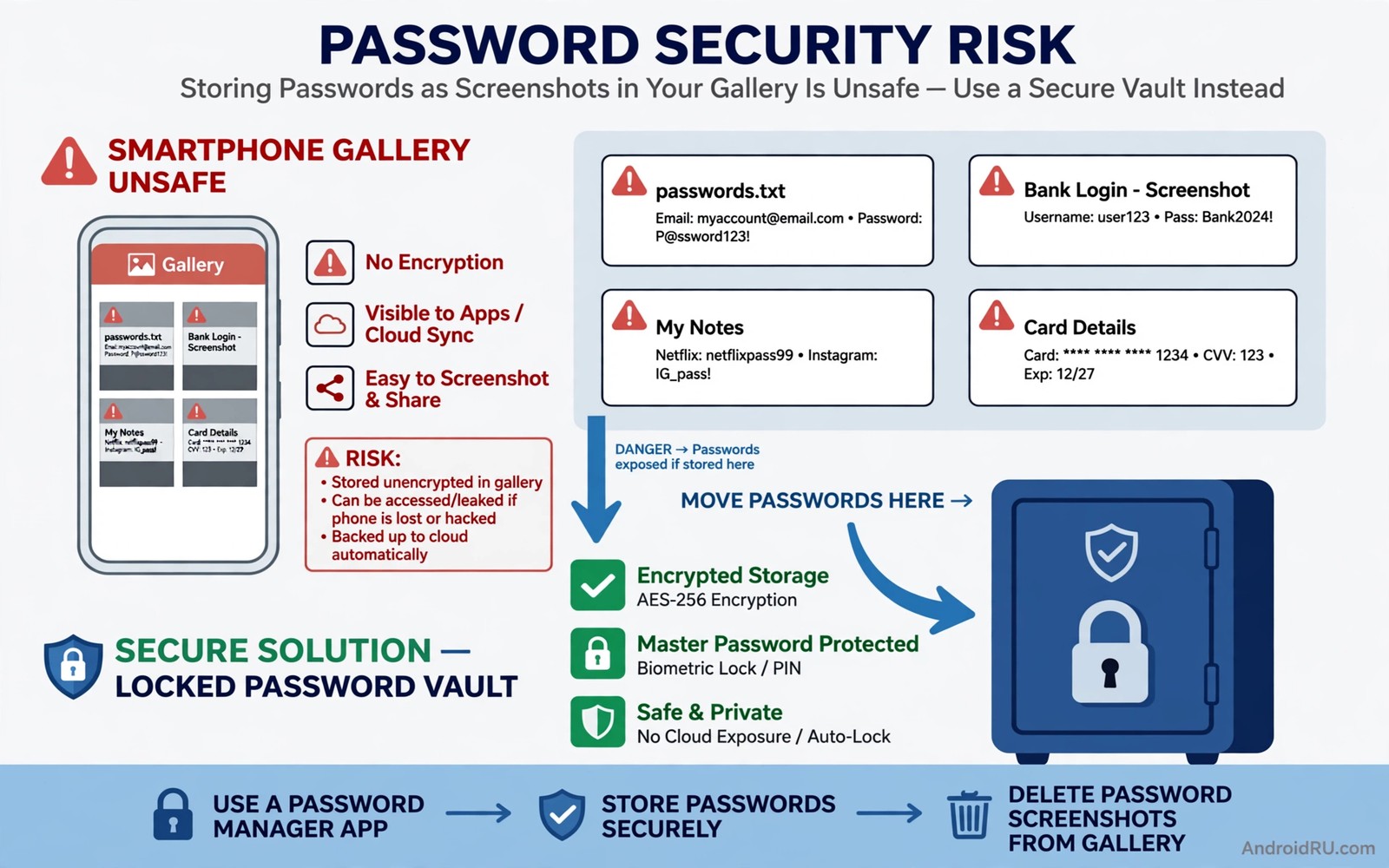
Screenshotting a password feels harmless. The image saves instantly and it stays ready whenever you need it. That convenience hides a serious flaw. Screenshots live in the gallery as ordinary images with no encryption and no access control beyond the lock screen. Any app with photo access and any person holding an unlocked phone can read them. Cloud backup may copy them to servers you never considered.
Password screenshots also survive long after you forget them. A screenshot from two years ago still holds a password you may still use. Gallery search makes it easy to find years later. An attacker who gains brief access does not need to search your memory. They search your gallery and the password appears in seconds.
The fix is not to hide screenshots better. The fix is to remove them entirely and store passwords in a tool built for secrets. A password manager encrypts every entry and locks behind one strong master password. Moving passwords there takes an afternoon and it removes a permanent risk. That move also protects you when you face a lost phone and the mistakes to avoid because a lost phone with a manager is far safer than a lost phone with a gallery full of secrets.
Where screenshot passwords actually leak
Gallery apps sync to cloud accounts by default on many phones. A password screenshot backed up to the cloud exists on servers beyond your phone. A breach of that cloud account exposes passwords you thought lived only on the device. Disabling backup for screenshots helps but it does not remove copies already synced. Those copies must be deleted from the cloud as well.
Apps with photo permission can read screenshots too. A photo editor or a social app granted full media access can scan the gallery. Most such apps do not steal passwords. A malicious app with the same permission certainly will. Broad photo access turns every screenshot into an open file for any app holding that grant.
Sharing accidents add another leak path. A screenshot shared in a hurry may include a password visible in the background. A screen shared during a video call may reveal a gallery thumbnail. Owners share screens casually without checking what else is visible. Password screenshots multiply the cost of every casual share.
Move passwords into a manager step by step
Choose a reputable password manager with a strong master password you will remember. Install it and set up its autofill service so it can fill logins without copying. Then work through your screenshot folder one image at a time. Enter each password into the manager and verify the entry by viewing it once inside the manager. Delete the screenshot only after verification.
Change any password that lived in a screenshot for a long time. A password exposed in the gallery for months should be treated as potentially seen. Changing it after moving it to the manager closes the exposure window. Prioritise banking and mail and main account passwords first because those unlock everything else.
Enable two-factor authentication on the manager account itself and on your most important services. Two-factor authentication means a stolen password alone no longer grants access. That extra layer converts a past screenshot exposure from a disaster into a contained incident. It is the single highest-value security step most owners can take. That extra layer also helps with red flags that an app is stealing money because money traps exploit weak credentials.
Delete screenshots from every copy
Deleting from the gallery alone leaves copies in trash and in cloud backups. Empty the gallery trash after deleting password screenshots. Open the cloud trash as well and delete them there. Check shared albums for copies you may have sent to family members. Each copy is a separate exposure that needs its own deletion.
Search the gallery for likely password images using terms such as password and login and code. Review every result manually because search misses images without text. Check the screenshots folder and the downloads folder and any folder where you save captures. A thorough search takes time but it finds the images you forgot.
After deletion test the manager by signing in to one service using autofill. A successful autofill proves the manager holds the password correctly. Repeat for banking and mail before deleting the last screenshots for those services. Verification before deletion prevents lockouts caused by a mistyped manager entry.
Stop creating new password screenshots
Break the habit at the source by saving new passwords directly into the manager. When a service offers to save a password let the manager capture it. When you create a password manually type it into the manager first and let autofill handle the signup. That workflow removes the moment when a screenshot feels necessary.
For temporary codes use the manager notes or a secure note with an expiry plan rather than a screenshot. A code that must live somewhere temporarily should live encrypted. Delete temporary notes after use. Temporary secrets kept permanently become permanent risks.
Teach family members the same rule because shared households share risk. A relative who screenshots a shared Wi-Fi password creates a copy on another device. Share passwords through the manager sharing feature instead. Manager sharing keeps the secret encrypted in transit and revocable when sharing ends. The same care applies to sharing photos without stripping location data because shared images leak more than passwords.
A gallery audit routine for secrets
Audit the gallery for secrets quarterly alongside permission reviews. Search for screenshots containing text and review them for passwords and codes and personal documents. Delete secrets and move any you still need into the manager. A quarterly audit catches new screenshots before they age into forgotten exposures.
Step 1 > Search gallery for password images
Step 2 > Enter each password in manager
Step 3 > Verify entry with autofill test
Step 4 > Delete screenshot and empty trash
Step 5 > Delete cloud copies and shared copies
The routine above was written for this article to turn screenshot cleanup into a repeatable process. It pairs every deletion with verification so you never lose access while improving security. Run it once fully and then quarterly for new captures. The first run is the longest and every later run is short.
Audit other secret stores beyond the gallery
Gallery screenshots are the most visible secret store but they are not the only one. Messaging apps hold passwords sent to yourself or to family members. Mail drafts hold credentials typed during setup. Clipboard history can retain a copied password long after pasting. Audit each of those stores during the same cleanup session.
Search messaging apps for the word password and review every match. Delete messages that contain credentials and change those passwords after moving them to the manager. Check mail sent folders for setup messages that include temporary passwords. Change temporary passwords at once because temporary credentials kept for years are permanent exposures.
Clear clipboard history after copying any secret. Some keyboards store clipboard entries for days by default. Disable clipboard history for sensitive items when the keyboard offers that control. A clipboard that forgets quickly protects secrets that screenshots once exposed slowly.
Review downloads for exported password files from old managers or browsers. A comma-separated export sitting in downloads defeats the encryption of the manager it came from. Delete exports after importing them and keep only the encrypted vault. An export kept for convenience is a vault without a lock.
Common mistakes
The biggest mistake is deleting screenshots before verifying manager entries. A mistyped entry plus a deleted screenshot equals a lockout. Verify with autofill first and delete second. That order protects access while removing exposure.
Another mistake is forgetting cloud copies after gallery deletion. Cloud trash and shared albums preserve deleted images for weeks. Delete from every copy location in the same session. A secret deleted in one place but kept in another is not deleted.
People also replace screenshots with unencrypted notes apps. A notes app without encryption is a screenshot in another format. Secrets belong only in encrypted tools built for them. A plain note with a password is barely safer than the image it replaced.
Finally avoid using one weak master password for the manager. The manager protects everything so its master password must be long and unique. A weak master password turns the manager into a single point of failure. Choose a passphrase you can remember and never reuse it elsewhere.
Frequently asked questions
Are password managers really safer than screenshots?
Yes by a wide margin. Managers encrypt entries and require authentication before revealing them. Screenshots sit as plain images readable by any app with photo access. A manager also generates strong unique passwords that screenshots never can.
What if I forget my master password?
Most managers offer recovery options such as emergency contacts or recovery keys. Set up recovery during initial setup while you still remember the password. Losing the master password without recovery can lock you out of every stored entry.
Should I store Wi-Fi passwords in a manager too?
Yes. Wi-Fi passwords grant network access that can expose other devices. Storing them in a manager keeps them encrypted and shareable safely. A screenshot of a Wi-Fi password in the gallery is just as risky as any other password image.
Conclusion
Password screenshots are unencrypted secrets sitting in the most accessible folder on your phone. Gallery sync and photo permissions and casual sharing all expose them. A password manager with verified entries and deleted originals removes that exposure completely.
Your concrete next step is to open your gallery today and move your banking password into a manager and delete its screenshot from gallery and cloud trash. That one password is the highest-value move you can make tonight. Then repeat the move for your mail password tomorrow so the two keys to your digital life are both secured.

