

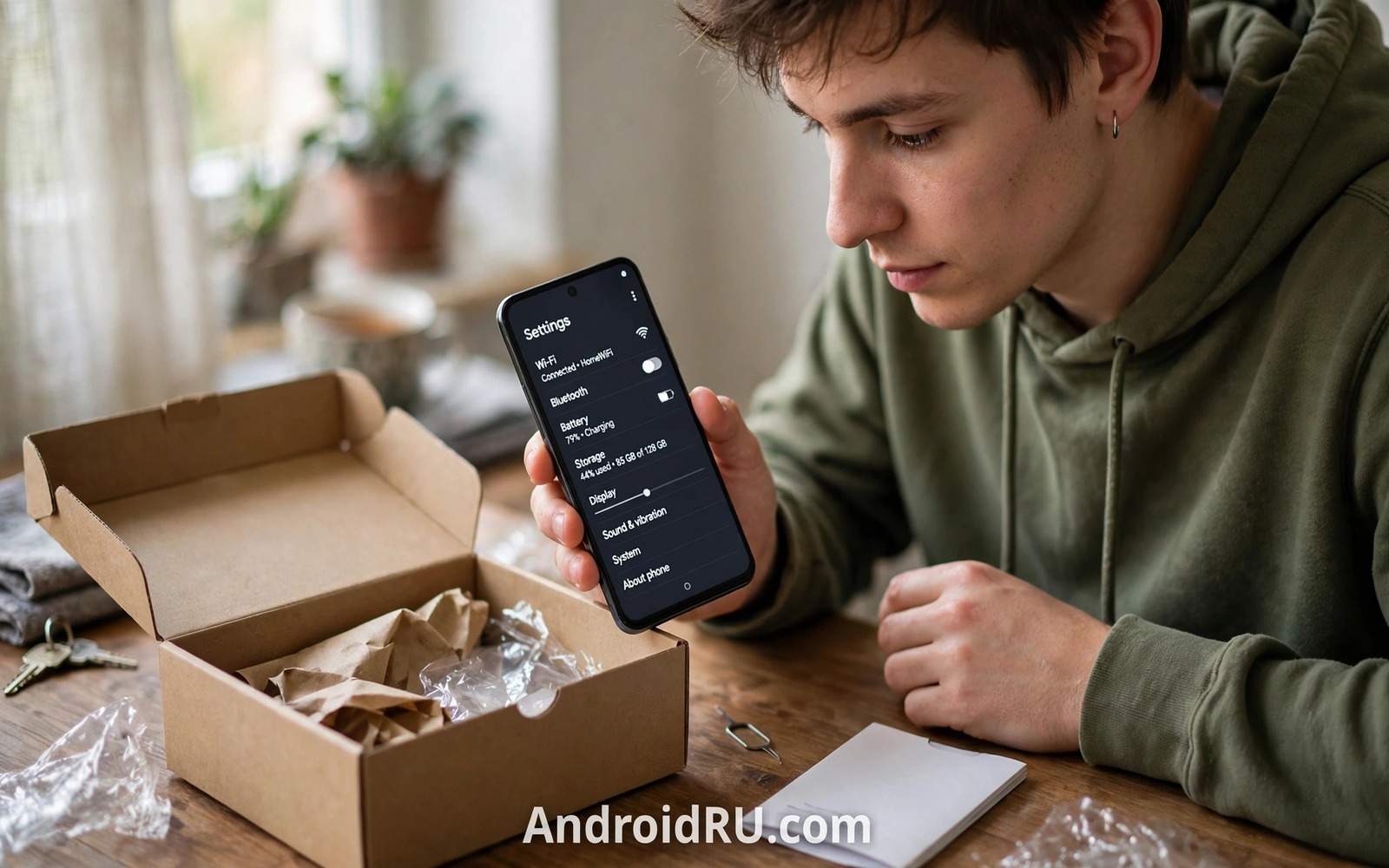
A new phone feels perfect out of the box. The screen is bright and the battery lasts and the setup wizard smiles. Behind that polish sit default settings that favour data collection and bloat. Those defaults quietly shape privacy and battery life for years when left alone. Day one is the cheapest time to fix them.
Setup wizards rush you past important choices. Taps to accept terms and to restore backups hide permission grants inside. A hurried setup can enable ad tracking and location history and cloud uploads without a clear decision. A calm settings review after setup restores control.
This guide lists seven settings to verify before you install your daily apps. Each check takes minutes and each one prevents a common regret. Work through the list in order on the first day. Your future self will thank you for the quiet phone that results.
Setting one: screen lock and biometric security
Set a strong PIN or password as the primary lock before adding biometrics. A fingerprint or face unlock is convenient yet the PIN remains the fallback that protects everything. Choose a PIN that is not a birth year or a simple sequence. A strong fallback keeps biometrics from becoming a weak link.
Enable automatic lock after a short idle time such as thirty seconds. A phone left unlocked on a table invites casual snooping. Short auto lock costs a few extra unlocks per day. That cost buys real protection in shared spaces.
Turn on lock screen notification privacy so message content stays hidden. A lock screen that shows full messages leaks conversations to anyone nearby. Hide sensitive content while keeping caller names visible. Privacy on the lock screen is a daily shield.
Setting two: system updates and security patches
Open system update settings and check for updates on day one. A new phone may ship with software months old. Install the latest system update on stable Wi-Fi before you rely on the phone daily. Updates fix security flaws that shipped with the box software.
Turn on automatic security updates when the phone offers that choice. Automatic updates keep protection current without manual checks. Review update settings after each major upgrade because options can reset. A phone that updates itself stays safer with less effort.
Note the promised update lifespan for your model in the same session. A phone with short support needs earlier replacement planning. Write the end date in a note for future reference. Update promises shape total ownership cost.
Setting three: privacy and ad tracking controls
Open privacy settings and review ad personalisation controls. Turn off ad tracking personalisation when you prefer generic ads over profiled ads. Generic ads feel less relevant yet they collect less about your interests. That trade suits most users.
Review location history and activity controls in your account settings. Turn off history collection that you do not use. Location history can be useful for timelines yet it builds a detailed movement record. Disable it unless you actively use the timeline feature.
Check usage and diagnostic sharing toggles and turn off sharing you did not intend. Diagnostic data helps makers yet it also sends usage patterns outward. A new phone should share only what you consciously approve. Defaults rarely match personal preference.
Setting four: app permissions before installing apps
Review default app permissions for preinstalled apps before adding your own. Some preinstalled apps request location or contacts without a clear need. Revoke permissions that do not match the app purpose. A weather app needs location while using it and not in the background.
Set permission defaults to ask every time for sensitive categories. Camera and microphone and location deserve per use decisions on a new phone. Per use prompts feel annoying for a week and then become habit. That habit catches overreach early.
Disable or uninstall bloatware that you will never use. Disabled apps stop running and stop updating in the background. A lean app list improves battery life and reduces attack surface. Keep only preinstalled apps with a real purpose for you.
Setting five: backup and find my device
Turn on device backup and confirm the first backup completes on Wi-Fi. A backup protects you against loss and theft from day one. Verify the backup by checking its timestamp in settings. A backup that never ran is only a toggle and not protection.
Turn on find my device and test it from another device. A tested tracker works when panic strikes after a loss. An untested tracker may fail from a missing permission. Test now while the phone sits safely beside you.
Save recovery options for your main account during the same session. Add a recovery email and a recovery phone you control. Recovery options decide whether a lockout is a minor delay or a disaster. Day one is the right time to set them.
Setting six: battery and data safeguards
Open battery settings and turn on adaptive battery when offered. Adaptive battery learns your habits and limits background work for rare apps. That learning improves life across weeks. Give it time and judge the result after a full week.
Set a data warning at eighty percent of your monthly allowance. A warning prevents bill shock from a runaway app. Set store updates to Wi-Fi only at the same time. Those two toggles protect both wallet and battery.
Turn on battery percentage display when you like precise readings. A number helps you learn which habits drain fastest. Precise feedback beats a vague icon for building good habits. Knowledge changes behaviour faster than warnings.
Setting seven: display and accessibility comfort
Adjust screen brightness and night mode to suit your eyes. A comfortable screen reduces strain during long reading sessions. Enable adaptive brightness so the phone adjusts to rooms and sunlight. Manual brightness at maximum wastes battery and strains eyes indoors.
Set font size and display size for comfortable reading without squinting. Larger text reduces errors and eye fatigue. A comfortable size also reduces accidental taps from tiny targets. Comfort settings are productivity settings.
Enable a dark theme when your screen type benefits from it. Dark themes save battery on OLED screens and reduce glare at night. Test the theme across your main apps before committing. A theme that suits most apps is worth keeping.
A day one verification checklist
A short checklist keeps the seven settings from slipping away in new phone excitement. Tick each item as you verify it. The list fits in a note and it serves for every future phone as well.
Day one: lock plus biometric plus hidden notifications
Day one: updates installed plus backup verified
Day one: privacy controls plus permissions reviewed
Day one: battery safeguards plus display comfort set
The checklist sample above was written for this guide and it follows standard new phone setup practice. Each line groups related settings for a quick review. A completed checklist means the phone is truly yours rather than merely new.
Repeat the checklist after any factory reset or major system upgrade. Resets restore defaults and upgrades can change options. A repeat check takes minutes and it restores your choices after system changes.
Verify settings after restoring from a backup
A backup restore can bring back old permissions and old toggles that you had fixed. Review privacy and location settings again after any restore. A restored phone may look new yet carry old choices. A post restore review takes minutes and it restores your current preferences.
Restored apps may request permissions anew on first launch. Grant them one at a time with the same care as day one. A bulk grant during restore setup defeats the purpose of a clean start. Slow permission grants keep the new phone lean.
Check backup and find my device status after restore as well. A restore can interrupt backup schedules or tracker registration. Confirm the first post restore backup completes. A phone that restored cleanly still needs a working backup for the next incident.
Repeat the full day one checklist after a restore for the safest result. The checklist was built for new phones yet it fits restored phones equally well. A restored phone is a new start in practice and it deserves new start checks.
Common mistakes
The biggest mistake is restoring every old app and permission without review. A restore copies old overreach onto a clean phone. Review permissions after restore and revoke the ones you no longer need. A new phone deserves a clean permission slate.
Another mistake is skipping updates to preserve a familiar interface. Old software carries known flaws that attackers exploit. Update first and learn the new interface second. Security outranks familiarity on a daily device.
Users also set a weak PIN for convenience on day one and never strengthen it. A weak PIN undermines every other security setting. Strengthen the PIN while setup motivation is high. Later laziness rarely fixes an early shortcut.
Finally do not ignore the find my device test because it feels morbid. A tracker tested today saves panic tomorrow. Testing is not pessimism but preparation. Prepared owners recover phones that unprepared owners lose.
Frequently asked questions
Should I sign in during setup or later
Sign in during setup when you need backup restore. Sign in later when you want a clean review first. Either path works when you complete the seven checks before daily use.
Do I need antivirus on a new phone
Play Protect scanning plus store only installs covers most new phones. Add a reputable security app only when your use involves high risk sideloading. Permission hygiene matters more than an extra scanner.
How often should I review settings
Review settings after each major update and each quarter for permissions. Quarterly reviews catch drift from new installs. A short review keeps the phone aligned with your preferences.
Conclusion
Defaults serve makers and settings serve owners. Seven checks on day one flip that balance toward you. Security and privacy and battery and comfort all improve from a calm review. A new phone deserves an hour of ownership before a year of use.
Your concrete next step is to run the day one checklist today before installing your full app library. Verify lock and updates and backup first. Readers who want related setup guides can explore a guide to default passwords to replace at once and a guide to settings never to turn on plus a guide to mistakes to avoid after losing a phone for a strong start.

