

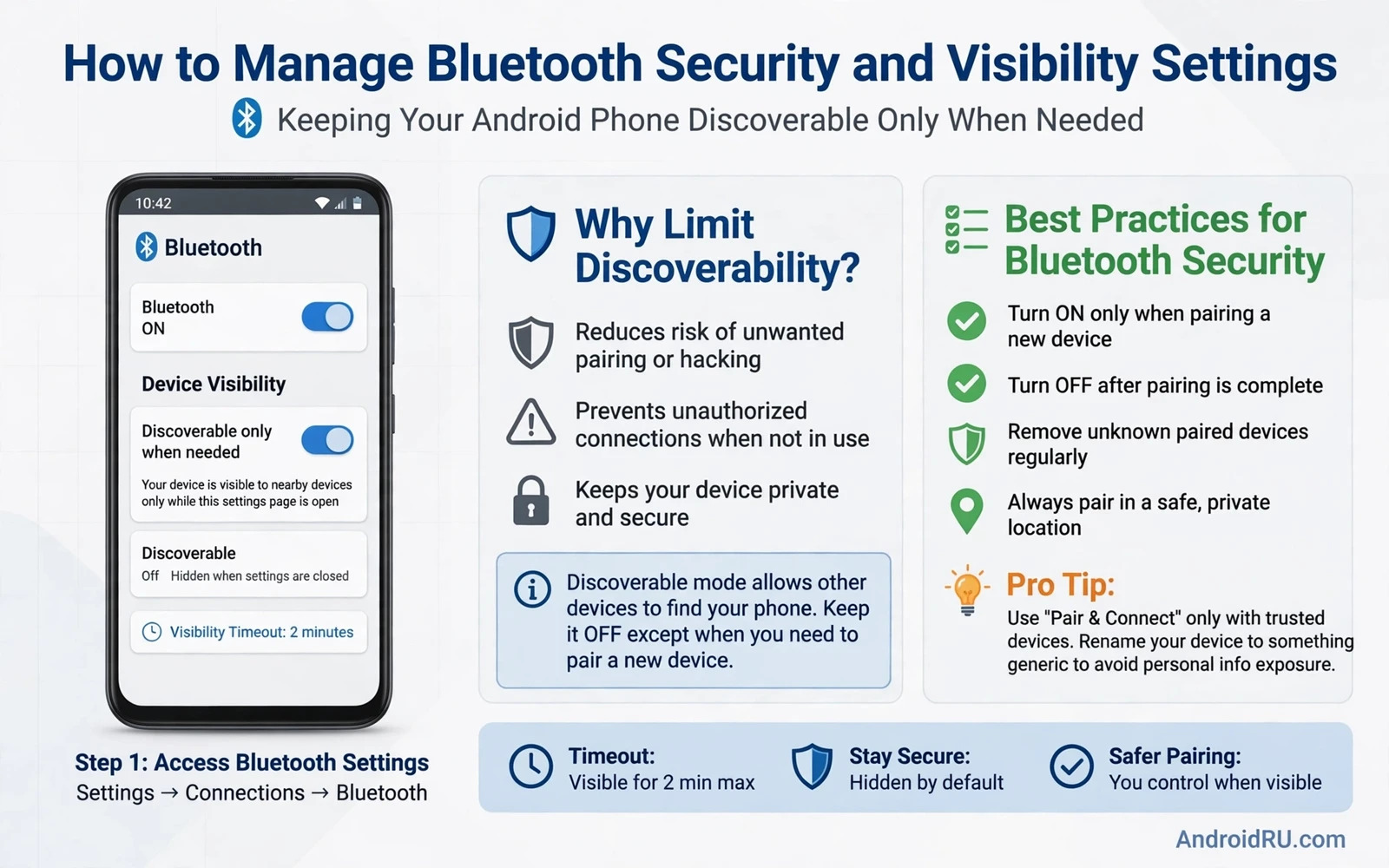
How to Manage Bluetooth Security and Visibility Settings
Bluetooth connects phones to headphones, cars, and watches with remarkable convenience, because it works over short range without any cable. That same short-range convenience creates a security surface, because a radio that stays visible can be probed by nearby devices you never intended to meet. I noticed this on a crowded train once, when my phone showed a pairing request from a device name I did not recognise. I had left visibility on after pairing a speaker at home, and a stranger’s phone had found mine in seconds. Nothing bad happened, because I declined, but the lesson stuck: managing Bluetooth security means keeping the convenience for trusted devices while closing the radio to strangers.
A few settings changes can achieve that balance without giving up wireless audio or hands-free calls. Visibility controls who can see your phone during a scan, pairing controls which devices earn a trusted bond, and permissions control which apps can scan for nearby radios. Together, those three controls decide how exposed your phone is in a crowd. This guide walks through each one with concrete steps, menu paths, and the habits that keep the settings working after you set them.
The principle is simple and worth memorising: stay visible only while pairing, stay connected only to devices you trust, and stay silent to everyone else. A phone that follows that principle feels just as convenient in daily use but far less exposed in a crowd. The rest of this guide turns that principle into settings you can check today.
Bluetooth Visibility Settings: Stay Hidden Until You Pair
Visibility is the most important Bluetooth setting for everyday safety. When your phone is visible to all nearby devices, anyone within roughly ten metres can see its name in a scan and send it a pairing request. When visibility is off, or limited to paired devices only, your phone stays hidden during normal use, even while Bluetooth stays on for your watch or earbuds. That distinction matters, because many people think turning Bluetooth off is the only way to hide. It is not. You can keep Bluetooth on for trusted accessories and still be invisible to strangers.
On most Android phones, the path is Settings, then Connected devices, then Connection preferences, then Bluetooth. Some phones show a visibility toggle directly on the Bluetooth screen, while others only become visible for a short window when you open the pairing screen. The safest habit is to keep visibility off by default and turn it on only for the short window when you pair a new device, then turn it off again as soon as pairing finishes. That short-window habit alone removes most casual Bluetooth probing, because a scanner only finds you during the minute or two you are actively pairing.
Check the device name your phone broadcasts, too. A name that includes your full name or your phone model tells a stranger more than they need. A neutral name, such as a nickname or a generic label, gives away nothing useful. Change it in the same Bluetooth settings screen, under Device name, and avoid names that match a trusted accessory, because an attacker can rename a device to match a trusted headphone or car name and hope you accept without looking closely.
How Long Should Your Phone Stay Visible When Pairing
Most Android phones limit visibility to about two minutes when you open the pairing screen, then hide again automatically. Treat that window as a timer, not a setting to extend. Pair in a private place when you can, finish the pairing, and let the window close. If pairing fails and the window closes, reopen it rather than hunting for a way to stay visible longer. A short window is a feature, and working around it trades safety for a little convenience.
Visible to Paired Devices Only: The Setting to Prefer
Some phones and some Android versions offer a visibility mode that shows your phone only to devices already paired with it. Choose that mode whenever it appears. It keeps your watch and car reconnecting without friction while hiding you from every new scanner in range. If your phone does not offer that mode, the off-by-default habit gives you the same result with one extra tap when you pair something new.
Check Visibility After Every System Update
System updates sometimes reset connection settings or add new toggles with permissive defaults. After a major update, open the Bluetooth screen and confirm visibility is still off and your device name is still neutral. That thirty-second check catches resets before a stranger does.
Secure Pairing: Codes, Bonds, and Removing Old Devices
Pairing creates a trusted bond between two devices, and that bond should be created deliberately rather than accepted automatically. Pair new devices in a private place rather than in a crowded public space, where an attacker could intercept or spoof a pairing request. When a pairing code appears, compare the full code on both screens before confirming, and reject the pairing when codes differ by even one digit. A rushed confirmation in a crowded place defeats the purpose of the code check. Treat a pairing code like a password confirmation that must match exactly, because that single habit blocks many spoofing attempts.
Remove old pairings for devices you no longer own, because a stale bond can become a future entry point. A clean pairing list is a short pairing list. Open Bluetooth settings, tap each paired device you no longer recognise or no longer use, and choose Forget or Unpair. Pay special attention to rental cars, hotel speakers, borrowed headphones, and demo units in shops. Those bonds were useful for a day and are a liability afterwards. I review my list monthly, and I usually find one or two entries I had forgotten entirely.
Bluetooth Versions, Encryption, and Secure Simple Pairing
Bluetooth versions affect security because newer versions add stronger encryption and safer pairing methods. Bluetooth 4.2 and later use Secure Simple Pairing with stronger key exchange, Bluetooth 5.0 and later improve range and speed while keeping those protections, and Bluetooth 5.2 and 5.3 add LE Audio and better handling of low-energy connections. A modern phone and a modern accessory can negotiate a secure connection that older devices cannot match. An old accessory that supports only legacy pairing may force a weaker method that an attacker can exploit more easily.
That does not mean every old accessory is dangerous, but it does mean you should think about what it carries. For sensitive use, such as car hands-free calls that expose contacts and call history, consider replacing a very old accessory that never received a firmware update. For a simple speaker that only plays music, the risk is lower, and keeping it is a reasonable trade-off. Keep your phone’s Bluetooth software updated through system updates, so known radio flaws receive fixes, and check the manufacturer’s app for headphone, speaker, and car system updates periodically.
What to Do When a Pairing Code Does Not Match
Stop. Do not tap Pair anyway, do not retry three times hoping it lines up, and do not accept a second request from a similar name. Turn Bluetooth off, move away from the crowd if you can, and try again later in a private place. A mismatched code is the system telling you something is wrong, and the correct response is to walk away from that pairing, not to push through it.
Bluetooth Profiles Explained: A2DP, HFP, BLE, and What Each One Exposes
Bluetooth profiles decide what a connected device can do. A2DP carries stereo audio to headphones and speakers. HFP, the hands-free profile, carries calls and gives the accessory access to the microphone and sometimes to contacts. BLE, Bluetooth Low Energy, carries small data exchanges for watches, fitness bands, beacons, and smart home devices, often in the background. Each profile exposes something different, and knowing which one a device uses tells you what is at stake if that bond is abused.
Check the profile details for each paired device in its settings page. Many Android phones let you toggle individual profiles per device, such as media audio, call audio, contact sharing, and input device access. Turn off the profiles a device does not need. A speaker does not need contact sharing. A keyboard does not need call audio. A watch needs notifications, but a shopping app does not need to scan for BLE beacons. Narrowing profiles is quiet work that pays off, because it limits what any single compromised bond can reach.
| Profile | What it carries | Main risk if misused | Safe default |
|---|---|---|---|
| A2DP audio streaming | Music and media sound | Audio interception on an untrusted speaker | On for trusted headphones only |
| HFP hands-free calling | Calls, microphone, sometimes contacts | Call audio and contact exposure | On for your own car and headset only |
| BLE low energy data | Notifications, health data, beacon scans | Background tracking and silent data exchange | Review per app, revoke what is not needed |
| File transfer profile | Files sent directly to the phone | Unwanted files, spam, malware delivery | Off unless you expect a transfer |
| HID input devices | Keyboard and mouse input | Keystroke injection from a fake keyboard | On only for keyboards you own |
Headset Microphones and Voice Assistants in Public
Audio accessories can leak more than music, because a headset microphone can carry calls and voice commands. Pair headsets only from trusted brands, and check for firmware updates when the manufacturer offers them. Mute the headset microphone when you are not on a call. Avoid voice assistant activation through a headset in a public place, where a nearby voice could trigger it. Audio convenience should not become an open microphone, and a muted mic costs nothing when you are only listening to music.
Bluetooth in Public Places: Trains, Cafes, and File Transfer Traps
Crowded trains and cafes place many unknown radios within range, so Bluetooth in public places needs extra caution. Turn Bluetooth off completely when you do not need it in a crowded place. Turn visibility off even when Bluetooth stays on for a trusted watch or earbuds. Avoid accepting file transfers or pairing requests from unknown names in public, because those requests often carry spam or malware. A public place is the worst place to accept an unexpected Bluetooth prompt, and the correct answer to a surprise request is always no.
File transfer over Bluetooth deserves a default deny stance, because it can deliver unwanted files directly to the phone. Disable Bluetooth file receiving when you do not actively expect a transfer. Accept a transfer only from a known paired device and only when you requested the file yourself. Check any received file with a scanner before opening it. A file that arrives unrequested over Bluetooth should be treated with the same suspicion as an attachment from an unknown email. The same caution that keeps you safe on open Wi-Fi belongs here too, and you can reinforce that mindset by reading how securing an Android phone on public Wi-Fi networks works in practice so wireless caution becomes one habit rather than two separate chores.
Location Scanning, Beacons, and App Permissions
Location and Bluetooth interact, because Bluetooth scanning can reveal nearby beacons and help estimate location even when GPS stays off. Android now treats Bluetooth scanning as a location-related permission for that reason. Review which apps can scan for Bluetooth devices, under Settings, then Location, then App permissions, or under each app’s permission page, and revoke scanning access for apps that do not need nearby device discovery. A shopping app rarely needs to scan for beacons to show a product list. A social app does not need to know which beacons you walked past in a mall.
Bluetooth Low Energy beacons in shops and venues can track movement when apps scan for them continuously. Disable beacon scanning for apps that do not need indoor navigation or nearby offers. Check location permission for shopping and social apps, because beacon scanning often hides inside a broad location grant. A store that tracks your path through beacons gains data you never consciously shared. Narrow location and scanning permissions keep beacon tracking under your control, and a monthly review catches new grants that appeared after an app update.
Nearby Device Permission on Android 12 and Later
Android 12 introduced a separate Nearby devices permission, so apps that need to find and connect to Bluetooth accessories must ask for it explicitly instead of hiding behind location access. When an app asks for that permission, ask what it needs it for. A headphone companion app has a clear reason. A game or a shopping app usually does not. Deny the request when the reason is unclear, and the app will still work for everything except the nearby-device feature it wanted.
Wearables, Cars, and Persistent Bonds That Outlive Their Use
Wearables and cars create persistent Bluetooth bonds that deserve regular review, because they connect automatically and often. A smartwatch bond carries notifications and health data, while a car bond carries calls and contacts. Remove a car bond after selling a car or returning a rental, because the car may retain your contacts and call history. Remove a watch bond before giving a watch to another person, and factory reset the watch as well, so the next owner does not inherit your notifications. Persistent bonds should end when the relationship with that device ends.
Connection behaviour after pairing should favour manual control for sensitive accessories and automatic control only for trusted daily accessories. Headphones you use every day can reconnect automatically without friction. A car system in a rental or a shared vehicle should require a manual confirmation each time. Review automatic connection settings for each paired device and disable auto-connect for any device you use rarely. Manual control adds one tap but prevents a forgotten device from reconnecting silently in the background.
Rental Cars and Shared Vehicles: The Bond to Delete First
A rental car is the highest-risk Bluetooth bond most people create, because the car stores your phone name, contacts, and call history, and the next renter may be able to see them. Delete the pairing from your phone and delete your phone from the car’s system before you return the keys. Do both sides, because deleting only one leaves the other holding your data. If the car menu is confusing, ask the rental desk for help before you leave, while you still have the car in front of you.
Troubleshooting Bluetooth Without Opening Every Setting
Troubleshooting Bluetooth often tempts users to turn every setting on to force a connection. Resist that temptation, because a broad reset of Bluetooth settings can also clear trusted bonds and open visibility. Troubleshoot one device at a time: forget that device, pair it again in a private place, and check for interference from Wi-Fi or from many nearby radios before blaming security settings. A methodical fix preserves security while solving the connection problem, and it tells you which step actually worked.
Common fixes that stay safe include toggling Bluetooth off and on once, restarting the accessory, moving away from a crowded radio environment, and checking that the accessory is not already connected to another phone or laptop. Headphones that refuse to pair are often already paired to a different device, not blocked by your security settings. Check the accessory’s own pairing mode too: most headphones need a long press on a button to enter pairing, and a short press only reconnects to the last device.
When to Reset Network Settings and What It Costs
A network settings reset clears Bluetooth pairings, Wi-Fi networks, and mobile settings together. Use it only after per-device troubleshooting has failed, and only after you have written down the pairings and networks you will need to rebuild. After the reset, re-pair devices one at a time in a private place, with visibility off by default, so the reset does not become an excuse to leave everything open. A reset is a last resort, not a first step.
Interference From Wi-Fi and Crowded Radios
Bluetooth and Wi-Fi share the 2.4 GHz band, so a busy Wi-Fi network can crowd Bluetooth audio and cause stutter that looks like a security problem. If audio cuts out in a crowded cafe but works fine at home, interference is the likely cause. Moving to 5 GHz Wi-Fi, stepping away from the router, or turning off Wi-Fi temporarily can confirm it. Do not open visibility or disable encryption to fix what is really a crowded radio band.
Bluetooth, Lost Phones, Children, and Work Devices
Lost phone protection connects to Bluetooth, because a lost phone with Bluetooth on can still be probed by nearby devices. A strong lock and remote tracking protect a lost phone far more than Bluetooth settings alone. You can place Bluetooth care inside that wider safety net by reading how locating and remotely wiping a lost Android phone works when a device disappears so a lost device plan covers radios and accounts together. Lock the phone remotely as soon as loss is confirmed, and do not wait to see whether Bluetooth gives you a clue about where it is.
Children’s devices need simple Bluetooth rules, because a child may accept any pairing prompt that promises a game or a toy connection. Turn Bluetooth off on a child device when it is not needed for a specific accessory. Pair any needed accessory yourself and lock settings with parental controls where available. Teach a child to bring any unexpected pairing request to an adult rather than tapping accept. Simple rules work better than technical explanations for young users, and a short list on the fridge beats a long lecture.
Work phones deserve stricter Bluetooth policy, because they may carry confidential calls and documents near other radios. Disable file transfer, disable visibility, and allow only approved accessories on a work device. Review paired devices after any travel, because hotel and conference environments expose work phones to many unknown radios. Report any unexpected pairing attempt to IT support rather than dismissing it. Work Bluetooth policy should be written and enforced rather than left to habit.
A Monthly Bluetooth Audit That Takes Five Minutes
Essential settings give Bluetooth a safe baseline, because they cover visibility, pairing, and update behaviour together. A baseline that keeps visibility off, updates automatic, and unknown installs blocked makes Bluetooth far safer by default. You can build that baseline by studying how essential Android security settings create a safer baseline so Bluetooth settings never sit alone. Once a month, run a monthly Bluetooth audit: open Bluetooth settings, review paired devices, and remove any device you no longer recognise or no longer use. Confirm visibility stays off and file receiving stays disabled. Check app scanning permissions and revoke any new scanning grant that appeared after an update. A short audit prevents a long pairing list from becoming a forgotten risk.
Frequently Asked Questions
Should Bluetooth stay on all the time?
It can, if visibility is off and your paired list is clean. Bluetooth on with visibility off still lets your watch and earbuds reconnect, while hiding you from scanners. Turn it off completely in crowded places when you do not need any accessory, and turn it off overnight if nothing needs to stay connected. The risk is not Bluetooth being on; the risk is Bluetooth being on, visible, and bonded to devices you forgot.
Can someone hack my phone just by seeing it on Bluetooth?
Seeing a device name is not the same as accessing the phone. An attacker still needs a pairing, a profile, or a flaw to get further, and modern Android versions make that hard when visibility is off and pairing codes are checked. The real risk comes from accepting a pairing you did not expect, or from an old accessory with a known flaw. Visibility off and careful pairing close the easy paths, and system updates close the known flaws.
Why does my phone ask for location permission to use Bluetooth?
Because Bluetooth scanning can reveal nearby beacons, and beacons can reveal where you are, even with GPS off. Android treats scanning as location-related for that reason, and Android 12 and later use a separate Nearby devices permission for connecting to accessories. Grant scanning access only to apps that genuinely need nearby discovery, and revoke it from shopping and social apps that do not.
How do I stop my phone connecting to a car or speaker automatically?
Open the paired device in Bluetooth settings and turn off auto-connect if your phone offers it, or forget the device entirely if you no longer use it. For a rental car, delete the bond from both the phone and the car. For a speaker at a friend’s house, forget it before you leave. Automatic connection is convenient for daily accessories and a liability for occasional ones, so keep it only where you use the device every day.
Start today with the five-minute version: open Bluetooth settings, turn visibility off, forget two devices you no longer use, and check which apps can scan for nearby devices. That single pass closes the most common gaps, and it takes less time than pairing a new pair of headphones. Then set a monthly reminder to repeat the audit, keep your phone and accessories updated, and pair new devices in private with the code checked on both screens. Bluetooth stays a trusted tool when you treat it that way, and the convenience you bought the headphones for never has to go away.

