

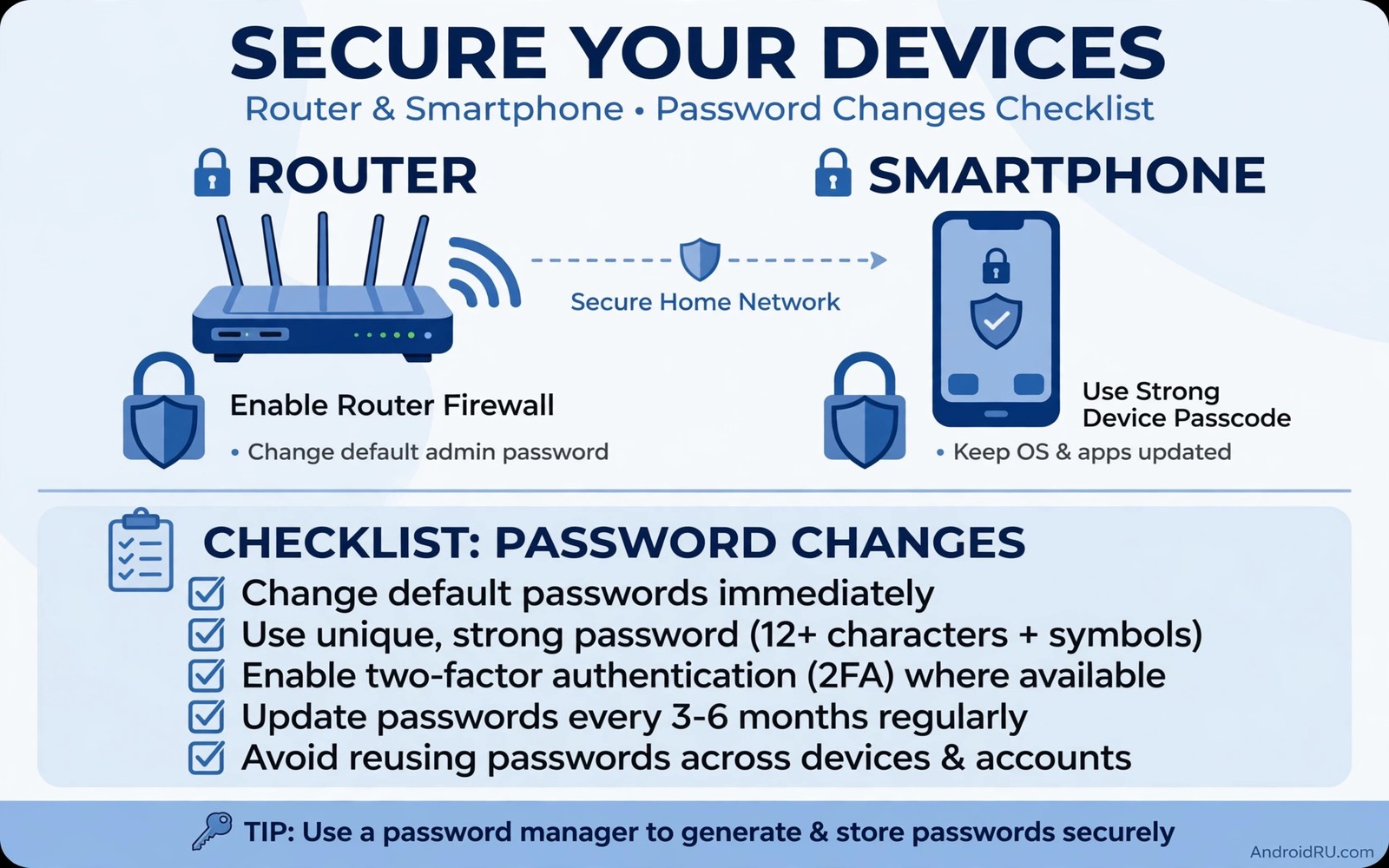
Every device ships with a default password printed in its manual. Those passwords are identical across thousands of units. They are also published online in lists that anyone can download. An attacker scanning the internet tries those defaults first because they succeed so often. Leaving a default in place is equivalent to leaving a key under a doormat that everyone knows about.
Routers and cameras and smart home devices are the most exposed defaults. They face the internet directly and they run day and night. A compromised router can redirect traffic for every device in a home. A compromised camera can watch a family without their knowledge. Both attacks start with a default login that the owner never changed.
Phone-related defaults matter too. A default PIN or a default voicemail password or a default hotspot password each opens a path into your accounts. Changing defaults is unglamorous work that pays off silently. No attacker announces that they failed because your password was not the default. That silence is the reward. The same discipline applies to settings to verify on a new phone because a verified setup starts with credentials only you know.
Where defaults hide in your home
Start with the router because it guards the whole network. Log in with the default credentials from the label and change the admin password immediately. Choose a long unique password stored in a manager. Change the Wi-Fi password as well if it still matches the factory value. A router with default admin access is an open door to every connected device. That network guard also needs SIM protection habits because a stolen SIM bypasses many password defences.
Check cameras and smart speakers and printers next. Many such devices ship with a default admin account that owners never open. Open each device settings page and change its admin password. Disable remote access for devices that do not need it. A camera that only family views locally needs no internet admin panel at all.
Do not forget software defaults. A new app account or a new service trial may ship with a weak default password you set hastily during setup. Review new accounts in their first week and upgrade weak setup passwords to strong unique ones. Early review catches defaults before they become permanent fixtures.
How attackers exploit defaults at scale
Attackers scan the internet automatically for devices with open admin panels. They try a short list of defaults against each device found. That list includes the most common factory combinations used by major makers. A scan can test thousands of devices per hour with no human effort. Defaults turn mass scanning into mass compromise.
Compromised devices join botnets that attack other targets or mine currency or relay spam. The owner may notice only slower internet or a warm device. The device works normally while serving attackers in the background. Changing the default breaks that automated chain completely because the scan moves on to easier targets.
Defaults also enable targeted attacks after a data breach. An attacker who learns your router model can guess its default without scanning. Combined with a leaked address that guess becomes a direct intrusion attempt. Unique passwords remove the guesswork entirely. An attacker facing a unique password must try far harder methods that most automated scans skip.
Choose strong replacements that you can manage
Replace every default with a long unique password generated by a manager. A manager removes the memory burden that pushes people back to defaults. Generate a fresh password for each device rather than reusing one strong password everywhere. Reuse turns one leak into many compromised devices.
For Wi-Fi choose a passphrase of several random words that guests can type without frustration. A long passphrase beats a short complex password for both security and usability. Store it in the manager and share it through manager sharing when possible. Avoid writing Wi-Fi passwords on paper stuck to the router itself.
For PINs avoid birth years and repeated digits and simple sequences. A six-digit PIN chosen randomly beats a four-digit familiar date. Change device PINs from factory values even when the device seems low risk. Low-risk devices become stepping stones into networks when their defaults remain.
Lock down the setup beyond passwords
Update device firmware after changing passwords because old firmware may contain flaws that bypass login entirely. Enable automatic updates where the device offers them. A patched device with a strong password resists both password guessing and known exploits. Either defence alone leaves a gap.
Disable unused services on each device such as remote admin and telnet and universal plug and play when you do not need them. Each running service is a potential entry point. A service you never use should not run. Turning it off shrinks the attack surface without affecting daily use.
Enable two-factor authentication on every account that offers it especially for router cloud accounts and camera accounts. Two-factor authentication means a stolen password alone cannot open the account. That layer converts a future leak from a breach into a blocked attempt.
A lockdown checklist for a new device
Work the list for every new device before connecting it to daily use. Change admin password and change Wi-Fi password and update firmware and disable unused services and enable two-factor authentication. That order secures access first and then hardens the device. A device that skips the list should stay offline until the list is complete.
Step 1 > Change admin password to unique
Step 2 > Change Wi-Fi password if default
Step 3 > Update firmware to latest
Step 4 > Disable unused remote services
Step 5 > Enable two-factor authentication
The checklist above was written for this article to make new device setup a security gate rather than a race to first use. It blocks daily use until credentials are unique and firmware is current. Follow it for routers and cameras and any device that joins your network. A checklist in hand beats good intentions forgotten during setup excitement.
Audit defaults on a schedule
New devices arrive throughout the year and each one brings fresh defaults. A quarterly audit catches devices added since the last review. List every networked device in the home and check its admin password against the manager. Any device missing from the manager still uses a default or a forgotten password. Fix those first.
Guests and children add devices too. A visiting relative may connect a camera or a speaker to your network with its default intact. Ask guests to change defaults before joining the network or isolate guest devices on a separate network. A guest network with internet only keeps guest defaults away from your main devices.
Record the audit date and the device list in the manager as a secure note. That note makes the next audit faster because it starts from a known inventory. An inventory you maintain beats an inventory you reconstruct from memory. Quarterly audits turn lockdown from a project into a habit.
Retire devices that no longer receive firmware updates. An unpatched device with a strong password still falls to known exploits. Disconnect retired devices from the network or replace them with supported models. Security has a lifespan and expired support ends it.
Common mistakes
The biggest mistake is changing the Wi-Fi password but leaving the admin password default. Guests cannot exploit an admin panel easily but internet scanners can. Both passwords need changing. Admin access controls the whole network while Wi-Fi access controls only entry to it.
Another mistake is reusing one strong password across all devices. A single leak then compromises the entire home. Unique passwords per device contain any single breach. A manager makes uniqueness effortless so reuse has no excuse.
People also store new passwords in screenshots or plain notes after changing defaults. That habit recreates the original exposure in a new format. Store replacements only in an encrypted manager. A password changed from default to a screenshot is barely an improvement. The same exposure returns through passwords stored in plain screenshots because a screenshot of a new password is a new default in plain sight.
Finally avoid assuming a device is safe because it sits behind a router. Internal devices with defaults fall quickly once any single device is compromised. Defence in depth means every device carries its own unique credentials. A chain breaks at its weakest default.
Frequently asked questions
What if I forget a changed router password?
Most routers offer a physical reset button that restores factory settings. Resetting requires physical access which attackers lack. After a reset repeat the lockdown checklist immediately. Store the new password in a manager to avoid repeat resets.
Are default passwords really published online?
Yes. Makers print defaults in manuals and support pages. Enthusiasts compile those defaults into searchable lists. Attackers use those lists in automated scans. Assume every factory default is public knowledge from the day the device ships.
Should I change passwords on devices I never use online?
Yes when the device joins any network or accepts local logins. Offline devices with physical access only are lower risk. Networked devices of any kind deserve unique credentials. A device that seems offline today may gain network features through an update tomorrow.
Conclusion
Default factory passwords are public knowledge that attackers try first at internet scale. Routers and cameras and accounts with defaults invite automated compromise. Unique passwords per device plus firmware updates plus disabled unused services close that door completely.
Your concrete next step is to change your router admin password tonight and store it in a password manager. Then work through cameras and smart devices with the checklist above. That evening of work locks down your whole home setup. Repeat the checklist for each new device before it joins daily use so defaults never return unnoticed. A home without defaults is a home that automated scans pass by quietly.

