

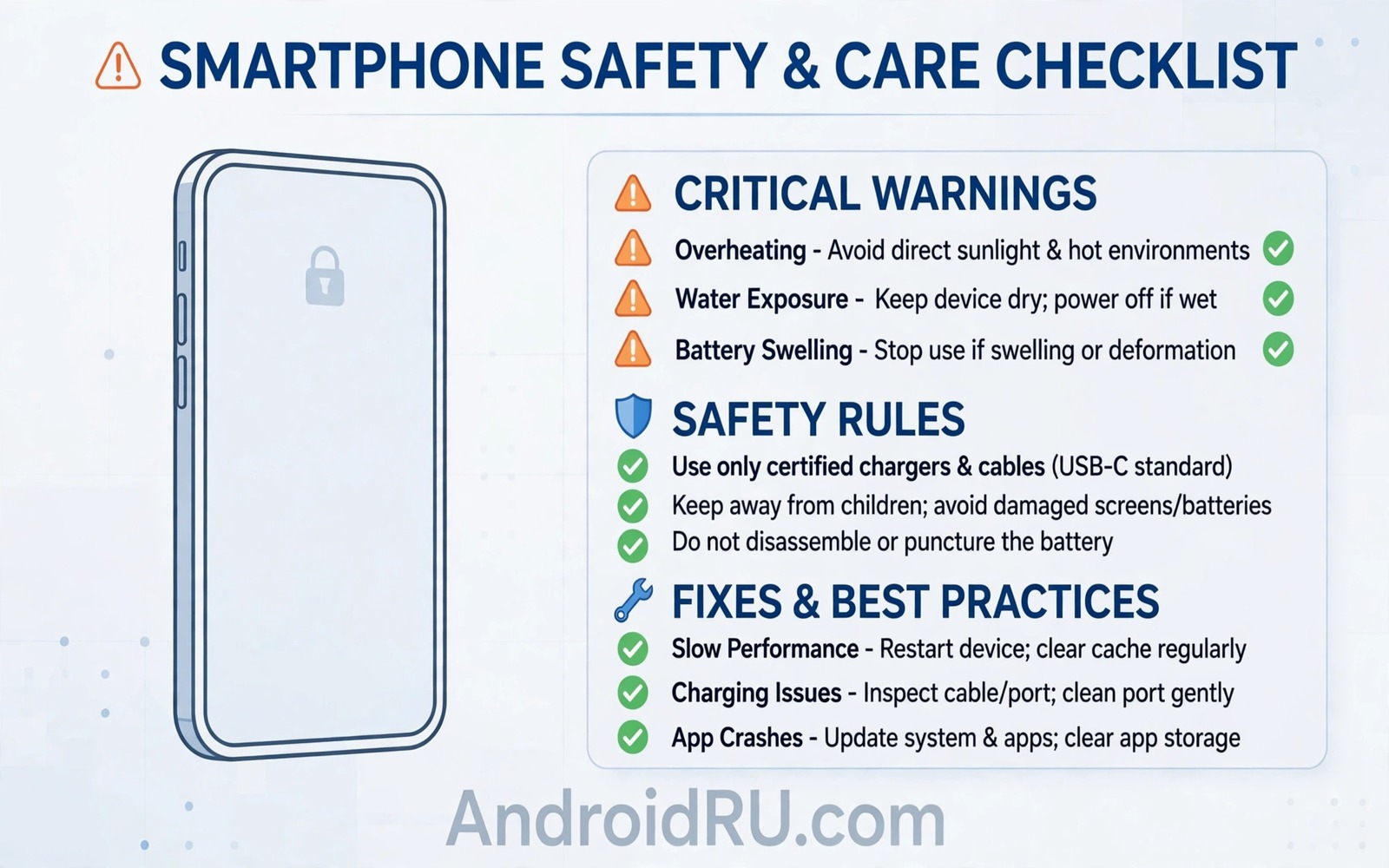
Android warnings arrive scattered across months of use. A storage alert appears one week and a heat warning the next. A permission prompt interrupts a game months later. Each warning feels isolated yet together they form a safety system. This list gathers the critical warnings in one reference so you can act fast when any of them appears.
The list works best as a habit guide rather than a one time read. Each warning below carries a simple rule and a fix you can apply in minutes. Rules prevent most emergencies before they start. Fixes restore safety when a warning already appeared. Keep the list bookmarked for the moment a warning surprises you.
Read the full list once to learn the patterns. Warnings cluster around heat and storage and accounts and permissions and network safety. Those five clusters cover nearly every critical alert on a modern phone. Master the clusters and you master the warnings.
Heat warnings: stop and cool first
A heat warning means the phone is already throttling to protect itself. The rule is to stop heavy use at once and unplug the charger. Move the phone to shade and remove the case. Let it idle until it feels normal to hold. Continued use during heat damages battery chemistry permanently.
Heat during charging deserves the same response plus a cable check. A frayed cable or a covered phone can push temperatures higher. Charge on an open hard surface with a certified cable. Never charge under pillows or blankets for any reason. Open air is the simplest cooling system available.
Heat while idle points to a runaway app or weak signal. Check battery usage for an app with high background time. Force stop the suspect and watch temperature for an hour. Weak signal heat resolves with airplane mode until coverage improves. Idle heat is never normal and always deserves a cause.
Storage warnings: free space before it blocks booting
A storage warning means free space has fallen below a safe buffer. The rule is to keep ten percent of the drive free at all times. Free space lets the system write temporary files and stage updates. A full drive can block booting entirely in the worst case.
Free large videos and downloads first for the fastest gain. Clear caches for browsers and social apps next. Uninstall large games you no longer play. Verify photo backups before deleting photos from the phone. Space freed without a backup can cost memories.
Prevent repeat warnings with monthly storage checks. Set offline download limits in streaming apps. Cap podcast auto downloads to recent episodes only. A monthly ten minute check keeps the buffer healthy across the year.
Account warnings: protect the keys to everything
An account security alert means someone may have tried to access your account. The rule is to change the password from a clean device at once. Review recent sign in activity and remove unknown sessions. Enable two factor authentication when it is missing. Speed matters because account access unlocks email and photos and purchases together.
Suspension warnings deserve equal speed with calmer action. Read the policy notice fully and stop the flagged behaviour at once. Appeal with clear facts when you believe the flag was wrong. Never create a new account to evade a suspension because evasion itself violates policy.
Protect accounts daily with recovery options and password hygiene. Save backup codes on paper away from the phone. Use a password manager rather than screenshots for credentials. Separate critical services across accounts when a single failure would be catastrophic.
Permission warnings: grant least access possible
A permission prompt is a warning in disguise. It asks whether an app truly needs sensitive access. The rule is to grant only while using the app for location and camera and microphone. Background access should be rare and justified. Deny by default and grant later when a real need appears.
Overlay permission deserves special caution because it lets apps draw over everything. Games and cleaners rarely need overlay access. Revoke overlay permission from any app that shows ads over the home screen. Overlay abuse is a leading sign of adware.
Accessibility permission is the most powerful permission on Android. It can read screen content and perform taps on your behalf. Grant it only to trusted accessibility tools with a clear purpose. A game or cleaner with accessibility access is a red flag that warrants removal.
Network warnings: trust no open network with system changes
An unsecured network warning means traffic on that network is visible to others nearby. The rule is to browse lightly and never update system software on open Wi-Fi. Wait for home Wi-Fi or use mobile data for updates. A short delay beats a tampered update.
Data spike warnings mean an app used far more mobile data than expected. Check data usage for background heavy apps at once. Restrict background data for the culprit and set store updates to Wi-Fi only. A spike investigated today prevents bill shock tomorrow.
Hotspot warnings matter when sharing ends. Turn off the hotspot after sharing and change the password after lending it. A forgotten hotspot can serve data to old devices all night. A timeout setting closes that hole automatically.
Hardware warnings: respect swelling heat and sound changes
A swelling battery is a stop everything warning. Stop charging and stop using the phone and seek professional help. Swelling presses on internal parts and creates fire risk. Never puncture or press a swollen battery to test it.
Muffled sound warns of blocked speaker mesh or driver trouble. Clean the mesh with soft tools only and never poke it with a pin. A pin can puncture the mesh and dent the driver behind it. Soft brushing restores most muffling without risk.
Screen and touch faults warn of damage or software conflict. Ghost touches after a drop suggest hardware damage. Ghost touches after an update suggest a software fault worth a safe mode test. Diagnose before repair and repair before the fault spreads.
A master safety routine
A weekly routine turns scattered warnings into steady protection. The routine takes ten minutes and it covers heat and storage and permissions and updates. Run it on the same day each week until it feels automatic.
Weekly routine: storage above 10 percent free
Weekly routine: battery top apps reviewed
Weekly routine: overlay and location permissions reviewed
Weekly routine: system update checked
The routine sample above was written for this guide and it follows standard Android device safety practice. Each line checks one warning cluster before it becomes an emergency. A routine that catches small drift prevents large failures.
Pair the weekly routine with a monthly backup verification. Open the backup timestamp and confirm it is recent. Test one restored photo each month. A backup verified monthly is protection you can trust during a crisis.
Build a personal warning response plan
A personal plan turns panic into steps when a warning appears. Write the plan as a short note on a second device. The note should list the five clusters and the first action for each. A plan read in advance works better than advice searched during a crisis.
Practise the heat response once so it becomes muscle memory. Removing a case and moving to shade should feel automatic. Practise the account lock response by checking recovery options today. Practice replaces panic with motion.
Share the plan with family members who use your devices. A family member who knows the heat rule will act correctly on a shared tablet. A shared plan protects devices that many hands touch. Safety knowledge spreads best through a written plan.
Review the plan after any major incident and update it with lessons learned. A plan that never changes grows stale as phones change. An annual review keeps the plan aligned with current software and current threats. Living plans protect better than frozen lists.
Keep the list updated as Android changes
Android settings move with each major release and warning texts change too. Revisit this list after every major update and note renamed menus. An updated list stays useful while an outdated list confuses. A quick annual refresh keeps the reference accurate for new phones and new software.
Common mistakes
The biggest mistake is dismissing warnings as nag screens. Warnings exist because a threshold was crossed. Each dismissal adds risk while the underlying cause grows. Act on the first warning when the fix is easy.
Another mistake is fixing a warning with a random app from a popup. Popups that offer cleaners or boosters often install adware. Use built in settings for every fix in this list. Built in tools need no download and no new permission.
Users also fix one warning while ignoring related warnings. Heat plus storage plus battery drain often share a single runaway app. Check all three clusters when any one warning appears. A shared cause fixed once solves several warnings together.
Finally do not share warning screenshots that include personal data. A screenshot of an account alert may show an email address or a device name. Crop personal details before asking for help online. Help should never cost privacy.
Frequently asked questions
Which warning is most urgent
Swelling and smoke and burning smell outrank every other warning. Evacuate and seek help for those signs at once. Heat and account alerts rank next because they cause fast damage when ignored.
Can I silence all warnings safely
No. Silencing warnings hides the system that protects the phone. Silence promotional notifications freely yet keep system and security warnings on. A quiet phone should still warn about real danger.
How do I teach family members these rules
Share this list and walk through one cluster per week together. Practical demos beat lectures for children and older relatives. A family that knows the rules protects shared accounts and devices together.
Conclusion
Critical warnings form a coherent safety language once you learn it. Heat says stop and storage says free space and accounts say verify and permissions say deny by default and networks say wait for trust. Each warning has a rule and a fix that takes minutes. Learning that language turns panic into action.
Your concrete next step is to run the weekly routine today and fix the first warning cluster you find. Bookmark this list for the next alert. Readers who want deeper guides can explore a guide to what to do when a phone overheats while idle and a guide to why storage warnings can soft brick a phone plus a guide to why Play Protect must stay on for the full safety picture.

