

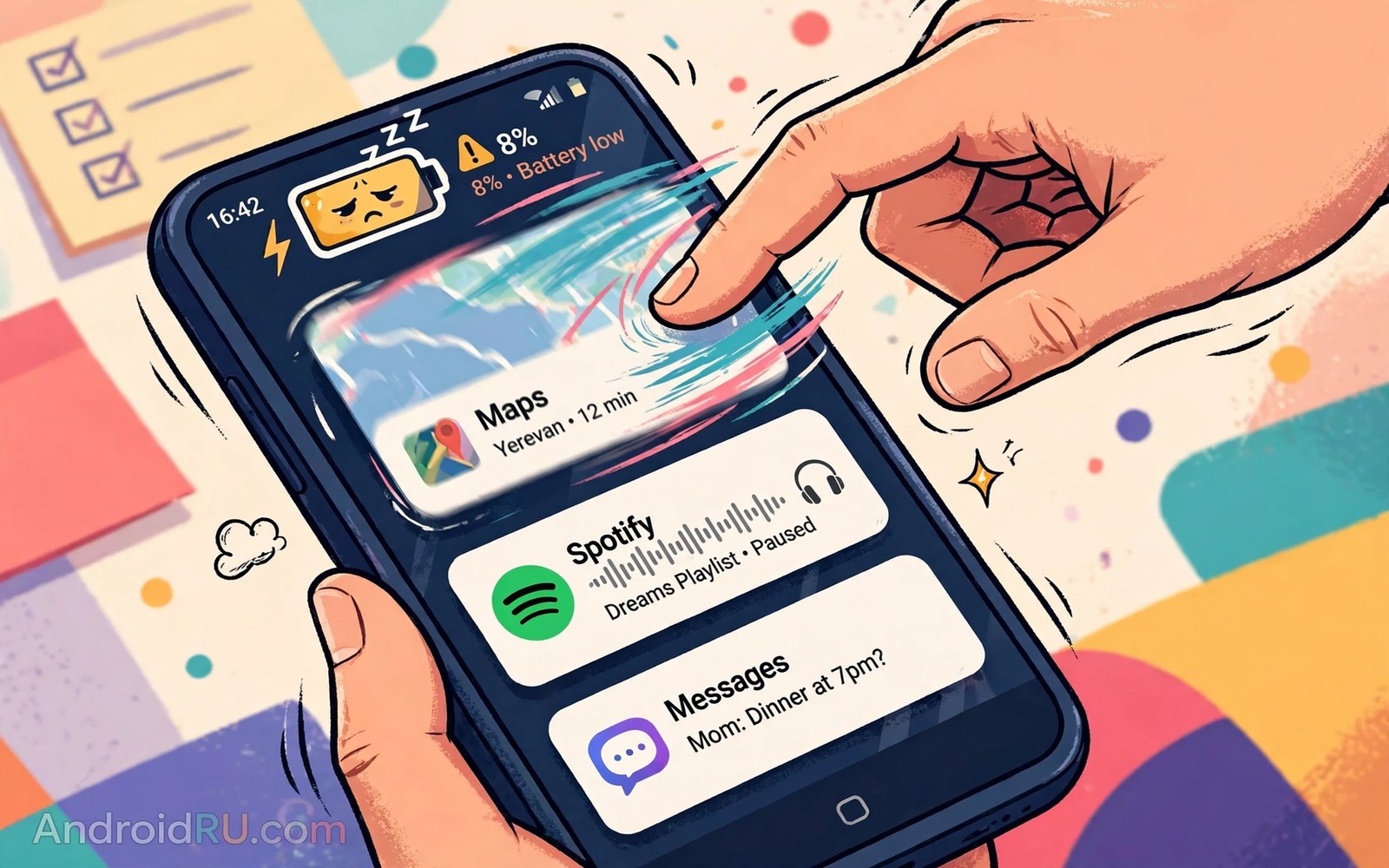
Swiping apps away feels productive. The screen clears and the phone looks tidy and the mind feels in control. That feeling is misleading because Android manages background apps differently from how a desktop manages open windows. A paused app in memory uses almost no power and it costs nothing to keep. Killing it forces the phone to rebuild it from scratch the next time you open it. That rebuild is where the real cost hides.
Every relaunch reloads the interface and reloads your data and reconnects to services and redraws images. Those steps use processor time and radio time and battery charge. Do that dozens of times a day and the waste adds up to a noticeable drain. Owners who swipe constantly often complain about battery life while unknowingly causing part of the drain themselves. The habit also slows the phone because apps take longer to open after a kill than after a resume.
Android already freezes apps it does not need and it reclaims memory automatically when pressure rises. You do not need to do its job by hand. Trusting that system is not laziness. It is using the phone the way it was designed to be used. The same lesson applies to cleaner apps that promise to save battery which also punish the battery while promising to save it.
What actually happens when you swipe an app away
Swiping removes the app from the recent list and tells the system to end its process. The system then frees the memory that app occupied. That sounds helpful until you reopen the app five minutes later. Android must load the code again and restore your place and fetch fresh content. A resume from memory skips most of that work. A cold start repeats all of it.
Repeated cold starts also disturb apps that work in the background for good reasons. A messaging app that you kill may delay notifications until you open it again. A music app that you kill stops playing. A navigation app that you kill loses your route. None of those outcomes is a bug. They are the direct result of telling the system to end something you still wanted.
Memory on a phone is not like fuel in a tank. Empty memory is wasted memory because Android keeps useful things ready in advance. Full memory is normal and healthy when the system manages it. Judge your phone by speed and battery life rather than by how empty the recent list looks. Those two measures tell the truth about performance.
Why battery life gets worse instead of better
Battery drain comes mostly from the screen and the radio and the processor working hard. A frozen background app uses none of those heavily. A killed app that you reopen uses all three during its relaunch. Multiply that pattern across a day of checking messages and maps and mail and the cost becomes real. Studies by phone makers and independent testers have repeatedly found that aggressive manual closing does not extend battery life.
The worst case is an app you check often. A social app or a chat app that you kill every time will relaunch dozens of times a day. Each relaunch wakes the radio to fetch updates that a paused app might have already held. Over a week that pattern can cost hours of standby time. Leaving the app paused avoids most of that churn.
If battery life is your concern then look at the real culprits instead. Screen brightness and poor signal and a single misbehaving app usually dominate the battery screen. Fix those causes and leave healthy apps alone. That approach also helps when you notice idle heat problems because a hot phone often points to one runaway process rather than to a full recent list.
When closing an app is the right move
Manual closing still has a place. Close an app that has frozen or that shows a blank screen or that refuses to respond. Close an app that is clearly misbehaving and draining power in the battery stats. Close an app before you hand the phone to someone else if it holds private content. Those are targeted actions with a clear reason.
The difference is intent. Closing one broken app solves a specific problem. Closing every app on a schedule solves nothing and creates extra work for the system. Make closing the exception rather than the ritual. Your phone will feel faster within a day of breaking the habit.
For a misbehaving app prefer force stop in its app info screen over swiping. Force stop ends the app more completely and it also stops its background services. After a force stop reopen the app once and watch whether the problem returns. If it returns then clear its cache or update it or replace it. Swiping alone rarely fixes a deep problem.
What to do instead of swiping
Leave the recent list alone and let Android manage memory. Use the home button or the gesture to leave an app paused. Return to it later with one tap and enjoy the instant resume. That single change removes dozens of cold starts from your day.
Focus your attention on the battery screen once a week. Open Settings and then battery usage and look for any app with an unusual share. Restrict background activity for that one app only if it misbehaves. Leave well-behaved apps unrestricted so notifications and updates arrive on time. Targeted restriction beats blanket killing every time.
Restart the phone once a week instead of killing apps all day. A weekly restart clears stale processes and refreshes the system cleanly. It takes two minutes and it achieves what constant swiping only pretends to do. Pair that habit with learning fast charging mistakes so you stop trading one battery myth for another.
A simple test you can run this week
Stop swiping for three days and note two things each evening. Note how quickly your most used apps open and note the battery percentage at bedtime. Most owners see faster opens and equal or better battery life. The result surprises people because the tidy screen habit feels so logical. Data beats feeling here and three days of data is enough to judge.
Settings > Battery > Battery usage
Settings > Apps > See all apps
App info > Force stop
App info > Battery > Restricted
The menu path above was written for this article as a safe way to find a genuinely misbehaving app. It does not ask you to kill apps in bulk or to install any extra tool. Use it once a week for the single worst offender in your battery list. Leave every other app alone and let the system handle the rest.
Keep notifications working while you stop swiping
Owners who stop swiping sometimes worry that notifications will pile up or arrive late. The opposite usually happens. A paused messaging app stays ready to receive pushes and it wakes instantly when a message arrives. A killed app must be relaunched by the system before it can show anything. That extra step is where delays creep in.
Check notification settings for the few apps that must reach you fast. Open each app info screen and confirm that notifications are on and that background use is unrestricted. Leave those apps alone after that check. They will deliver on time without any daily swiping ritual from you.
If one app still delays messages then look at battery optimisation for that app specifically. Set it to unrestricted and test for a day. A single targeted exception fixes most delay complaints. Blanket killing never fixed a delay because it removes the very process that would have delivered the alert.
Common mistakes
The biggest mistake is treating the recent list as a task manager that must stay empty. That list is a history of where you have been rather than a list of things consuming power. Clearing it constantly is like throwing away bookmarks to save shelf space. The bookmarks cost nothing and rebuilding them costs time.
Another mistake is installing a task killer or a RAM booster to automate the swiping. Those tools fight the system and they often restart killed apps themselves which wastes even more power. Android already includes the memory management those tools claim to provide. Uninstall the booster and let the built-in system work.
People also blame background apps for heat caused by poor signal or by gaming or by charging. Check the battery screen before blaming paused apps. A phone struggling for signal will heat up no matter how clean the recent list is. Fix the real cause such as moving closer to a window or switching to a stable network.
Finally avoid force stopping system apps you do not understand. System services often restart immediately and the restart loop can drain power fast. Restrict only third-party apps with clear evidence of misbehaviour. Leave system services to the system that depends on them.
Frequently asked questions
Does leaving apps open slow down my phone?
No for normal use. Android freezes paused apps and reclaims their memory automatically when a foreground app needs it. A paused app does not compete for processor time. Your phone slows down from a struggling app or low storage or heat rather than from a full recent list.
Will swiping away apps protect my privacy?
Swiping removes the card from view but it does not revoke permissions or erase data the app already holds. Privacy comes from permission settings and from uninstalling apps you do not trust. Close an app before handing the phone to someone else for a quick visual shield. Do not rely on swiping as a privacy tool.
How often should I restart my phone?
Once a week suits most owners. A restart clears stale processes and refreshes system services in one clean pass. Daily restarts are unnecessary and they add wear to the startup routine. Combine a weekly restart with a quick battery check for the best balance.
Conclusion
Swiping away every background app feels tidy and it quietly costs speed and battery life. Android manages paused apps well and cold starts are expensive. Close apps with a reason such as a freeze or a clear battery offender. Leave the rest paused and enjoy faster resumes. That habit also keeps notifications on time because paused apps stay ready to deliver alerts.
Your concrete next step is to stop swiping for three days starting today. Check your battery at bedtime on the third evening and compare it with a normal swiping day. That simple test will show you more than any debate about background apps ever could.

