

A warning about an installed app creates urgency for a reason. A harmful app can collect data every hour it remains. It can show ads and send messages and drain battery. Delay gives it more time to act. Fast removal limits exposure. This guide helps you identify dangerous apps and remove them safely. It also covers checks after removal. Act calmly but act promptly. Panic leads to mistakes. A clear sequence protects data.
Dangerous apps often arrive disguised as useful tools. A cleaner or a free game or a wallpaper app may hide trackers. The app may work as promised while collecting data quietly. Users notice only side effects like battery drain or popup ads. Those side effects are clues not annoyances. Treat sudden ads or drain after an install as a warning sign. Investigate the newest app first.
Do not assume a store install means safety. Stores remove bad apps but some survive screening for months. User reports eventually trigger removal. Your phone may still hold a copy after store removal. Store removal does not uninstall apps from devices. You must remove it yourself. Check your app list even for apps installed long ago.
Spot the dangerous app quickly
Start with the most recent installs. Open Settings and then Apps and sort by install date if available. Look for apps you do not remember installing. Look for apps with generic names and no clear icon. A dangerous app may hide its icon from the launcher. It still appears in the full app list in settings. That list is the reliable place to search.
Check battery and data usage for suspicious apps. An app with high background battery use deserves scrutiny. An app with high background data use deserves scrutiny. Compare usage with the app job. A wallpaper app should not use large mobile data daily. A simple game should not run constantly in background. Abnormal usage patterns point to hidden activity.
Check permissions for each suspect app. A dangerous app often holds accessibility or device admin rights. Accessibility can read screen content. Device admin can resist uninstallation. A simple tool app should hold neither right. Revoke suspicious permissions before uninstall when possible. That revocation limits further data collection during removal.
Uninstall safely step by step
Revoke device admin rights first if the app holds them. Open Settings and then Security and then Device admin apps. Turn off admin rights for the suspect app. Without that step uninstall may be blocked. Some apps also use accessibility to resist removal. Turn off accessibility access for the app in Accessibility settings. Those two revocations restore normal uninstall control.
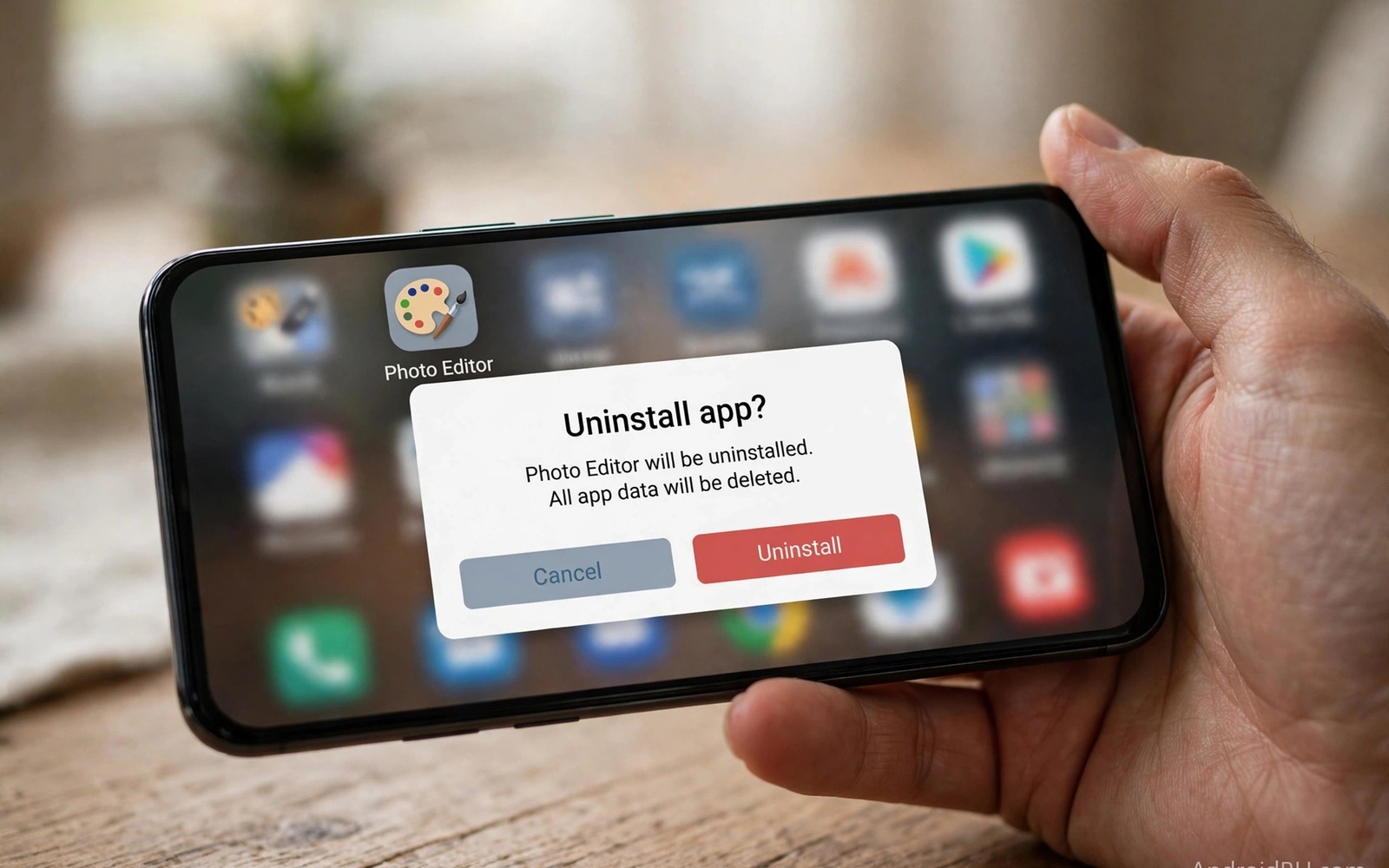
Uninstall from Settings rather than the home screen when possible. Open Apps and select the suspect app. Tap Uninstall and confirm. That path works even for apps with hidden launcher icons. After uninstall restart the phone. A restart clears temporary processes tied to the app. Check the app list again after restart. Confirm the app name no longer appears.
If uninstall fails then boot into safe mode. Safe mode loads only system apps. Third party apps cannot run or resist removal in safe mode. Uninstall the suspect app from safe mode settings. Restart normally after removal. Safe mode is a powerful tool for stubborn apps. Use it before considering a factory reset. A factory reset is a last resort after other steps fail.
Check what data the app may have taken
Review accounts you used inside the suspect app. If you entered a password then change it from a trusted device. Use a unique new password from a password manager. Change passwords for other services that shared the same password. That step limits credential reuse damage. Turn on two factor authentication where available. That protection blocks logins even with a stolen password.
Check for unauthorised messages or charges. A harmful app may send premium SMS messages. Check recent messages and carrier bills. Report unauthorised charges to your carrier promptly. Check email for password reset requests you did not make. Those requests signal account probing. Secure affected accounts before the attacker succeeds.
Check for new profiles or certificates installed by the app. Some harmful apps install VPN profiles or certificates to intercept traffic. Open Settings and search for VPN and certificates. Remove profiles you do not recognise. Removing a malicious profile restores normal traffic routing. If unsure then ask a trusted technician before deleting system profiles. Deleting a legitimate work profile can break work access.
Secure the phone after removal
Run a scan with a trusted security app after removal. Built in Play Protect can scan for known threats. A scan may find related harmful apps. Remove any additional threats it reports. Check the app list again a day later. Some harmful apps reinstall companions. A second check catches that behaviour. If companions return then a factory reset may be needed.
Back up important data before any reset decision. Save photos and contacts to a trusted cloud or computer. A factory reset erases all apps and data. It is effective but disruptive. Use it only when removal fails or companions return. After a reset install only trusted apps. Restore data from a clean backup. Avoid restoring a backup that includes the harmful app.
Report the harmful app to the store and to the developer platform. Reporting helps protect other users. Include the app name and developer and observed behaviour. Store reports trigger reviews that may remove the app. Your report could prevent thousands of further installs. Reporting takes minutes and helps the wider community.
adb shell pm list packages -u
adb shell dumpsys device_policy
echo "Removal check: confirm package gone after uninstall"
The snippet above is an original example written for this guide. It shows diagnostic checks for installed packages after removal on a connected device. It does not uninstall apps by itself. Use settings uninstall as the main method. Use diagnostics only to confirm the package no longer appears.
Separate work and personal apps after an incident
A harmful app on a personal phone can threaten work data as well. Many users mix work email and personal apps on one device. That mix spreads risk across both worlds. After an incident review work apps separately. Change work passwords from a trusted device. Inform work IT if company data may have been exposed. Early disclosure helps IT contain the risk. Hiding a work exposure makes containment harder.
Consider a separate work profile for future use. Android work profiles isolate work apps and data. A harmful personal app has less access to work data under that separation. Ask IT whether a work profile suits your role. That separation also simplifies removal after future incidents. Personal cleanup no longer threatens work access. Separation is a strong preventive step.
Common mistakes
A common mistake is only disabling a harmful app instead of uninstalling it. A disabled app stops running but remains on the device. It can be re-enabled later by accident or by another app. Uninstall fully to remove code and data. Disabled is a pause not a solution. Choose uninstall for any app you distrust.
Another mistake is keeping the same passwords after removal. Data already taken remains useful to attackers. Changing passwords closes that door. Change passwords promptly from a trusted device. Delay gives attackers time to use stolen credentials. Fast password changes limit damage greatly.
People also reinstall the same app from a different source. A harmful app may appear under a new name. Check developer identity before reinstalling any similar tool. For prevention then stopping risky app installs immediately teaches vetting. For warning handling then turning off your phone when you see a warning covers scam popups. For daily habits then stopping ten harmful phone habits immediately includes app audits.
Frequently asked questions
How do I uninstall an app with no icon?
Open Settings and then Apps to see the full list. Hidden launcher icons do not hide settings entries. Select the app there and tap Uninstall. Revoke device admin rights first if uninstall is blocked. Safe mode also allows removal of stubborn apps. That settings path works for most hidden apps.
Will uninstalling delete my personal data from the app server?
No. Uninstalling removes the app from your phone. Data already sent to a server remains there. Contact the developer to request data deletion when possible. Change passwords for accounts used in the app. That combination limits future misuse of stored data.
When should I factory reset after a bad app?
Reset when uninstall fails or companion apps return. Reset when system behaviour stays abnormal after removal. Back up important data first. After reset install only trusted apps. A reset is disruptive but it restores a clean system state.
After removal check connected accounts in other apps. A harmful app may have requested login through a social account. That login can grant ongoing access even after uninstall. Open social account settings and revoke access for the suspect app. Check for connected devices you do not recognise. Remove unknown sessions at once. That revocation closes a back door that uninstall alone cannot close.
Monitor bank and email alerts closely for two weeks after removal. Attackers may wait before using stolen data. A delayed attack can surprise users who relaxed too soon. Set up transaction alerts for all payment methods. Review email login history weekly during that period. Two weeks of vigilance catches most delayed misuse. After that period return to normal monthly checks.
After removal change the lock screen habit as well. A harmful app may have observed unlock patterns through accessibility access. Change your PIN or pattern after removal. Use a longer PIN that is harder to guess. Avoid patterns that leave visible smudge trails. A fresh lock code closes another possible access path. That step takes a minute and strengthens overall device security.
Conclusion
A dangerous app deserves prompt removal not hopeful waiting. Identify the newest suspect by usage and permissions. Revoke admin and accessibility rights before uninstall. Check accounts and profiles after removal. Secure passwords from a trusted device. Report the app to protect others.
Your concrete next step is to open Settings Apps today and review the five newest installs. Uninstall any app you do not recognise or trust. Change passwords for any account used inside a removed app. Repeat that review monthly.

