

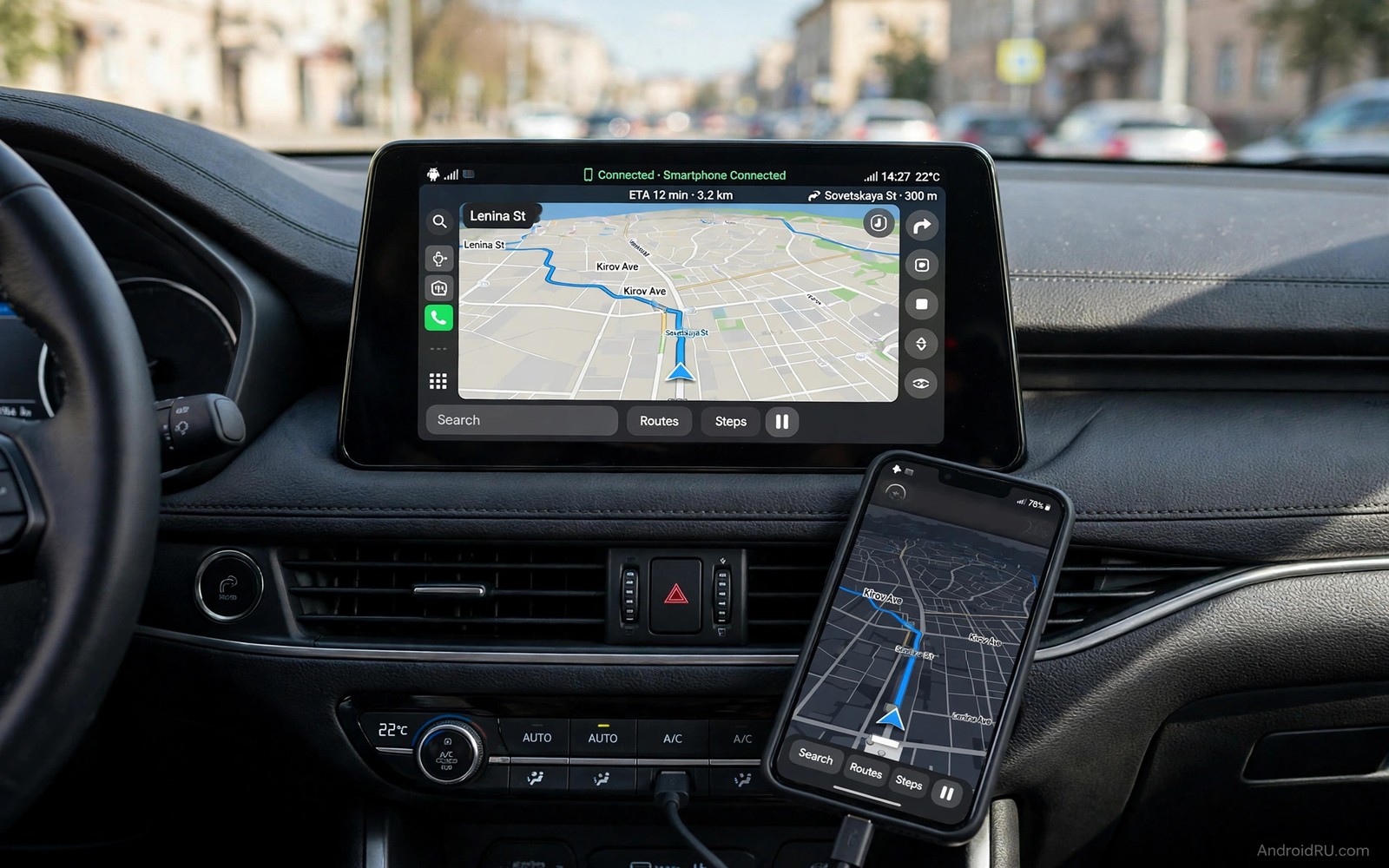
How Android Auto Connects Smartphone Navigation to Car Displays
Android Auto moves navigation from a small phone screen to the car display where it belongs. A driver can see a large map and hear clear directions without holding a phone. The phone still does the work of routing and traffic data. The car display simply shows that work in a safer, larger form. That split is the core idea behind the whole system.
The connection itself is simple once you understand it. The phone runs the apps and sends their display output to the car. The car screen acts as a touchscreen and a speaker system for those apps. Touch input on the car screen travels back to the phone as a command. Your data stays on the phone; the car shows only the driving interface.
This guide explains how the connection works, how to set up wired and wireless links cleanly, and how to use voice control so your hands stay on the wheel. You will also learn how to fix the most common connection drops and prepare properly for long trips.
How Your Phone and Car Display Work Together
Think of Android Auto as a second screen for your phone, one that is designed for driving. The phone runs Google Maps or Waze, Spotify or YouTube Music, and your messaging apps. The car display shows simplified versions of those apps with large buttons, short lists, and clear turn prompts. An app that needs complex interaction stays on the phone, where it cannot distract the driver.
That design is deliberate. Maps show large roads and the next turn. Media apps show big play controls and a short queue. Messaging apps read messages aloud and let you reply by voice. The interface removes everything that would tempt you to look away from the road for more than a glance. Voice-first navigation is the safest way to interact with the system, and the whole interface is built around that idea.
Android Auto runs on the phone itself. The car is a display and an input device, not a computer running the apps. That is why the same phone feels identical in a rental car and in your own car: the experience follows the phone, not the vehicle.
What the Car Display Shows and What It Hides
The car display shows navigation, media, calls, and messages. It hides your email inbox, your social feeds, and any app that is not certified as driving-safe. Video apps are blocked entirely while driving. That restriction frustrates some people, but it is the point: the car screen is for driving, and everything else waits until you park.
The Coolwalk interface, which rolled out widely from 2023, splits the screen into a main card and side cards. Navigation stays large on one side while music or messages sit in a smaller card beside it. You can glance at both without switching screens, which cuts taps and keeps your eyes forward longer.
Wired Versus Wireless at a Glance
A wired link uses a USB cable and charges the phone while it navigates. A wireless link uses Bluetooth to start the connection and Wi-Fi to carry the display, so the phone stays in your pocket. Both show the same interface once paired. The choice depends on your car hardware, your trip length, and how much you value a cable-free cabin.
Set Up a Wired Connection the Right Way
A wired setup is the most reliable way to start with Android Auto, and it is the best choice for long trips. The cable matters more than most people expect, so treat it as part of the setup rather than an afterthought.
Pick a Data Cable, Not a Charge-Only Cable
The single most common wired failure is a charge-only cable. It powers the phone while Android Auto never starts, because it cannot carry data. Use a good quality USB cable rated for data, ideally the cable that came with your phone or a certified replacement. Keep a spare in the glove box.
Plug the phone into the car USB port marked for data or for Android Auto. Many cars have several USB ports, and only one carries data to the head unit. Check the car manual if the first port does nothing. Accept the pairing prompt on the phone and grant only the permissions Android Auto requests. Open the Android Auto app on the phone once to confirm the car appears.
Test Before a Long Trip
Navigate to a nearby place before your first long drive. That short test catches pairing problems while you can still fix them calmly at home. Set home and work as favourites in Maps on the phone, because those favourites appear in Android Auto and shorten setup to a single tap. A calm start leads to a calm drive.
First-Drive Checklist
Run through this list once, then it becomes habit. Cable: data cable, not charge-only. Pairing: prompt accepted on the phone. Favourites: home and work saved. Voice: test one voice command while parked. Audio: confirm directions play through car speakers. If all five check out, the system is ready.
Set Up Wireless Android Auto Without the Headaches
Wireless Android Auto removes the cable from daily use. You get in, the phone connects by itself, and navigation is already on the screen. It needs a car that supports wireless mode and a phone running Android 11 or newer for the widest compatibility, with 5GHz Wi-Fi available for the display link.
Pair the phone to the car Bluetooth first, then enable wireless Android Auto in the car settings. Keep the phone Wi-Fi on, because the display link runs over Wi-Fi even though the phone is not connected to a hotspot. Place the phone in a stable spot, such as a holder or a tray, so the wireless link does not drop on bumpy roads.
When Wireless Drops, Switch to a Cable
Wireless links drop more often than wired ones, especially in areas with heavy Wi-Fi interference or on rough roads. If wireless drops often on your route, switch to a wired link for that trip. A stable cable beats an unstable wireless link on every long drive. There is no prize for going cable-free when the map keeps disappearing.
For cars that only support wired Android Auto, a small dongle such as AAWireless adds wireless mode by plugging into the car USB port and pairing with the phone. It is a proven workaround that many drivers use daily, and it costs far less than replacing the head unit.
Use Voice and Steering Controls Safely
Voice commands are the safest way to control navigation while driving. Say a destination naturally, for example “Navigate to Riverside Pharmacy”, and confirm the route before you move. Use voice for calls and messages so your hands stay on the wheel. “Hey Google, text Maria I’m ten minutes away” works without a single glance at the screen.
Learn the steering wheel buttons in a parked car before your first drive. Most cars put call answer, voice assistant, volume, and track skip on the wheel. Those buttons let you pause media and adjust volume without reaching for the screen. Set your destination before you start driving whenever you can; a preset home and work address saves typing and voice correction on the road.
Save Favourites So Setup Takes One Tap
Save frequent places as favourites in the maps app on the phone: home, work, the gym, your parents’ house, the airport. Those favourites appear in Android Auto and shorten setup to a single tap. Share your arrival time from the navigation screen so family knows when to expect you. That sharing adds safety on long trips, and it takes one tap before you leave.
Fix Connection Drops and Audio Problems
Most Android Auto problems come from a short list of causes, and the fix is usually simple. Work through them in order before blaming the phone or the car.
Connection Drops: Cable, Port, Lint
Connection drops often come from a worn cable or a loose USB port. Try a different cable and a different port before you change anything else. Clean lint from the phone USB port carefully with a wooden toothpick, because lint can break a data connection while charging still works. Restart the phone and the car system once after a cable change to clear a stuck pairing. That simple sequence resolves most wired faults.
For wireless drops, check that the phone is not switching Wi-Fi networks mid-drive, and move the phone closer to the head unit. A phone buried in a bag at the back seat has a weaker link than one in a dashboard holder.
Audio Problems: Check the Output Path
Audio problems usually come from a wrong output setting in the car. Check that the car audio source is set to Android Auto rather than radio or Bluetooth audio alone. Check phone media volume and car volume separately, because both affect the final level. If directions play but music does not, check the media app output inside Android Auto. Readers who use a phone to control other screens will recognise the pattern: it also shows up when controlling PC media from a smartphone, where the output choice decides what you hear. A clear output path fixes most audio confusion.
When to Clear Data and Start Fresh
If problems persist after cable and setting checks, clear the Android Auto app data on the phone and pair again from scratch. Also remove the car from the phone’s Bluetooth list and the phone from the car’s list, then pair fresh. A clean pairing fixes corrupted state that restarts cannot touch. Keep this as a later step, not a first step, because it erases your saved preferences.
Manage Multiple Driver Profiles in a Shared Car
A shared car should treat each driver phone as a separate profile with its own favourites and recent places. Connect the correct phone before starting navigation so favourites match the driver. Remove old phones from the car Bluetooth list when a driver changes phones, because a stale list can connect the car to the wrong device.
Teach each driver the voice command for home and work on their own phone. A personal favourite set saves time only when the driver knows how to call it. Practice voice navigation in a parked car for each new driver. That practice builds confidence before a real trip, and a confident driver is a safer driver.
Set media preferences per driver as well, because music taste differs widely. Each phone brings its own media apps and playlists to the car display. Confirm the connected phone name on the car screen before playing media. That check takes a second and prevents an awkward start to the drive.
Prepare Android Auto for Long Trips
Long trips need extra preparation beyond a daily commute setup. Download offline maps for the route region before departure, so navigation survives dead zones. Charge the phone fully and bring a data cable as a backup for wireless. Test navigation to the first stop before leaving home.
Plan fuel and rest stops as favourites along the route before a long drive. A planned stop list reduces roadside decisions under fatigue. Share the route with a family member so someone knows your plan. Keep a paper note of the destination address as a backup for a total phone failure. That simple backup costs nothing and it can rescue a trip.
The same preparation mindset applies to other ways a phone extends beyond its own screen. The guide to using a phone as a wireless TV remote shows how a phone takes over another display at home, and the trick for turning a phone into a smart home dashboard follows the same idea. Android Auto extends the phone to the car in the same spirit, and both reward preparation before use.
Common Mistakes That Ruin the Experience
The most common mistake is using a charge-only cable that cannot carry data. That cable charges the phone while Android Auto never starts. The second is setting a destination while driving instead of before departure. The third is granting every permission prompt without reading it during a rushed setup. Grant only the permissions Android Auto needs for navigation and media.
Drivers also leave the phone loose on a seat where wireless links drop on every bump. Place the phone in a holder or a stable tray. Do not try to fix a connection drop by handling the phone in traffic. Pull over safely and then check the cable or restart the pairing. Safety always outranks a faster route fix.
Starting a long trip with a low phone battery is another quiet failure. Navigation and wireless display together drain power faster than a weak charger replaces it. Use a wired link for long trips so charging keeps pace with use. Power planning is part of trip planning. For a related cross-device skill, the guide to sharing clipboard text between Android and Windows shows the same principle: prepare the link before you need it, not during the task.
Frequently Asked Questions About Android Auto
Does Android Auto work in every car?
Android Auto works in cars with a compatible display and software from the maker. Hundreds of models from most major brands support it, and the list grows every year. Older cars without a compatible system need an aftermarket head unit from brands such as Pioneer, Kenwood, Sony, or Alpine. Check your car model support list before you buy accessories. A phone holder with maps is a safer fallback for an unsupported car.
Is wireless Android Auto better than wired?
Wireless is more convenient because it removes the cable from daily use. Wired is more stable and it charges the phone during navigation. Choose wireless for short trips in a supported car. Choose wired for long trips or when wireless drops often. There is no single right answer, only the right answer for your route and your car.
Can I use Android Auto without mobile data?
Navigation needs data for live traffic and for searching new places. Downloaded offline maps can guide you on a preset route without live data. Media stored on the phone can play without data. Live traffic, voice search, and message reading need a data connection to work fully, so download what you need before you leave coverage.
Why does Android Auto keep disconnecting on the same road?
Repeated drops in one place usually mean wireless interference or a loose cable vibrating at certain speeds. For wireless, try moving the phone closer to the head unit. For wired, try a new cable and a different port, and clean lint from the phone port. If the drop always happens at the same spot, interference is the likely cause, and a wired link on that stretch solves it.
The Bottom Line: Set It Up Once, Then Just Drive
Android Auto works best when the setup happens before the trip, not during it. Connect your phone with a proper data cable, accept the pairing prompt, and set home and work as favourites before you drive. Navigate to a nearby place using voice and steering controls only. If that short drive feels calm and clear, Android Auto is ready for your next long trip.
After a week of driving with it, note which voice commands worked first time and which needed repeating. Rephrase the commands that failed and save the working phrases as favourites. A driver who trusts voice control keeps hands on the wheel more often. If wireless drops on a long route, switch to a cable for that trip. Reliability on a long drive matters more than wireless convenience, and a prepared driver enjoys the road instead of worrying about navigation.

