

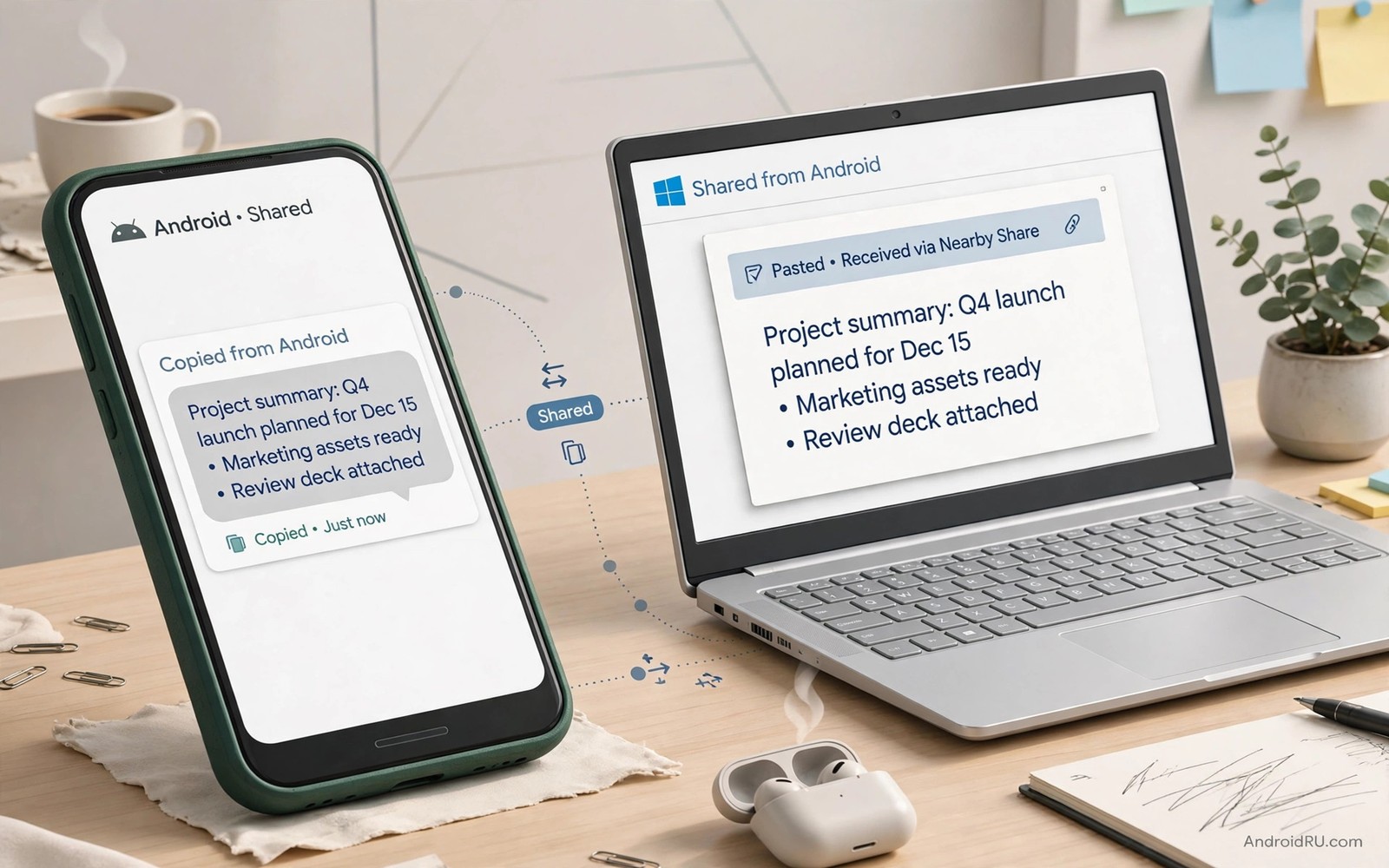
Copying text on a phone and pasting it on a computer should feel like one action. In practice it often means retyping a link or a code or a long address by hand. That retyping wastes time and it introduces errors in passwords and tracking numbers. Clipboard sharing removes that friction by letting copied text travel between devices over a secure link. Once it works you will wonder how you lived without it.
The safest methods use a signed in account and encrypted sync between your own devices. A phone app or a system feature sends the copied text to the cloud and the computer pulls it down within seconds. The text stays tied to your account and it does not pass through a random third party server. You control which devices join the sync and you can clear the history at any time. That control matters because clipboard text often includes private codes.
Setup takes a few minutes if you prepare both devices first. Sign into the same account on phone and computer and check that both devices have an internet connection. Turn on clipboard history on Windows and enable sync in the phone companion app. A companion method for moving content between devices is wireless file transfer from phone to TV which shows how local device links work in practice. Keep the steps in order and test with a harmless sentence first.
Clipboard sharing also helps a student who copies a quote on a phone while writing an essay on a computer. The quote arrives without retyping and without transcription errors. A researcher can move a citation from a phone browser to a computer document in seconds. Those small transfers add up to hours saved across a term. The habit becomes invisible once it works reliably.
Choose A Clipboard Method You Trust
Start with the built in option on your phone and computer when one exists for your setup. A system feature from the device maker often needs fewer permissions than a third party app. Check whether your phone companion app already offers clipboard sync before you install anything new. If it does then enable it and test it with a short phrase. A built in method also updates with the system and it usually respects enterprise policies on a work computer.
A third party clipboard app can fill the gap when no built in option exists. Choose an app with clear privacy terms and a history limit you can set yourself. Avoid apps that ask for full device access beyond clipboard and network needs. Read the permission list before install and deny anything that looks unrelated to text sharing. If an app wants contacts and location for clipboard sync then choose a different app.
Set Up Sync Step By Step
Sign into the same account on both devices and confirm the account name matches exactly on each screen. Open clipboard settings on Windows and turn on history and sync across devices. Open the companion app on Android and turn on clipboard sharing and grant only the clipboard permission it requests. Copy a test sentence on the phone and wait a few seconds. Paste on the computer with the standard paste shortcut and confirm the sentence appears.
# Clipboard sync checklist
account_same_on_both = yes
windows_history = on
windows_sync = on
phone_clipboard_permission = granted
battery_optimisation = not_optimised
The snippet above is an original example written for this guide. It shows generic settings that you can adapt to your own device. It does not copy code from any outside source.
If the test fails then check the simple causes first before you reinstall anything. Confirm both devices show online and confirm sync is on for the same account. Check that battery optimisation is not killing the companion app in the background on the phone. Add the companion app to the not optimised list if the system allows it. Restart both devices once after setup because a fresh start often clears a stuck sync service.
Use Clipboard Sharing In Daily Work
Clipboard sharing shines for links and addresses and two factor codes that are painful to retype. Copy a link on the phone while reading news and paste it into a document on the computer without touching the phone again. Copy an address from a message and paste it into a map on the larger screen. Copy a code from an authenticator app and paste it into a browser form before the code expires. Each of those flows saves a minute and removes a typo risk.
Keep clipboard history short to protect privacy and to keep pasting fast. A history of twenty items is enough for most work and it limits exposure if someone else uses the computer. Clear the history at the end of a shared computer session. Turn sync off temporarily when you handle highly sensitive text such as a recovery key. You can turn it back on later without losing your setup. That habit gives you speed for daily text and safety for rare secrets.
Fix Sync Failures Without Reinstalling
Sync failures usually come from account mismatch or background limits rather than a broken app. Check the account on both devices first and sign out and back in on one device if the names differ. Check Windows clipboard history and confirm it still shows recent items from the computer itself. If local history works but phone items never arrive then the phone app is the suspect. Open the phone app and confirm it still has clipboard permission after a system update.
Network changes can also break sync in a quiet way. A new VPN or a new Wi-Fi network with strict rules can block the sync service while browsing still works. Test sync on mobile data and on home Wi-Fi to narrow the cause. If one network works and the other does not then the network rules are the problem. For cross device ideas readers can also see syncing Windows notifications to a TV for another example of Windows and Android working together. Document the working network so you can spot a change next time.
Protect Sensitive Text In Clipboard History
Clipboard history stores text that may include private details such as addresses and codes. Review history regularly and delete items you no longer need. A short history limit reduces exposure if someone else uses the computer briefly. Turn sync off before copying a recovery key or a long password. That temporary pause protects the most sensitive text without losing your normal setup.
Shared computers need extra care because clipboard history may persist after you log out. Clear history before you leave a shared computer and sign out of the sync account if the computer is public. A public computer should never keep clipboard sync enabled for your account. Treat any shared device as untrusted for clipboard purposes. That caution prevents a convenience feature from becoming a leak.
Audit which apps can read clipboard on the phone once a month. Some apps request clipboard access for features that do not need it. Revoke access for apps that show no clear clipboard need. A smaller permission list means fewer apps can see copied text. That audit takes a few minutes and it strengthens privacy across the whole phone.
Extend Clipboard Habits To Other Devices
A clipboard link between phone and computer often inspires a similar link to a tablet. The same account approach works when the tablet runs a compatible companion app. Test tablet sync with a harmless sentence before relying on it for work. A tablet that joins the sync becomes a third paste point for links and notes. That expansion suits a desk with several screens.
A phone dashboard offers another way to control devices when clipboard sync is unavailable. The guide for turning a phone into a smart home dashboard shows how a spare phone becomes a control point. Use that panel for lights and clipboard sync for moving text. Each method suits a different task and together they cover most cross device needs.
Keep a simple workflow for copied links that need action later. Paste important links into a notes document at the end of the day instead of leaving them in clipboard history. That document becomes a searchable record while clipboard history stays short. A daily paste habit prevents losing a useful link when history clears. Organisation beats a long history every time.
Common Mistakes
The most common mistake is signing into different accounts on phone and computer and then wondering why nothing syncs. Account names can look similar across personal and work profiles so check the full address on both screens. Another mistake is copying a password and leaving it in a long clipboard history on a shared computer. Clear history after sensitive copies and keep history short by default. A third mistake is granting a clipboard app every permission it asks for without reading the list. A similar screen link appears in mirroring a tablet display to a desktop monitor for larger workspace tasks.
People also blame the feature when battery optimisation stops the phone app in the background. Android may pause the app after a period of inactivity and sync then appears random. Exempt the companion app from aggressive optimisation and test again. Do not paste clipboard text into a public chat by accident because a paste shortcut can insert the last copied item without a preview. Check the pasted text before you send it in any shared channel.
Owners also copy text on the phone and then wait too long before pasting on the computer. Clipboard sync can expire or be replaced by a later copy during that wait. Paste promptly after copying when the text matters. If you must delay then paste into a notes app at once as a safe holding place. That habit prevents losing an important link to a later accidental copy.
Frequently Asked Questions
Is clipboard sync safe for passwords?
Clipboard sync is convenient but it is not the safest place for a password. Any app with clipboard access on either device could read the copied text. Use a password manager with autofill for passwords instead of copying them. If you must copy a password then clear clipboard history right after you paste it.
Why does copied text arrive late on my computer?
Delay usually comes from background limits on the phone or a slow network switch. Battery optimisation can delay the phone app until you open it again. A VPN change or a weak Wi-Fi signal can also delay the sync. Exempt the companion app from optimisation and test on a stable network to narrow the cause.
Can I sync clipboard without a cloud account?
Some local tools sync clipboard over the same Wi-Fi network without a cloud account. Those tools need both devices on the same network and they stop working when you leave home. A cloud method works across networks but it stores text with your account provider. Choose local sync for privacy at home and cloud sync for travel.
Conclusion
Set up clipboard sync today with the same account on both devices. Copy a harmless test sentence on your phone and paste it into a document on your computer. If it appears within seconds then try a real link from a message next. That single test proves the setup and it unlocks faster work between phone and computer from now on.
After a week of clipboard sync check your history length and your permission list again. Delete history items that linger from sensitive copies and revoke access for any app you no longer trust. A weekly privacy check takes two minutes and it keeps a convenience feature safe. If sync ever stops then check the account and battery settings before reinstalling anything. That order fixes most failures without losing your setup.

