

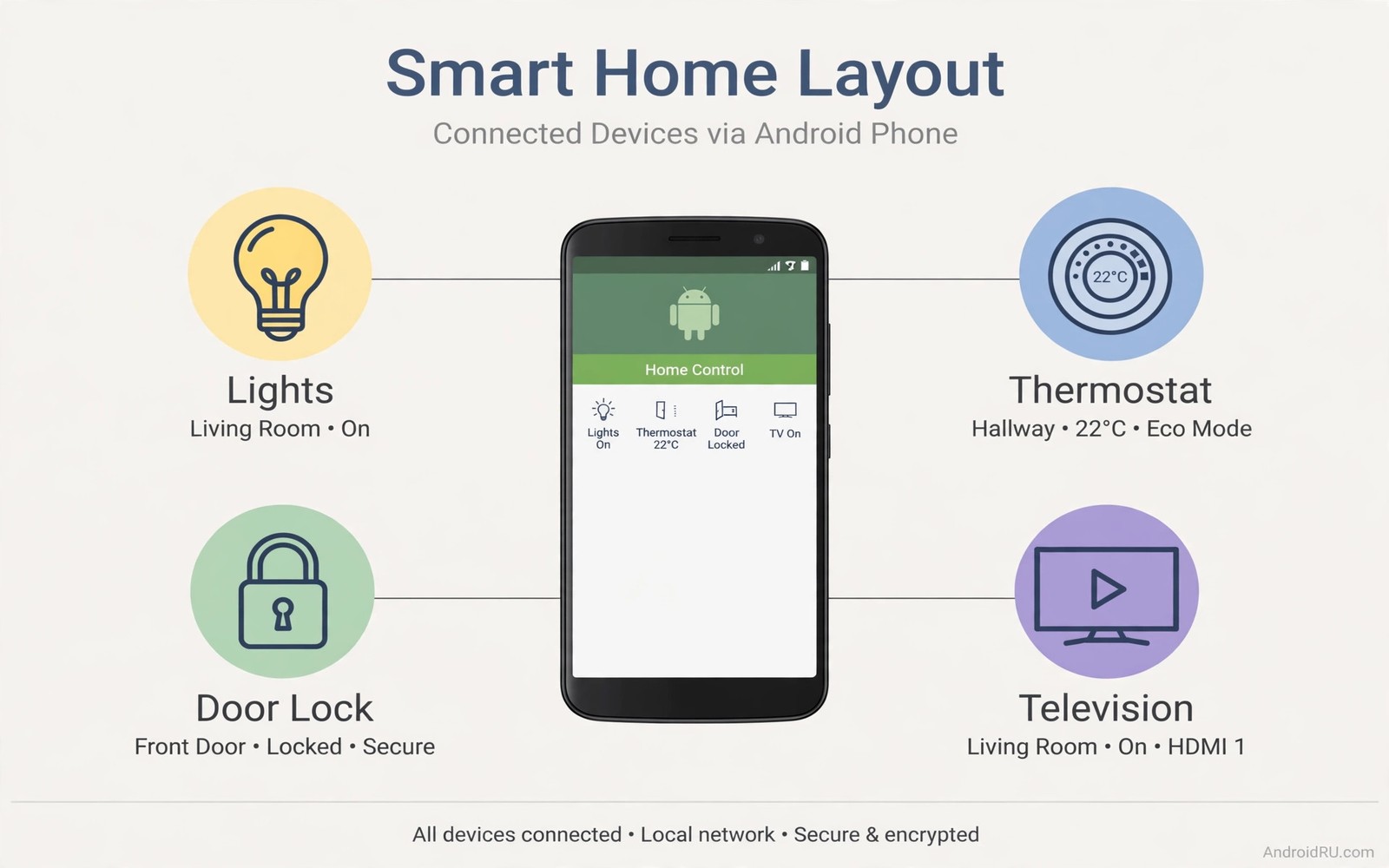
An old Android phone makes a surprisingly good smart home dashboard. It already has a bright screen and Wi-Fi and a touch panel and a speaker. Mounted near the front door or in the kitchen it becomes the one place where the whole house can be controlled. Lights and locks and cameras and temperature all sit behind one tap. The phone does not need a fast processor for this job because a dashboard shows buttons and status values rather than heavy video.
Start by deciding where the dashboard will live. A hallway mount suits a family because everyone passes it daily. A kitchen mount suits cooking routines and morning scenes. A bedroom mount suits night controls and alarms. The location shapes the layout more than any app choice. A hallway dashboard needs large buttons for lights and locks. A kitchen dashboard needs timers and scene buttons. Pick the room first and then design around it. The scene ideas in how to set up automated smart home scenes from an Android phone help you choose which controls deserve the main screen.
Prepare the phone for always on use
Factory reset the phone when it holds old accounts or old apps. A clean phone starts faster and it avoids old notifications popping over the dashboard. Sign in only with the account that controls your smart home. Skip email and social apps entirely because they add noise and they drain battery. A dashboard phone should feel like an appliance and not like a second personal phone.
Set the screen to stay on while charging. Android offers a stay awake option in developer settings for phones connected to power. A dashboard that sleeps every thirty seconds frustrates everyone who walks up to it. A screen that stays on feels instant and inviting. Pair that setting with a dim brightness level at night so the screen does not light the whole hallway.
Mount the phone with a charger that stays plugged in. A dashboard phone lives on power permanently so battery health matters less than stability. Use a short cable and a tidy mount so the setup looks intentional. A dangling cable makes a smart home feel unfinished even when the software works perfectly.
Design a dashboard layout people actually use
Put the most used controls at the top of the screen. Front door lock and living room lights and the main thermostat belong there. Less used controls belong on a second screen or inside a folder. A dashboard with forty buttons looks powerful but nobody uses it. A dashboard with eight clear buttons gets used every day.
Use large tiles with clear labels and clear icons. Small text looks elegant on a phone held in the hand but it fails on a wall mount viewed from two metres away. Test the layout from the doorway and not from arm length. If you cannot read a label from the doorway then enlarge it.
Group controls by room rather than by device type. A living room group holds lights and television and blinds for that room. A bedroom group holds lights and fan and alarm for that room. Room groups match how people think about their house. Device groups force people to hunt across the screen for one room.
Choose the right dashboard app approach
Some smart home platforms offer a dedicated dashboard view inside their own app. That view suits a home that uses one platform for everything. It stays updated automatically and it needs little setup. The limit appears when the house mixes platforms. A single platform view cannot show devices from a rival platform without extra work.
A browser based dashboard suits mixed homes better. It can show tiles from several platforms in one page through supported integrations. The page needs a stable local address and a tablet friendly layout. Test the page on the phone for a full day before you mount it. A page that reloads slowly will annoy the household fast.
A dedicated dashboard app offers the most polish for mixed homes. It lets you design tile sizes and colours and actions in detail. It also lets you hide admin settings behind a PIN so guests cannot change the layout. Spend setup time here only after the basic controls work. Polish cannot rescue a dashboard that misses a core light or lock.
Keep the dashboard fast and reliable
Turn off animations on the dashboard phone to keep tile taps instant. Animations look nice on a personal phone but they add delay to every tap on a wall mount. A dashboard should respond at once because people tap it while walking past. Instant response builds trust in the whole smart home.
Connect the phone to a stable Wi-Fi network and prefer the 2.4 gigahertz band when the mount sits far from the router. The slower band reaches further through walls and it suits small dashboard commands. A fast band that drops out feels worse than a slower band that stays connected. Test the connection for a day at the mount location before you finalise the setup.
Set up automatic restart once a week during the night. A weekly restart clears memory leaks and it refreshes the dashboard app. Schedule it for a time when nobody uses the dashboard. A fresh phone each Monday morning behaves more predictably than a phone that has run for months without a break.
adb shell settings put global stay_on_while_plugged_in 3
adb shell svc power stayon true
The snippet above was written for this article to show how advanced users keep a test phone screen on while it charges through a computer connection. It sets the stay awake value and it enables the stay on power mode on supported builds. Use it only on a spare phone you own. The normal path for most readers stays inside developer settings on the phone itself.
Secure the dashboard phone properly
A wall mounted dashboard phone needs security thinking even though it stays inside the house. Guests and visitors can tap it and children can explore it. Lock layout editing behind a PIN and hide account settings behind the same PIN. Daily controls stay open for everyone. Admin controls stay protected. That split keeps the dashboard useful without giving every visitor full control.
Keep the dashboard phone software updated even though it runs only one app. Updates patch security issues in the system and in the smart home app. An outdated dashboard phone becomes a weak point on the home network. Schedule updates during a quiet night hour so they never interrupt daily use. A maintained dashboard stays trustworthy for years.
Use a dedicated smart home account for the dashboard phone when possible. A dedicated account limits damage if the phone is ever stolen from the wall. The main account stays safe on your personal phone. A dedicated account also prevents personal notifications from appearing on a shared screen. Privacy and security both improve with that separation.
Plan a fallback for dashboard outages. A power cut or a network failure can blank the dashboard at an awkward moment. Keep physical light switches working alongside smart controls. A house that depends entirely on a dashboard fails completely when the dashboard fails. Physical fallbacks keep the house livable during any outage.
Plan dashboard power and mounting
Mounting height shapes dashboard usability more than most people expect. A mount at eye level for standing adults suits hallway use. A lower mount suits a kitchen counter where people sit or stand nearby. Test the height with tape on the wall before drilling holes. A taped outline reveals whether the screen sits comfortably for daily use. That test prevents holes in the wrong place.
Power cable routing deserves equal care. A cable that hangs loosely looks messy and it invites accidental unplugging. Route the cable behind furniture or through a small channel. A tidy cable keeps the dashboard powered reliably. It also makes the installation look professional rather than improvised.
Choose a mount that allows easy removal for maintenance. A dashboard phone occasionally needs a restart or a cable check. A mount that requires tools for every removal discourages maintenance. A magnetic or clip mount balances security with access. Easy removal keeps the dashboard maintainable for years.
Use the dashboard for routines and reminders
A dashboard can show more than device controls. A calendar widget shows the day schedule at a glance. A weather widget helps with clothing choices before leaving. A reminder widget shows chores for children. Those widgets turn the dashboard from a control panel into a household information centre. Information widgets suit a hallway mount especially well.
Limit widgets to information the household actually checks daily. A dashboard crowded with widgets becomes as noisy as a cluttered phone home screen. Choose three useful widgets at most. Three widgets inform without overwhelming. Everything else can live on personal phones where it belongs.
Common mistakes
The biggest mistake is using your main phone as the dashboard. A dashboard phone must stay mounted and charged and available. A main phone leaves the house with you and the dashboard disappears with it. Use a spare phone even when the spare feels slower.
Another mistake is adding every device to the main screen. A crowded dashboard slows decisions and it invites accidental taps. Keep the main screen short and move rare devices to a second screen. The household will thank you for the restraint.
A third mistake is skipping a PIN for settings. Guests and children can rearrange tiles or delete a room by accident. Lock the layout editing behind a PIN and keep daily controls open. That balance keeps the dashboard both usable and safe.
Frequently asked questions
Does a dashboard phone need a SIM card?
No. A dashboard phone works over Wi-Fi alone. Remove the SIM when you no longer need mobile data. Wi-Fi control covers lights and locks and cameras inside the home.
Will the screen burn in if it stays on all day?
Burn in risk drops sharply with a dim screen and a layout that changes slightly. Use a dark theme and let the dashboard shift or dim at night. Modern phone screens handle dashboard duty well with those habits.
Can one dashboard control devices from different brands?
Yes when the dashboard app supports those brands or when a hub bridges them. Check compatibility before you buy new devices. A hub that supports many brands saves far more effort than a dashboard app alone.
Conclusion
A phone dashboard turns a spare device into the control centre of the house. Clean the phone and mount it well and design for the room it serves. Your concrete next step is to pick one spare phone tonight and factory reset it and install only your smart home app. Mount it in the hallway tomorrow with a charger and add only eight controls to the main screen. Use that screen for a week and note which controls you actually tap. The automation ideas in smart home devices compatible with Android hubs and automated smart home scenes triggered by an Android phone will help you expand the dashboard once the core eight controls feel natural. As a related next step, explore customizing the Google TV home screen to extend what you set up here.

