

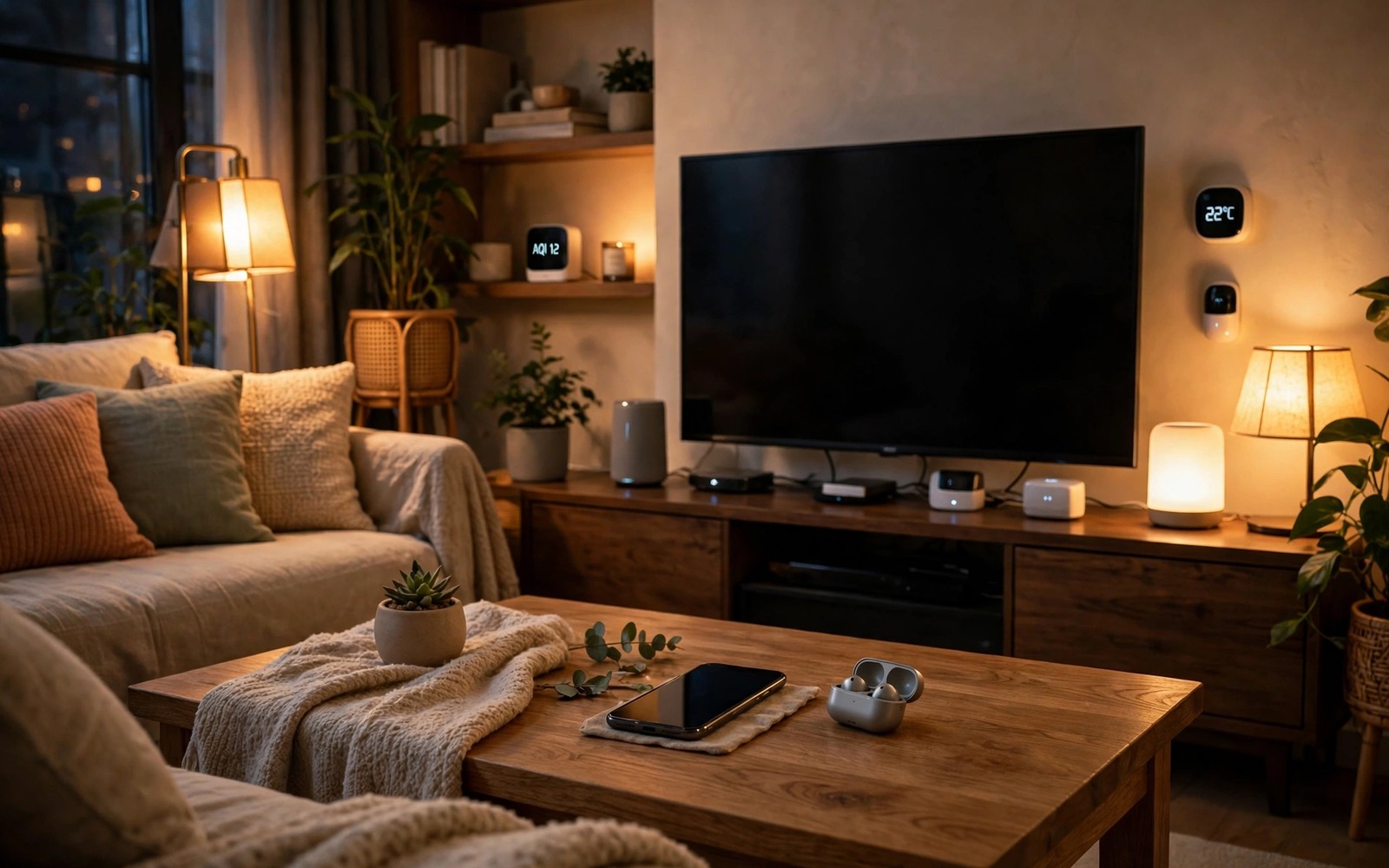
A smart home scene turns many device actions into one simple trigger. A movie night scene dims lights and closes blinds and turns on the television. A bedtime scene locks doors and turns off lights and lowers temperature. A morning scene opens blinds and starts coffee and reads the weather. Without scenes each action needs a separate tap. With scenes one tap or one phrase or one time trigger runs them all together.
Start with a scene that solves a real daily routine. A good first scene is a bedtime scene because everyone follows a bedtime pattern. List the actions you already do manually each night. Lights off and doors locked and thermostat lowered form a natural scene. Automating a real routine feels rewarding at once. Automating an imagined routine feels like a gimmick. The device guide in smart home devices compatible with Android hubs helps you confirm which devices can join a scene.
Plan a scene before you build it
Write the scene on paper before you open any app. List each device and each desired state in order. A movie night list might read lights dim and television on and blinds closed. A paper list reveals missing devices and conflicting actions early. It also gives you a checklist to test after building the scene.
Order actions by importance rather than by device type. Safety actions like locking doors belong first in a bedtime scene. Comfort actions like dimming lights belong after safety. If a scene fails halfway then the most important actions already ran. Order protects the scene from partial failures.
Keep the first version of each scene short. Five actions make a useful scene. Fifteen actions make a fragile scene that fails often. Add more actions only after the short version runs reliably for two weeks. Short scenes also make troubleshooting easy because fewer devices can cause failure.
Build the scene in your hub app
Open the hub or smart home app on your Android phone and find the scenes or routines section. Create a new scene and give it a clear name. A name like Bedtime works better than a name like Scene One. Clear names help voice control and they help family members find the scene. Add devices one at a time and set each desired state as you add it.
Test the scene immediately after building it. Run it from the phone while standing in the house. Watch each device respond and note any device that lags or fails. A device that fails during a test will fail during real use too. Fix that device connection before you rely on the scene.
Save a backup of scene settings when the app supports export. A hub reset can erase scenes that took hours to design. An export lets you restore them quickly. Store the export in a private folder with other smart home documentation.
Choose triggers that fit daily life
Manual triggers suit scenes you run at irregular times. A button in the app or a widget on the phone home screen runs the scene on demand. Manual triggers give full control and they never fire unexpectedly. They suit movie night scenes that happen at different times each week.
Time triggers suit scenes tied to a schedule. A bedtime scene at a fixed hour runs without any tap. A morning scene before work runs while you prepare. Time triggers need a schedule that actually matches your life. A trigger set for the wrong hour becomes an annoyance rather than a help.
Location triggers suit scenes tied to arriving or leaving home. A phone location trigger can turn on lights when you arrive after dark. It can lock doors and turn off lights when you leave. Location triggers need careful radius settings. A radius too large triggers the scene while you are still far away. A radius too small triggers it too late.
Use phone sensors as smart triggers
Phone sensors add creative triggers beyond time and location. A phone charging trigger can start a bedtime scene when you plug in at night. A phone alarm trigger can start a morning scene when the alarm rings. Those triggers tie the house to habits you already follow. They feel magical because they need no extra tap.
Combine triggers carefully when a scene needs more than one condition. A scene that runs only after sunset and only when you arrive home avoids daytime false triggers. Combined conditions reduce surprises. A scene with too many conditions may never trigger at all. Balance specificity with reliability.
Test triggers for a week before you trust them fully. A location trigger that works on Monday may fail on Tuesday when GPS accuracy drops. A time trigger that works on weekdays may annoy on weekends. A week of testing reveals patterns that a single test hides. Adjust triggers based on that week of real data.
{
  "scene": "bedtime",
  "trigger": "phone_charging_after_22",
  "actions": ["lock_doors", "lights_off", "thermostat_20"]
}
The snippet above was written for this article to show the shape of a simple scene definition with a trigger and a list of actions. It names a bedtime scene and it ties actions to a phone charging condition after a late hour. Real hub apps hide this shape behind menus but the idea stays the same. One trigger runs several device actions together.
Test scenes with the whole household
A scene designed by one person may surprise other household members. A bedtime scene that turns off all lights can strand someone still reading in another room. Test new scenes with everyone home and gather feedback. Household testing reveals conflicts that solo testing misses. A scene that works for everyone earns trust. A scene that surprises people gets disabled quickly.
Give household members a simple way to pause a scene. A pause button in the app or a voice command to stop automation helps when plans change. A guest staying late should not trigger a bedtime lockdown. A pause option respects real life variation. Automation should adapt to people rather than forcing people to adapt to it.
Document each scene in plain language for the household. A note that says Bedtime locks doors and turns off lights helps everyone understand it. Documentation prevents confusion when a scene fires unexpectedly. It also helps new household members learn the system without a long tutorial. A shared note in a common place serves as the house automation manual.
Revisit scene triggers after major life changes. A new work schedule or a new baby changes daily patterns completely. Old triggers tied to old schedules will fire wrongly. Update triggers promptly after life changes. Automation that follows current life feels helpful. Automation stuck in past life feels intrusive.
Keep scenes working after device changes
Replacing a smart device can break scenes that referenced the old device. A new bulb with a different name will not join an old scene automatically. Update scenes immediately after replacing any device. A prompt update prevents a scene that silently fails for weeks. Device changes and scene updates belong together as one task.
Renaming a device can also break scenes on some hubs. A scene may reference the old name internally even after a rename. Check scene actions after any rename. Fix broken references before the next scheduled trigger. A quick check after renaming saves confusion later.
Keep a list of which scenes use which devices. A list makes device replacement planning easy. You can see at a glance which scenes need updates. That visibility prevents forgotten scenes from failing quietly. A simple list on the phone serves perfectly.
Start scenes from a wall switch
A physical wall switch can trigger a scene more reliably than a phone for some households. A switch by the door runs a leaving home scene with one press. A switch by the bed runs a bedtime scene without finding a phone in the dark. Physical triggers suit guests and children who lack app access. They also work during phone battery failures.
Label scene switches clearly so visitors understand them. A switch labelled Movie Night invites use. An unlabelled switch invites confusion and accidental triggers. Clear labels turn smart switches into intuitive household controls. Intuitive controls get used daily while confusing controls get ignored.
Review scene history monthly
Scene history shows which scenes ran and which ones failed over the past month. A monthly review reveals a scene that fails silently every Tuesday or a trigger that fires at the wrong hour. History turns invisible problems into visible patterns. Patterns guide fixes far better than vague feelings that automation feels unreliable. Spend ten minutes each month reviewing history and fixing the weakest scene first. That habit keeps the whole system trustworthy over years of use. A trustworthy system gets used daily while an unreliable system gets disabled quietly.
Common mistakes
The biggest mistake is building a huge scene on day one. A huge scene fails in confusing ways because many devices interact. Start with a short scene and expand it slowly. Reliability beats impressiveness in home automation.
Another mistake is using a scene trigger that fires too often. A motion trigger for a whole house scene can fire dozens of times a day. Frequent false triggers train the household to ignore automation. Choose triggers that fire only when the scene truly applies.
A third mistake is forgetting manual overrides. A scene should never trap the household in an unwanted state. Keep a simple way to undo a scene from the phone or from a wall switch. An undo path turns a failed scene into a minor annoyance rather than a household crisis.
Frequently asked questions
Can one scene control devices from different brands?
Yes when all devices connect through the same hub. The hub translates commands across brands. Devices locked to separate apps without hub support cannot join the same scene easily.
What happens when one device in a scene fails?
Other devices in the scene usually still run. The failed device simply stays in its old state. Check device connections after a partial failure and rerun the scene for that device alone.
Do scenes work without internet?
Scenes with local hub control work during internet outages. Scenes that depend on cloud services may pause until internet returns. Local control matters most for safety scenes like bedtime locking.
Conclusion
Automated scenes turn repetitive house routines into single triggers. Plan on paper and build short scenes and test triggers for a week. Your concrete next step is to write one bedtime scene on paper tonight with only three actions. Build that scene in your hub app tomorrow and run it manually for three nights. If it runs perfectly then add a time trigger. The dashboard guide in how to turn an Android phone into a smart home dashboard and the device list in smart home devices compatible with Android hubs will help you expand from one reliable scene to a fully automated home. As a related next step, explore expanding limited storage space on Android TV box devices to extend what you set up here.

