

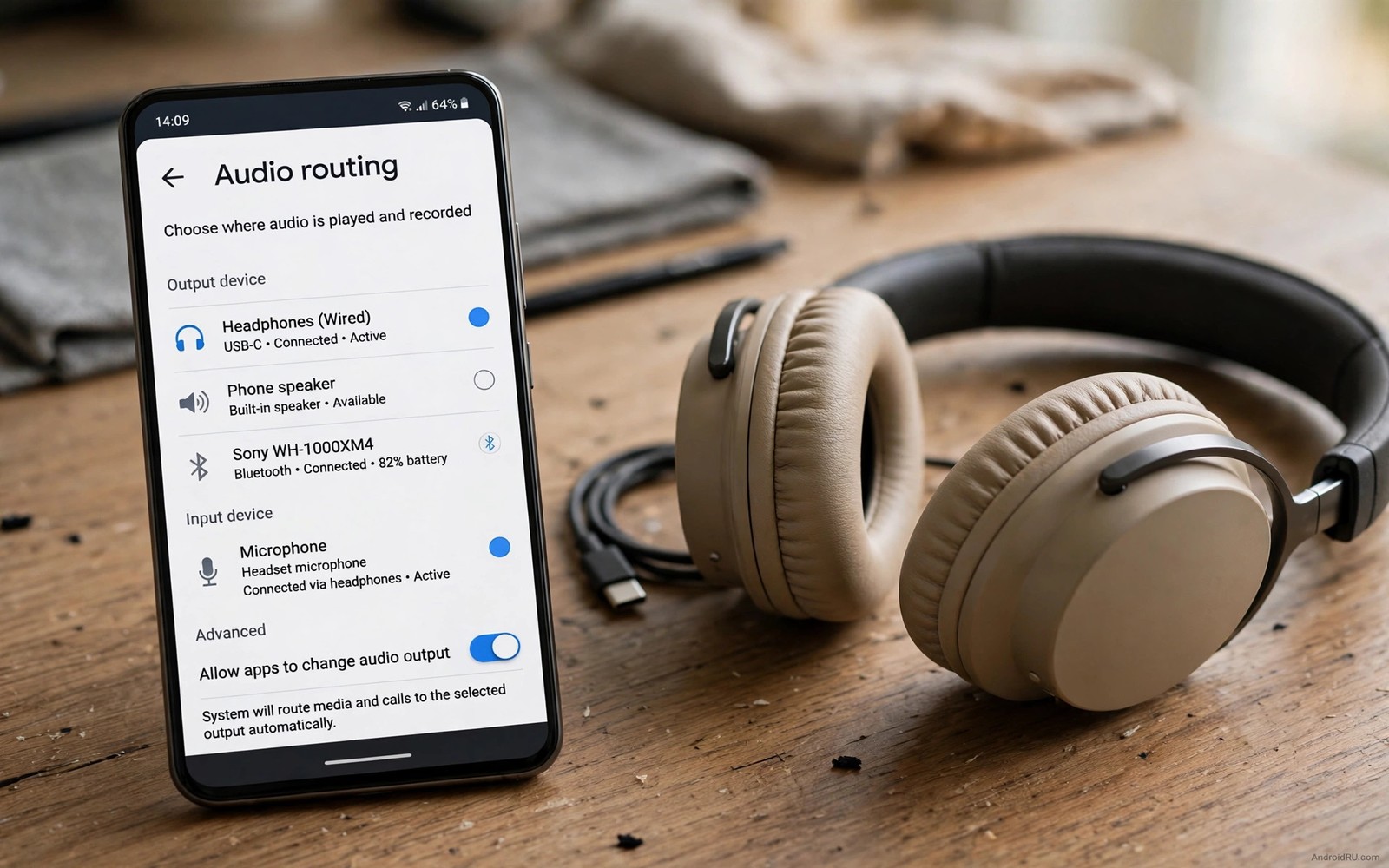
System audio routing decides which microphone captures your voice and which speaker plays each app. Android normally makes those choices automatically. That automation works for simple use yet it limits creative setups. A podcaster may want one microphone for recording while calls use another. A presenter may want music on a speaker while alerts stay in earbuds.
Tweak apps give manual control over those choices. They can assign an output per app or an input per recording task. They can also reveal the active audio route in real time. That visibility helps you diagnose why sound goes to the wrong device.
This guide describes five kinds of tweak apps rather than a single winner. Each kind serves a different routing need. Some focus on output per app. Others focus on microphone choice. A few focus on mixing and monitoring. Choose the kind that matches your task.
Output routing apps for separate app sound
Output routing apps assign a speaker or earbuds to a chosen app. They are useful when built in separate app sound is missing or limited. A music app can play on the speaker while a navigation app speaks through earbuds. That split keeps directions private while music stays shared.
Choose an output app with a clear device list and a simple per app toggle. The app should show the current route without digging through menus. Test routing with music and a podcast first. A stable split for media is a good sign before you trust it for calls.
Watch for routing resets on Bluetooth reconnection. Some apps lose their assignment when earbuds disconnect. Reconnect and test again before a commute. A routing app that resets silently can cause audio to play on the wrong output in public.
Input routing apps for microphone choice
Input routing apps let you choose which microphone feeds a recording or a call. A phone has several microphones for calls and noise reduction and video. The default choice may not suit a close interview or a distant lecture. Manual input choice can improve clarity greatly.
Test input routing with a voice note in a quiet room. Record the same sentence with each available microphone option. Listen on headphones and note which option sounds clearest. A microphone that sounds good for calls may sound poor for close recording.
Use an external microphone when the built in options fail. A wired lavalier microphone gives a close clear voice for interviews. A USB microphone gives a stable input for desk recording. Input routing apps help you confirm that the external microphone is actually active. For recording basics read about recording high fidelity audio notes without hiss.
Mixer apps for monitoring and balance
Mixer apps show multiple audio streams and their levels together. They help presenters balance music and voice before an audience hears them. A mixer can lower music automatically when speech starts. That ducking behaviour keeps voice intelligible without manual fiddling.
Choose a mixer with large clear level meters. Small meters hide clipping and imbalance. Test the mixer with a real presentation rather than a silent test. Live balance decisions need meters that respond quickly and clearly.
Keep mixer processing light for daily use. A heavy mixer can add latency that harms calls and games. Use a mixer only for tasks that truly need multiple streams. Turn it off for simple music listening to save battery and reduce complexity.
Bluetooth and USB routing helpers
Some tweak apps focus on Bluetooth and USB device switching. They show connected devices and let you move audio between them quickly. That quick switch helps when you move from car speakers to earbuds. A single tap switch beats digging through system menus each time.
Check that the helper respects call privacy. A helper that moves call audio to a speaker by accident can embarrass the user. Test call switching with a friend before relying on quick switches. A safe helper keeps calls on the last private output until you choose otherwise.
USB routing helpers also confirm that a DAC or external microphone is active. A guide to external USB DACs for Android explains how USB audio devices interact with system routing. Confirm the active device in the helper before a recording session.
Test any routing app with a safe routine
Start tests with non sensitive audio in a private room. Play music and a podcast through different outputs and confirm each route. Then test a voice note with the chosen microphone. Finally test a short call with a friend. That order moves from low risk to higher risk gradually.
Document the working combination for each task. Note the app and the output and the microphone that worked. A short note saves repeated setup time. It also helps you restore a good setup after a phone update resets routing.
Media test: music and podcast on different outputs
Input test: same sentence per microphone option
Call test: short call with a friend
Bluetooth test: route after reconnection
Note rule: record working app and device pair
The routine above is an original illustration created for this guide. It uses only general audio routing practice. It is meant as a safe test order before you use routing for important work.
Route audio for presentations and teaching
Presentations need a clear split between presenter monitoring and audience sound. A presenter can monitor through earbuds while the audience hears through a speaker. That split prevents feedback and keeps the presenter in control of timing. Routing apps make that split possible on a phone.
Test presentation routing in the actual room before an audience arrives. Room acoustics and speaker placement affect feedback risk. A test with a short clip reveals problems while there is still time to fix them. A room test is more valuable than a desk test for presentation work.
Keep a backup single output plan for presentations. If routing fails mid session then a simple speaker output still delivers the content. A backup plan reduces stress and it keeps the presentation moving. Routing is a tool for polish rather than a requirement for success.
Document routing setups for repeat use
Repeat routing tasks benefit from written documentation. Note the app name and the output assignment and the microphone choice for each task. A short document lets you recreate a setup in minutes after a phone reset. It also helps a colleague use the same setup without guesswork.
Update the document after any phone or app update that changes routing. An outdated document can mislead more than no document at all. A quick update after each change keeps the record trustworthy. That habit is especially valuable for team presentations.
For a simple two output split read about playing different sound out of speaker and earbuds. That guide covers the built in split that suits many everyday tasks. Use tweak apps only when that built in split is not enough.
Route audio for live streaming
Live streaming needs a routing plan before going live. A streamer must hear game sound and chat alerts without sending alerts to the audience mix. Routing separates monitoring from broadcast audio. That separation keeps the stream clean for viewers.
Test the stream routing with a private unlisted stream first. A private test reveals audio leaks before an audience hears them. Check that chat alerts stay in monitoring only when intended. A private test is a professional habit for any live setup.
Keep a backup plan for stream routing failure. If routing fails mid stream then a simple single output still lets the stream continue. A backup plan reduces panic during a live session. Viewers forgive a simple mix more than a silent stream.
Monitor stream audio on headphones throughout the session. A quick listen catches a routing drift early. Drift can happen after a device reconnects during a long stream. Early detection lets you fix routing before viewers complain.
For clean game capture that feeds a stream read about capturing clean internal game audio without mic noise. That guide keeps game sound pure for recording and streaming. Clean capture is the foundation of a good stream mix.
Common mistakes
The biggest mistake is installing several routing apps at once. Multiple routing layers can conflict and send audio to unpredictable outputs. Choose one routing app per task and remove the others. A single clean layer is more reliable than stacked layers.
Another mistake is granting broad permissions without reading them. Routing apps need audio related permissions yet they do not need contacts or location for basic routing. Deny unrelated permissions and test whether routing still works. A trustworthy app works with minimal access.
People also leave routing on after the special task ends. A forgotten route can send a later private call to a speaker. Turn routing off when the task ends and return to the default single output. That habit protects privacy daily. For separate output basics read about playing different sound out of speaker and earbuds.
Frequently asked questions
Can routing apps work without root?
Many routing apps work without root for media output per app. Deep system routing for all apps may need root on some phones. Check the app description for root requirements before installing. Non-root routing covers most everyday splits well.
Why does routing reset after an update?
System updates can reset audio permissions and device assignments. Reopen the routing app after an update and confirm each assignment. A quick recheck after updates prevents surprises during the next call or recording.
Will routing apps drain battery?
Routing adds a small cost because the app monitors audio changes. The cost is modest for occasional use. It grows when multiple outputs play at once for hours. Turn routing off when you no longer need a split.
Conclusion
Audio routing tweak apps give Android manual control over inputs and outputs. Output apps split media between speaker and earbuds. Input apps choose the best microphone for each task. Mixer apps balance streams for presentations. USB helpers confirm external devices.
Your concrete next step is to pick one routing task from this guide and test a single routing app with music and a podcast today. Note the working combination. If you only need a simple split then start with the secret hack for different sound on speaker and earbuds.

