

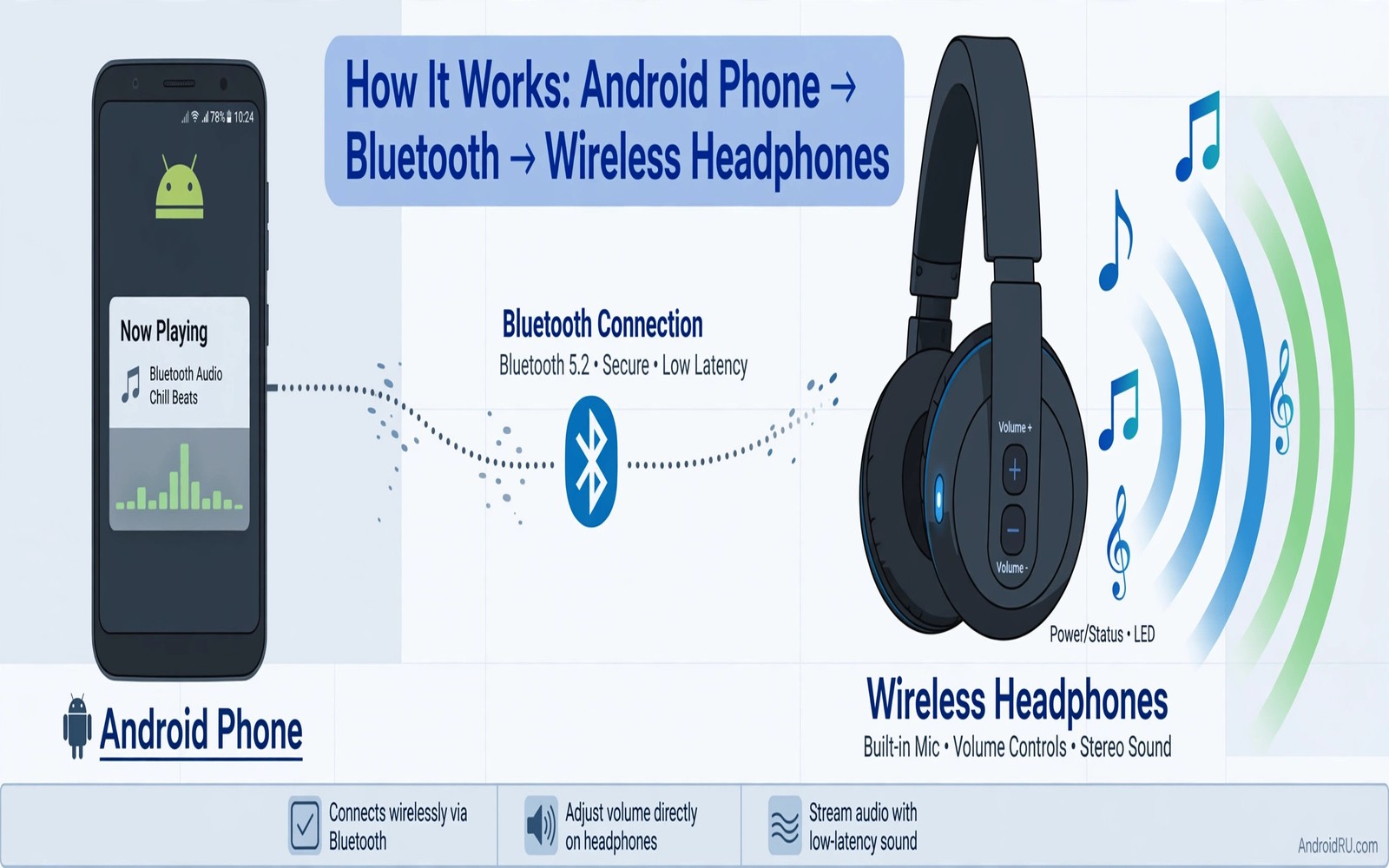
The Secret Setting to Fix Low Bluetooth Volume on Headphones
You press the volume button until the slider hits the top, and your Bluetooth headphones still sound like they are playing from the next room. The phone insists the volume is at maximum. Your ears disagree. Nothing is broken, and you do not need a new pair of headphones. What you are hearing is a control problem: two volume sliders that are supposed to move together have drifted apart, and the phone only shows you one of them.
Why Bluetooth Headphones Sound Quiet Even at Full Volume
Bluetooth audio passes through more volume controls than most people realise. There is the media slider on the phone, the volume control built into the headphones, a volume level stored by the headphones for each paired device, and sometimes a separate volume setting inside the music app itself. Any one of those can sit low while the others show maximum, and the quietest one wins.
The phone slider is the only one you can see at a glance, which is why the problem feels so strange. You watch the slider climb to the top and the sound barely changes. The hidden level is usually the headphone-side volume, and the phone has no way to display it when the two controls are not linked.
Two Volume Controls and One Misleading Slider
Android links the phone volume and the headphone volume through a feature called absolute volume. When the link works, pressing the phone volume button sends the new level straight to the headphones, and the headphones report their level back. One slider controls both ends. When the link breaks, the two controls move independently. The phone can sit at 100 percent while the headphones sit at 40 percent, and nothing on the screen tells you that.
A Quick Test That Takes Thirty Seconds
Play a familiar song, set the phone media slider to about 80 percent, then press the headphone volume-up control five times with a short pause between presses. If the loudness changes at all, the two controls were out of sync. If nothing changes, the headphone controls may be disabled, or the problem lives somewhere else in this guide. Either way, you have ruled out the simplest cause in half a minute.
The Hidden Second Volume Slider on Your Headphones
Almost every pair of wireless headphones has its own volume control, even the ones that look like they have no buttons at all. Over-ear headphones usually have physical buttons on the right cup. True wireless earbuds use taps or swipes on the bud surface. The exact gesture is in the manual, but the idea is the same on every model: the headphones keep a volume level of their own, separate from the phone.
Raising Headphone Volume With Onboard Controls
Start music on the phone, then use only the headphone controls to raise the volume. On Sony WH-1000XM5 headphones, swipe up repeatedly on the right earcup touch panel. On Samsung Galaxy Buds, touch and hold the bud surface if volume control is assigned to that gesture in the Galaxy Wearable app. On Pixel Buds Pro, swipe forward on the right bud. On most over-ear models, press the physical plus button.
Listen for the change after each press rather than mashing the button ten times at once. The Bluetooth link needs a fraction of a second to apply each step, and rapid presses can be dropped. Slow, deliberate presses with a short pause give you a clear answer about whether the headphone-side level was the problem.
Absolute Volume: The Secret Setting in Developer Options
Here is the setting the title promises. Android has a switch buried in developer options that controls whether the phone and the headphones share one volume or keep two separate ones. It is called absolute volume, and the switch that controls it is named backwards: “Disable absolute volume”. Turning it on switches the link off. Turning it off keeps the link on. That confusing name is the reason so many people toggle it the wrong way and give up.
For most modern headphones, the link should stay on, which means the disable switch stays off. One slider then drives both devices, and the volume you see is the volume you hear. For some older headphones, and for models with their own stubborn volume memory, the link causes the exact problem this guide fixes. Those headphones behave better with the link off, because then you can set the phone slider and the headphone slider independently and both will stay where you put them. The only way to know which state suits your headphones is to test both. It takes two minutes, and the test is reversible.
How to Open Developer Options and Find the Switch
Follow these steps exactly. The menu names vary slightly by brand, but the path is the same on every Android phone running Android 8 or later.
- Open Settings, then open About phone. On Samsung phones, open Settings, then About phone, then Software information.
- Find Build number and tap it seven times. After a few taps the phone shows a countdown, and after the seventh it says developer mode has been enabled.
- Go back to the main Settings screen. Open System, then Developer options. On Samsung phones, Developer options appears at the bottom of the main Settings list.
- Scroll down to the Networking section. Find the switch labelled “Disable absolute volume”. Note its current state before you change anything.
- Toggle the switch, then disconnect and reconnect the headphones.
- Play the same song at the same phone volume and compare. Then toggle the switch back, reconnect again, and compare a second time.
When to Leave Absolute Volume On, and When to Turn It Off
Leave absolute volume on, meaning the disable switch stays off, if your headphones are a recent model from a major brand, if the volume already tracks the phone slider smoothly, and if you never notice the level dropping after a reconnection. That is the normal, intended behaviour, and switching it off would only give you two sliders to manage for no benefit.
For a broader hearing safety view, read about enabling absolute volume control to protect hearing. That guide explains why a predictable single slider matters for long listening sessions, and it pairs well with the fix in this article.
How to Check and Change the Bluetooth Audio Codec
A codec decides how music is squeezed into the wireless link between phone and headphones. A low-quality codec can sound flat and thin even at high volume, while a better codec can sound fuller and clearer at the same level. The codec does not usually change raw loudness by much, but it changes perceived loudness a lot: a fuller sound with more bass and detail feels louder than a thin one at the same measured level.
The codec is negotiated between the phone and the headphones every time they connect. Both sides must support it, and the phone picks the best one they share. Sometimes the phone picks a safe but mediocre codec after a bad connection, and it stays on that choice until you change it.
What SBC, AAC, aptX, and LDAC Actually Change
SBC is the universal fallback codec. Every Bluetooth audio device supports it, and it works everywhere, but it compresses the most and sounds the flattest of the common options. If your headphones are stuck on SBC, music loses sparkle in the high notes and weight in the bass, and voices can sound slightly boxed in.
AAC is the codec Apple devices favour, and many Android phones support it too, but the quality depends heavily on the phone. aptX and aptX HD come from Qualcomm and are common on Snapdragon phones; aptX sounds cleaner than SBC with less delay, which also helps video lip-sync. LDAC, from Sony, runs at the highest bitrates of the group and is the pick for Sony headphones. LC3 is the new codec that comes with Bluetooth LE Audio, but both the phone and the headphones need to support LE Audio for it to appear.
Picking the Right Codec in Developer Options
Open Developer options using the steps from the previous section, then scroll to the Networking area and look for “Bluetooth audio codec”. Tap it to see the list your phone offers. Choose the codec your headphones are advertised to support, then disconnect and reconnect the headphones so the new choice takes effect. After reconnecting, the same entry shows the codec that is actually active, and on some phones a small “HD audio” toggle appears in the Bluetooth device settings.
Play a song you know well and listen for detail in the high notes and weight in the bass rather than raw loudness alone. A better codec should make the music feel more present and spacious, which is often what people mean when they say the headphones finally sound loud enough. If the codec setting keeps jumping back to SBC, the headphones may not support the codec you picked, or the connection may be too weak to hold it. Move closer to the phone, away from Wi-Fi routers and other Bluetooth devices, and try again.
Why a Better Codec Sometimes Sounds Quieter at First
A higher-quality codec can sound quieter for the first few seconds because it reproduces the music more accurately, including the quiet passages that a heavy codec would have flattened upward. Give it a full song before judging. If the sound is still thin after that, the codec was not the problem, and the volume controls earlier in this guide are where the answer lives. The Bluetooth audio codec setting is powerful, but it is one piece of a chain, not a magic dial.
A guide to studio quality audio on cheap Android headphones explains how codec and equalizer choices work together, and it is worth reading once your volume is fixed, because the equalizer is the next place where cheap headphones gain a lot of sound quality.
Re-Pairing, Clearing the Bluetooth Cache, and the Reset Ladder
A stale pairing can keep a bad volume state alive across restarts. The pairing stores the negotiated codec, the volume link state, and the saved headphone volume level, and the phone restores that stored data every time the headphones connect. Removing the pairing and starting fresh forces both devices to agree on a clean state, so work through these steps in order and stop at the one that fixes the volume.
Forgetting and Re-Pairing the Headphones
Open Settings, then Connected devices or Bluetooth, and tap the gear icon beside the headphone name. Tap Forget or Unpair. Put the headphones into pairing mode, usually by holding the power or Bluetooth button until the light flashes, and pair them again from the phone. Play music before changing any other setting, and check both sliders during this first test so you see the true starting levels.
Volume Limits, App Normalisation, and Hearing Safety Caps
Some phones cap media volume for hearing safety, and that cap can apply to Bluetooth audio as well as the speaker. Samsung phones show a warning when the volume passes a safe level and can cap it until you confirm. Some phones tie the cap to the region settings, so a phone bought in Europe may cap Bluetooth volume lower than the same model bought elsewhere. The cap is easy to miss because the slider still moves to the top; the sound simply stops getting louder past the capped point.
How Spotify, YouTube, and Other Apps Quietly Lower Volume
Music apps can limit volume through normalisation, a feature that lowers loud tracks to match quiet ones so the playlist sounds even. That feature can make a whole playlist sound quieter than expected, and it has nothing to do with Bluetooth at all. In Spotify, open Settings, then Playback, and test with “Enable audio normalisation” switched off for one album. In YouTube, the equivalent setting is “Stable volume” under Settings, then Playback. Test the same song in a second app before blaming Bluetooth: if a local music player sounds loud while Spotify sounds quiet, the problem lives in the first app, not in the headphones.
For a broader hearing safety view, read about enabling absolute volume control to protect hearing. A predictable single slider prevents loud surprises during these tests, and that matters most when you are raising volumes to compare settings.
Bluetooth Codec Comparison: Which Setup Sounds Loudest
Codec choice is easier to judge with the numbers side by side. The table below covers the codecs you will actually meet on Android phones in 2026, with the maximum bitrate each one reaches and the situation where it makes sense.
| Codec | Maximum bitrate | Sound character | Best for |
|---|---|---|---|
| SBC | 345 kbps | Flat, least detail, works everywhere | Any headphone as a fallback |
| AAC | 320 kbps | Warm and smooth, quality varies by phone | Apple-friendly earbuds on Android |
| aptX | 352 kbps | Clean, low delay, better than SBC | Video watching and daily listening |
| aptX HD | 576 kbps | More detail, fuller high notes | Music-first listening on Snapdragon phones |
| LDAC | 990 kbps | Richest detail, needs a strong link | Sony headphones and quiet rooms |
Preventing Low Bluetooth Volume From Coming Back
Fixing the volume once is satisfying. Keeping it fixed takes a small habit. After a successful fix, check the volume after every reconnection for a week. Some headphones restore a saved level that reintroduces the problem, and catching it early means a single press of the headphone volume button instead of another full round of diagnosis. A week of checks builds the habit, and once the level stays stable for seven days in a row, you can stop checking every time.
The One-Week Reconnection Check
The routine is simple: each morning, play one song as soon as the headphones connect and listen for the first five seconds. If the sound is at the level you expect, do nothing. If it is quiet, raise the headphone volume with its own controls before touching the phone slider. Writing down the result for the first few days helps too. A note that says “Tuesday: quiet after reconnect, fixed with headphone button” tells you the headphone volume memory is the cause, while “Friday: quiet in the gym only” points to a weak radio link and codec fallback instead. Notes turn a vague annoyance into a pattern you can act on.
Frequently Asked Questions About Quiet Bluetooth Headphones
Why do my Bluetooth headphones sound quiet on Android but loud on iPhone?
The two systems handle the volume link differently. iPhones use their own volume negotiation with headphones, and many headphone makers tune their products for the iPhone behaviour first. On Android, the absolute volume link and the codec choice are more exposed to the user, which means a wrong setting can leave the headphones quiet. In most cases the headphones are fine, and the Android settings are the whole story.
Should absolute volume be on or off for my headphones?
Most modern headphones work best with the link on, which means the “Disable absolute volume” switch stays off. One slider then controls everything. Switch the link off only if your headphones keep a low volume no matter what the phone slider shows, or if the volume drops every time the headphones reconnect. There is no single right answer for every model.
Why does the volume drop every time I reconnect my headphones?
Headphones often restore a saved volume level when they reconnect, and that saved level can be lower than the phone slider shows. Raise the headphone volume with its own controls right after connecting, and the two levels should stay in sync for that session.
Can a codec change really make headphones louder?
A codec change rarely raises the measured maximum volume, but it often raises the perceived loudness. A better codec delivers more bass, more detail, and a wider sound, and a fuller sound feels louder than a thin one at the same level. If your headphones are stuck on SBC, switching to aptX, AAC, or LDAC can make the same song feel noticeably stronger.
Your concrete next step is to play one song today and raise the headphone volume with its own controls while the phone slider stays at maximum. If the sound jumps, you have found the hidden slider, and the problem is solved. For broader sound tuning, continue with ten essential audio hacks every Android power user should try, and for speaker listening, read about making your Android speaker louder without distortion.

