

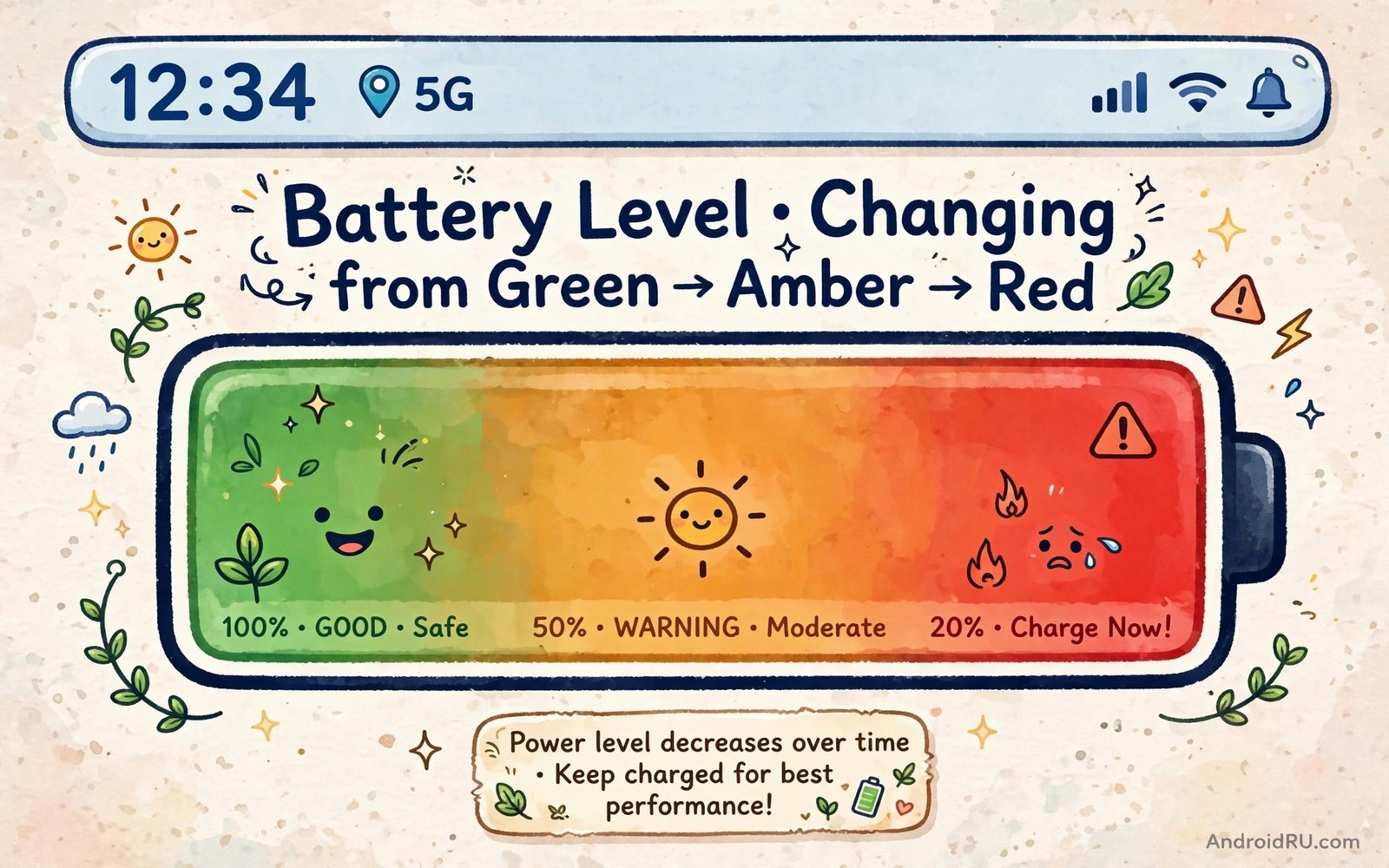
The tiny battery icon in your status bar tells you almost nothing at a glance. It shrinks slowly as the day passes. You must stare at it to guess whether you have plenty of charge or almost none. A live color meter fixes that problem. It paints the battery icon green when charge is high. It turns amber as charge falls. It turns red when you need a charger soon. One glance then tells you the whole story.
Color works faster than numbers for most people. A number needs reading and thought. A color hits instantly even from across a room. That speed matters when you are busy. You can see red while walking past your desk and plug in before the phone dies. You can see green and relax about a long trip. A color meter turns a passive icon into an active warning system. It does not change how the battery works. It changes how fast you notice trouble.
This article shows how to build that color meter on Android. You will learn the built-in options first. You will learn safe app options for phones that lack a built-in choice. You will learn how to pick colors that suit your eyes and your habits. You will also learn how to avoid battery apps that drain more than they help. The goal is a clear glanceable meter that costs almost no power itself.
Why Color Beats A Plain Icon
A plain battery icon changes shape slowly. The difference between 60 percent and 40 percent looks tiny on a small icon. Many users miss that change until the phone warns them at 20 percent. By then the remaining time may be short. Color adds a second channel of information. The icon shape shows the level. The color shows the urgency. Two channels together are harder to miss than one channel alone.
Color also helps in bright light and at a distance. Numbers can be hard to read on a small status bar in sunlight. A red icon stands out even when the digits blur. An amber icon catches the eye during a busy day. A green icon reassures without any reading at all. That glanceable quality is the whole point of a meter. It should work when you are not really looking at the phone.
Personal thresholds make the meter even better. You can set red to appear at 30 percent instead of 15 percent if you travel often. You can set amber to appear at 50 percent on long days. Your meter then warns you early enough to act. A factory warning at 15 percent often comes too late for a long commute. A personal warning at 30 percent gives you time to find a charger calmly. Color lets you set that early warning without any extra alarm.
Built-In Options On Most Android Phones
Start with the built-in battery settings. Open Settings and tap Battery. Look for Battery percentage and turn it on if it is off. A number beside the icon helps a lot even before color enters the picture. The number removes guessing about the exact level. Some phones also offer a battery icon style choice in the same menu. Look for style or icon options and try each one. A style with a clear fill shape reads better at a glance.
Many phones include a low battery warning color by default. The icon may turn red or orange when charge falls low. That built-in warning is a start but you cannot always change its threshold. Check whether your phone lets you adjust it. Open Settings and search for battery saver. Battery saver often changes the icon color when it turns on. You can schedule battery saver to start at a higher level such as 30 percent. The icon then changes color earlier and acts as your warning.
Some phone makers add a full color theme for the status bar. Search Settings for status bar or display options. A theme that tints the whole status bar by battery level gives the strongest glance signal. Try the options on your model and keep the one you notice fastest. If your phone lacks a color option then move to the app methods below. Do not force a system change that your phone does not support. A safe app method beats a risky system hack.
App Methods That Add A True Color Meter
A battery widget can act as a color meter on the home screen. Place a small battery widget where you see it often. Choose a widget that changes color by level. Green for high charge and amber for medium charge and red for low charge is a clear scheme. The widget updates as the level changes. It costs little power because it updates only when the level changes by a step. A widget is a good choice when the status bar icon cannot change color.
A status bar replacement app can tint the icon itself on some phones. Search for a well rated battery bar app with a long history and clear privacy policy. Read recent reviews before you install anything. A good app asks only for the permissions it needs. It should not ask for contacts or location or full device access. A battery meter needs almost no permissions at all. An app that asks for far more than that is a warning sign.
Some apps draw a thin color bar across the top edge of the screen. That bar acts as a second meter beside the icon. Green means plenty of charge. Amber means plan a charge soon. Red means charge now. The bar is visible in any app without opening settings. It uses almost no power because it draws only a thin line. This method suits users who want a constant glanceable signal. Test one such app for a week and remove it if you notice any drain.
Pick Colors That Work For Your Eyes
Choose colors with strong contrast against your wallpaper and theme. Green and amber and red work well on most themes. Avoid pale colors that blend into a light status bar. Avoid colors that look alike in dim light. Test your scheme at night and in bright sun. A scheme that fails in one light condition fails when you need it most. Adjust until each color is obvious in both conditions.
Think about color vision as well. Red and green can look similar to some users. Add a shape change beside the color when you can. A full icon plus green means safe. A half icon plus amber means plan ahead. A nearly empty icon plus red means urgent. Shape plus color together help every user. A meter that relies on color alone leaves some users guessing. A meter with two signals helps everyone.
Keep the scheme simple with three levels only. More levels create confusion. Three levels map cleanly to safe and caution and urgent. You do not need seven shades to know what to do. Safe means carry on. Caution means plan a charge. Urgent means charge now. Simple rules lead to fast action. Complex rules lead to ignoring the meter entirely.
Make The Meter Work With Battery Habits
A color meter is only useful if it changes what you do. Set a personal rule for each color. Green means no action needed. Amber means plug in at the next natural break. Red means plug in now or switch on battery saver. Write those rules down for the first week. After a week the rules become habit. The meter then works without thought. It nudges you at the right moment every day.
Pair the meter with battery saver scheduling. Background apps that wake often can also hide a meter warning so tame them with the background app battery setting first. Set battery saver to start when the meter turns red. The phone then stretches the remaining charge automatically. That pairing turns a warning into an action. You see red and the phone already starts saving. You still need to charge soon. But the remaining time grows longer and the stress falls. For phones where battery saver also affects alerts check the battery saver setting that breaks notifications before you schedule it. A warning that breaks alerts needs a careful setup.
Use the meter to learn your daily pattern. Note the time the meter turns amber each day for a week. That time tells you when your phone truly starts to struggle. If amber arrives before lunch then your drain is high. Look at background and screen settings to fix it. If amber arrives near bedtime then your phone lasts well. The meter becomes a daily health check as well as a warning. A simple glance then tells you both the level and the trend.
Avoid Meter Apps That Drain The Battery
Some battery apps update every second and drain power themselves. A good meter updates only when the level changes. Check battery usage after installing any meter app. If the meter app appears high in the list then remove it at once. A meter that costs more than it saves defeats its own purpose. Built-in options always cost less than a third party app. Prefer built-in options whenever they exist.
Watch for apps that show ads over your screen or lock screen. Those apps often run constantly to serve ads. They also ask for broad permissions. A clean meter app shows no ads on the lock screen and asks for minimal permissions. Read the permission list before you install. Deny any permission the meter does not need. A meter needs no access to your messages or contacts or files.
Live color meter setup
1. Settings > Battery > Battery percentage on
2. Pick a clear battery icon style
3. Schedule battery saver at your red level
4. Add a color battery widget to home screen
5. Test colors in sunlight and at night
6. Set personal rules for green amber red
7. Check meter app usage after one week
The setup above was written for this article as a plain summary of the built-in and app steps. It uses only safe settings and optional widgets. Follow it in order and test the colors in real light. If a step does not exist on your phone then skip it and use the next step. The goal is a glanceable meter not a perfect copy of every option.
A color meter fits well into a broader daily battery routine. For a full set of daily checks that include this meter see the daily battery optimization checklist and add the meter glance to your morning and evening checks. A quick color glance twice a day catches most problems early.
Common mistakes
Many users pick pretty colors that blend into the theme. A meter must stand out to work. Choose bold colors with strong contrast. Test them in sunlight and at night. A beautiful meter that you cannot see is useless.
Another mistake is adding seven color levels. Too many levels create confusion about what to do. Three levels are enough. Safe and caution and urgent cover every decision you need. Simple rules lead to fast action.
Some users install a meter app that drains power itself. Check the app in battery usage after a week. Remove any meter that appears high in the list. A meter should cost almost nothing. Built-in options always beat a heavy app.
A final mistake is ignoring the meter once it turns amber. Amber is the time to plan a charge. Waiting until red removes your options. Act on amber during a natural break. Red should be rare not routine.
FAQ
Can I change the battery icon color without root?
Most phones allow some color change without root through battery saver or themes or widgets. Full status bar tinting may need an app on some models. Root is not needed for a useful color meter. Widgets and battery saver scheduling cover most needs safely.
Does a color meter app drain battery?
A good meter app drains almost nothing because it updates only when the level changes. A bad app that updates every second can drain power. Check battery usage after a week. Remove any meter app that appears high in the list and use built-in options instead.
What colors should I use for low battery?
Use red for low battery on most themes because red signals urgency clearly. Pair red with a nearly empty icon shape for users who see colors differently. Set red to appear early enough to act such as 30 percent on long days. Early red beats late red every time.
Conclusion
A live color meter turns a tiny icon into a fast warning system. Green means safe. Amber means plan a charge. Red means charge now. Built-in percentage and battery saver scheduling give most users a solid start. Widgets and thin bar apps add a true color signal where the system lacks one. Simple colors and clear personal rules make the meter work without thought.
Your concrete next step is to turn on battery percentage now and schedule battery saver at 30 percent. Add a color battery widget to your home screen today. Glance at it at lunch tomorrow and act on amber before the phone ever reaches red.

