

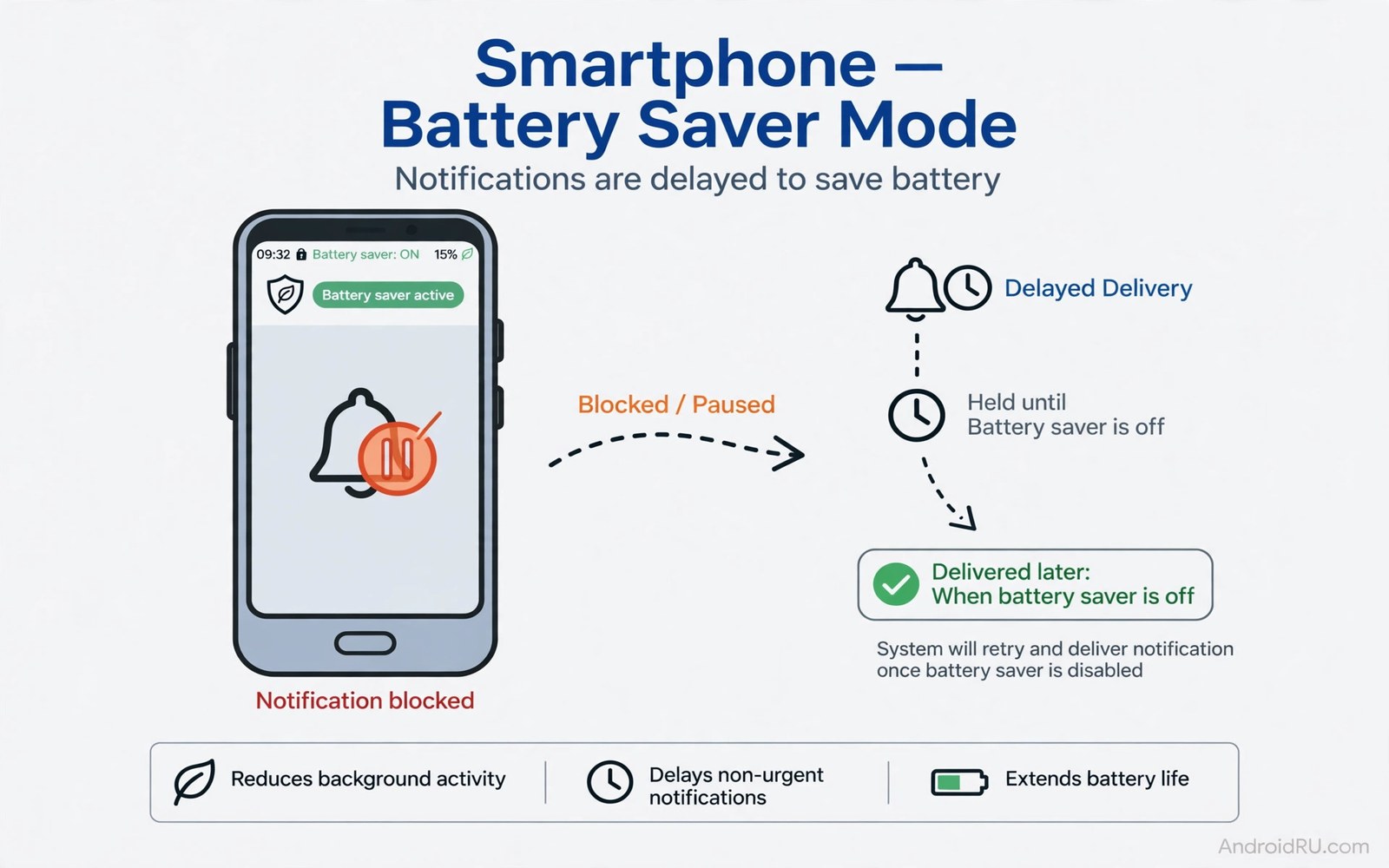
You turn on battery saver to stretch a low battery. Hours later you learn you missed an important message. The message arrived on time to the server. It arrived late to your phone. Battery saver delayed it to save power. That delay is not a bug in the usual sense. It is the direct result of how battery saver works. It limits background work and that limit includes the work that delivers alerts.
The setting at the centre of this problem is often called battery saver or extreme battery saver or background restriction for a specific app. On many phones the worst offender is an aggressive battery saver mode that restricts apps heavily. It stops apps from waking often. It delays sync. It may also delay push alerts until you open the app or until the phone charges. Users then blame the messaging app. The messaging app did nothing wrong. The system held its alerts back on purpose.
This article names the setting and explains exactly how it breaks deliveries. You will learn how to spot a battery saver delay. You will learn how to fix it for important apps without turning off all saving. You will also learn how to use battery saver safely on low battery days. The goal is both power and reliable alerts. You should not have to choose one or the other blindly.
How Battery Saver Delays An Alert
A push alert needs a small chain of work. A server sends a message to a push service. The push service wakes your phone briefly. Your phone wakes the target app briefly. The app shows the alert. Each step needs a short wake of the processor and radio. Battery saver breaks that chain by limiting wakes. It may allow wakes only at intervals. It may block wakes for apps it deems unimportant. The alert then waits until the next allowed wake or until you open the app.
Different saver levels break alerts to different degrees. Standard battery saver delays background sync and limits some wakes. Most important alerts still arrive but some arrive late by minutes. Extreme saver goes much further. It may allow only a small set of apps to run. All other apps stop delivering until you open them. That extreme level is meant for emergencies. It trades timely alerts for maximum battery life. Users who turn it on without knowing that trade feel betrayed when alerts vanish.
Per app battery restriction adds a second layer. An app set to restricted may not wake for push alerts at all while the screen is off. The system treats that app as low priority. It holds its work until you open the app. A restricted chat app therefore behaves like a broken chat app. Messages pile up silently. Opening the app releases them all at once. That flood after opening is the classic sign of a restriction delay.
How To Tell If Battery Saver Is The Cause
Test with a simple message pattern. Ask a friend to send you a message while battery saver is on. Note the time you receive it. Turn battery saver off and repeat the test. If messages arrive promptly with saver off and late with saver on then saver is the cause. Repeat the test twice to rule out a network blip. A consistent gap confirms the diagnosis. A single late message proves nothing on its own.
Check whether alerts arrive in a flood when you unlock the phone. A flood pattern means alerts waited for your unlock. Battery saver often releases held work when the screen turns on. That release looks like many alerts arriving at once. A healthy phone delivers alerts steadily through the day. A saver delayed phone delivers them in bursts tied to unlocks and charging. That burst pattern is a strong clue.
Check battery settings for the affected app. Open Settings and tap Apps. Then tap the app and tap App battery usage. If the app shows restricted then restriction likely causes the delay. If battery saver is on globally then the global mode likely adds delay too. Both settings can stack. An app can suffer global saver plus per app restriction at once. That stack creates the longest delays of all.
The Exact Settings To Check First
Open Settings and tap Battery. Then tap Battery saver and note whether it is on and whether it is scheduled. A scheduled saver that starts at 30 percent can begin delaying alerts hours before you notice low battery. Change the schedule to a lower threshold if alerts matter more than early saving. A threshold of 15 percent delays the trade until the battery truly needs help. That single change often fixes most complaints.
Open Settings and tap Apps for each important app. Tap App battery usage and check the level. Change important messaging apps to optimized or unrestricted. Optimized still saves power but allows timely alerts for most apps. Unrestricted allows full background work and guarantees the fastest alerts. Use unrestricted only for a few apps where delay has a real cost. Work chat and primary messages and banking alerts belong in that small group.
Check adaptive battery as well. Adaptive Battery learns which apps you use and limits the rest. An app you open rarely may get limited even without manual restriction. That learning can delay alerts from a rarely used but important app. A banking app you open once a week may fall into the limited group. Set such apps to unrestricted manually to override the learning. Manual choice beats learned guessing for important alerts.
Fix Important Apps Without Losing All Saving
Keep battery saver on for the phone as a whole. Exempt only the apps where delay matters. That selective approach saves power across dozens of unimportant apps. It keeps alerts fast for the few apps that matter. Open each important app page and set it to unrestricted. Test alerts for a day after each change. A day of normal use confirms the fix without guesswork.
Turn off extreme saver unless the battery is truly critical. Extreme saver is a rescue tool for the last hours before a charger. It is not a daily mode. Standard saver plus per app exemptions gives a far better balance. Use extreme saver only when you must make the phone last and you accept delayed alerts. Tell people you may reply late during that period. A short warning prevents missed expectations.
Check notification settings beside battery settings. An app can suffer two blocks at once. Battery restriction delays the wake. Notification channels can silence the alert even when it arrives. Open the app notification settings and confirm important channels stay on. A channel set to silent looks like a delayed alert but it is really a silent alert. Fix both layers for important apps. Battery plus notification settings together decide whether an alert reaches you on time and loudly.
Manufacturer Differences That Confuse Users
Different phone makers add their own power managers on top of Android. Those managers can be more aggressive than standard battery saver. They may kill apps in the background even when battery saver is off. They may also delay alerts for apps they deem unimportant. Look in Settings for device care or battery optimization or app power management. Those extra menus can hide a second restriction layer. Check them when standard fixes fail.
Some makers allow a protected apps list or an auto start list. An app on the protected list keeps running in the background. An app missing from the list gets killed often. Add important messaging apps to any protected list your phone offers. Also check auto start permissions for those apps. An app that cannot auto start after a reboot may miss alerts until you open it once. That reboot gap looks like a saver delay but it has a different cause.
Updates can reset these extra lists. A system update may return a protected app to unprotected status. Check your important apps after each major update. A two minute review restores protection. This review pairs with the post update routine in battery settings to tweak after an OS upgrade because updates silently change power settings. A short check after each update prevents a mystery alert failure weeks later.
Safe Battery Saver Habits For Low Battery Days
On a low battery day start with screen and radio savings before aggressive app restriction. Lower brightness. Shorten screen timeout. Turn off Wi-Fi and Bluetooth when you do not need them. Those savings cost no alerts. They stretch the battery without touching push delivery. Only add app restriction when those steps are not enough. That order protects alerts while still saving power.
Schedule battery saver to start late rather than early. A start at 15 percent protects the critical final stretch. A start at 30 percent delays alerts for hours longer than needed. The extra hours of saving at 30 percent rarely matter as much as timely alerts. Choose the lower threshold unless you face a very long day without a charger. On a truly long day accept the trade and warn contacts that replies may be slow.
Charge opportunistically instead of relying on saver alone. A ten minute top-up during lunch can replace hours of aggressive saving. A car charger or a portable battery gives a similar rescue. Saver is a bridge to the next charge not a replacement for charging. Use it as a bridge and alerts stay reliable. Use it as a permanent mode and alerts suffer daily. For a broader view of background control that pairs with saver see the setting that cuts background app battery usage and tune both settings as a pair rather than alone.
Notification delay fix
1. Test a message with battery saver on
2. Test again with battery saver off
3. Settings > Battery > Battery saver schedule
4. Set schedule to start at 15 percent
5. Settings > Apps > Important app
6. App battery usage > Unrestricted
7. Check notification channels stay on
8. Retest alerts for one full day
The fix above was written for this article as a plain summary of the diagnosis and repair steps. It uses only built-in menus and it needs no extra tool. Follow it in order and test after each change. If alerts return promptly then keep that setup. If alerts still lag then check maker specific power managers for a second restriction layer.
Adaptive Battery learning can also delay alerts from rarely used apps in a way that looks like saver delay. For that learning effect see how Adaptive Battery learning affects app performance and compare its pattern with the saver pattern in this article. Two different causes need two different fixes.
Common mistakes
Many users turn on extreme saver for a whole day and then miss important alerts. Extreme saver is a rescue tool not a daily mode. Use standard saver with exemptions for daily life. Reserve extreme saver for the final hours before a charger.
Another mistake is restricting a work chat app to save a tiny amount of power. The saved power is small. The missed message cost is large. Keep work chat unrestricted during work hours. Restrict shopping and games instead where delay costs nothing.
Some users blame the messaging app and reinstall it repeatedly. Reinstalling does not fix a system restriction. Check battery settings first. A restriction survives reinstalls on many phones. Fix the system setting and the app works at once.
A final mistake is forgetting maker specific power managers. Standard Android settings may look fine while a maker manager kills apps in the background. Check device care and protected apps lists when standard fixes fail. The hidden layer is often the true cause.
FAQ
Why do messages arrive all at once when I unlock my phone?
Alerts held by battery saver release when the screen turns on. The system allows held work at unlock. That burst pattern is a classic saver delay sign. Exempt the affected app from restriction and the steady delivery usually returns within a day.
Does turning off battery saver fix all delayed notifications?
Turning off battery saver fixes delays caused by saver itself. It does not fix per app restriction or maker power managers. Check app battery usage and protected lists too. A delay can have several stacked causes. Fix each layer for a full cure.
Can I keep battery saver on and still get fast alerts?
Yes with selective exemptions. Keep saver on globally. Set important apps to unrestricted. Those apps then deliver promptly while other apps stay limited. That balance saves power across the phone and keeps critical alerts fast. Test the setup for a day to confirm it.
Conclusion
Battery saver breaks notifications by design when it limits background wakes. Standard saver delays some alerts by minutes. Extreme saver can hold alerts until you open the app. Per app restriction adds a second delay layer. Maker power managers can add a third layer. The fix is selective not total. Keep saver on globally. Exempt important apps. Schedule saver to start late. Check notification channels too.
Your concrete next step is to test one important app today. Send yourself a test message with battery saver on and note the delay. Then set that app to unrestricted and repeat the test tomorrow. Keep the exemption if alerts return promptly and use the saved power from other apps to cover the small cost.

