

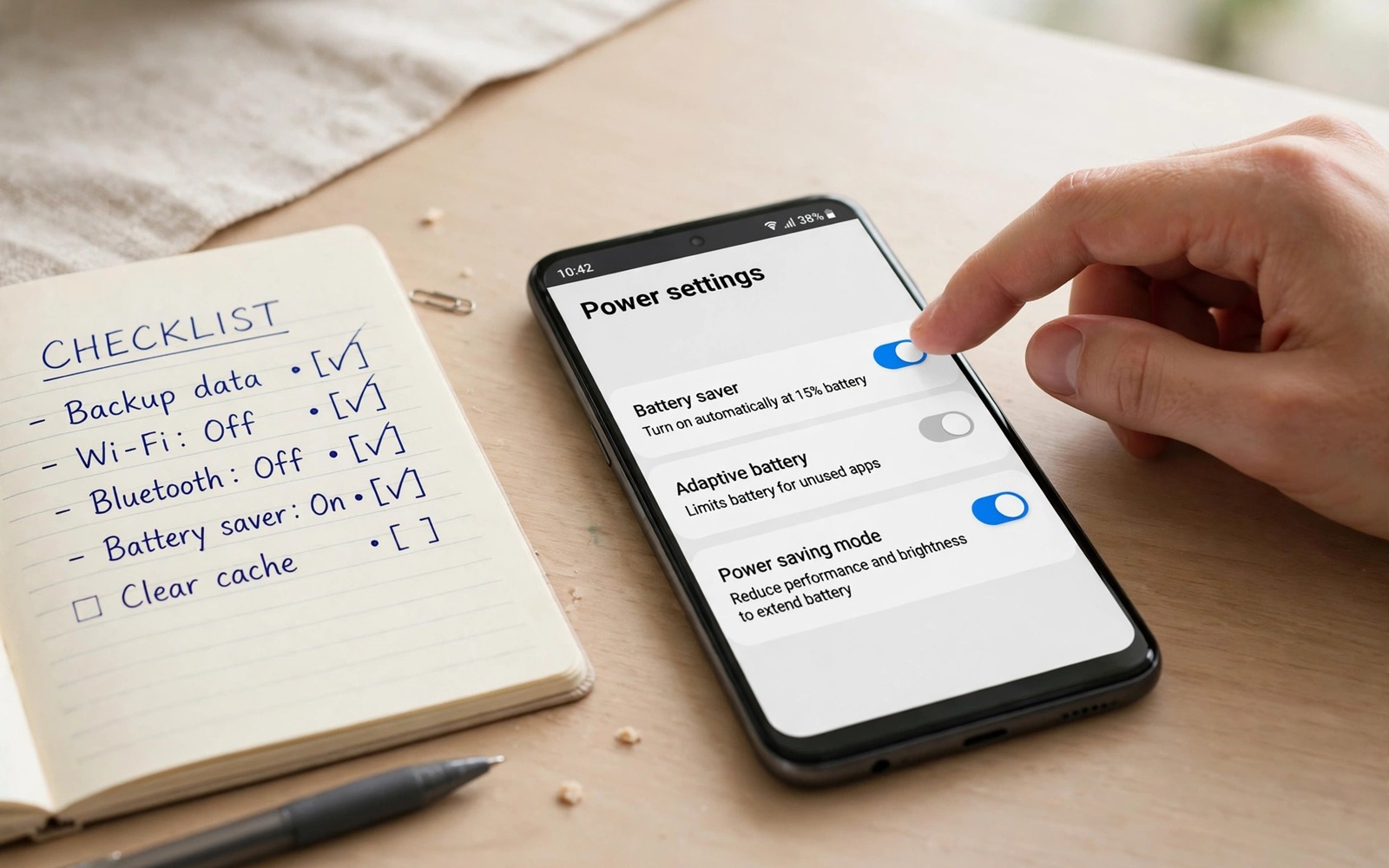
An Android upgrade brings new features and a fresh look. It can also bring a sudden battery drain. The phone that lasted all day now dies by evening. Users blame the new software itself. Often the software is fine. The upgrade simply reset battery settings to defaults. New features also turn on by default and consume power quietly. A short settings review after every upgrade restores the old battery life.
Upgrades reset settings in several ways. Some settings return to factory defaults during the update. Some new features enable themselves without asking. Some app permissions change under new privacy rules. Some learned battery patterns reset and need time to relearn. Each change alone costs a little power. Together they can create a large drain that feels like a broken update. Checking seven settings catches most of these resets in minutes.
This article gives those seven settings in priority order. Each setting includes where to find it and what to choose. You will learn which defaults to change back. You will learn which new features to tame. You will also learn how long to wait before judging the upgrade. Some drain in the first days is normal while the system settles. Persistent drain after a week needs the fixes in this article.
Setting One: Restore Battery Saver Schedule
Open Settings and tap Battery. Then tap Battery saver and check the schedule. Upgrades often turn off a custom schedule or change its threshold. A schedule that started at 20 percent may now start at 5 percent or not at all. Restore your preferred threshold. A threshold near 20 percent gives a useful early warning and early saving. A threshold at 5 percent helps only in the final minutes.
Check whether battery saver now turns on automatically at all. Some upgrades disable scheduled saver during the update process. Turn the schedule back on if you relied on it. Test it by watching the status bar when the battery crosses your threshold. The icon should change to signal saver mode. If it does not change then the schedule is still off. Fix it now rather than discovering it on a low battery day.
Note the interaction with notifications. Battery saver can delay alerts for some apps. If you set a high saver threshold then alerts may delay for hours. Balance the threshold against alert needs. A threshold at 20 percent usually balances well. For the alert trade in detail see the battery saver setting that breaks notifications and exempt important apps before you rely on a new schedule.
Setting Two: Review Adaptive Battery And App Restrictions
Open Settings and tap Battery. Then tap Adaptive Battery and confirm it stays on. Upgrades sometimes turn it off or reset its learned patterns. Adaptive Battery needs weeks to learn your routine again after a reset. Leave it on and be patient during that relearn period. Do not clear its data repeatedly. Clearing forces another relearn and prolongs the drain.
Review per app battery usage for your important apps. Open Settings and tap Apps. Then tap each important app and tap App battery usage. An upgrade may return restricted apps to optimized status. It may also restrict an app you need promptly. Restore your previous choices for the top apps. Messaging and work chat apps should stay optimized or unrestricted. Shopping and games can return to restricted without harm.
Check background restrictions as a group. Open Battery usage and look for apps with high background time since the upgrade. A newly high app may have gained a new background feature in the update. Restrict it if you do not need its background work. The background tuning method in the setting that cuts background app battery usage applies fully after an upgrade. Run that tuning again as part of your post update review.
Setting Three: Tame New Display Features
Upgrades often add display features that cost power. A new always-on display mode may turn on by default. A higher refresh rate option may become the default. New animations may run longer and smoother. Each feature looks nice and costs power. Open Settings and tap Display. Check always-on display and turn it off if you do not need it. Check refresh rate and return it to your preferred level. A 60 hertz rate saves noticeable power over higher rates for daily use.
Check brightness behaviour too. An upgrade may reset adaptive brightness learning. The screen may stay brighter than before while it relearns. Set a manual brightness cap that feels comfortable indoors. Adaptive brightness will adjust around that cap as it relearns. A dimmer indoor level saves power all day. Full brightness should stay reserved for bright outdoor use only.
Check screen timeout as well. An upgrade may lengthen timeout to a minute or more. A long timeout wastes power when the phone rests on a table. Return timeout to thirty seconds. That single change saves power across every idle moment of the day. It also stops accidental touches while the phone rests in a pocket or bag.
Setting Four: Check Location And Scanning Defaults
Upgrades can reset location permissions and scanning options. Open Settings and tap Location. Then tap Location services and look for Wi-Fi scanning and Bluetooth scanning. Turn off scanning options you do not need. Scanning keeps radios busy even when the main switches look off. That hidden scanning is a common post update drain. Turning it off restores the pre update behaviour.
Review app location permissions under Location. An upgrade may grant a new permission to an app during the update. Change apps that do not need live location to allow only while using the app. Change apps that never need location to deny access. A weather app may need rough location once a day. A game rarely needs location at all. These changes cut GPS wakeups that drain power steadily.
Check precise location for apps that only need rough location. Precise location uses more power than approximate location. Many apps work fine with approximate location. Set approximate location where the app allows it. That choice saves GPS power without losing app function. Review this setting after each upgrade because permission defaults can shift.
Setting Five: Review Data And Sync Defaults
Upgrades may turn on new sync features for system apps. Cloud backup may run more often. New photo sync may start by default. Open Settings and tap Accounts or System backup. Check which accounts sync and how often. Turn off sync for accounts you rarely use. Keep sync for the accounts that matter daily. A smaller sync list means fewer radio wakeups.
Check Data Saver status in Network settings. An upgrade may turn Data Saver off. Turn it back on for mobile data use. Data Saver limits background traffic on mobile networks. Less background traffic means fewer radio wakeups. The gain is largest on mobile data days. On Wi-Fi the gain is smaller but still useful for background control.
Check app auto updates as well. An upgrade may set app updates to run on mobile data or at any time. Set updates to Wi-Fi only when you can. Mobile data updates drain battery through radio use. They also consume data allowance. Wi-Fi only updates keep the phone cooler and cheaper. That setting sits in the app store settings rather than system settings. Check both places after an upgrade.
Setting Six: Check New Privacy And Background Features
New Android versions add privacy features that can affect battery. A new clipboard or sensor permission may change how apps behave. A new background task limit may change sync timing. Read the update notes briefly for battery relevant features. You do not need to read every detail. Look for display and background and location changes. Those areas affect battery most directly.
Check app permissions as a group after the upgrade. Open Settings and tap Privacy and then Permission manager. Look for apps with new permissions you did not grant before. Revoke permissions that look unnecessary. An app with camera or microphone access it does not need may wake sensors in the background. Revoking that access saves power and protects privacy at once. Permission review is a quick win after every upgrade.
Check digital wellbeing or focus features if they changed. A new bedtime mode may dim the screen and limit apps at night. That feature can save overnight power when set well. Configure it for your sleep hours. A phone that rests properly overnight starts the day with more charge. Night settings are easy to overlook but they affect the morning battery level directly.
Setting Seven: Give The System Time Then Judge
Some post update drain is normal for two or three days. The system reindexes files and optimises apps after an upgrade. That work uses processor power heavily for a short period. Battery life during those days looks worse than normal. Do not judge the upgrade on day one. Wait until the optimisation work finishes. Most phones settle within three days of normal use.
Track bedtime battery percentage for a week after the upgrade. Note the level each night under similar use. A rising trend means the system settled and your settings fixes worked. A flat low trend after a week means a real drain remains. At that point repeat the seven settings review. Look for an app with high background time that you missed. A single missed app can explain a persistent drain.
Post upgrade battery review
1. Battery saver schedule restored
2. Adaptive Battery on and app levels checked
3. Display: always-on off refresh rate set
4. Screen timeout 30 seconds brightness capped
5. Location scanning off permissions reviewed
6. Data Saver on sync list trimmed
7. App updates Wi-Fi only permissions reviewed
8. Track bedtime battery for one week
The review above was written for this article as a plain summary of the seven settings plus the tracking step. It uses only built-in menus and it needs no extra tool. Run it once after every upgrade. Keep it as a note on the phone for the next update. A short review prevents weeks of mystery drain.
For a broader daily routine that keeps these settings tuned over time see the daily battery optimization checklist and use the post upgrade review as the starting point for that routine. An upgrade review plus a daily routine together keep battery life stable across software changes.
Common mistakes
Many users judge an upgrade on the first day and panic. Day one drain often comes from system optimisation work. Wait three days before you judge. A premature factory reset wastes time and loses data for a temporary drain.
Another mistake is skipping the display review. New always-on and refresh rate defaults cost power silently. Check display settings first after an upgrade. A quick display fix often restores a large share of lost battery life.
Some users forget hidden scanning options. Wi-Fi and Bluetooth scanning can turn back on during an upgrade. Those scans drain power even when main switches look off. Check location services scanning explicitly after each update.
A final mistake is never reviewing app permissions after an upgrade. New permissions can let apps wake sensors in the background. A two minute permission review saves power and protects privacy. Make it part of every post update routine.
FAQ
Why does battery drain spike right after an update?
The system optimises apps and reindexes files after an update. That work uses heavy processor power for two or three days. Battery life looks worse during that period. Wait until optimisation finishes before you judge. Persistent drain after a week needs settings fixes.
Do upgrades really reset battery settings?
Upgrades can reset some settings to defaults and enable new features automatically. Battery saver schedules and display options and scanning options are common resets. A short review after each upgrade catches those resets. Your old settings rarely survive every upgrade untouched.
Should I factory reset after a bad update drain?
A factory reset is a last resort not a first step. Try the seven settings review first and track battery for a week. Most drains resolve with settings fixes. Reset only when a persistent drain survives a full review and a week of tracking. Back up fully before any reset.
Conclusion
Android upgrades reset battery settings more often than users expect. Battery saver schedules change. Display features turn on. Scanning returns. Permissions shift. Learned patterns reset. Each change costs a little power. Together they can feel like a broken update. A seven setting review restores the old balance in minutes. Patience during the first three days covers normal optimisation drain.
Your concrete next step is to run the review now after your latest upgrade. Start with battery saver schedule and display settings. Then check location scanning and app restrictions. Track bedtime battery for a week and keep the fixes that restore your normal level.

