

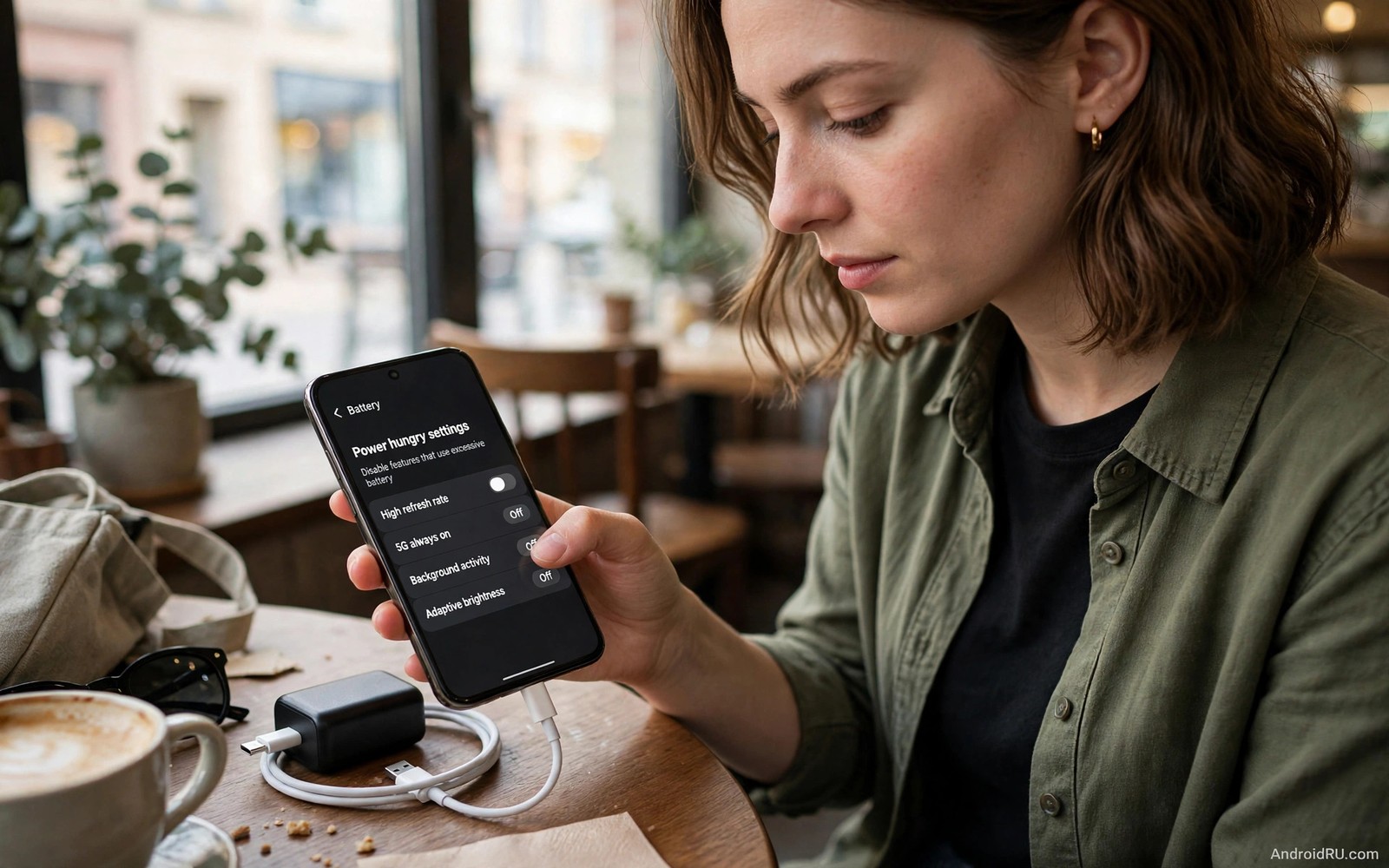
7 Power-Hungry Settings You Should Turn Off Immediately
Seven settings quietly drain your battery every day, and none of them announces itself. The always-on display glows all night. Wi-Fi and Bluetooth scanning hunt for networks constantly. Auto-sync wakes the phone hourly for accounts you check weekly. Each setting made sense when it was enabled. Together they form a drain stack that can halve your standby life. The good news is that turning them off takes minutes and changes almost nothing you love — and for the few settings where a full switch-off costs too much, there is a smarter middle option.
I tested these changes on my own phone over two weeks, measuring overnight standby drain before and after each switch. The result was a drop from 12 percent overnight to 4 percent, with no missed messages and no feature I actually missed. This guide names the seven settings in order of impact, gives the exact menu path for each, and tells you honestly what you lose by disabling it.
How to Measure the Drain Before You Change Anything
Before you change a single toggle, measure your baseline. Charge your phone to full, unplug it, note the battery percentage and the time, then check again in the morning before touching the phone. The overnight drop is the cleanest measurement of standby drain, because nothing you did during the day pollutes the number. Write it down. Then apply the changes one by one and compare tonight’s drop against last night’s. A smaller drop proves the stack is shrinking, and it tells you which settings mattered most on your phone specifically.
You can also open Settings, then Battery, then Battery usage, to see which category dominates your drain. If the screen tops the list, start with the display settings. If a handful of apps top the list, start with background restrictions. The ranking on your phone is more useful than any generic list, including this one.
The 7 Power-Hungry Settings, in Order of Impact
Work through these in order. Each item tells you what the setting does, who should switch it off, what you give up, and the middle option when a full switch-off is too much.
1. Always-On Display and Lift to Wake
What it does: the always-on display keeps pixels lit around the clock, showing the clock and notification icons even in a pocket, and lift to wake lights the screen on every movement. A phone in a bag can wake dozens of times a day, and each wake costs power for glance value you rarely use. Who it is for: anyone whose phone spends hours in a pocket or bag, and anyone who checks the time on their wrist or on another device anyway. Pros: you can still see the time at a glance, and tap-to-show keeps the lock screen available on demand. Cons: you lose the passive glance, and on OLED phones the always-on display also contributes to uneven pixel wear over years. Verdict: switch to tap-to-show mode under Settings, then Display, then Lock screen, or turn the always-on display off entirely. This is the single biggest standby win on most phones.
2. Wi-Fi and Bluetooth Scanning
What it does: these scanning settings live inside location settings, and they search for networks and beacons constantly — even when Wi-Fi looks off. Wi-Fi scanning searches for networks, Bluetooth scanning searches for beacons, and both improve location accuracy marginally while draining power steadily through the day. Who it is for: everyone except people who rely on indoor mall or airport positioning daily. Pros: battery savings all day long, with no visible change for most users. Cons: indoor positioning may lose slight precision, and finding a lost device indoors may be slower. Verdict: disable both toggles under Settings, then Location, then Wi-Fi and Bluetooth scanning. Test navigation accuracy for a week afterwards — most owners notice no difference at all in daily maps use.
3. Auto-Sync for Low-Priority Accounts
What it does: auto-sync keeps every account fresh at all times, so old email accounts and dormant social accounts sync hourly. Each sync wakes radios and processors for accounts you check weekly, which do not need hourly freshness. Who it is for: anyone with more than two accounts on the phone, especially old accounts from previous jobs or services you barely use. Pros: the silent hourly work simply stops, while the accounts still work perfectly when you open them. Cons: you must open a dormant account manually to see new items, which is exactly what you already do. Verdict: open Settings, then Accounts, and disable auto-sync for dormant accounts. Keep auto-sync for primary email and messaging, and set everything else to manual refresh. If you want a fuller routine, the Quick battery life fixes guide covers the same ground in five minutes.
4. Background App Refresh for Entertainment Apps
What it does: entertainment apps refresh feeds in the background all day, so news, shopping, and video apps preload content you may never open. Background refresh exists to make opening feel instant, and that instant feel costs hours of standby power. Who it is for: anyone with news, shopping, or social apps installed that they open only once or twice a day. Pros: the one-second load delay when you open the app beats a dead battery at dinner. Cons: feeds take a moment to load when you open the app deliberately. Verdict: restrict background activity for entertainment apps under Settings, then Apps, then the app, then Battery, and choose Restricted. Keep background refresh for messaging and navigation, and open entertainment apps deliberately when you want them. The Hidden background drainers guide explains which apps hide behind this setting.
5. High Brightness and Long Screen Timeout
What it does: maximum brightness indoors wastes power, and a five-minute screen timeout keeps the display lit long after you set the phone down. The screen is the hungriest component in the phone, and these two settings stack into major drain. Who it is for: everyone, and especially owners of phones older than three years, where ageing batteries have less capacity to waste on bright displays. Pros: adaptive brightness dims automatically inside and brightens outside, and a thirty-second timeout means a forgotten screen sleeps within half a minute. Cons: almost none — the screen still stays lit while you read, because touch resets the timer. Verdict: enable adaptive brightness and set screen timeout to thirty seconds under Settings, then Display. This is the largest single gain on old phones, where screen discipline extends usable life dramatically. Screen timeout is the cheapest setting on this list to fix, and it pays off every single day.
6. Location Always-On and Nearby Device Scanning
What it does: always-on location permission lets apps track movement continuously, and nearby device scanning looks for accessories constantly. Both features serve narrow use cases, yet many apps request always-on location by default. Who it is for: anyone who has granted always-on location to more than a couple of apps. Pros: manual pairing takes seconds and replaces constant scanning completely, and apps still get your location while you use them. Cons: apps cannot track you in the background, which is the point — but a running tracker or a family locator app may need the always-on grant. Verdict: change always-on location to while using the app across the board, under Settings, then Privacy, then Permission manager, then Location. Disable nearby device scanning under Settings, then Connections, then More connection settings, and pair new accessories manually from Bluetooth settings when needed.
7. Live Wallpapers and Animated Widgets
What it does: live wallpapers animate every second the home screen shows, and animated widgets refresh on tight schedules. A home screen with both becomes a miniature power plant, working even when you are only glancing at the clock. Who it is for: anyone with a live wallpaper, a stock ticker widget, or a weather widget that refreshes every fifteen minutes. Pros: a static dark wallpaper and calm widgets deliver the same information with far less work, and a dark static wallpaper also saves power on OLED screens. Cons: you lose the animation, which is a fair trade for most people. Verdict: replace live wallpapers with a static dark image, lengthen widget refresh intervals, and remove low-value widgets. Keep the calendar widget that earns its refresh, and remove the stock ticker you glance at weekly.
How to Audit Your Settings After Every Major Update
Major updates reset settings more often than owners expect. Permissions, scanning toggles, and timeout values can all revert, and a post-update audit takes five minutes and restores a week of savings. Recheck the seven items after every major update, and document any reset settings in a note for the next update. Patterns in resets reveal which settings updates touch repeatedly, and forewarned audits finish faster than blind ones.
Start With Location Permissions
Start the audit with location permissions, because updates reset them most. Check always-on location apps first and change them back to while using the app. Location resets cost the most power when missed, so priority order matters in audits.
Check Screen Timeout and Brightness Second
Check screen timeout and brightness settings second. Updates sometimes restore longer timeouts, and a five-minute timeout left unnoticed drains power daily. Thirty seconds restores efficient behaviour instantly. Small numbers carry large consequences.
A Technician’s Shortcut: Reading Values With ADB
If you are comfortable with a computer, you can read the current values directly instead of tapping through menus. The commands below are a generic illustration for reading timeout, scanning, and location values from a computer, and they show the kind of settings a technician reviews during a drain audit. Everyday users should use the on-screen settings menus instead.
adb shell settings get system screen_off_timeout
adb shell settings get global wifi_scan_always_enabled
adb shell settings get secure location_mode
Balancing Battery Savings With Usability
Battery savings must not ruin the phone experience. A phone that misses messages saves power at too high a price, and a phone too dim to read outdoors saves power uselessly. Balance means saving waste while preserving value, and every setting needs a usability check. Test each disabled setting in real use for a day. A setting that causes daily friction deserves a middle option: tap-to-show display beats full disable for many owners, and while-using location beats never location for navigation fans. Middle options preserve most savings with less friction.
Ask family members whether they notice problems after changes. Shared phones reveal friction that solo testing misses, and a partner missing calls notices saver side effects first. Outside feedback catches blind spots, because usability is a shared experience on shared devices. Re-enable any setting whose saving proves smaller than its annoyance: a tiny saving with daily irritation is a bad trade, and battery life serves daily life rather than ruling it.
Prioritise by Phone Age and App Count
Phone age changes which power-hungry settings matter most. New phones handle background work efficiently with large batteries, while older phones suffer disproportionately from the same background load. Always-on display costs a new phone little but taxes an old phone heavily, so prioritise screen settings first on phones older than three years. Lower brightness and shorter timeouts deliver the largest gains on old devices.
Prioritise background restrictions first on phones with many installed apps regardless of age. App count matters more than age for background drain: a new phone with two hundred apps drains faster than an old phone with twenty apps. Audit installed apps and remove unused ones before tweaking settings, because fewer apps mean fewer background jobs automatically. Reassess priorities annually as the phone ages and usage changes. Accept that settings cannot fully compensate for a chemically exhausted battery: tuning extends usable life but cannot restore lost capacity, and a phone that fails despite perfect settings needs a battery replacement decision.
How the Seven Settings Interact
The seven settings form a stack, not seven separate problems. Background app refresh wakes the processor, which wakes the radio, which triggers location checks, which lights the screen for notifications. Breaking the chain at two or three points matters more than breaking it at one, which is why the biggest wins come from changing several settings together and then measuring the overnight drop.
Common Mistakes That Undo Your Savings
The biggest mistake is disabling everything, including essential sync. Missed messages follow quickly, so disable entertainment and dormant settings first and keep primary communication settings alive. Selective off switches beat blanket shutdowns, and a phone that works badly is not a phone that saves battery well.
Another mistake is forgetting to measure after changes. A change without measurement is a guess, so compare overnight standby drain before and after. Numbers confirm which settings mattered on your phone, and they stop you from keeping a change that does nothing. If you want a structured way to find the real culprit, the Fast battery drain diagnosis guide walks through identifying which setting actually dominates your phone.
A third mistake is re-enabling settings accidentally during setup wizards. New app installs sometimes request always-on location again, so review permissions after installing new apps. A monthly permission audit keeps the drain stack from regrowing, and it takes less time than one evening of charging anxiety.
Frequently Asked Questions
Which setting saves the most battery?
Always-on display and screen settings save most on phones with heavy screen use, while scanning and background refresh save most on phones with many installed apps. Check your battery usage ranking under Settings, then Battery, to see which category dominates your device, and start with the winner there.
Will turning off auto-sync delete my data?
No. Disabling auto-sync only stops automatic refresh. Your accounts and messages remain intact, and opening the app refreshes manually. Data appears on demand exactly as before, just not before you ask for it.
Do I need to redo these settings after an update?
Major updates occasionally reset permissions and scanning toggles. Recheck the seven settings after a major update, because the review takes three minutes and restores any setting an update changed. Minor monthly security patches rarely touch these settings.
Will a shorter screen timeout annoy me while reading?
No, because touch resets the timer. The screen stays lit while you read, scroll, or watch, and only sleeps when you stop touching it. Thirty seconds is long enough for reading and short enough that a forgotten phone stops burning power almost immediately.
What to Do in the Next Three Minutes
Open settings now and disable the always-on display and both scanning toggles. Change always-on location to while using the app for your top five apps. Set screen timeout to thirty seconds. Those four moves take three minutes. Measure standby drain tonight and compare it against last night: the drop will show the stack shrinking. Keep the changes that helped, revisit the rest monthly, and remember that seven small off switches buy hours of real battery life.

