

5 Hidden Battery Drainers You Forgot Were Running in the Background
Your phone was at 100 percent when you left the house. By lunch it sits at 71 percent, and you barely touched it. No games, no long calls, no video streaming. The screen stayed dark in your pocket most of the morning, yet a quarter of the charge is gone. That gap between what you did and what the battery lost is the whole story of background drain.
Background drain is invisible by design. Apps work while the screen sleeps. Location updates arrive silently. Feeds refresh without a sound. Widgets update without a tap. Each hidden job costs a little power, and together they can eat a quarter of your battery before lunch. You forgot they were running. Your battery did not.
I spent two weeks tracking this on my own phone, a mid-range Android handset with a 5,000 mAh battery, checking the battery usage screen every evening. The pattern was stubborn: the apps at the top of the list were rarely the ones I had opened. The worst offenders were the ones doing quiet work I never asked for — location fixes every few minutes, video preloads I never watched, photo uploads on mobile data. This guide names seven of those hidden drainers, shows you how to measure each one on your own phone, and gives you a precise fix for each that keeps the useful parts and cuts the waste.
Work through the list with the battery usage screen open. Check each suspect against your own ranking before you change anything. Fix the ones that appear near your top and skip the ones that barely register. Personal data beats generic lists every time, and a Fast battery drain diagnosis ranks suspects before any setting gets changed.
How background drain actually works on Android battery life
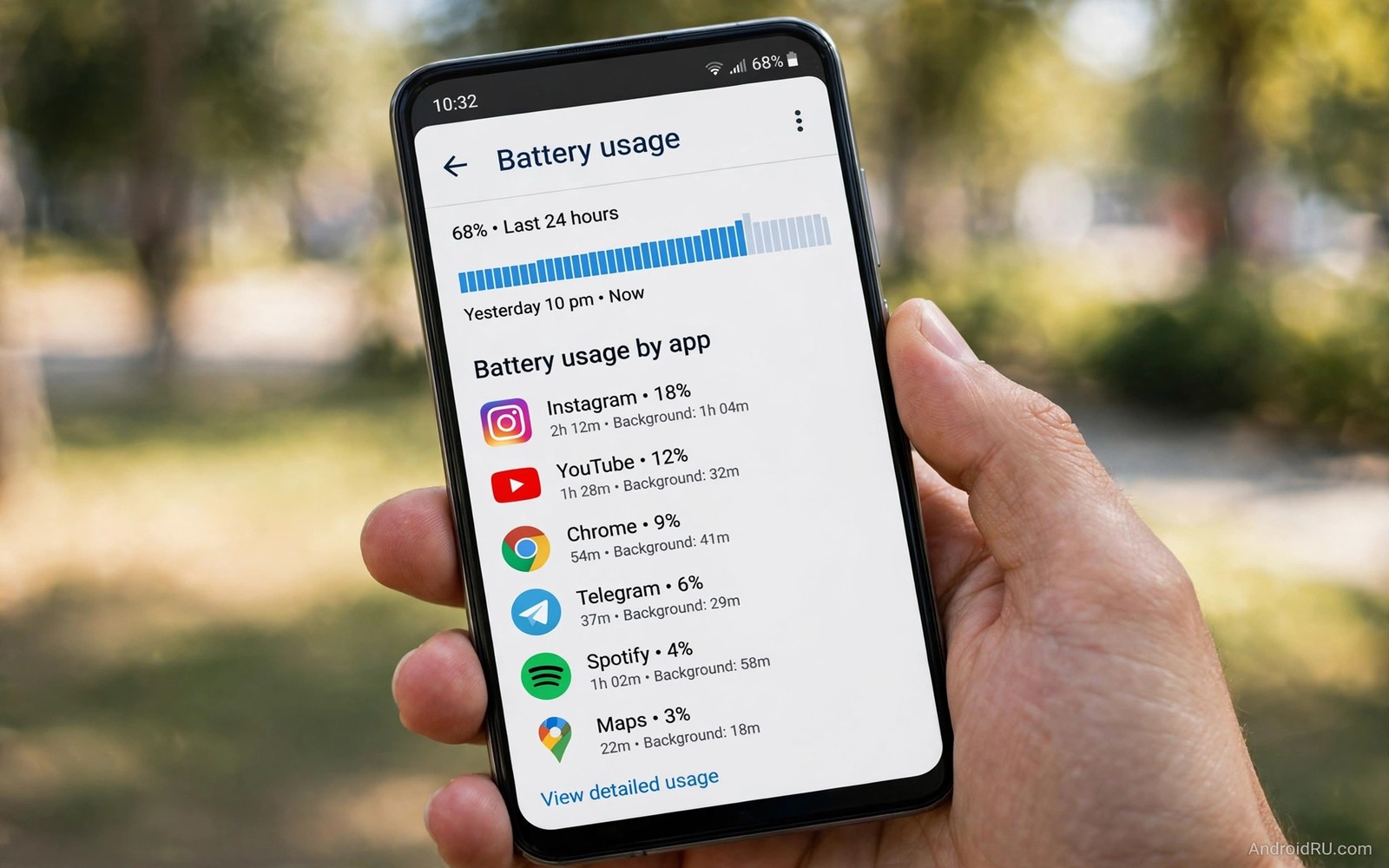
Android divides an app’s power use into two buckets: foreground, when you can see the app, and background, when the app works while you do something else. The battery usage screen shows both numbers for every app, and the background figure is the one most owners never look at. A messaging app that you opened for three minutes can still show 40 minutes of background work, because it kept a connection alive, checked for new messages, and synced your chat history while the phone sat in your pocket.
The system does try to help. Android 12 and later versions put unused apps into restricted standby buckets, and Doze mode slows background jobs when the phone lies still with the screen off. The catch is that apps can ask to be exempted, and many do. Apps with unrestricted background permission, apps you open daily, and apps holding an always-on location permission all get far more freedom than the rest. That freedom is exactly what turns a useful app into a quiet drainer.
What counts as background work on Android phones
Background work covers anything an app does without you looking at it. Syncing email and messages, refreshing a feed, checking for app updates, uploading photos, recording your location, playing audio in a notification, and keeping a live connection to a chat server all count. Some of that work is essential. A messaging app that never syncs in the background would deliver every message late. Some of it is pure waste. A shopping app that refreshes deals every fifteen minutes serves the shop, not you.
The cost of each job is small on its own. A single location fix costs a fraction of a percent. A single feed refresh costs about the same. The damage comes from frequency. An app that wakes the processor 200 times a day burns far more power than an app that wakes it 20 times, even if each wake lasts less than a second. Waking up is expensive: the processor ramps up, the radio powers on, and the phone stays awake for a few seconds after the job finishes. Multiply that by dozens of apps and you get the missing 29 percent.
How to read the battery usage screen on your phone
Open Settings, then Battery, then Battery usage. The screen lists apps in order of total drain over the last 24 hours. Tap any app and you will see a split between foreground and background use, plus a note about how long the app ran in each mode. An app you opened for five minutes but which shows an hour of background time is a suspect worth investigating. An app you never opened at all but which appears in the top ten is a suspect worth fixing today.
Check the screen at the same time each evening for three days before you change anything. One bad day can be a single large upload or a map session you forgot. Three days of the same app sitting near the top is a pattern, and patterns are what you fix. Note the percentages in a memo or a screenshot so you can compare before and after. A fix that drops an app from 12 percent to 3 percent is a win you can see.
The last 24 hours view versus since last full charge
Most phones offer two time windows: the last full 24 hours and the period since the last full charge. The 24-hour view is the better one for hunting drainers because it covers a full day of your normal routine, including the overnight idle period when the phone should barely sip power. The since-last-charge view is useful right after a bad morning, because it shows what happened in the last few hours only. Use the 24-hour view for the audit and the short view for same-day checks after a fix.
What the background percentage really means for battery health
A high background percentage does not automatically mean the app is misbehaving. Your email app is supposed to sync in the background. Your alarm app is supposed to stay ready. The question is always proportion. If a weather app uses more background power than your messaging app, something is off, because weather data changes slowly and messages arrive all day. Compare apps against their job, not against each other in a vacuum. A 6 percent background share for an app you use for five minutes a day is a red flag. The same share for an app you rely on all day is normal.
The 7 hidden battery drainers ranked by real-world drain
The seven drainers below are ordered by how much power they typically waste on an average phone, starting with the biggest. Each one gets its own section with what it does, how to spot it, what it costs, and a verdict. Every drainer also has a short table so you can compare the fix at a glance. Keep your battery usage screen open while you read, and tick off the ones that match your own top ten.
1. Location history and always-on tracking
Maps and social apps often keep location permission set to always. Always permission lets them record movement all day long. A single trip becomes hundreds of location fixes. The GPS radio and the processor wake repeatedly, and the battery pays for a timeline you may never open. On my test phone, one social app with always-on location burned 9 percent of a full charge in a day when I never opened it once. After I changed its permission to while using the app, the same app dropped to under 1 percent.
The fix is precise, not drastic. Change location permission to while using the app for every app except navigation and safety tools. Open location history settings and pause history collection when you do not need a timeline of your movements. Navigation still works perfectly when you open it deliberately, because the permission grants access the moment the app is on screen. The only thing you lose is the silent recording of everywhere you went while the app sat closed.
How to check which apps hold always location permission
Open Settings, then Privacy, then Permission manager, then Location. The list is grouped by permission level. The always group sits at the top, and it is usually shorter than owners expect — five to ten apps on a typical phone. Tap each one and ask a single question: does this app need to know where I am when I am not using it? A ride-hailing app used weekly does not. A family safety app might. A weather app definitely does not need always access when approximate location while in use gives the same forecast.
| Detail | Location tracking |
|---|---|
| Typical daily cost | 5 to 12 percent of a full charge |
| Fix time | About 3 minutes for the whole list |
| What you keep | Full navigation and maps while the app is open |
Pros: the fix is fast, it costs nothing, and maps keep working when you need them. Cons: location history stops recording trips, and a lost-phone feature that relies on always-on tracking may update less often. Verdict: fix this one first. It is the single biggest hidden drainer on most phones, and the trade-off is tiny for almost everyone.
2. Wi-Fi and Bluetooth scanning in the background
Scanning settings hide inside location settings on many phones. Wi-Fi scanning looks for networks even when Wi-Fi appears off. Bluetooth scanning looks for beacons and devices constantly. Both features improve location accuracy slightly, and both drain power steadily all day. They are easy to miss because the toggles sit under Settings, then Location, then Location services, a screen most owners visit once and never open again.
Disable both scanning toggles and test location accuracy for a week. Maps and navigation still work through GPS and visible networks. Indoor location may lose a little precision in shopping malls and large buildings, where the phone leans on nearby networks to guess which floor you are on. The battery saving outweighs that small loss for most owners, and you can switch scanning back on for a single day if you are navigating a huge mall.
| Detail | Wi-Fi and Bluetooth scanning |
|---|---|
| Typical daily cost | 3 to 7 percent of a full charge |
| Fix time | Under 1 minute, two toggles |
| What you keep | GPS navigation and normal Wi-Fi connections |
Pros: two taps, no app breaks, and the saving is constant every day. Cons: slightly less precise indoor positioning, and some smart-home routines that trigger on nearby beacons may respond a beat later. Verdict: turn both off unless you rely on beacon-based automation at home or work. This is the easiest win on the whole list, and Power hungry settings include scanning and sync toggles that owners rarely revisit.
3. Auto-playing feeds and background video preload
Social apps preload videos before you scroll to them. The download and decode work happens silently in the background. A feed refresh can preload dozens of clips you never watch. Mobile data and battery both pay for unseen content, and the video decoder is one of the hungriest parts of the phone. On my test phone, a single social app preloaded 340 MB of video in one day while I opened it for less than ten minutes total. None of those clips were ever watched.
Open each social app’s settings and disable video auto-play. Disable background preload where the app offers it, and set feed refresh to manual or hourly for apps you check only occasionally. The feed still loads instantly when you open it, because the app fetches the first screen of content on demand. The silent preload simply stops, and the app’s background share on the battery screen usually falls by half within a day.
Where the auto-play toggle hides in each major app
The toggle is never in the same place twice, which is part of the problem. In most social apps it sits under Settings, then Data usage or Media, then Video auto-play, with options for always, Wi-Fi only, or never. In short-video apps it hides under Settings, then Content preferences or Playback. In messaging apps with channels or stories, look under Settings, then Data and storage, then Media auto-download. Pick never, or Wi-Fi only if you genuinely enjoy auto-play at home on the charger. Never is the setting that saves battery.
| Detail | Video preload and auto-play |
|---|---|
| Typical daily cost | 4 to 10 percent of a full charge |
| Fix time | About 2 minutes per social app |
| What you keep | Every video, playing on tap instead of on its own |
Pros: huge data saving alongside the battery saving, and feeds feel calmer without clips starting on their own. Cons: the first video in a feed takes a second longer to start, and stories no longer preload for offline viewing. Verdict: disable auto-play everywhere. It is the largest single social drain, and manual play keeps control with the viewer while the loss is close to zero.
4. Widgets and live wallpapers that never sleep
Widgets update on schedules you never set. A weather widget may refresh every fifteen minutes. A news widget may fetch headlines hourly. A stock widget may poll prices constantly. Each refresh wakes radios and processors, and a home screen full of live widgets becomes a background drain machine. Live wallpapers add their own cost, redrawing animations every time the screen wakes, even for a two-second glance at the time.
Audit widgets by value per refresh. Keep the calendar widget that shows today’s events, because one glance there replaces opening an app. Remove the news widget you never read and the stock widget you check once a week. Lengthen refresh intervals where the widget allows it, and replace live wallpapers with static dark images. The home screen stays useful with far less silent work, and the battery screen will show the difference within two days.
| Detail | Widgets and live wallpapers |
|---|---|
| Typical daily cost | 2 to 6 percent of a full charge |
| Fix time | About 5 minutes to audit the home screen |
| What you keep | Calendar, clock, and one or two widgets you truly use |
Pros: a calmer home screen and a measurable overnight saving, since widgets refresh while you sleep too. Cons: weather and news stop updating themselves, so you open the app when you want fresh data. Verdict: keep two or three high-value widgets and remove the rest. A single widget drains little, but five live widgets with frequent refreshes drain noticeably together, and removing three low-value widgets often saves more than any single app restriction.
5. Cloud backup and photo sync at the wrong times
Cloud backup runs whenever it finds new files and a connection. A day of photos and videos triggers a large upload. The upload runs on mobile data when Wi-Fi is absent, and the radio stays active for hours while the phone sits idle in a pocket. I watched this on a weekend trip: 40 photos and three short videos queued for upload at noon, and the phone spent the whole afternoon pushing them up over a weak mobile signal, burning 11 percent of the battery for work that could have waited until the hotel Wi-Fi that evening.
Set cloud backup to Wi-Fi only and charging only. The backup still completes every night on the charger, and nothing is lost, because the queue simply waits for the right conditions. Set photo sync to original quality only on Wi-Fi, and let mobile data carry nothing but small thumbnails if your app offers that choice. Large uploads belong on home networks and chargers. Daytime battery belongs to you.
| Detail | Cloud backup and photo sync |
|---|---|
| Typical daily cost | 3 to 11 percent on heavy photo days |
| Fix time | About 2 minutes per backup app |
| What you keep | A full nightly backup, finished while you sleep |
Pros: backups still happen every night, mobile data use drops sharply, and the phone stops heating up in your pocket after a photo-heavy day. Cons: photos taken on a trip are not backed up until you reach Wi-Fi, so a lost phone on that same day would lose the newest shots. Verdict: Wi-Fi only and charging only is the right default for almost everyone. If you are travelling and the photos matter, run one manual backup over hotel Wi-Fi instead of letting the phone grind through mobile data all day.
6. Push email and account sync set to instant everywhere
Push email feels instant because the phone holds an open connection to the mail server all day, waiting for new messages. One inbox on push is cheap. Four inboxes on push, plus a work calendar, a contacts sync, a notes sync, and a cloud drive sync, add up to a phone that never truly rests. Each account wakes the phone on its own schedule, and the wakes stack up across the day. Secondary accounts are the classic overlooked drainer here, because owners set up a rarely used inbox once and forget it holds a live connection forever.
Open Settings, then Accounts, and look at every account on the phone. Keep push on for the one inbox that matters most. Switch the rest to a timed sync of every hour, or to manual sync if you only check them weekly. Do the same inside each app: open the sync settings and turn off sync for services you never use, like a calendar from an old account or contacts from a shopping app. The messages still arrive, just on a schedule you chose instead of the instant one the app chose for you.
| Detail | Push email and account sync |
|---|---|
| Typical daily cost | 2 to 5 percent of a full charge |
| Fix time | About 5 minutes across all accounts |
| What you keep | Instant mail on your main inbox, hourly on the rest |
Pros: your main inbox stays instant, and the phone finally gets quiet gaps between wakes. Cons: secondary inboxes can lag by up to an hour, which matters if a rarely used address suddenly receives something urgent. Verdict: push for one inbox, hourly for the rest. This drainer hides because each account looks harmless alone, and the fix is a five-minute sweep most owners have never done.
7. Carrier services, system apps, and forgotten utilities
The last drainer is a group, not a single app: carrier service apps, device care utilities, old VPN tools, and system apps that shipped with the phone. Carrier apps check for network updates, push their own notifications, and run location checks in the background. Old utilities you installed once — a cleaner, a booster, a battery saver from 2023 — often keep running long after you stopped opening them, and the irony is that battery saver apps are frequent background drainers themselves.
Open the battery usage screen and look for names you do not recognise or apps you have not opened in months. A carrier app you never use can be disabled from Settings, then Apps, then the app name, then Disable. A forgotten utility can simply be uninstalled. For system apps that cannot be uninstalled, set them to restricted background activity and revoke the permissions they no longer need. The phone does not need three different apps watching the battery, the network, and the storage at the same time.
| Detail | Carrier and forgotten system apps |
|---|---|
| Typical daily cost | 2 to 8 percent of a full charge |
| Fix time | About 10 minutes to review the full app list |
| What you keep | Carrier features you actually use, like visual voicemail |
Pros: removing a forgotten app deletes its drain entirely, and disabling a carrier app you never use costs nothing. Cons: some carrier features, like Wi-Fi calling setup or visual voicemail, depend on those apps, so check before you disable anything with calling in its name. Verdict: audit the full app list once a quarter. Anything you cannot name, have not opened in three months, or installed for a single trip is a candidate for removal.
Hidden drainer comparison table and verdicts per phone type
The table below puts all seven drainers side by side so you can decide where to start. Typical drain is measured on a mid-range phone with a 5,000 mAh battery over a normal day of mixed use. Your numbers will differ, and that is exactly why the battery usage screen matters more than any table. Start with the rows that match the apps at the top of your own ranking.
| Drainer | Typical daily drain | Fix difficulty | Best first step |
|---|---|---|---|
| Always-on location tracking | 5 to 12 percent | Easy | Switch always to while using the app |
| Wi-Fi and Bluetooth scanning | 3 to 7 percent | Very easy | Turn off both scanning toggles |
| Video auto-play and preload | 4 to 10 percent | Easy | Set auto-play to never in each app |
| Widgets and live wallpapers | 2 to 6 percent | Easy | Keep two widgets, remove the rest |
| Cloud backup on mobile data | 3 to 11 percent | Easy | Wi-Fi only and charging only |
| Push email on every account | 2 to 5 percent | Medium | Push for one inbox, hourly for the rest |
| Carrier and forgotten apps | 2 to 8 percent | Medium | Disable or uninstall what you never use |
For a phone that barely survives the day, start with location and video auto-play, because those two rows alone can return 9 to 22 percent of a charge. For a phone that dies overnight, start with widgets and cloud backup, because those two run while you sleep and should cost almost nothing. For a work phone with four email accounts, start with sync settings, because push on every account is the drainer most office users never suspect. For an older phone with a tired battery, do all seven in one sitting — the combined saving can feel like a new battery, and it costs nothing but fifteen minutes.
Tame all seven drainers in under 15 minutes with these steps
You do not need a full afternoon for this. The whole routine fits into a single coffee break if you follow the order below, and each step tells you exactly where to tap and what to check after. Keep the battery usage screen open in a second window or take a screenshot first so you can compare tomorrow. A Quick battery life fixes list covers the same ground in seven fast moves if you want a shorter version first.
- Open Settings, then Battery, then Battery usage, and write down the top five apps by total drain. Note which ones show more background time than foreground time.
- Open Settings, then Privacy, then Permission manager, then Location, and change every always permission to while using the app, except navigation and family safety tools.
- Open Settings, then Location, then Location services, and turn off Wi-Fi scanning and Bluetooth scanning.
- Open each social app, go to Settings, then Data usage or Media, and set video auto-play to never. Turn off background preload wherever the toggle exists.
- Long-press each widget on the home screen, remove the ones you have not glanced at this week, and switch the live wallpaper to a static dark image.
- Open each backup and photo app, go to Settings, then Backup, and set it to Wi-Fi only and charging only.
- Open Settings, then Accounts, and set every secondary inbox to hourly sync, keeping push only on your main inbox.
- Open Settings, then Apps, sort by last used, and uninstall or disable anything you have not opened in three months.
- Restart the phone once so every change takes effect cleanly, then use the phone normally for the rest of the day.
- Check the battery usage screen tomorrow evening and compare the top five with yesterday’s list. Any app that fell out of the top five is a confirmed fix.
After step ten, expect the overnight idle drain to drop first. A healthy phone loses 1 to 3 percent over eight hours of sleep. If yours was losing 8 to 10 percent overnight, the widget and backup fixes usually explain most of the gap. Daytime drain improves more slowly, because location and video preload only matter while you are out and about, so give the full routine three days before you judge it.
Monthly permission audit that keeps drainers from coming back
Monthly permission audits catch silent regressions. App updates sometimes reset background permissions, and a tamed app can regain always location quietly after a major update. Open permission manager monthly and scan the always location list. The scan takes three minutes total, and it is the single habit that keeps this whole guide working past the first week.
Sort permissions by risk rather than by app name. Always location tops the risk list. Unrestricted background activity comes second. Body sensors and nearby devices follow. High risk permissions deserve monthly eyes, and low risk permissions need less frequent review. Revoke permissions that no longer match current use: a travel app from last summer needs no always location now, and a game needs no background activity ever. Revocation costs nothing and saves power silently, while unused permissions are pure risk without benefit.
What app updates quietly change behind your back
Major app updates are the main way a fixed drainer returns. An update can add a new background feature, request a fresh permission, or reset a toggle you switched off months ago. The pattern is easy to spot: an app that sat quietly at 1 percent for weeks suddenly jumps back to 8 percent after an update. When that happens, open the app’s settings first and look for a new auto-play, sync, or location toggle before you blame the phone. The new toggle is usually the culprit, and switching it off restores the old behaviour in seconds.
The three-minute audit routine for every month
Set a monthly reminder on the first Sunday of the month. Open Battery usage and note any new name in the top ten. Open Permission manager, then Location, and scan the always list. Open Settings, then Apps, then Special app access, then Unrestricted data or Battery optimisation, and check which apps escaped optimisation. Fix what you find, write one line in a note with the date and what you changed, and move on. Months of lines show whether apps keep regaining permissions, and persistent regainers deserve uninstallation consideration. Documentation turns audits into trends.
Taming social apps without missing messages you care about
Social apps are the classic hidden drainers. Feeds refresh constantly to feel instant. Stories preload before viewing. Location tags update in the background. Each feature serves engagement rather than user need, and taming them restores hours of battery. The fear that stops most owners is missing a message, so here is the line that matters: restrict the social app, not the messaging app. Your primary chat app stays optimised for timely delivery. Your social apps, where messages tolerate delay far better, get restricted without hesitation.
Disable video auto-play first in every social app. Auto-play is the largest single social drain, and manual play keeps control with the viewer while content still loads instantly on tap. Set social apps to restricted background activity next. Messages inside social apps may delay slightly, and that is a fair trade for the hours you get back. Limit social app use to deliberate sessions rather than idle scrolling on top of that: deliberate sessions concentrate drain into visible use, while idle background refresh spreads drain invisibly all day. Habits complete what settings start.
Which social settings save the most power first
Rank the settings by return. Auto-play off saves the most, because video decode is the hungriest job a social app performs. Background refresh set to manual or hourly comes second, because it stops the app waking the phone between sessions. Location permission set to while using the app comes third, because social apps tag locations and suggest nearby content all day. Notifications left on for likes and suggestions come last, because each one wakes the screen, and a screen wake costs far more than the notification itself. Turn off the engagement notifications and keep only direct messages and mentions.
Explaining hidden drain to family members in plain words
Family members often blame the phone brand when batteries drain quickly. Explaining hidden drain in simple terms changes blame into understanding. Compare background apps to lights left on in empty rooms. Everyone understands wasted electricity from empty room lights, and the analogy makes invisible phone drain tangible instantly. Show family members their own battery usage screens during a calm moment, because personal data convinces more effectively than generic explanations. A rarely used app topping their usage list surprises most owners, and surprise motivates permission changes that lectures never achieve.
Help family members change one permission at a time rather than overwhelming them. Start with always location for the worst offender app and celebrate the improved standby result the next morning. One visible improvement builds confidence for further changes, and gradual family coaching succeeds where mass instruction fails. Create a simple family rule about social app background activity: restricted background activity for entertainment apps becomes a household standard, and shared standards remove arguments about individual phone settings. Revisit family battery habits during holidays when everyone gathers together, because a group session fixes several phones efficiently in one afternoon.
One setting to change on every family phone today
If you only get one change per phone, make it the location permission sweep. Open Permission manager, then Location, and switch everything except navigation to while using the app. It takes two minutes per phone, it never breaks anything a family member actually uses, and the result shows up the next morning as a visibly higher percentage. That single visible win is what earns you permission to fix the second setting next time.
Frequently asked questions about hidden battery drain
How do I find hidden drainers on my phone?
Open battery settings and view usage for the last full day. Sort by percentage and investigate any app you rarely open that ranks high. Check its permissions for always location and unrestricted background activity, because those two flags mark most hidden drainers. Check the same screen three evenings in a row before you change anything, so a single unusual day does not send you chasing the wrong app. A drainer that appears near the top on all three days is the one to fix first.
Will restricting background apps break notifications?
Restricted apps may delay non-urgent notifications, and that is the real trade-off to understand before you restrict anything. Messaging and email apps deserve optimised mode rather than restricted mode, so their alerts stay instant. Restrict games, shopping, and social apps first, because a delayed like notification costs nothing. Keep communication apps responsive and restrict entertainment apps aggressively, and test the result for a day: send yourself a test message through each app you restricted and see how fast it arrives.
Do widgets really drain noticeable battery?
A single widget drains little, and judging one widget alone will always make the problem look small. Five live widgets with frequent refreshes drain noticeably together, because each refresh wakes the radio and the processor on its own schedule. Audit widgets as a group rather than judging one alone, and removing three low-value widgets often saves more than any single app restriction. The weather widget that refreshes every fifteen minutes is the usual worst offender, since weather data barely changes that fast.
Why does my battery drain overnight when the phone is idle?
Overnight drain has three usual causes: widgets refreshing on schedule, cloud backup uploading photos over mobile data, and an app holding always-on location while you sleep. A healthy phone loses 1 to 3 percent over eight hours. If yours loses 8 percent or more, open the battery usage screen in the morning and look at the overnight hours — the app at the top is almost always one of those three. Set backup to Wi-Fi only backup on the charger, remove or slow the widgets, and the overnight number usually falls within two nights.
Can a battery saver app fix background drain by itself?
A battery saver app can help you find drainers, but it cannot fix them by itself, and some saver apps become drainers in their own right by running constantly to watch other apps. The settings already built into Android — permission manager, battery optimisation, and background restrictions — do the actual work, and they do it without a middleman. Use a saver app as a dashboard if you like its charts, but make the changes in the system settings yourself. If the saver app itself appears in your battery top ten, uninstall it first and watch the numbers improve.
What to do tonight for a phone that lasts until bedtime
Open battery settings now and list your top five background users. Check location permission for each one and switch always location to while using the app where the app does not need it. Disable Wi-Fi scanning and Bluetooth scanning in location settings, then turn off video auto-play in the two social apps you open most. Those four moves take about ten minutes and cover the biggest rows in the comparison table above.
Your phone will idle far more efficiently by tomorrow morning. Standby drain will drop visibly overnight, the features you love will keep working when you open them, and the silent work you never wanted will finally stop. Check the battery screen again tomorrow evening: if the top five looks different, the routine worked, and the monthly three-minute audit will keep it working.

