

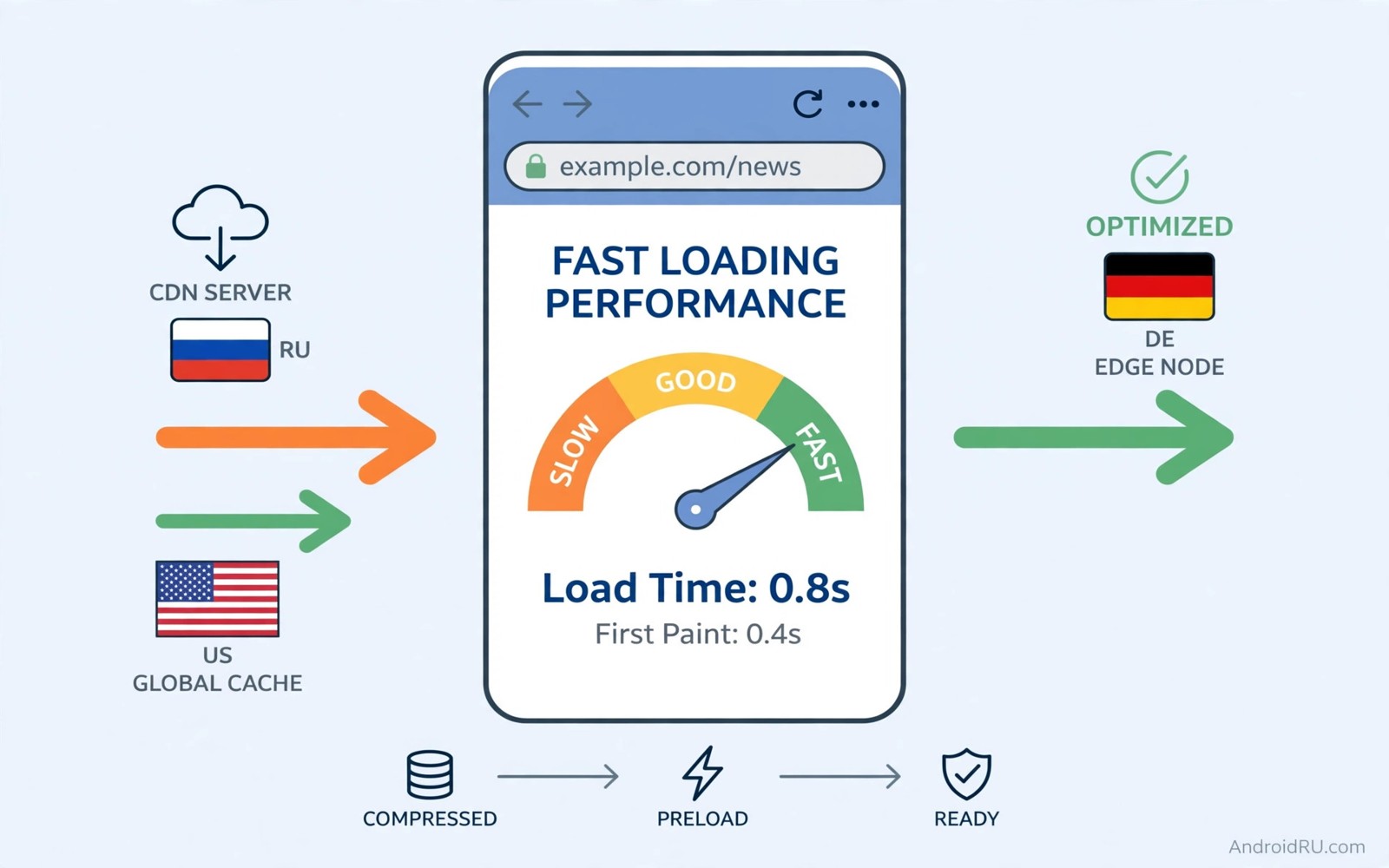
Browser flags are experimental switches hidden behind a special address in Chrome based browsers. Enthusiasts credit them with dramatic speed gains. Reality is more measured. A few flags genuinely improve loading on slow networks while others change nothing or break pages.
This guide separates useful flags from folklore. You will learn how flags work and which ones help real browsing and how to test honestly. You will also learn how to reset everything when a flag misbehaves. Speed claims deserve measurement rather than belief.
Open flags only in a browser you can afford to reset. Flags affect that browser alone and they never change system speed. A page that loads slowly because of a weak connection will not transform through flags alone.
How to open the flags page safely
Type the flags address into the browser address bar and press enter. The page lists experiments with a search box at the top. Search by flag name rather than scrolling through hundreds of entries. Each flag shows a dropdown with Default and Enabled and Disabled choices.
Change one flag at a time and relaunch the browser when prompted. Relaunching applies the change and it gives you a clean test. Changing several flags at once makes faults impossible to attribute.
Bookmark the flags page before changing anything. A bookmark gives you a fast route back for resets. Note each changed flag in a notes app with the date so a future problem has a clear suspect list.
Parallel downloading for large files
Parallel downloading splits a large file into parts downloaded simultaneously. The technique helps on connections where a single stream stalls. Enable the parallel downloading flag and test with a large file from a reliable source.
Downloads that already saturate your connection gain little from parallelism. The flag shines on high latency connections where each stream waits often. A file that crawled before may finish noticeably sooner.
Watch for download managers that conflict with parallel streams. A download that fails repeatedly after enabling the flag should return to default. Stability beats a small speed gain for important files.
QUIC protocol for faster connections
QUIC is a modern transport protocol that reduces connection setup time. Chrome enables QUIC for many sites by default yet the flag lets you force or test the behaviour. Enabling experimental QUIC can shave loading time on sites that support it.
Test QUIC on sites you visit daily rather than on a single benchmark page. Real gains appear across many small requests such as images and scripts. A single page test hides the cumulative benefit that QUIC provides over a browsing session.
Disable QUIC if a site fails to load or behaves strangely after the change. Some networks block the underlying protocol which causes timeouts. A flag that breaks one important site is not worth keeping for marginal gains elsewhere.
Smooth scrolling and GPU rasterization
Smooth scrolling flags change how the browser animates page movement. GPU rasterization moves page painting to the graphics chip. Together they can make scrolling feel silkier on capable phones.
Older phones may suffer from GPU rasterization because their graphics chips struggle with complex pages. Test scrolling on a long article and a dense shopping page. Smooth motion on both suggests the flag suits your hardware.
Battery cost accompanies graphics work. A phone that scrolls smoother may also drain faster during long reading sessions. Weigh the feel against battery life and keep the flag only when the improvement is obvious.
Dark mode and reader flags
Reader mode flags simplify cluttered articles into clean text pages. The simplified view loads faster because it skips heavy ads and trackers. Enable reader mode support where your browser offers it as an experiment.
Dark mode for web contents inverts bright pages for night reading. The flag helps eyes and OLED battery life yet it can break site colours. Test favourite sites after enabling and disable the flag if images look inverted or text becomes unreadable.
Flags for tab groups and grid layouts change organisation rather than speed. They help power users who juggle many tabs yet they add no loading benefit. Judge organisation flags by workflow rather than by speed claims.
Measure speed honestly before believing claims
Speed claims need a repeatable test. Pick three sites you visit daily and time their loading with flags at default. Repeat the test after enabling one flag. Use the same network and the same time of day for fairness.
Clear cache between tests only when comparing cold loads. Warm loads reuse cached files and hide flag effects. A fair test separates first visit speed from repeat visit speed because flags affect each differently.
Record results in a simple table with site names and load times. A flag that saves half a second on every site earns its place. A flag that saves nothing on your real sites deserves removal regardless of online praise.
Reset flags when something breaks
A broken browser after flag changes needs a fast reset. Open the flags page and tap the reset all button at the top. Relaunch the browser and test the failing site again. Reset returns every experiment to default in one move.
Resetting does not delete bookmarks or history or saved passwords. It only clears experimental choices. That safety makes flags a low risk playground as long as you remember the reset path.
Owners who enjoy hidden menus also explore secret codes that reveal hidden menus because both topics reward careful experimentation. Flags differ from dialer codes in risk level. A flags reset is one tap while a dialer reset can erase data.
Flags worth enabling on most phones
The flags below represent a conservative starting set for most owners. Enable them one at a time and test each before moving on. The list avoids exotic experiments that suit only specific hardware.
chrome://flags
#enable-quic
#enable-parallel-downloading
The snippet above was written for this article as a short list of flag names to search on the flags page. It changes nothing by itself and it contains no links. Open the flags page and search each name exactly then set it to Enabled and relaunch. Remove any flag that causes trouble on your daily sites.
Flags for tab management and memory
Tab freeze flags pause background tabs that consume memory. A browser with dozens of open tabs benefits because frozen tabs stop using processor time. Active tabs remain instant while idle tabs sleep until you return.
Memory saver flags work similarly by releasing memory from tabs untouched for a while. The released memory helps other apps run smoothly on phones with limited RAM. A tab that reloads on return is a small price for a faster overall phone.
Test tab flags with your real tab count rather than a clean browser. A user with five tabs gains little from freezing. A user with fifty tabs gains a noticeably calmer phone. Match the flag to your actual habit.
Test flags on your slowest site
Every owner has one site that loads painfully slowly. Use that site as the benchmark for every flag test. A flag that helps your slowest site earns its place faster than a flag that helps only benchmark pages.
Visit the slow site three times with default flags and note the feel rather than exact seconds. Enable one flag and visit three more times. A consistent improvement across visits signals a real gain rather than network luck.
Flags and data saver modes
Data saver modes in the browser compress pages through a proxy or block heavy images. The modes suit metered connections where every megabyte costs money. A compressed page loads faster on slow networks even when flags add nothing.
Combine data saver with flags carefully. A proxy that compresses images may conflict with parallel downloading in rare cases. Test the combination on your daily sites before relying on it during travel.
Disable data saver on trusted Wi-Fi where speed and fidelity matter more than savings. A full quality page on home Wi-Fi beats a compressed page that loses detail. Context decides which mode deserves priority.
Common mistakes
The biggest mistake is enabling every recommended flag from a video at once. A browser that breaks afterwards offers no clue about the culprit. One flag at a time with a relaunch between changes keeps troubleshooting simple.
Another mistake is trusting speed tests from other phones and networks. Flag effects depend on hardware and connection quality. A flag that doubles speed on a flagship with fibre may do nothing on a budget phone with mobile data.
People also forget flags after a browser update. Updates sometimes reset experiments without notice. A speed regression after an update may simply mean a favourite flag returned to default.
Finally avoid flags that promise to bypass paywalls or restrictions. Such experiments often break sites and violate terms of use. Speed flags should improve legitimate browsing rather than circumvent access controls.
Frequently asked questions
Do flags work in every Android browser?
Flags work in Chrome based browsers that expose the flags page. Other browsers use different experiment systems or none at all. Check your browser help pages when the flags address shows nothing.
Can a flag damage my phone?
No. Flags affect only the browser and a reset restores defaults. A bad flag can crash the browser or break pages temporarily. It cannot harm hardware or erase personal data.
Will flags double my browsing speed?
No flag doubles speed for ordinary browsing. Honest gains are modest and site dependent. A combination of flags and a fast connection and a clean cache together produce the best real world result.
Conclusion
Browser flags offer modest honest gains when chosen carefully. Parallel downloading and QUIC and smooth scrolling help specific situations. Measurement separates real improvements from folklore. Reset remains a one tap escape whenever an experiment misbehaves.
Your concrete next step is to enable parallel downloading today and test a large file download. Note the time and compare it with your memory of past downloads. Readers building a faster phone can pair browser tuning with developer tweaks for sharper response and performance settings for demanding use as companion guides.

