

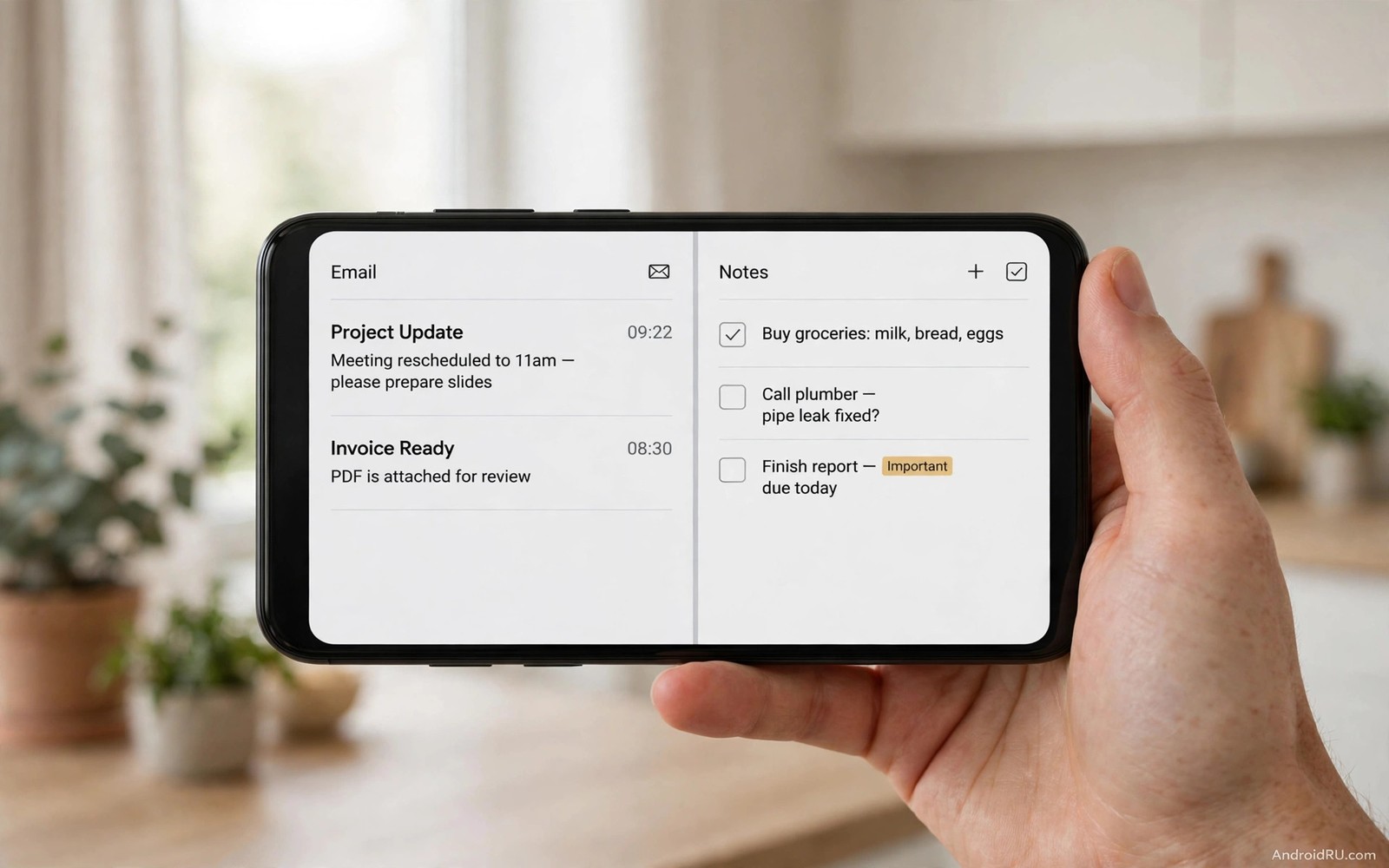
Split screen turns one phone into two workspaces. You can watch a map while you reply to a message. You can copy notes while you read a document. Then one app refuses to enter split screen at all. The option is greyed out or the app crashes on entry. That refusal feels arbitrary but it usually has a technical reason. Some apps lock their layout to full screen for video or security.
Android still offers several official ways around many blocks. Developer options can force activities to resize. Floating windows can hold a second app above the first. App pairs can launch two supported apps together. A tablet style layout can help on larger phones. The right workaround depends on why the app refused in the first place.
Start with the simplest official method before any advanced toggle. Long press the app icon and look for Split screen. Open the recent apps view and tap the app icon at the top. Some phones hide split screen behind that icon menu. If the option appears then use it directly. If it does not appear then move to the methods below.
Why some apps refuse split screen
Developers can mark an activity as non resizable in app code. Video apps often do this to protect playback layout. Banking apps sometimes do this for security screens. Games often do this because their interface needs full screen. A forced resize can break buttons or cut off text. That breakage is why Android respects the flag by default.
Some apps work in split screen but look cramped. A chat app may hide its input box in a narrow window. A form app may stack fields in a confusing order. Test a forced app for a few minutes before relying on it. A layout that hides a Send button is worse than no split screen. Keep forced mode for reading and reference tasks.
Security screens deserve special care. Do not force split screen on a payment confirmation screen. Do not force it on a password entry screen. A distorted security screen can hide important warnings. Use full screen for money and login tasks. Use split screen for notes and maps and reading instead.
Enable force activities to be resizable
Developer options include a toggle called Force activities to be resizable. Enable developer options by tapping Build number seven times. Open Developer options and find the resizable toggle. Turn it on and restart the stubborn app. Try split screen again through the recent apps menu. Many previously blocked apps now enter split screen.
Test the app carefully after forcing resize. Open its main screens one by one. Check buttons and text fields and menus. Check video playback if the app plays media. If the layout breaks badly then turn the toggle off for that app use. Forced resize is a global toggle on many phones. It affects all apps until you switch it off.
Restart the phone if split screen behaves strangely after the toggle. A restart clears stale window states. Reopen both apps fresh after the restart. Test the pair again in both portrait and landscape. Landscape often gives forced apps more room. Portrait suits chat plus notes better.
Multitasking skills build on each other across Android. Learning about a gesture that changes how you multitask on mobile speeds up switching between split apps. Fast gestures reduce the friction of a narrow window. They also help you exit split screen cleanly when done.
Use floating windows and app pairs
Floating windows offer another path when split screen fails. Some brands support floating windows from the recent apps menu. Tap the app icon and choose Open in pop up view. The app floats above your main app in a small window. Drag the window to a corner and resize it by its edges. This method suits a calculator or a chat window.
App pairs save a working split combination for one tap launch. Create a pair from two apps that already support split screen. Save the pair to the home screen or edge panel. Launching the pair restores both apps in place. Pairs save setup time for repeated tasks like maps plus music. They do not force an unsupported app to work.
Freeform windows need developer options on some phones. Enable freeform window support only if you understand the trade offs. Freeform windows can overlap and confuse touch input. They suit large screens and tablets best. Small phones benefit more from simple split screen. Keep freeform as an experiment rather than a daily tool.
Choose the best layout for the task
Portrait split suits a narrow chat plus a document. Landscape split suits video plus notes on a wide screen. Rotate the phone before entering split screen for the best layout. Drag the divider to give more space to the active app. The divider position matters more than people expect. A 70 to 30 split often beats an even split.
Use one app for input and the other for reference. Type in the larger window and read in the smaller one. Swap the windows when the task changes. Close split screen by dragging the divider to an edge. Exit cleanly rather than force closing either app. Clean exits preserve drafts and scroll positions.
Tablets and foldables handle split screen far better than small phones. A large inner screen gives both apps room to breathe. If you multitask daily then screen size matters. A foldable or tablet can transform this workflow. On a small phone keep split sessions short and focused.
Settings > About phone > Build number > Tap seven times
Settings > Developer options > Force activities to be resizable > On
Recent apps > App icon > Split screen
Recent apps > App icon > Open in pop-up view
This snippet shows a standard Android settings path pattern for split screen workarounds. It lists developer options before recent app menus. Use it as a checklist while you test a stubborn app. Menu names can differ slightly by phone brand. The core ideas stay the same across Android devices.
After forcing resize test the exact task you need. Copy text from one app to the other. Send a message while a map stays visible. Watch a reference video while you take notes. If any step fails then the app is not a good split candidate. Use full screen switching for that task instead.
Window habits also affect speed and battery. Learning about developer options that instantly speed up a phone helps you tune animations for window changes. Smoother animations make split entry feel less jarring. Keep animation changes modest to avoid motion discomfort.
Design split layouts for real tasks
A good split layout starts with the task rather than the apps. Define the main task first. Choose a primary app for input and a secondary app for reference. Give the primary app more screen space. Give the reference app just enough space to read. A task first design beats a random app pair every time.
Research tasks suit browser plus notes layouts. Read a source in the larger window. Type notes in the smaller window. Swap sizes when you need to type longer notes. Copy quotes carefully between windows. Check each quote after pasting for accuracy. A research layout saves constant app switching.
Travel tasks suit maps plus messaging layouts. Keep the map visible while coordinating with friends. Share location from the map window. Reply to messages in the smaller window. A travel layout reduces missed turns and missed messages. It also keeps navigation visible during chats.
Shopping tasks suit browser plus calculator layouts. Compare prices in the browser window. Calculate totals in the calculator window. A shopping layout prevents mental math errors. It also helps when comparing delivery costs. Close the layout after purchase to avoid accidental orders.
Learning tasks suit video plus notes layouts. Watch a tutorial in one window. Write key steps in the other window. Pause the video while writing important points. A learning layout improves retention compared with passive watching. It turns a phone into a small study desk.
Custom home layouts can speed up split setup. Learning about why default launchers limit customisation shows launcher options for app pairs. A good launcher saves pairs for one tap launch. Saved pairs remove setup friction for repeated tasks. Combine saved pairs with task first design for best results.
- Define the task before choosing a split pair.
- Give the input app more space than the reference app.
- Save frequent pairs for one tap launch.
- Test each layout for hidden buttons before relying on it.
- Close split layouts cleanly after each task.
Common mistakes
- Forcing split screen on a payment or login screen.
- Leaving force resize on for every app after one test.
- Using a tiny split window for an app that needs full width.
- Installing a root tool to force an app that breaks badly.
- Force closing split apps instead of exiting with the divider.
- Expecting a game to play well in a narrow split window.
FAQ
Why is split screen greyed out for one app?
The app developer marked its activity as non resizable. Video and game and security screens often use that flag. Developer options can override the flag on many phones. Test the layout after forcing it.
Does forcing resize damage an app?
Forcing resize does not damage app data in normal use. It can distort layout and hide buttons temporarily. Restart the app in full screen to restore normal layout. Turn the toggle off if distortion persists.
What is better on a small phone split or floating?
Split screen suits two equal tasks on a small phone. Floating windows suit a small helper app over a main app. Try both for your exact task. Keep the layout that hides the fewest controls.
Quick check before you finish
Choose one task that truly needs two apps at once. Set up that pair in split screen and work on it for fifteen minutes. Copy or compare information between the windows. Note any button that hides in the narrow layout. If the task flows well then save the pair for future use. If layout breaks then choose a different pair or return to full screen switching.
Conclusion
Split screen blocks are often technical rather than personal. Developer options can force many blocked apps to resize. Floating windows offer a flexible alternative for helper apps. App pairs save working combinations for repeated tasks. Security and payment screens should stay full screen. Test each forced app before trusting it for important work.
Your concrete next step is to enable Force activities to be resizable today. Try it with one reading app and one notes app. Test copying text between them for ten minutes. Turn the toggle off if layout breaks and keep it on only if the pair works cleanly.

