

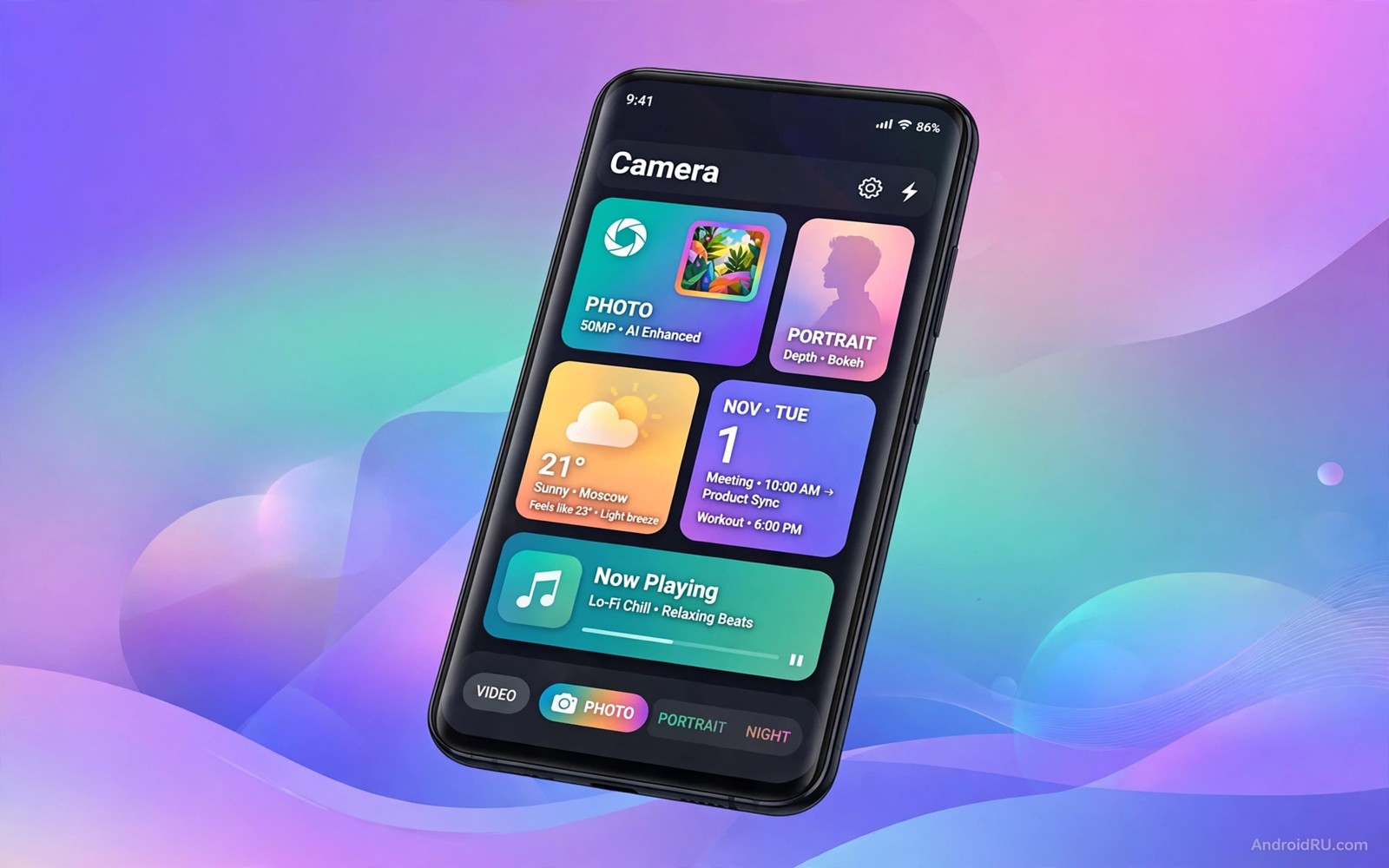
Pixel phones earn praise for software tricks that rarely appear in launch events. Some of those tricks truly need Pixel hardware or Pixel services. Many others are ideas any Android owner can copy with built-in tools or thoughtful settings. This guide separates the two groups honestly.
The seven features below cover captions and widgets and call handling and editing and transcription and charging and search. For each Pixel feature you will learn the idea behind it and the closest equivalent on other phones. The goal is a better phone rather than envy of a different brand.
Try one idea per day for a week. A copied feature that survives daily use earns a permanent place. A feature that needs Pixel services will reveal itself quickly so you can stop chasing it.
One: live captions everywhere
Live Caption started as a Pixel showcase and later reached many Android phones. It adds subtitles to any media without creator captions. The processing happens on the device so audio never leaves the phone.
Enable captions from the volume panel or from Accessibility settings on phones that support it. Phones without the feature can use accessibility caption apps that offer similar on-device transcription. The experience differs yet the core benefit remains.
Captions help in noisy places and quiet libraries alike. They also help language learners follow speech with text support. A week with captions convinces most owners to keep them permanently.
Two: At a Glance smart widget
At a Glance shows the next calendar event and weather and travel alerts in one compact widget. The widget changes through the day to surface what matters now. Other phones can approximate it with a calendar widget beside a weather widget on the same home screen row.
Build the approximation deliberately. Place a calendar agenda widget above a weather widget and keep both compact. The pair answers the same questions as At a Glance with one extra glance. A clean layout matters more than a single merged widget.
Review widget permissions after setup. A calendar widget needs calendar access to show events. A weather widget needs location access for local forecasts. Narrow each permission to the minimum that still delivers useful information.
Three: call screening ideas for spam
Pixel Call Screen answers unknown calls with an assistant that asks the caller purpose. Other phones cannot copy the assistant exactly yet they can copy the discipline behind it. Silence unknown callers and let genuine callers leave voicemail.
Enable silence for unknown numbers in phone settings where your maker offers it. Genuine callers who need you will leave a message or text. Spam callers rarely bother with voicemail which filters most nuisance calls automatically.
Block and report spam numbers after the first unwanted call. Reporting helps carriers filter the same number for other owners. A personal block list grows into a quiet phone within weeks.
Four: magic eraser style editing
Magic Eraser removes unwanted people and objects from photos with a brush stroke. Other phones approximate it through photo editors with object removal tools. The results vary by scene yet simple backgrounds clean up surprisingly well.
Open your gallery editor and look for an eraser or object removal tool. Brush over a small distraction such as a sign or a stranger at the edge. Complex overlapping objects challenge every editor regardless of brand.
Photograph with editing in mind when possible. A step to the side avoids the distraction entirely and beats any eraser. Editing rescues photos yet good framing prevents most rescue work. Readers who enjoy camera craft also benefit from camera tricks for cheaper phones because technique transfers across brands.
Five: recorder transcription habits
Pixel Recorder transcribes speech into searchable text on the device. Other phones can approximate it with transcription apps that process audio locally or with cloud services for longer recordings. The habit matters more than the app.
Record meetings and lectures with permission from participants. Transcription turns an hour of audio into searchable notes in minutes. Review the transcript promptly while memory of the conversation stays fresh.
Privacy deserves care with transcription. Cloud transcription sends audio to servers which may not suit sensitive meetings. Prefer on-device transcription for work discussions and reserve cloud tools for public lectures.
Six: adaptive charging for battery health
Adaptive charging slows the final charge stretch overnight so the phone reaches full shortly before you wake. Most modern Android phones now offer a version of this feature under battery settings. Enable it and keep a regular wake time for best results.
Adaptive charging needs a predictable schedule to work well. A phone charged at random times cannot predict when full charge is needed. Keep overnight charging consistent for a week and watch the feature learn your rhythm.
Combine adaptive charging with a charge limit where available. An eighty percent daily limit plus adaptive timing gives batteries the gentlest routine short of manual charging discipline.
Seven: Now Playing style music discovery
Now Playing identifies songs playing nearby without any tap. Other phones approximate it with music recognition shortcuts or assistant commands. A home screen shortcut to a recognition tool delivers most of the magic with one extra tap.
Place the recognition shortcut where your thumb reaches easily. A song heard in a shop lasts seconds before it ends. Fast access matters more than automatic detection for most real encounters.
Save recognised songs to a playlist at once. A recognition without a saved result vanishes from memory within hours. The playlist becomes a diary of places and moments discovered through music.
Set up the copied widget pair
The checklist below builds the At a Glance approximation on any home screen. Follow the steps in order and keep widgets compact so the pair fits one screen row pair without crowding icons.
Widget pair setup:
1. Add calendar agenda widget.
2. Add weather widget below it.
3. Resize both to compact height.
The snippet above was written for this article as a plain setup checklist for widget arrangement. It contains no system commands and it changes nothing on the phone. Adjust widget sizes until both fit comfortably above your most used apps. A tidy pair answers daily questions at a glance.
Copy Pixel search habits
Pixel search puts answers above app icons by searching content and settings together. Other phones approximate it with a home screen search widget that covers apps and web results. Place the search widget at the top of the home screen and use it as the first step for every task.
Search habits beat app hunting for most tasks. A contact or a setting or a document surfaces faster through search than through folder browsing. Train yourself to swipe down and type two letters before opening any app drawer.
Voice search complements typed search during driving and cooking. A short voice command opens navigation or sets a timer without touching the screen. Hands free habits suit safety critical moments better than any visual shortcut.
Use assistant routines like a Pixel owner
Assistant routines chain several actions behind one command. A morning routine can read weather and calendar and switch off do not disturb together. Build one routine for mornings and one for bedtime in assistant settings.
Keep routines short and reliable. A routine with ten steps fails when one step changes. A routine with three dependable steps runs daily without maintenance. Reliability beats ambition for automation that must work before coffee.
Small copied habits compound into a noticeably better phone within a month.
Common mistakes
The biggest mistake is chasing Pixel-only services with unofficial ports that demand deep system access. A port that needs broad permissions risks stability and privacy for a feature you can approximate safely. Prefer built-in equivalents over risky ports.
Another mistake is enabling every copied feature at once. A home screen crowded with new widgets and shortcuts confuses more than it helps. Add one idea per day and keep only the ones that survive real use.
People also compare their approximation unfairly with the original. An approximation that delivers eighty percent of the benefit is a success. Perfection belongs to the original hardware while usefulness belongs to any phone.
Finally avoid granting location and microphone access to every copycat app. A widget or transcription tool needs narrow permissions for its job. Broad access from an unknown developer defeats the privacy that Pixel features promise.
Frequently asked questions
Can I install Pixel features on a Samsung phone?
Some Pixel apps install on other phones yet many require Pixel services to function. Widgets and transcription and call handling have good equivalents built into other makers software. Prefer equivalents over forced ports for stability.
Which Pixel feature is easiest to copy?
Live Caption is easiest where your phone supports it because it needs only a toggle. At a Glance approximation follows closely because widgets exist on every Android phone. Both deliver daily value with minimal setup.
Do copied features drain battery faster?
Widgets and transcription use some power yet the cost is modest for one or two tools. A home screen crowded with widgets and always listening features drains more noticeably. Keep copied features few and purposeful.
Conclusion
Pixel features teach ideas that travel well beyond Pixel phones. Captions and smart widgets and call discipline and editing and transcription and adaptive charging and music discovery each improve daily life on any Android device. The brand matters less than the habit behind each feature.
Your concrete next step is to enable live captions today if your phone supports them. Tomorrow build the calendar and weather widget pair on your home screen. Readers who enjoy hidden menus can continue with features most owners miss and ten hidden settings that reshape daily use for more ideas.

