

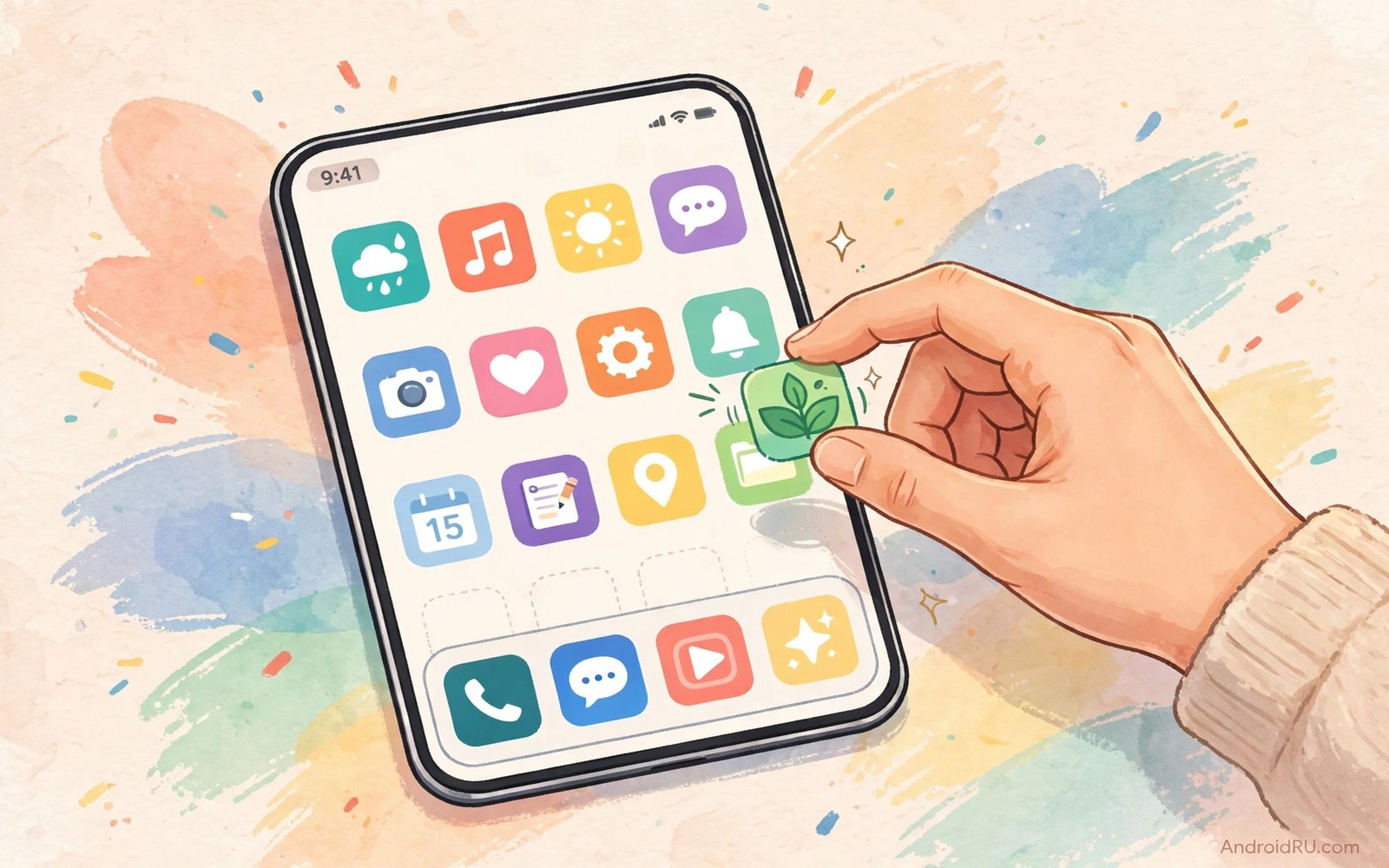
Your home screen is the room you enter fifty times a day. The default launcher keeps that room plain. Icons sit in a fixed grid. Widgets stay small. Gestures stay limited. You walk through the same dull hallway every time you unlock the phone. A custom launcher rebuilds the room around your habits instead.
Switching launchers sounds technical but it takes about ten minutes. You install one app from the store. You set it as the default home app. Your old launcher stays installed and you can return to it any time. Nothing gets deleted. Your apps and files stay exactly where they were.
This guide walks through a full switch from start to finish. You will pick a launcher that matches your style. You will set up the grid and dock. You will add gestures that open your favourite tools with one swipe. You will finish with a home screen that feels faster because everything you need sits one tap away.
Pick a launcher that matches your daily routine
Start with how you actually use the phone. A minimal user wants a clean screen with five icons and no clutter. A power user wants dense grids and swipe actions on every icon. A visual user wants icon packs and themed widgets. Each style has a launcher built for it. Read the store description and look at screenshots before you install anything.
Install two candidates and test each for a day. Set one as default in the morning. Use it for real tasks like messaging and navigation. Switch to the other candidate the next day. Real use reveals friction that screenshots hide. A launcher that looks stunning may bury your most used app two swipes deep.
Rebuild the grid and dock around your thumb
Open launcher settings and find the desktop grid option. A five column grid fits more icons without looking crowded on most phones. A six column grid suits large phones and small icon packs. Keep the row count at five so icons stay reachable. Your thumb should reach every daily app without stretching.
Design the dock as a speed dial for your life. Place the phone app and messages app at the edges. Put the browser and camera in the middle slots. Leave one dock slot empty for a folder of travel tools or work tools. A dock with five strong choices beats a dock with ten rarely used icons every time.
Teach gestures to do the heavy lifting
Gestures turn the home screen into a shortcut panel. A swipe down can open notifications. A double tap can lock the screen. A swipe up on the camera icon can open the front camera directly. Assign gestures one at a time and use each for a week. Too many gestures at once create confusion and you will forget half of them.
Icon swipe actions deserve special attention. Swipe up on the messages icon to open a new message to your partner. Swipe up on the maps icon to navigate home. These micro shortcuts save dozens of taps per week. They also keep the home screen clean because one icon does the work of two.
Theme icons and widgets without breaking readability
Icon packs change the whole mood of the phone in seconds. Pick a pack with consistent shapes and calm colours. Wild packs with mixed styles look exciting for a day and tiring after a week. Apply the pack from launcher settings and check every home screen page. Replace any icon that looks unclear at a glance.
Widgets should earn their space with live value. A calendar widget that shows today events earns a large slot. A weather widget with hourly rain data earns a small slot. A widget that only shows a clock duplicates the status bar and wastes space. Remove any widget you have not glanced at in three days.
Back up the setup so a new phone feels familiar
Open launcher settings and export a backup file. Save it to cloud storage and to a local folder. A backup stores the grid and gestures and widget positions. Restoring it on a new phone rebuilds your home screen in minutes. Without a backup you will spend an evening recreating a layout you already perfected once.
Export a fresh backup after every major change. Add a date to the file name so you can roll back to a known good layout. Keep the last three backups and delete older ones. This small habit turns phone upgrades from a chore into a five minute restore job.
Fix a launcher that starts misbehaving
A launcher can slow down after a major system update. Widgets may vanish or gestures may stop responding. Restart the phone first because a restart clears temporary launcher state. Test gestures again after the restart. Most glitches vanish with that single step.
Clear the launcher cache when problems persist. Open app info for the launcher and clear cache only. Avoid clearing data at this stage because data holds your layout. Cache clearing removes corrupt temporary files while keeping the grid intact. Test the home screen for a day after the step.
Restore a backup when cache clearing fails. Open launcher settings and import the most recent backup file. The layout returns to its known good state within minutes. Rebuild only the changes made since that backup. A backup habit turns disasters into minor detours.
Uninstall the launcher only as a last resort. The system falls back to the default home app automatically. Reinstalling later restores nothing without a backup file. Keep backups current so the last resort stays painless.
Design separate pages for work and home life
Home screen pages can separate life roles cleanly. Dedicate the first page to daily essentials for all roles. Dedicate the second page to work tools only. Dedicate the third page to leisure and media. Swiping between pages becomes switching between mindsets.
Work pages deserve calm icons and no social apps. A work page with messages and mail and calendar keeps focus tight. Leisure pages can carry colour and games and streaming apps. The separation reduces temptation during work hours. It also reduces work intrusion during evenings.
Place a single shared widget on the first page only. A calendar widget serves both roles without duplication. Duplicate widgets across pages waste space and refresh power. One widget in one place keeps information consistent everywhere.
Review page contents monthly as roles shift. A finished project leaves work tools behind. A new hobby adds leisure apps. Monthly pruning keeps pages honest. A home screen that matches current life feels effortless every day.
Keep a launcher fast over time
A launcher slows gradually as widgets and icon packs accumulate across months of tweaks. Audit installed widgets every season and remove every widget that no longer earns daily attention. Each removed widget reduces refresh work and memory pressure on the home screen. A lean home screen responds instantly even on older hardware with limited memory. Seasonal pruning keeps a fast launcher fast rather than restoring speed after it already faded.
Icon packs with huge image files can slow icon rendering on low memory phones. Choose icon packs with modest file sizes and consistent simple artwork. Test rendering speed by swiping rapidly across home screen pages after applying a pack. Smooth swiping confirms the pack suits the hardware. Stuttering swipes signal a pack that costs more beauty than it returns in speed.
Restart the launcher weekly through a normal phone restart to clear temporary state. Temporary state builds up from widget updates and theme changes across days. A weekly restart costs one minute and prevents gradual sluggishness from becoming normal. Owners who restart regularly rarely notice launcher slowdowns at all. Regular restarts are the simplest maintenance habit available.
Avoid stacking multiple gesture apps on top of a gesture capable launcher. Overlapping gesture systems compete for the same swipes and create delays. Choose one gesture system and disable the others completely. A single system responds faster because it never waits to see whether another system claims the gesture. Simplicity in gesture handling produces noticeably snappier navigation.
Back up the lean layout after every successful pruning session. A backup preserves the fast configuration against future experiments that add weight again. Restoring a lean backup takes minutes when a new widget experiment disappoints. Without a backup the lean layout must be rebuilt from memory. Backups turn pruning into a reversible experiment rather than a risky gamble.
adb shell cmd shortcut get-default-launcher
adb shell pm list packages | grep launcher
adb shell settings get secure default_home
The commands above are a generic illustration for checking which home app currently holds default status. They help a technician confirm a switch took effect. Everyday users can confirm the same fact by pressing the home button and watching which launcher appears.
Accessibility tools add shortcuts that pair naturally with a rebuilt home screen. Back tap gestures give the home screen a hidden button for flashlight and camera actions. Notification control keeps a clean home screen quiet by muting single chats instead of whole apps.
Common mistakes
The biggest mistake is installing five launchers at once. Each one fights for default status. Notifications about the default home app multiply. Pick one launcher and test it properly before trying another. A calm single choice beats a crowded experiment.
Another error is copying a complex setup from a video without adapting it. That setup fits the creator thumb and apps. Your thumb and apps differ. Borrow ideas and rebuild them around your own daily flow. Personal fit matters more than visual imitation.
A third error is ignoring the app drawer. The drawer holds every app on the phone. Sort it into folders by purpose. Hide apps you never open. A tidy drawer makes search faster and keeps the home screen honest.
FAQ
Will a custom launcher slow down my phone?
A well built launcher uses little memory and runs smoothly on most phones. Heavy live wallpapers and dozens of widgets cause more slowdown than the launcher itself. Keep widgets few and test performance for a day before judging the launcher.
Can I return to the default launcher later?
Yes and the process takes under a minute. Open settings and find the default home app option. Select the original launcher from the list. Your custom layout stays saved inside the custom launcher app for a future return.
Do custom launchers work with gesture navigation?
Most launchers support system gestures on recent Android versions. Some older models restrict third party launchers to button navigation. Test gestures right after install and check the launcher settings for a navigation compatibility note if swipes feel wrong.
Conclusion
Install one launcher tonight and set it as default before bed. Rebuild only the dock and the grid in the first session. Add one gesture tomorrow morning and one icon pack tomorrow evening. Small steps build a home screen that finally fits you.
Your phone will stop feeling like a rental. Every unlock will show a layout built for your thumb and your day. That is the real secret of customization. It is not decoration for its own sake. It is speed and comfort you feel on every single tap.

