

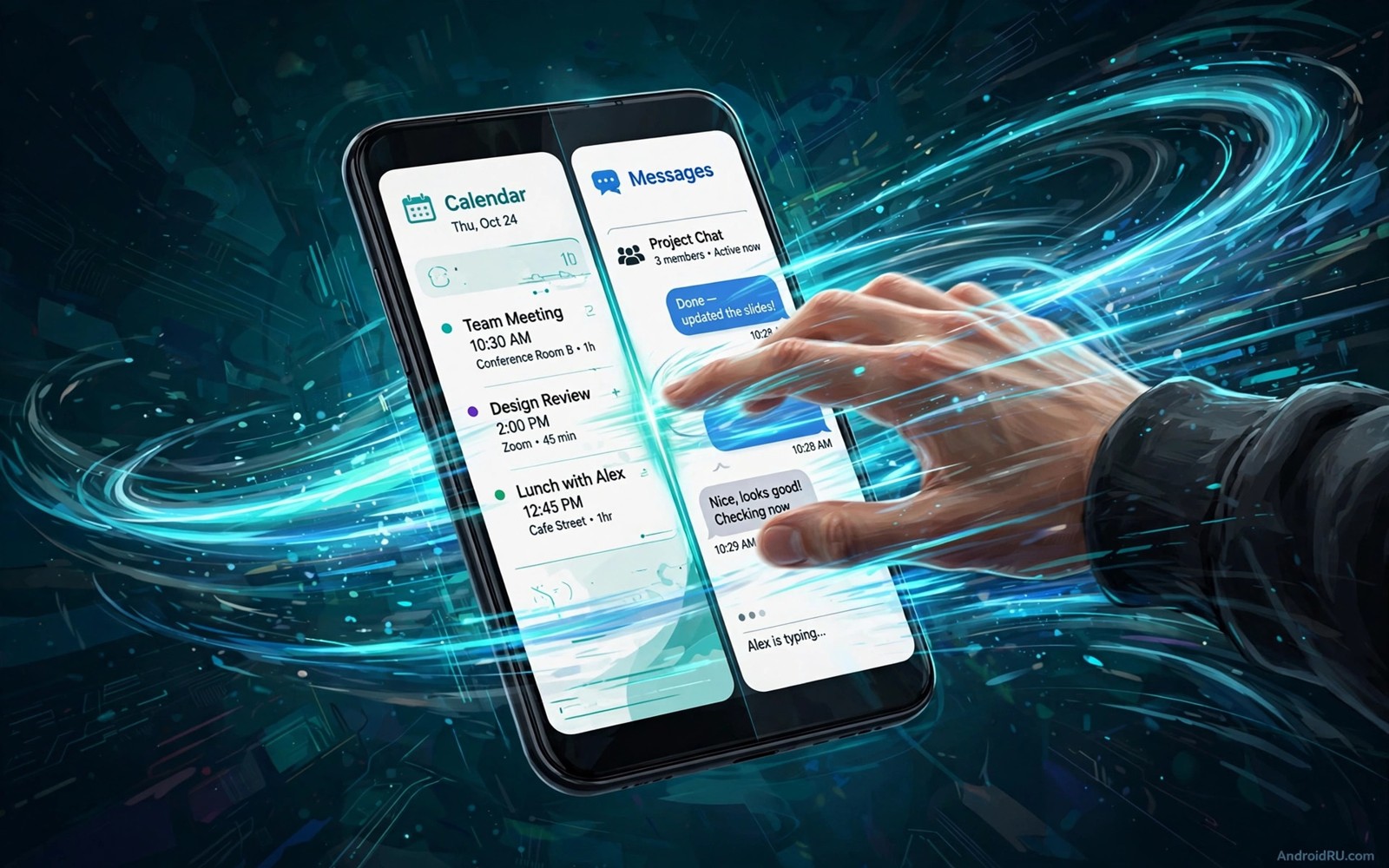
Multitasking on a phone usually means tapping a button and hunting through a carousel of recent apps. That method works yet it breaks your flow every time you switch tasks. A single gesture on the navigation bar changes the whole experience because it swaps apps without leaving the screen you are reading.
The gesture is simple. Swipe sideways on the bottom navigation bar to jump to the previous app. Swipe again to return. The motion takes under a second and it keeps your thumbs near the bottom of the phone where they already rest. Once the motion becomes muscle memory you stop thinking about app switching entirely.
This guide teaches the quick-switch gesture and its companions. You will learn back gestures and recents gestures and one-handed moves that together make the phone feel like a workspace rather than a stack of separate apps.
Enable gesture navigation first
Open Settings and search for navigation. Choose gesture navigation instead of three button navigation where your phone offers the choice. The bottom bar becomes a thin indicator that supports swipes rather than three fixed buttons.
Gesture navigation frees screen space because buttons no longer occupy a permanent bar. Content gains a few extra millimetres which matters on smaller phones. The trade is a short learning period while your thumbs adapt to swipe motions.
Keep the gesture hints visible during the first week. Hints show the bar position until muscle memory forms. Turn hints off later for a cleaner look once swipes feel natural.
Master the quick-switch swipe
Place your thumb on the bottom bar and swipe right to move to the previous app. The previous app slides in from the side with a brief animation. Swipe left on the bar to move back to the app you just left. The pair of swipes forms a loop between two apps.
Quick switch shines for paired tasks. Compare a message thread with a calendar event. Copy an address from a browser into a map. Check a price while chatting with a friend about a purchase. Each pair benefits from instant toggling without a carousel in between.
Practise with two apps you use together daily. Switch between them twenty times in a row at first. The repetition feels silly yet it builds the motor pattern that makes the gesture automatic by the end of the day.
Back gesture and edge swipes
Back gesture replaces the old back button with a swipe inward from either screen edge. Swipe from the left edge or the right edge to go back one step. The gesture works in nearly every app and it keeps thumbs near content rather than near buttons.
Edge swipes conflict with app drawers in some apps. A drawer that opens from the left edge needs a diagonal swipe or a longer press to distinguish intent. Most apps handle the distinction well after a short adjustment period. Practise the diagonal motion in your most used drawer app.
Back gesture speed matters for power users. A fast edge swipe returns from a deep menu in one motion. Repeated swipes climb back through several screens quickly. The old button required precise taps on a small target for the same result.
Recents gesture for more than two apps
Quick switch handles two apps beautifully. Three or more apps need the recents gesture. Swipe up from the bottom bar and hold briefly to open the carousel of recent apps. Scroll sideways and tap the app you need.
Recents also supports split screen on many phones. Long press an app icon in the carousel to find the split option. Pair a video with notes or a map with messages for tasks that need both apps visible at once.
Clear recents sparingly. The carousel is a history list rather than a running process list. Clearing it does not speed the phone and it destroys the quick switch history you built. Leave recents alone except when an app freezes.
One-handed gestures for large phones
Large phones challenge one thumb reach. Swipe down on the bottom bar to pull the screen into one-handed mode on many models. The shrunken screen brings top content within thumb range for a single action.
Exit one-handed mode by tapping the empty area or the expand arrow. The mode is temporary by design which suits quick actions such as tapping a top menu item. Permanent one-handed layouts belong in display settings rather than in gestures.
Combine one-handed mode with quick switch for powerful single hand use. Shrink the screen and then swipe the bar to swap apps without repositioning your grip. The combination feels like the phone was designed for one hand after all.
Gesture conflicts and how to solve them
Games often use edge swipes for gameplay which conflicts with back gestures. Most games offer a gesture lock or an immersive mode that suppresses system gestures during play. Enable the lock for games that suffer accidental exits.
Drawing apps face a similar conflict because strokes start at screen edges. Use a longer edge press or a dedicated gesture exclusion area where the phone offers one. A small exclusion zone near the drawing toolbar prevents most accidents.
Keyboard gestures add another layer. Swipe typing across the keyboard can trigger system gestures when strokes reach the bottom bar. Lift the thumb slightly before the final letter to keep typing inside the keyboard area.
Pair gestures with split screen habits
Gestures and split screen together cover nearly every multitasking need. Quick switch handles two app toggling. Split screen handles two app viewing. Recents handles three or more apps. A user who knows all three never hunts through menus for a switch.
Build split screen pairs for recurring tasks. A recipe above a timer helps cooking. A document above a chat helps collaborative editing. Save time by launching the pair from recents rather than rebuilding it from scratch each time.
Owners who explore the wider feature set also enjoy features most owners miss because gestures belong to a family of quiet tools that reward exploration. Pairing gestures with notification discipline from recovering dismissed alerts keeps multitasking calm rather than chaotic.
A practice drill for the quick-switch gesture
The drill below builds muscle memory in five minutes. Repeat it once a day for three days and the gesture becomes automatic. Perform the drill with two apps you genuinely use together so practice serves a real task.
Gesture drill:
1. Swipe right on the bar to switch apps.
2. Swipe left on the bar to return.
3. Hold and release to open recents.
The snippet above was written for this article as a short practice drill for gesture learning. It contains no system commands and it changes nothing on the phone. Repeat the three steps slowly at first and then faster as confidence grows. Speed follows accuracy so prioritise clean swipes over fast ones.
Gesture settings worth customising
Gesture sensitivity settings let you tune how easily edge swipes trigger. A higher sensitivity suits thick cases that blunt edge touches. A lower sensitivity suits drawing apps where accidental back swipes disrupt work. Adjust sensitivity in system navigation settings and test with your most used app.
Back gesture sensitivity often differs between left and right edges. Set each edge independently where the phone offers that choice. A dominant hand edge may need higher sensitivity than the other edge. Personal tuning beats a single global value for most owners.
Home gesture sensitivity affects how reliably a bottom swipe returns home. A swipe that starts too high on the screen may scroll content instead. Practise starting the swipe from the very bottom edge for consistent results across apps.
Teach gestures to a new phone owner
New owners learn gestures fastest from a short demonstration rather than a manual. Show quick switch first because its benefit is instant. Let the learner practise the pair of swipes with two familiar apps before introducing recents or split screen.
Expect a week of mixed use where old button habits resurface under stress. Gentle reminders help more than criticism. A learner who keeps gestures for a full week rarely returns to buttons voluntarily.
Common mistakes
The biggest mistake is abandoning gestures after one frustrating day. Every new motion feels awkward before it feels natural. A week of deliberate use separates a genuine mismatch from normal learning friction.
Another mistake is swiping from the middle of the screen for back navigation. Back gestures start at the very edge. A swipe that starts too far inward scrolls content instead of going back. Anchor the thumb at the edge before moving.
People also overuse quick switch for three app tasks. Quick switch toggles only the last two apps. A third app needs recents or split screen. Forcing quick switch into a three app job creates confusion and wasted swipes.
Finally avoid disabling gestures entirely because one game conflicts. Use per-game gesture locks or temporary three button mode for that game alone. The rest of the phone deserves the faster system.
Frequently asked questions
Can I use gestures with a case that covers the edges?
Yes in most cases. A case with raised edges can make edge swipes slightly harder yet still usable. Choose a case with a low lip near the bottom bar if gestures feel obstructed.
Why does quick switch sometimes open the wrong app?
Quick switch follows recents order which changes after opening new apps. An app opened briefly becomes the new previous app. Check recents order when a switch surprises you and the pattern becomes clear.
Do gestures work with screen protectors?
Yes. Tempered glass protectors rarely affect gesture recognition. A thick or peeling protector can reduce edge sensitivity. Replace a damaged protector when swipes become unreliable.
Conclusion
One swipe on the navigation bar transforms multitasking from a chore into a reflex. Quick switch and back gestures and recents and one-handed moves together let thumbs do in seconds what buttons did in taps and hunts. The phone begins to feel like a single workspace rather than a collection of isolated apps.
Your concrete next step is to enable gesture navigation today and practise quick switch between your two most used apps twenty times. Repeat the drill tomorrow morning. Readers who enjoy hands-on control can continue with the refresh that makes a phone feel new as a companion guide.

