

How to Sync Windows PC Notifications to Your Android Smart TV
I was halfway through a film on my Android TV when my phone buzzed in the other room and my laptop, sitting open on the kitchen table, lit up with a message I actually needed to see. By the time I paused the film and walked over, the moment had passed. That small annoyance is what pushed me to set up Windows notification sync properly. A short banner in the corner of the TV now tells me when a message, a calendar reminder, or a delivery update arrives on my PC, and I can decide in two seconds whether it is worth pausing for.
This guide covers the whole setup from pairing to privacy. You will learn which methods work in 2026, how to pair a Windows 10 or Windows 11 PC with an Android TV, how to pick only the alerts that deserve screen space, and how to fix the problems that usually appear in the first week. In practice, the best setup is a boring one: a short allow list, a small corner banner, and a quick way to pause everything when guests arrive.
That said, no single method fits every living room. Phone Link is the easiest path if you already use a Microsoft account, KDE Connect is the most flexible for people who like open tools, Pushbullet suits cross-device history, and a dedicated bridge app is the fallback when the big names do not support your TV model. I tested the main routes on a Windows 11 laptop and a Chromecast with Google TV, and the differences below come from that real setup, not from a feature list.
How Windows PC Notifications Reach an Android Smart TV
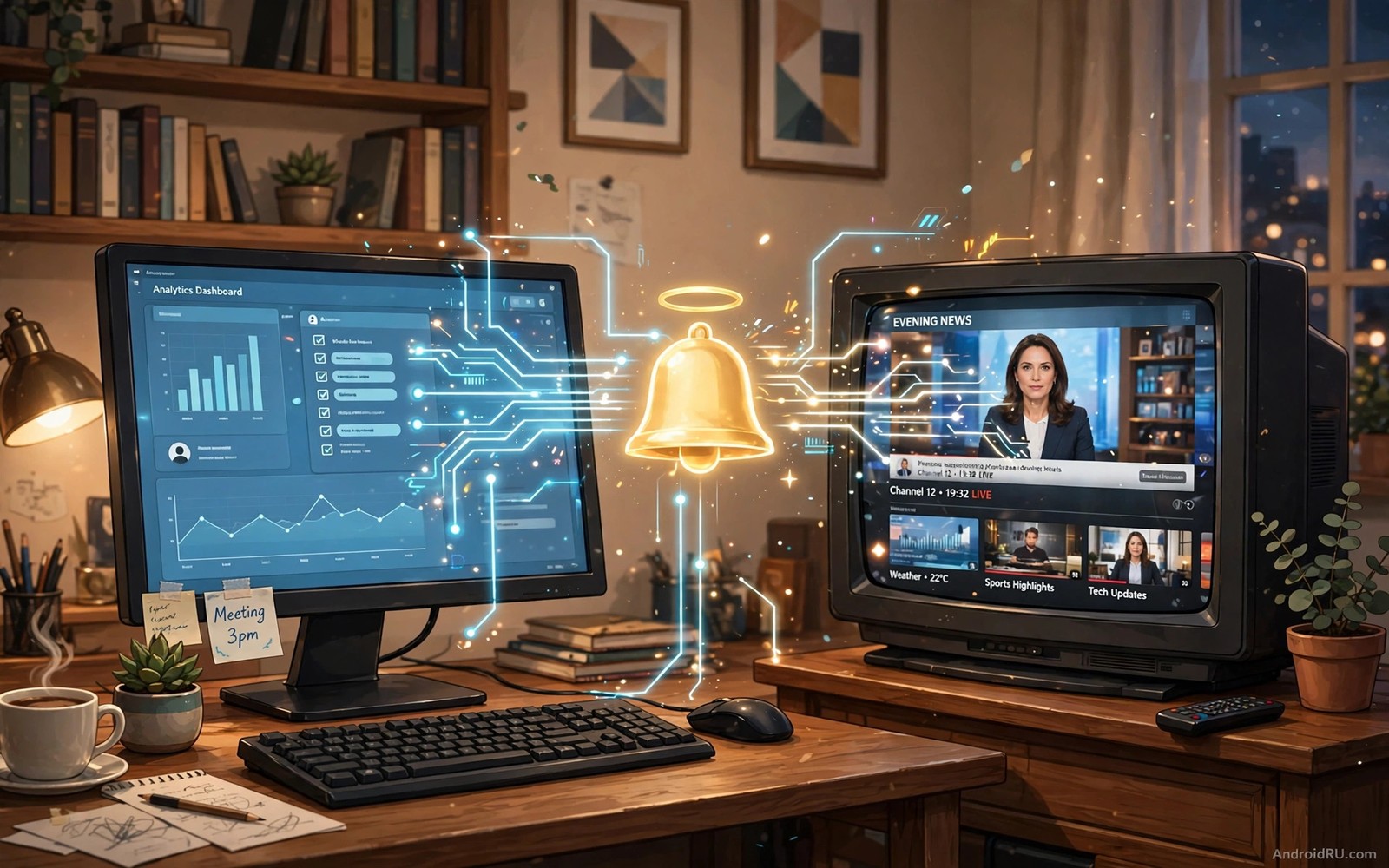
Windows sends a notification to its own notification centre first. A sync tool watches that centre, copies the alert, and forwards it over your local network or through a cloud relay to a companion app on the TV. The companion app then draws a banner over whatever is playing. The chain has four links: Windows, the sender, the network, and the TV app. When a banner fails to appear, one of those four links is broken, and the troubleshooting section later in this guide walks through them in that order.
Your TV does not need to run Windows, and your PC does not need any special hardware. Both devices need to be awake, connected, and signed in to the same sync account or paired with the same code, depending on the method. A wired PC and a Wi-Fi TV on the same router work fine, as long as the router does not isolate wireless clients from wired ones. That isolation setting, often called AP isolation or client isolation, is the hidden cause of many first-time failures, so check it early if pairing stalls.
What a notification bridge actually does
A bridge reads the app name, the title, the short body text, and the priority of each Windows alert, then repackages those four fields for the TV. The shape is simple: one structured message becomes one banner. Bridge apps hide that shape behind menus, but knowing it helps you diagnose problems. If the app name arrives but the body is blank, the sender is working and the content filter is blocking the text. If nothing arrives at all, the pairing or the network is at fault.
Local network sync versus cloud relay sync
Local sync keeps messages inside your home network, which is faster and more private. Cloud relay sync works when the PC and TV are on different networks, but it sends message previews through a third-party server and usually needs a paid plan for full history. I use local sync at home and I only accept a cloud relay when I am testing a method that has no local mode. Here is the catch: some TVs block background local discovery after a software update, so a method that worked locally in January can quietly switch to cloud mode later. Check the companion app after each TV update.
Phone Link vs KDE Connect vs Pushbullet vs Bridge Apps Compared
Choosing a method before you install anything saves an evening of reinstalls. The table below compares the four realistic routes on the criteria that matter in a living room: setup effort, reply support, privacy, cost, and how well each one behaves on a TV screen rather than on a phone.
| Method | Setup effort | Reply from TV | Privacy | Cost | Best for |
|---|---|---|---|---|---|
| Phone Link (Your Phone) | Low, Microsoft account sign-in | Limited, quick replies on some apps | Microsoft account, cloud relay | Free | Windows 11 users who want the official path |
| KDE Connect | Medium, pair code on both devices | Yes, reply from paired device in many cases | Local network, open source | Free | People who want local control and no account |
| Pushbullet | Low, account sign-in | Yes, from phone or PC | Cloud relay, message history on server | Free tier with limits, paid Pro | Cross-device history and link sharing |
| Dedicated bridge app | Medium, install companion on TV | Rare, mostly view only | Varies, check each app | Free or one-time purchase | Older TVs or TVs without Phone Link support |
Phone Link wins on polish. It is built into Windows 11 under Settings, Bluetooth and devices, Mobile devices, and it mirrors calls and messages cleanly. Its weakness on a TV is that it was designed for a phone, so you still need a TV companion or a cast step to put its alerts on the big screen. KDE Connect wins on privacy and on control: pairing uses a code shown on screen, nothing needs an account, and you can pick exactly which notification categories cross the bridge. Pushbullet wins on history, because you can scroll back through alerts you missed, but its free tier caps how many messages you can send each month, so check the current plan before you rely on it.
A dedicated bridge app is the honest fallback. It does one job, shows banners, and asks for little else. I keep one installed as a spare even though KDE Connect is my daily route, because a spare bridge has rescued a movie night twice when a Windows update changed a permission. The trade-off is clear: a single-purpose app will not reply to messages or sync files, but it also has fewer settings to break.
Which method should you pick first
Pick Phone Link if you run Windows 11, already sign in with a Microsoft account, and mainly want messages and calls. Pick KDE Connect if you value local privacy, use more than one computer, or want reply support without a subscription. Pick Pushbullet if you already use it on your phone and want the same history everywhere. Pick a bridge app if your TV is older, your PC runs Windows 10 without the newest Phone Link features, or the other three methods refuse to see your TV at all.
How to Pair Your Windows PC and Android Smart TV Step by Step
Pairing is the step most people rush, and rushing it is why banners fail later. Work through the steps in order, test after step five, and only then move on to filtering. The whole process takes about fifteen minutes when the network cooperates, and most of that time is waiting for apps to install on the TV.
- Connect the PC and the TV to the same Wi-Fi network name, or to the same router by cable and Wi-Fi. Open Settings, Network and internet on the PC and Settings, Network and internet on the TV and confirm the network name matches exactly, including the 2.4 GHz and 5 GHz suffix.
- On the PC, open Settings, System, Notifications and turn on Notifications. Scroll the app list and turn on notifications for the apps you plan to sync later, such as Mail, Calendar, and your messaging app. A bridge cannot forward an alert Windows never shows.
- Install your chosen sender on the PC and the companion app on the TV from the TV app library. For KDE Connect, install KDE Connect on Windows and KDE Connect on the TV; for Phone Link, use the built-in Windows app and Link to Windows on a paired phone as a relay where needed; for a bridge app, install the same brand on both ends.
- Open the companion app on the TV first. It will show a pairing code or a device name. Leave that screen open while you work on the PC, because some codes expire after two or three minutes.
- On the PC, open the sender, choose Add a new device or Pair a new device, select your TV from the list, and type the code shown on the TV. Accept the pairing request on the TV when it appears. A code pairing confirms you control both devices and stops strangers on the network from sending fake banners.
- Grant notification access when Windows asks. On the TV, open Settings, Apps, Special app access, Notification access if your TV shows that menu, and turn on access for the companion app. Without this permission the companion can connect but it can never draw a banner.
- Send a test alert. On the PC, set a calendar reminder for one minute ahead, or send yourself a test message. Watch the TV for a banner in the corner you chose. A successful test proves pairing, network, and display settings all work at once.
- Turn off PC sleep for the evening, or set it to at least two hours. Open Settings, System, Power and battery, Screen and sleep on Windows 11 and set Sleep to Never for the viewing session, or wake the PC before a show. A sleeping PC cannot send banners, and that single setting explains more failed evenings than any app bug.
Pairing with KDE Connect on Windows 11
KDE Connect on Windows shows discovered devices in its main window. Select your TV, click Request pairing, and accept on the TV. Then open the KDE Connect settings, choose Notifications, and tick Send notifications and, if offered, Allow reply. I found the reply toggle hidden under a second settings page, so open every Notifications sub-page before you decide replies do not work.
Pairing with Phone Link when the TV has no companion app
Some Android TVs have no Phone Link companion. In that case, pair Phone Link with your Android phone first, then mirror the phone screen to the TV only for the alerts you need, or use the TV companion of a bridge app alongside Phone Link for banners. The guide to how to mirror a tablet screen to a PC monitor shares the same principle of showing only what matters on a large screen, and the same discipline applies here: mirror the alert, not the whole phone.
How to Choose Which Windows Notifications Appear on Your TV
Every app notification would overwhelm the screen and ruin viewing, so the allow list is the most important setting in this whole guide. Messages, calendar reminders, and delivery updates deserve a banner. Social media likes, game invites, and sale alerts do not. A short allow list keeps TV notifications useful, while a long one turns the television into a second phone screen that nobody asked for.
Start with three apps only: one messaging app, Calendar, and one delivery or mail app. Live with those three for a week. Add a fourth app only when you can name a specific alert you missed and wished you had seen. That rule stopped me from adding five apps on day one and then muting the whole system on day three in frustration.
Build a three-tier allow list
Tier one is urgent: messages from family, work chat mentions, and calendar reminders for meetings in the next thirty minutes. Tier two is useful: delivery updates, parcel tracking, and mail from people you know. Tier three is silent: everything else stays on the PC and never reaches the TV. Write the tiers down in a note on your phone, because the list drifts over time and a written list makes the monthly review honest.
Set quiet hours and focus rules for movie nights
Set quiet hours on the TV companion app for late-night viewing. Quiet hours pause banners during films or after bedtime. A film night deserves uninterrupted viewing, and a late show deserves quiet too. In Windows, open Settings, System, Notifications, Do not disturb and set a schedule that matches your viewing hours, or turn on Do not disturb manually before a film. In the companion app, choose whether quiet hours pause all banners or only low-priority ones; I pause all of them, because a film is the wrong place for a tier-two delivery update.
Use different banner styles for different priorities
Use a large banner for urgent messages and a small corner banner for routine updates when the app supports that split. Visual priority helps you judge importance at a glance, and a single banner style for everything forces you to read every message fully. Notification priority on the TV is a readability choice, not a decoration choice. If your bridge app has no priority styles, use duration instead: five seconds for routine alerts and eight seconds for urgent ones.
Banner Position, Size and Duration That Do Not Ruin a Show
Banner position matters more than most people expect. A top corner banner intrudes least on subtitles and faces. A centre banner blocks the action and annoys everyone in the room. Choose a corner in the companion app settings, test it with a real show playing, and keep it consistent so viewers learn where to glance. A banner that looks fine on a blank settings screen may block subtitles during dialogue, so never judge position on a blank screen.
Banner duration should stay short. Five seconds gives enough time to read a short message. Longer banners linger and distract from the show, and a banner that stays for twenty seconds is a second screen, not an alert. Adjust duration to your reading speed but keep it under ten seconds for most messages. Short banners respect the viewing experience while still delivering the alert.
Test banners with real shows playing
Test banners while a real show plays with subtitles on. A banner that overlaps subtitles during dialogue needs repositioning, and a banner that blocks a face during a close-up needs resizing. Test with different show types too: a bright cartoon and a dark drama present banners differently, and a banner readable on a bright scene may vanish on a dark scene. A banner with a solid background stays readable across both, so prefer a solid background over a transparent one.
Dismiss banners quickly with the remote
Dismiss banners quickly with the TV remote when they appear. Most companion apps map a remote button to dismiss, often Back or a dedicated clear button. Learn that button before a film night, because a quick dismiss returns focus to the show at once, while an unknown dismiss method leaves banners lingering until they time out. Ask household members whether banners distract them during shows, because one person tolerance for banners differs from another, and shared viewing needs shared rules for interruptions.
Banner settings that work in most living rooms
Top-right corner, solid dark background, white text, five seconds for routine alerts, eight seconds for urgent alerts, and a maximum of one banner on screen at a time. Those values worked on my TV across films, sport, and cartoons. If your TV is very large, move the banner slightly inward from the edge, because text pressed against the bezel is harder to read from a sofa at an angle.
Privacy and Security for Windows Notifications on a Shared TV
Notification content can include private messages and two-factor codes, so treat the sync link as sensitive and protect it accordingly. Use a strong pairing code, keep the companion apps updated, and review which apps can send banners. Updates fix security issues in notification bridges, and an outdated bridge app risks exposing message content on the local network.
Disable sync when guests use the television for an evening. Guest viewing should not expose your private messages on a shared screen, and a simple toggle in the companion app pauses sync instantly. Re-enable it when guests leave. That habit protects privacy without dismantling the whole setup, and it is the single habit I would keep even if I changed every other setting.
Hide message content when the TV is shared
Most bridge apps show a preview by default. Privacy settings can hide content and show only the app name, so a banner reads Messages rather than the first line of a private chat. Enable content hiding when guests often share the television, when children watch with you, or when you work from home and colleagues can see the screen. Hide message previews on a shared TV by default, and show full text only when you are watching alone.
Review notification history after each session
Review the notification history on the PC after a TV session. History shows which banners appeared and when, and a review reveals apps that slipped through your allow list. Adjust the allow list based on that review, and run a monthly review to keep the TV notification experience clean. If you find a code or a password in a banner preview, turn on content hiding for that app at once and clear the history in the bridge app.
For a wider view of how a phone can drive the living room safely, the guide to automated smart home scenes triggered by an Android phone shows the same idea applied to lights and routines: automate the boring parts, keep a manual pause within reach, and never let an automation expose more than you intended.
Troubleshooting Windows Notification Sync on Android TV
When banners stop, work through the chain in order and test after each fix. Guessing wastes an evening; a short checklist does not. The table below lists the symptom I see most often, the likely cause, and the fix that worked on my setup.
| Symptom | Likely cause | Fix |
|---|---|---|
| No banner at all | Pairing expired or network changed | Re-pair with a fresh code on the same network |
| Banner arrives late | PC asleep or cloud relay delay | Disable sleep, prefer local sync |
| Only some apps appear | Allow list or Windows notification settings | Check Settings, System, Notifications per app |
| Banner shows app name only | Content hiding turned on | Turn off hiding for trusted viewing |
| Banner blocks subtitles | Position or size wrong | Move to top corner, shorten duration |
| Duplicates of one alert | Two senders running at once | Keep one sender active, close the other |
Duplicate banners deserve a special note, because they are the most confusing fault. If Phone Link and KDE Connect both run, each forwards the same Windows alert, and the TV shows it twice. Pick one sender, close the other fully, and restart the companion app. The same rule applies to running a bridge app and Pushbullet together: one sender, one banner.
When the PC sleeps or the network drops
A sleeping PC cannot send new banners, and a wake-on-LAN setup can help for planned sessions, but it is not magic: the PC must support wake-on-LAN in its BIOS and network adapter settings, and the TV app must send the wake packet before the show. In practice I simply wake the PC before a show and set sleep to two hours. If banners arrive late by a minute or more, the sender is probably using a cloud relay; switch it to local mode in its settings, or accept the delay and use banners only for low-urgency alerts.
When banners appear but replies do not work
Most sync setups show notifications only, and replying still needs the phone or PC. A few companion apps support quick replies from the TV remote, so check your bridge app features before expecting replies. On KDE Connect, replies need the messaging app to support the reply action on Windows; on Phone Link, replies work best for SMS and for a small set of messaging apps. If a reply fails, send it from the phone instead of tapping the TV banner three times and hoping.
Reset the pairing cleanly when nothing else works
Unpair on both ends, close both apps fully, restart the TV, and pair again with a fresh code. A half-removed pairing is worse than no pairing, because the PC thinks it is connected while the TV has forgotten the link. A clean reset takes five minutes and fixes more faults than any single settings change.
Use TV Banners for Calendar Reminders and Delivery Updates
Calendar reminders gain value on a large TV screen. A reminder for a meeting in thirty minutes appears while you relax, and that early warning gives time to prepare without checking a phone constantly. Calendar banners suit the TV because they arrive rarely and carry clear action, so a calendar allow list with only important events keeps banners welcome.
Set reminder lead times thoughtfully. A reminder fifteen minutes before a meeting suits preparation, while a reminder one minute before feels like an interruption rather than help. Lead time should match the action needed, and preparation actions need longer lead times than simple awareness actions. Review calendar sync permissions regularly: a calendar app that syncs every minor event will flood the TV, so limit sync to primary calendars that hold real commitments and leave secondary calendars for birthdays or sport on the phone only.
Delivery updates suit TV banners well because they arrive rarely and carry clear value. A delivery arriving soon matters while you watch TV, and a banner lets you prepare to answer the door without checking a phone. Keep delivery banners in the allow list even when most app banners stay off, and set them to a short duration so they vanish quickly after reading. Their rarity makes them welcome rather than intrusive.
As a related next step, explore transferring downloaded APK files from phone to TV wirelessly to extend what you set up here, because the same TV that shows your alerts can also receive the apps you want to try on the big screen, and the wireless transfer guide covers the file side of that setup.
Frequently Asked Questions About Syncing Windows Notifications to Android TV
Can I reply to messages from the TV?
Most sync setups show notifications only, and replying still needs the phone or PC. A few companion apps support quick replies from the TV remote, and KDE Connect and Phone Link support replies for some messaging apps. Check your bridge app features before expecting replies, and test a reply with a message to yourself before you rely on it during a film.
Will TV notifications work when the PC sleeps?
No. A sleeping PC cannot send new banners, so adjust sleep settings for viewing sessions or wake the PC before a show. A wake-on-LAN setup can help for planned sessions, but the simplest reliable fix is to set sleep to two hours and wake the PC manually before you sit down.
Do TV banners show message content?
Most bridge apps show a preview by default, and privacy settings can hide content and show only the app name. Enable content hiding when guests often share the TV, and turn it off only for trusted viewing at home. Check the preview setting after every app update, because updates sometimes reset it.
Why do I get the same notification twice on my TV?
Two senders are running at once, usually Phone Link and KDE Connect, or a bridge app and Pushbullet. Each forwards the same Windows alert, so the TV shows it twice. Keep one sender active, close the other fully, restart the companion app, and send a test alert to confirm the duplicate is gone.
What to Set Up Tonight for Calmer TV Viewing
Your concrete next step is to install a bridge app on PC and TV tonight and enable sync for only one messaging app. Watch one show with that single app synced and judge whether banners help or distract. If they help, add calendar reminders next, then delivery updates, and stop there for a week. A short allow list is the whole secret: three apps, one corner, five seconds.
Syncing Windows alerts to an Android TV keeps important messages visible without breaking viewing, and the setup rewards patience more than speed. Pair devices on one network, curate the allow list, place banners in a corner, and pause sync when guests arrive. Do that, and the TV stops being a black box while your PC waits in the next room.

