

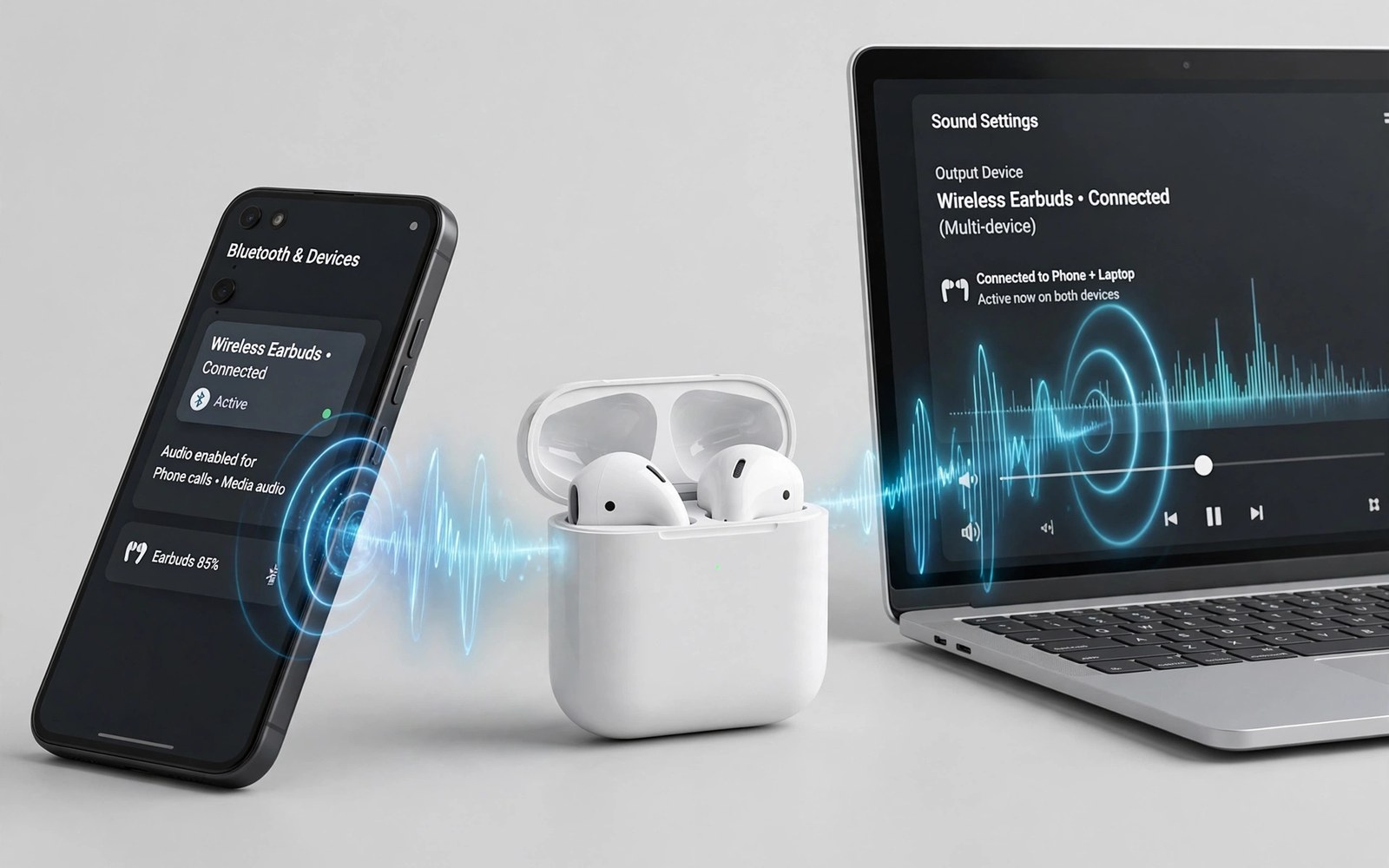
Bluetooth multipoint sounds technical but its benefit is simple in daily life. Your earbuds stay connected to two devices at once and they switch audio between them without a manual reconnect. You can watch a video on a laptop and answer a call on a phone without removing the earbuds. The earbuds pause one source and play the other source automatically. That smooth switch saves time and it stops the fiddly Bluetooth menu dance that many users hate. This guide explains how multipoint works and how to set it up on common earbuds.
Multipoint comes in two main forms that behave differently. Simple multipoint keeps two connections alive but it may only play audio from one device at a time. Advanced multipoint can switch faster and it can handle calls more smoothly. Some earbuds also support a primary and secondary device role. The primary device usually gets priority for calls while the secondary device handles media. Check your earbuds manual for the exact multipoint type before you assume it will switch perfectly. A pair that only supports simple multipoint may need a manual pause on one device before the other device can play.
Pairing order often decides which device gets call priority. Pair the phone first if you want calls to interrupt laptop media. Pair the laptop first if work calls on the laptop matter more. Some earbuds let you change priority in a companion app. That app may show both connected devices and it may let you choose which device plays now. Explore the app settings after pairing because the default priority may not match your daily routine. A five minute app check can prevent weeks of annoying switches at the wrong moment.
Pair Earbuds With Two Devices Step By Step
Start by pairing the earbuds with the first device in the normal way. Put the earbuds in pairing mode and select them in the Bluetooth menu of that device. Test audio and a call if possible to confirm the first connection works. Then put the earbuds back into pairing mode without forgetting the first device. The exact button press varies by model so check the manual for a second pairing mode. Some earbuds enter a second pairing mode with a long press on the case button. Others need a setting in the app to enable multipoint before a second pairing will work.
Pair the second device while the first device stays connected or nearby. Select the earbuds in the second device Bluetooth menu and test media playback. Play media on the second device and pause it. Then play media on the first device to see if the switch happens cleanly. If audio stays on the second device then pause it fully and close the media app. Some apps keep a silent audio session open that blocks a switch. Closing the app often releases that session and lets the other device take over.
Control Which Device Plays And Takes Calls
Call handling is where multipoint proves its value or shows its limits. When a call arrives on the phone the earbuds should pause laptop media and switch to the call. After the call ends the earbuds should return to laptop media in many models. If the return does not happen then press play on the laptop again. That manual press is normal on simple multipoint models. A companion app may offer a setting for call priority or for media priority. Choose call priority if you miss important calls often. Choose media priority if you mainly want music to continue without interruption.
Some laptops and phones fight over the connection when both try to play at once. A video call app on a laptop may hold the audio channel even after the call ends. Close that app fully if the phone cannot take over. A music app paused in the background can also hold a channel on some systems. Force closing a stubborn app releases the channel faster than waiting. For audio quality on the phone side then fixing quiet wireless earbuds mic audio helps with call clarity. For battery care during long dual device days then earbud charging case practices keep the case ready. For a desk setup that uses both devices then accessories to turn a phone into a PC show how earbuds fit a larger workspace.
Fix Common Multipoint Switch Problems
A switch failure often comes from a device that stays connected but silent. Bluetooth shows a connection even when no audio plays. That silent connection can block the other device. Disconnect the silent device in its Bluetooth menu rather than turning Bluetooth off entirely. Turning Bluetooth off can forget multipoint settings on some earbuds. A targeted disconnect keeps the pairing intact while freeing the audio channel. Reconnect that device later when you need it again.
Outdated firmware can also break multipoint switching. Check the earbuds companion app for a firmware update and install it on a full charge. A firmware update can improve switch speed and call handling. After an update retest both devices in the same order as before. If switching gets worse after an update then reset the earbuds and pair both devices again from scratch. A fresh pairing often clears a corrupted multipoint state that an update exposed.
Check Bluetooth Connections With Commands
A computer check can list Bluetooth devices and their connection state. Use these Bluetooth connection checks on a computer that already trusts the phone. They read Bluetooth state without changing any setting. Use them to confirm that the phone still sees the earbuds while the laptop also connects. That confirmation helps you decide whether a switch problem comes from the phone or from the other device.
adb shell dumpsys bluetooth_manager
adb shell settings get global bluetooth_on
Attribution: This code sample is an original example written for this article. It shows standard Bluetooth diagnostic commands that help a reader verify a connection. It does not modify the device and it does not come from any outside guide.
If the phone shows the earbuds as connected yet audio plays on the laptop then the earbuds may be in a simple multipoint mode. Pause laptop media fully and close the media app. Then play phone audio again. If phone audio still does not appear then disconnect the laptop in its Bluetooth menu for a moment. That step isolates whether the laptop holds the channel. A clear isolation test saves time compared with resetting all pairings at once.
A multipoint setup for travel also benefits from a clear routine. Before a flight pair the phone as primary for calls and the tablet as secondary for films. That order keeps calls ready during a long film. On arrival at a hotel pair the laptop instead of the tablet if work calls matter more. Keep a note of the pairing order that worked best for each trip. A short note prevents a fresh pairing puzzle every time you travel with two devices.
Battery life on multipoint days can drop faster because the earbuds maintain two links. Keep the charging case charged and return the earbuds to the case between uses. A case with a clear battery indicator helps you plan charging during a long workday. If battery drops sharply on multipoint then reduce the number of active connections when you do not need both. A single connection day can restore battery headroom for a long call later.
Multipoint earbuds for gym use need a secure fit that survives movement while switching devices. A loose earbud can fall during a switch between a watch and a phone. Test the fit during a short walk before a workout with two devices. A wing tip or a foam tip can improve fit for many ear shapes. A secure fit keeps the switch smooth because the earbud stays in place during the audio change.
Multipoint in a shared office should respect privacy when a call switches devices. A call that switches to earbuds in a quiet room may still leak sound if volume is high. Lower the volume before a call switches and check that both earbuds sit firmly. A quick volume check prevents a private call from becoming audible to nearby colleagues. That habit is simple and it protects call privacy in open offices.
Multipoint earbuds with a companion app should have notifications for connection changes turned on during the first week. A notification tells you which device just took over audio. That feedback helps you learn the switch behaviour quickly. After a week you can turn those notifications off once the behaviour feels familiar. Early feedback prevents confusion about why audio moved between devices.
Common Mistakes
One common mistake is pairing both devices without enabling multipoint in the app first. Some earbuds need that app setting before a second pairing will stick. Another mistake is leaving a media app open on both devices. An open app can hold an audio channel and block a switch. A third mistake is assuming every earbud supports multipoint. Many budget earbuds support only one connection at a time and they will drop the first device when a second pairs.
Some users also forget to update firmware before judging multipoint performance. An old firmware version may switch slowly or drop calls. Another error is testing multipoint with two phones that both receive calls at once. That test creates a conflict that no earbud handles well. Test with one call device and one media device first to learn the normal switch behaviour.
Frequently Asked Questions
Can I listen to two devices at the same time?
Multipoint does not mix audio from two devices at once for most earbuds. It switches audio between devices rather than playing both together. One device plays while the other waits in a connected state. That switch is fast on advanced multipoint models and slower on simple models. Expect a switch rather than a mix.
Why do my earbuds disconnect one device when I pair another?
Earbuds that lack multipoint support can only hold one connection at a time. Pairing a second device drops the first device by design. Check the earbuds specifications for multipoint support before buying for dual device use. If multipoint is listed then enable it in the app and pair in the correct order.
Do calls always interrupt media on multipoint?
Calls usually interrupt media on the primary device when multipoint is set for call priority. Some models let you choose media priority instead. With media priority a call may wait or play on the phone speaker. Check the app setting for call priority if you miss calls during laptop media playback.
Conclusion
Bluetooth multipoint works best when you pair in a thoughtful order and control which device holds the audio channel. Pair the call device first and enable multipoint in the app before a second pairing. Pause and close stubborn media apps when a switch fails. Update firmware and test both devices after any change. Your concrete next step is simple. Tonight pair your earbuds with your phone first and then with your laptop and test a call interrupt during laptop media.

