

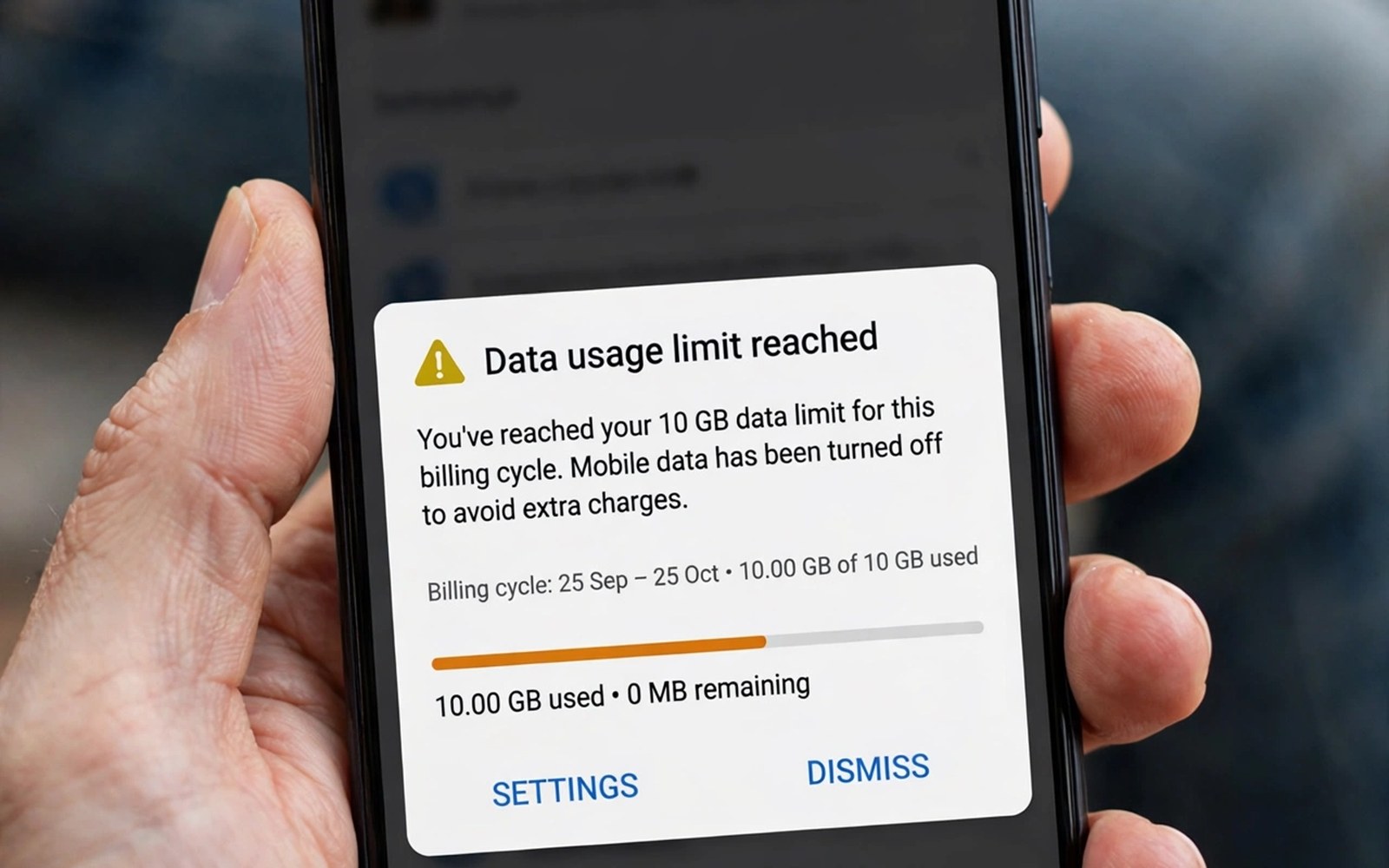
Mobile data can vanish faster than expected. A few video apps and cloud backups can eat a monthly allowance in days. A strict app meter limit stops that drain before it becomes a bill shock. Android offers data warnings and limits that many users never set. Setting them takes a few minutes and it protects your allowance all month.
A data warning alerts you before you cross a threshold. A data limit can block mobile data when you reach a cap. A per app limit is more precise because it targets the worst offenders. Combine a total warning with per app controls for best protection. A total cap alone can block an important app at the wrong time.
Set a total data warning and limit
Open Settings and tap Network and Internet and then SIMs or Data usage. Tap Data warning and set a value below your plan allowance. Set the warning at about eighty percent of your allowance. A warning at eighty percent leaves room to adjust before the cap hits. Tap Data limit if your phone offers it and set it at your allowance.
Check the billing cycle dates in data usage settings. Set the cycle start to match your carrier billing date. A wrong cycle date makes warnings useless. A cycle that starts mid month can show a low total while the carrier counts a high total. Match the cycle first and then set warnings.
Test the warning with a small threshold for one day if you want proof it works. Set a low warning and use a little data. A notification should appear when you cross it. Restore the real threshold after the test. A tested warning is more trustworthy than an untested setting.
Find the apps that waste data
Open data usage by app and sort by mobile data use. Video and social apps usually top the list. Cloud backup apps can also use large amounts in the background. Check background data separately from foreground data. An app with high background use needs restriction even if you rarely open it.
Tap an app and check its background data toggle. Turn off background data for apps that do not need instant updates. A news app can wait for Wi-Fi to refresh. A messaging app should keep background data for timely messages. Restrict only apps where a delay is acceptable.
Check data use over several months if your phone shows history. A one month spike may come from a trip or a large update. A consistent high user deserves a permanent limit. A one off spike deserves a warning rather than a block. History helps you choose the right control.
Set strict limits per app
Android does not offer a numeric per app cap on every phone. Use background data off as a strict control for most apps. Use data saver mode to block background data for all apps except allowed ones. Add important apps to the data saver allow list. A data saver allow list keeps messaging working while blocking the rest.
Some phones and carrier apps offer per app data caps through family or data management tools. Check your carrier app for a data cap feature. A carrier cap can block an app at the network level. A phone setting cap works only on that phone. Use both when available for stronger protection.
Set a monthly routine to review app data use. Review on the first day of each billing cycle. Adjust background toggles for apps that grew in the last month. A monthly review takes five minutes. It prevents a slow creep in data use from becoming a habit.
Hotspot sharing needs data control too. The guide to turning your phone into a dual-band hotspot shows how sharing multiplies data use. A hotspot session can burn an allowance fast when a laptop updates. Set a total warning before any shared session. A warning protects the host allowance from guest use.
Control video and updates on mobile data
Video quality settings have a huge effect on data use. Set video apps to standard quality on mobile data. Save high quality for Wi-Fi only. A single hour of high quality video can use several gigabytes. A standard quality hour uses far less with acceptable clarity on a phone screen.
Set app updates to Wi-Fi only in the app store settings. A large app update on mobile data can consume a big chunk of allowance. Allow updates on mobile data only for a critical security fix. Check update size before you allow a mobile update. A small update is safe but a large update should wait for Wi-Fi.
Disable auto play video in social apps on mobile data. Auto play videos load even when you scroll past them quickly. Each auto play clip uses data without your intent. Turn auto play off or set it to Wi-Fi only. A single setting change can cut social data use sharply.
adb shell dumpsys netstats | grep -i -m 5 "iface"
adb shell settings get global data_roaming
The snippet above uses standard Android network statistics tooling and is shared as a learning example for data checks. Statistics output can show which interface carried traffic. A roaming setting read varies by device and a missing value is normal on some phones.
Use data saver and Wi-Fi wisely
Data saver mode blocks background data for most apps. Enable it in Network settings when you approach your warning threshold. Allow only messaging and essential apps through data saver. A strict data saver period can stretch the last days of a cycle. Turn it off at the start of a new cycle.
Connect to trusted Wi-Fi for large tasks. Download maps and podcasts on Wi-Fi before travel. A Wi-Fi download saves mobile data for tasks that truly need it. Check that Wi-Fi is actually connected before a large download. A failed Wi-Fi connection can silently switch to mobile data.
Check Wi-Fi assist settings that switch to mobile data when Wi-Fi is weak. Some phones switch automatically to keep apps working. That switch can use mobile data without a clear warning. Disable automatic switching when you are near your data cap. A manual switch keeps you in control.
Handle roaming and travel data
Roaming data can cost far more than home data. Turn data roaming off by default for travel. Enable it only for a specific task and then turn it off again. A roaming warning in settings can alert you before use. Check roaming terms for your destination before a trip.
Buy a local SIM or a travel data pack for a long trip when possible. A local pack often costs less than roaming charges. Set a separate data warning for the travel SIM. A travel warning prevents a local pack from vanishing unnoticed. Switch back to your home SIM settings after the trip.
Border crossings need a separate data plan. The guide to fixing mobile data after crossing borders covers roaming and APN steps for travel. A border fix often involves a network reselection. Pair that guide with strict limits to avoid a roaming bill shock.
Review data use with family or team members
Shared plans need shared awareness of data use. A family member who streams video on mobile data can drain a shared allowance fast. Show each member the data usage by app screen. A visible list makes the problem concrete. Agree on Wi-Fi only rules for video and large updates.
Set a warning that everyone understands. A warning at eighty percent should trigger a switch to Wi-Fi for large tasks. A family agreement works better than a silent limit. A silent limit can block an important app without explanation. A shared warning gives everyone time to adjust.
Check the plan total at the same time each week. A weekly check catches a trend before it becomes a crisis. A trend that rises for three weeks deserves a setting change. A single high week may reflect travel or a special event. Weekly checks separate trends from one off spikes.
Protect data during app setup and restore
A new phone restore can download gigabytes over mobile data. Set a new phone to Wi-Fi only for restore and updates. A restore over mobile data can consume a full allowance in hours. Wait for Wi-Fi before restoring photos and apps. A patient restore protects the first month allowance.
App setup screens often offer cloud restore by default. Check each setup screen for a Wi-Fi only option. A cloud photo restore deserves Wi-Fi only treatment. A contact restore uses little data and can proceed on mobile. Separate large restores from small ones during setup.
Set a data habit for streaming apps
Streaming apps deserve a personal data rule. Decide a monthly streaming budget on mobile data before the month starts. A budget of a few hours of standard quality video is realistic for many plans. Track streaming time against that budget weekly. A tracked budget prevents a surprise at month end.
Download shows on Wi-Fi for offline viewing instead of streaming on mobile. An offline download uses Wi-Fi data that does not count against mobile allowance. A downloaded show also plays without buffering on a weak link. Offline viewing is the simplest streaming data saver.
Common mistakes
One mistake is setting a warning but never checking it. A warning only helps if you act on it. Another mistake is blocking background data for messaging apps. A blocked messaging app can delay important messages.
Another mistake is trusting a wrong billing cycle date. A wrong cycle makes warnings meaningless. Match the cycle to your carrier bill first. People also forget to restore limits after a plan change. A larger plan still benefits from warnings at the new level.
Frequently asked questions
Will a data limit block emergency calls?
No. A mobile data limit blocks data only. Voice calls and emergency calls use a different path. A data limit will not stop you from calling for help. Keep voice service active even when data is blocked.
Does data saver break messaging?
It can delay messages for apps not on the allow list. Add messaging apps to the allow list before enabling data saver. A correct allow list keeps messages timely. Test messaging after enabling data saver.
Why does my carrier total differ from my phone total?
Carrier and phone may use different cycle dates or rounding. A small difference is normal. A large difference points to a wrong cycle date or a second SIM. Match cycle dates and check both SIM totals.
Conclusion
Match the billing cycle and set a warning at eighty percent of your allowance. Restrict background data for wasteful apps and set video and updates to Wi-Fi only. Review app data use each month. Your concrete next step is to open data usage now and set a warning and restrict the top background data app today. For faster shared connections read speeding up cellular tethering next.

