

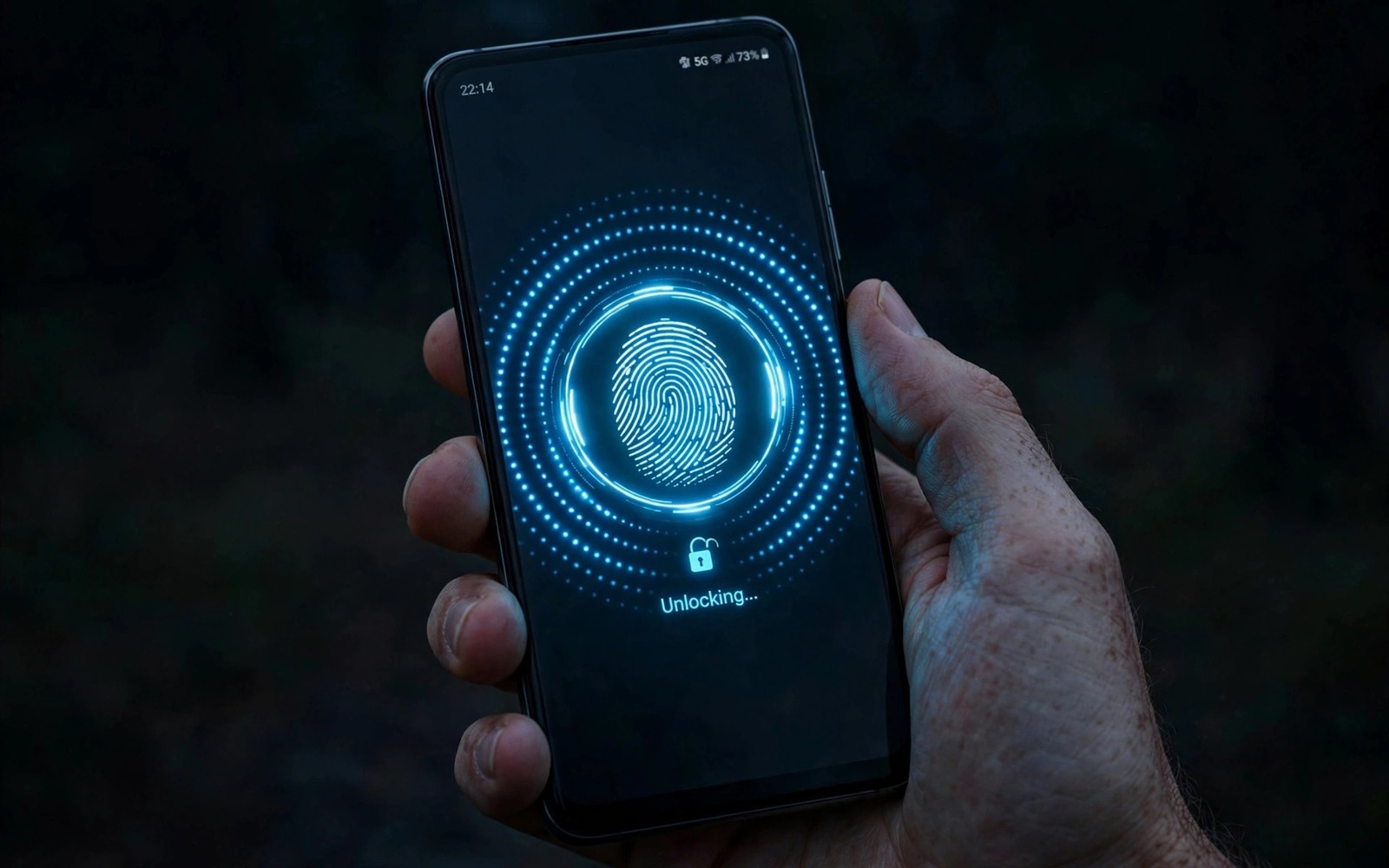
Unlocking a phone happens dozens of times a day yet most phones show the same plain glow. A custom fingerprint animation turns that tiny moment into something personal. A ripple can spread from your finger. A ring can pulse softly. A burst of light can fade in a calm way. The effect lasts less than a second but it changes how the phone feels every time you pick it up.
AMOLED screens suit these animations well because black pixels stay off and bright pixels glow sharply. A ring on a black background looks crisp rather than washed out. A soft glow looks like light rather than a flat picture. That contrast is why the same animation can look stunning on AMOLED and dull on another screen type. The guide below focuses on AMOLED phones and on effects that stay readable in daylight.
Start with the built-in animation options before you install anything new. Some phones offer a few effects inside the fingerprint settings. If your phone offers only one effect then a dedicated animation tool can add more. Test each effect in normal use rather than judging it from a preview video. A preview always looks good while daily use reveals whether an effect feels fast or annoying.
Check What Your Phone Already Offers
Open Settings and search for fingerprint animation or fingerprint effect. Some phones place the option under Biometrics while others place it under Lock screen. Look for names like ripple or light or wave. Try each built-in effect and unlock the phone a few times with each one. A built-in effect is the safest choice because it was designed for your sensor and your screen.
If the menu offers no animation choice then your phone may use a fixed effect from the maker. That does not block custom animations but it means you will need a tool that draws over the lock screen. Check whether your lock screen allows overlay tools before you install one. A tool that cannot draw over the lock screen will fail silently and waste your time.
Pick An Animation Style That Stays Fast
A good fingerprint animation finishes quickly and then gets out of the way. A ripple that spreads once feels fast. A ring that pulses twice feels calm. A long particle show feels fun at first and slow by the tenth unlock. Choose an effect that completes in under one second. The unlock should feel instant even when the animation looks rich.
Colour matters as much as shape on AMOLED. A bright white ring works in daylight and at night. A deep blue glow works well on a dark wallpaper. A multi colour burst can clash with a colourful wallpaper. Match the animation colour to your wallpaper and your clock colour. Ambient display customization follows the same rule because a calm palette keeps the screen readable. Test the colour outside because sunlight changes how colours look.
Fingerprint animation setup
1. Open fingerprint settings and check built-in effects
2. Pick a ripple or ring under one second
3. Align the effect exactly over the sensor
4. Test the effect outdoors in sunlight
5. Test the effect at night in a dark room
6. Check battery usage after two days
The example above was written for this guide as a plain summary of the steps in the sections before it. It uses only the menus and options described above and it needs no extra tool to understand. Follow the steps in order so you can see which change helps most. If one step makes things worse then undo that step alone and keep the rest.
Place The Effect Exactly Over The Sensor
Placement is the detail that separates a polished effect from a messy one. The animation must start exactly where your finger touches the sensor. If it starts a few millimetres away then the eye notices the mismatch at once. Most animation tools let you drag the effect to the sensor position. Use a ruler test by unlocking slowly and watching where the glow begins.
Some phones show a fingerprint icon on the always on display. Align the animation with that icon rather than guessing the sensor spot. Turn on the always on display for the setup step if your phone hides the icon. Once the animation lines up then turn the display setting back to your normal choice. A precise alignment makes even a simple ring look expensive.
Test In Daylight And At Night
An animation that looks perfect indoors can vanish outdoors. Bright sunlight washes out soft glows and thin rings. Test your chosen effect outside at midday and increase the brightness or thickness if it disappears. A thicker ring survives sunlight better than a thin line. A solid glow survives better than a faint sparkle.
Night use has the opposite problem because a bright effect can feel harsh in a dark room. A softer glow works better at night and it disturbs sleep less. Some tools let you schedule a dimmer effect at night. If your tool lacks that option then pick a middle brightness that works in both cases. Material colour tweaks can help because a calmer system palette makes a bright animation less jarring.
Keep Battery Use Low
A fingerprint animation runs for less than a second so its battery cost is tiny. Problems appear only when the tool keeps a background service running all day. Check battery usage after two days and look for the animation tool near the top of the list. If it sits near the top then it is doing more than drawing a short effect. Replace it with a lighter tool or return to a built-in effect.
AMOLED power use depends on how many pixels light up and for how long. A small ring costs less than a full screen flash. A short effect costs less than a long particle show. Keep the effect small and short and the battery impact stays invisible. That balance gives you a personal unlock without a daily battery trade.
Match Animation To Wallpaper Style
A fingerprint animation should match the wallpaper behind it rather than fight it. A dark wallpaper suits a bright white ring that stands out clearly. A colourful wallpaper suits a simple glow in a colour taken from the wallpaper palette. A busy photo wallpaper needs a bold ring because a faint effect will vanish behind the photo. Open the lock screen and judge the animation against the real wallpaper rather than against a preview background.
Change the animation when you change the wallpaper theme. A summer wallpaper with warm colours pairs with a warm gold glow. A winter wallpaper with cool colours pairs with a cool blue ring. Custom edge lighting alerts follow the same colour logic because a matching glow looks intentional. A matched pair makes the unlock moment feel designed rather than random.
Fix Animations That Stutter
An animation that stutters usually comes from a heavy tool or a low power mode. Check whether battery saver is limiting the animation tool in the background. Exclude the tool from aggressive battery optimization if it stutters only in saver mode. Restart the phone after changing that setting so the tool can run cleanly. A stutter that survives a restart points to a heavy effect rather than a power setting.
Simplify the effect if stutter continues. A particle burst with many elements can lag on an older chip. A simple ring uses far less work and still looks polished. Test the simpler effect for a day and watch whether unlocking feels instant again. A smooth simple animation beats a rich animation that lags every time.
Animation Packs And Paid Options
Free animation packs offer a good starting point for most users. They usually include a handful of rings and ripples in basic colours. Paid packs offer more variety and finer control over speed and thickness. Before paying for a pack test the free effects for a week. A paid pack is worth it only if you still want more variety after that week. Many users find that one good free ring satisfies them for months. Paying for variety you never use is a waste even when the price is small.
Check what a paid pack actually changes before buying it. Some packs change only the fingerprint icon while others change the full unlock animation. Some packs work only with a specific animation tool. Read the pack description for tool compatibility and for Android version support. A pack that lacks support for your version will not install cleanly. Look for recent reviews that mention your phone model. A pack with recent positive reports for your model is a safer purchase than a pack with old generic reviews. Keep the receipt and the pack file so you can restore it after a phone change.
Animation packs should also be judged on update behaviour. A pack that updates often may change effects you liked without warning. A pack that never updates may break after a system update. Prefer packs with a clear change log and a version history. A change log tells you whether an update adds effects or fixes bugs. If an update changes a favourite effect then revert to the previous version if the tool allows it. A stable favourite effect is worth more than a constantly changing library.
Common mistakes
One common mistake is picking the longest and flashiest animation in the store. It looks great in a video and slow in daily use. Pick a short effect that finishes before you lift your finger. Another mistake is placing the animation away from the real sensor spot. That mismatch looks broken even when the animation itself is beautiful. A third mistake is leaving a heavy animation tool running in the background. Check battery usage and remove tools that cost more than they add.
FAQ
Will a custom animation slow down unlocking?
A short animation adds almost no delay because it plays while the sensor reads your finger. A long animation can feel slow because it keeps playing after the phone is ready. Keep the effect under one second for a fast feel.
Does it work on phones without AMOLED?
Some tools work on other screens but the effect looks less crisp because black pixels still glow. AMOLED gives the sharpest result for rings and glows on a dark background. Test a free effect first before paying for a pack.
Why does my animation not show sometimes?
The tool may lack permission to draw over the lock screen or the system may block overlays. Check overlay permission and lock screen permission for the tool. Restart the phone after granting permission so the tool can attach cleanly.
Conclusion
Open your fingerprint settings today and try every built-in effect your phone offers. Pick the shortest one that still feels personal and align it with your sensor. If no built-in effect excites you then try one lightweight animation tool and test it for two days. Keep the effect only if unlocking still feels instant. That test gives you a lock screen moment that feels yours without slowing you down.

