

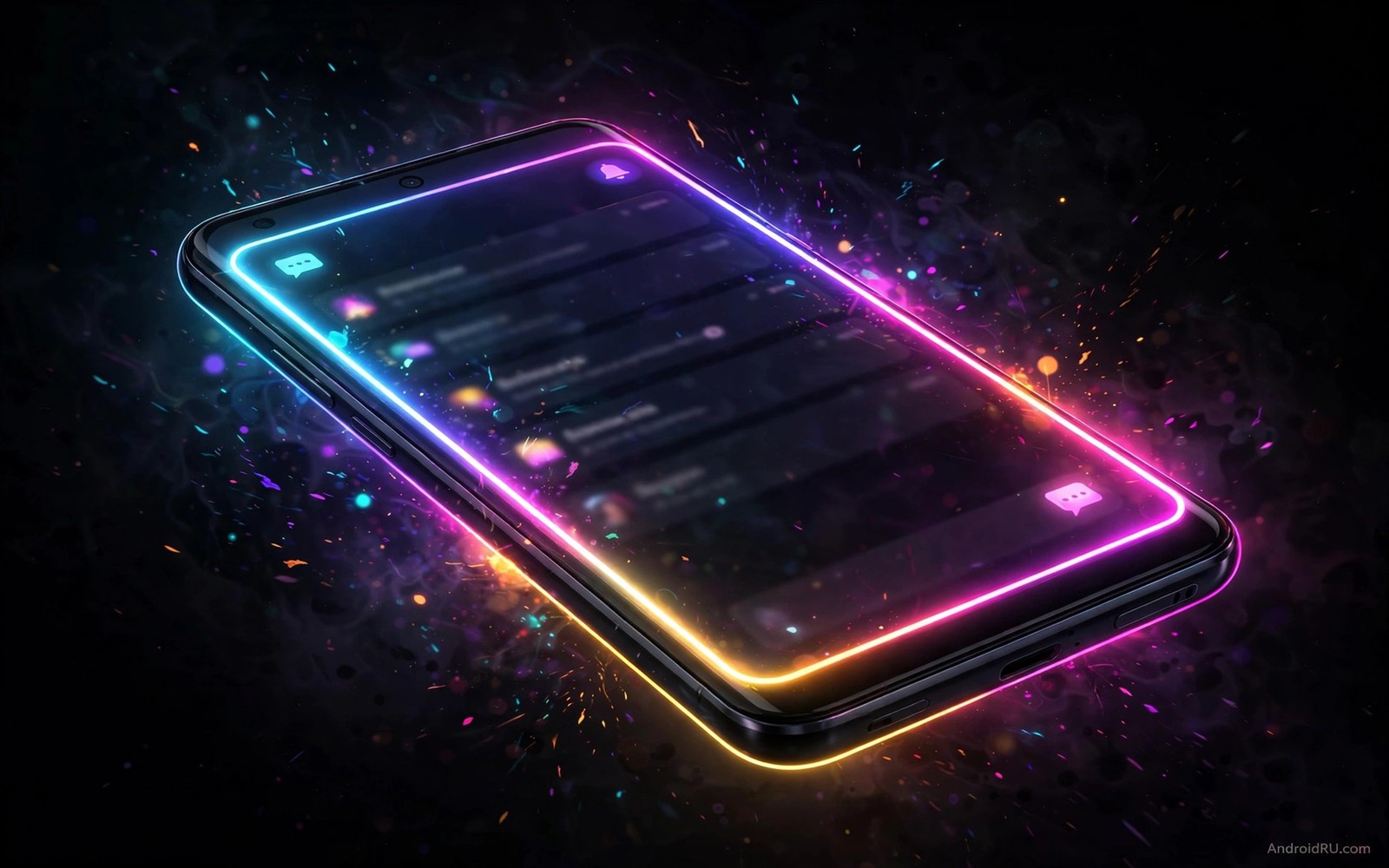
Edge lighting turns the border of your phone into a notification signal. A soft glow runs around the screen when a message arrives. The colour tells you which app sent it before you pick up the phone. A blue glow can mean a work chat. A green glow can mean a personal message. A red glow can mean an urgent alert. This silent signal is useful in meetings and at night when sound and vibration would disturb others.
Per app colours are the key idea. A single colour for every app tells you that something arrived but not what arrived. Per app colours turn the edge into a code you can read from across a desk. You learn the code by using it daily. Within a week you will know whether to reach for the phone immediately or leave it until a break. That triage saves interruptions and it protects focus.
Edge lighting works best on phones with curved or thin bezel screens where the glow is visible from an angle. It also works on flat screens when the phone lies face up. It does not work well when the phone lies face down or inside a thick opaque case that covers the edges. Check your case before you invest time in colours. A case that hides the edge hides the signal. A clear case or a case with an open edge preserves it.
Set up per app colours that you can remember
Start with five apps only. Choose the apps that send your most important messages. Assign each a distinct colour that is easy to tell apart. Use blue for work chat and green for personal chat and yellow for email and red for urgent alerts and purple for social apps. Avoid similar shades like light blue and dark blue for different apps because they blur together at a glance. Distinct hues beat subtle shades for a code you read quickly.
Write the colour code down for the first two weeks. Keep a note on the phone or on paper near your desk. Check the note when a glow appears until the mapping becomes automatic. After two weeks you will not need the note. If you still need the note after a month then your colours are too similar. Change the confusing pair to more distinct hues. A code that needs constant lookup is not a shortcut.
Test colours in daylight and in a dark room. A pale yellow glow can vanish in sunlight. A deep red glow can look brown in dim light. Choose colours with strong saturation for daylight visibility. Test each colour by sending yourself a message from each app. Watch the glow from a normal desk distance. If you cannot name the app from the glow alone then adjust that colour or its brightness.
Keep the colour code stable across months. Changing colours weekly resets your learning and turns the signal back into noise. Change a colour only when an app changes its role in your life. For example a work chat app that becomes personal can change from blue to green. Document the change in your note and give yourself a week to relearn it. Stability is what turns colours into language.
Choose patterns speed and duration for each app
Colour alone is not enough because some messages matter more than others. Pattern adds a second layer of meaning. A slow wave can mean a normal message. A fast pulse can mean an urgent message. A single sweep can mean a calendar reminder. A repeating glow can mean a missed call. Combine colour and pattern so urgent apps use both a distinct colour and a fast pattern.
Duration controls how long the glow stays visible. A short glow of three seconds is enough for a message you will check soon. A longer glow of ten seconds helps when the phone is across the room. A glow that repeats until you dismiss it suits missed calls and alarms. Set duration by urgency and not by preference alone. A long glow for every social message becomes visual noise that you learn to ignore.
Speed should match the urgency of the app. Fast patterns draw attention and they can feel stressful if used for every app. Reserve fast patterns for urgent alerts and missed calls. Use slow patterns for social and news apps. This hierarchy protects your attention. When a fast red pulse appears you know it matters because fast pulses are rare in your setup.
Test patterns with the screen off and with the screen on. Edge lighting behaves differently in each state. With the screen off the glow is the only signal and it should be clear. With the screen on the glow competes with app content and it should be subtle. Set separate brightness values for screen off and screen on if your tool supports it. A glow that is perfect in one state may be invisible or distracting in the other.
Schedule edge lighting for night and meetings
Edge lighting at night needs a gentler approach. A bright glow in a dark bedroom can wake you or disturb a partner. Set a night schedule that dims all glows and limits them to urgent apps only. Social glows can wait until morning. Missed call glows can stay because they may matter. A night profile turns edge lighting from a disturbance into a quiet guardian.
Meeting schedules work the same way. Set a work hours profile that allows only work chat and calendar glows. Personal social glows can pause during meetings. This filtering is more useful than turning edge lighting off completely because you still see urgent work signals. Configure the schedule in the edge lighting tool or in the system do not disturb settings. Make sure the two systems do not fight each other.
Do not disturb interaction needs testing. Some phones suppress edge lighting when do not disturb is on. Others allow edge lighting as a visual exception. Send test messages with do not disturb on and check which glows appear. Adjust exceptions so urgent apps still glow while others stay dark. A do not disturb mode that blocks urgent glows defeats its purpose for people who need silent but visible alerts.
Battery impact of edge lighting is modest when glows are short. A glow that repeats for minutes will use more power because the screen stays active. Keep most glows under ten seconds. Use repeating glows only for missed calls. Check battery usage after a week. If the edge tool is near the top of the list then shorten durations and reduce brightness. A silent signal should not cost a large share of battery.
Fix invisible glows and conflicts with always on display
Invisible glows often trace back to notification permissions. Edge lighting needs notification access for each app you want to signal. Check that access is granted after a system update. Updates can revoke it silently. Send a test message after every major update. A five minute test prevents days of missed signals that you blame on the tool.
Always on display can compete with edge lighting. Both draw on the screen when it is off. If the always on clock sits near the edge then a glow may blend into it. Adjust always on display position or brightness so the edge remains clear. Some tools offer a mode that pauses always on display during a glow. Enable that mode if available. A clean edge during the glow makes the colour code easier to read.
Case and screen protector issues also hide glows. A thick case lip can shadow the edge. A tinted screen protector can dim colours. Test glows with the case on and off. If the case hides the glow then choose a case with a slimmer edge or accept that edge lighting will work only when the phone is out of the case. Do not blame the tool for a physical block.
When glows stop for one app only then check that app notification settings. The app may have its own notification categories that need enabling. A messaging app can have separate categories for groups and direct messages. Enable edge lighting for the categories you care about and disable it for noisy categories. Category level control prevents a group chat from flooding your edge with glows.
edge_colors = {"work_chat": "blue", "personal_chat": "green", "email": "yellow", "urgent": "red"}
edge_patterns = {"urgent": "fast_pulse", "normal": "slow_wave"}
print(edge_colors["work_chat"], edge_patterns["urgent"])
The code above is an original example created for this article to show how a per app edge lighting code could be written down as a simple table. It is a planning aid and not a file you must run on your phone.
Edge colours also pair well with a tidy top area and live status bar controls can keep icons readable while glows do the alerting.
For quiet hours you can also rely on custom quick settings tiles to silence sounds while edge glows stay visible.
Common mistakes
The most common mistake is assigning colours to twenty apps at once. A code with twenty colours is impossible to remember. Start with five apps and add one more only when the first five feel automatic. A small code that you actually use beats a large code that you ignore. Restraint is the foundation of edge lighting.
Another mistake is using similar colours for different apps. Light blue and teal look distinct in a settings list but they blur at a glance across a room. Use widely separated hues for apps you need to tell apart fast. Test from a distance and not just from close up. Distance is how you will actually read the signal.
People also leave bright glows on all night. A bright edge in a dark room disturbs sleep and trains you to check the phone at night. Set a night profile with dim glows for urgent apps only. Protecting sleep is more important than seeing every social glow instantly. A rested user reads signals better the next day.
Frequently asked questions
Does edge lighting work on flat screens?
Yes it works on flat screens when the phone lies face up because the glow appears around the screen border. It is most visible on curved screens from an angle but flat screens still show a clear border glow. Test with your phone face up on a desk. If the glow is visible from your normal sitting position then the feature suits your setup.
Will edge lighting drain battery fast?
Short glows use little battery because the screen lights only briefly. Long repeating glows use more because they keep the screen active. Keep durations short for most apps. Reserve repeating glows for missed calls. Check battery usage after a week and shorten glows if the tool ranks high.
Can edge lighting replace sound and vibration?
It can replace sound in quiet settings but it cannot replace vibration when the phone is in a pocket. Edge lighting is a visual signal and it needs line of sight. Use it alongside vibration for important apps when the phone is not visible. For desk use it can fully replace sound and it pairs well with always on display customisation for a calm silent desk setup.
Conclusion
Custom edge lighting works when five distinct colours and two patterns tell you what arrived without sound. Keep the code small and schedule it for night and meetings. Your concrete next step is to assign colours to five apps tonight and send yourself a test message from each. If you can name all five apps from their glows tomorrow then the code is ready to keep.

