

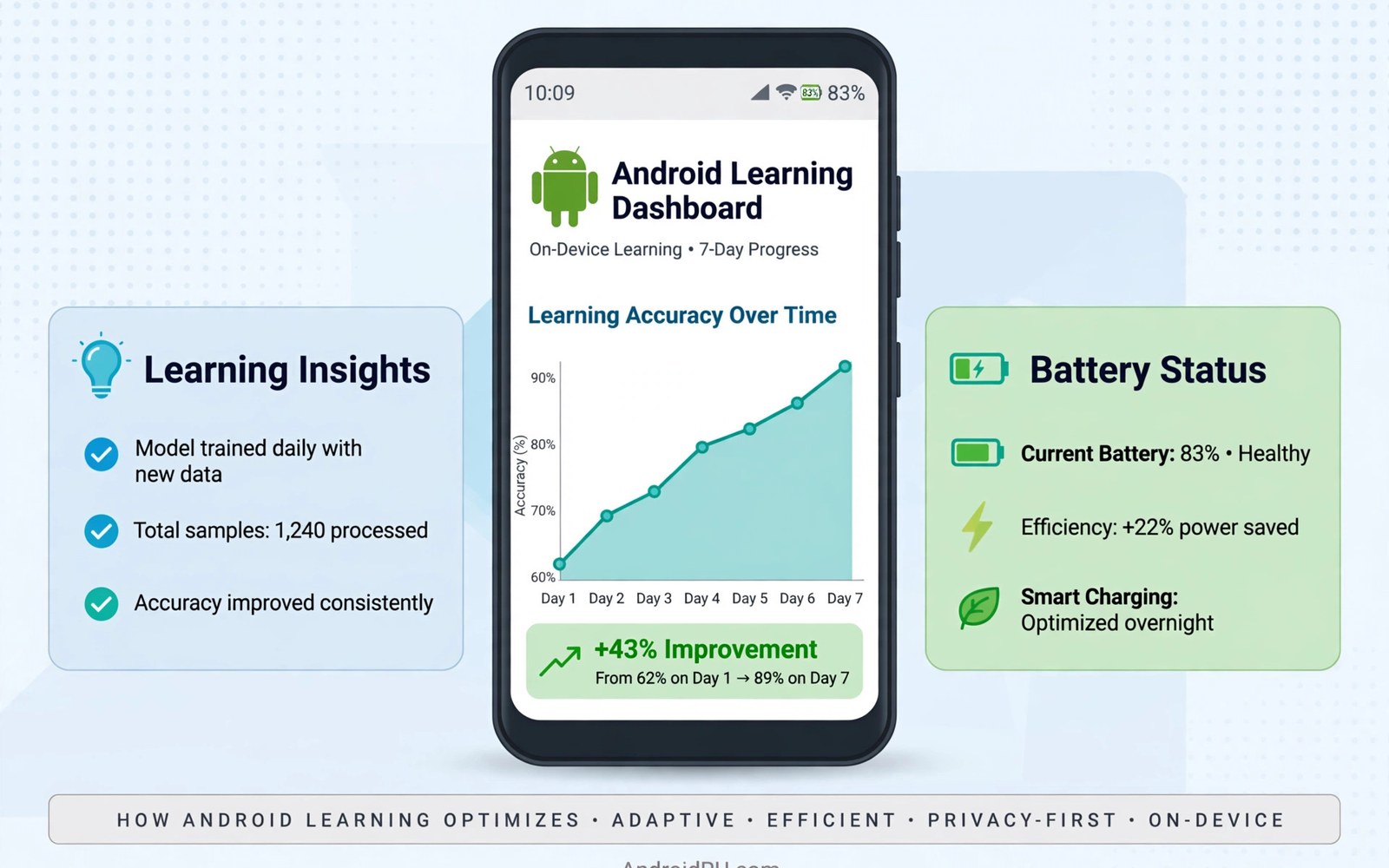
How Adaptive Battery Machine Learning Optimizes Power Over Time
My phone used to die before dinner on busy days, even though I had not done anything unusual. The screen was not on for hours, I had not played games, and I had not streamed video all afternoon. The drain came from dozens of small background jobs that ran while the phone sat in my pocket. Each job used a little power on its own, and together they added up to a real chunk of the battery. Adaptive battery changed that pattern for me, but not on the first day. It took about two weeks before the difference showed up in a clear way, and understanding why it needs that time made me stop switching it off in frustration.
Adaptive battery is Android’s way of learning which apps you actually use and which ones you only open once in a while. It watches your habits, builds a picture of your routine, and then trims background work for the apps you rarely touch. Apps you open every morning keep their full freedom. Apps you forgot you installed get quieter. Nothing is deleted, and no app is blocked when you tap its icon. The system only limits the unseen work that happens between your visits.
This guide explains how that learning works, what the system watches, how to check whether it is doing its job on your phone, and which habits help it learn faster. You will also see the mistakes that wipe out its progress and the settings that handle the apps it cannot fix on its own. Every step uses the standard Settings menus on a modern Android phone, and none of them needs a third-party app.
What Adaptive Battery Machine Learning Actually Does on Android
Adaptive battery is a power manager that learns instead of following a fixed rule. A fixed rule might say that every app gets the same background time, or that all apps stop syncing after thirty minutes. That kind of rule is simple, but it treats your banking app and a game you opened once the same way. A learning system does something smarter. It looks at your real behaviour over days and weeks and then gives each app a share of background time that matches how much you actually use it.
The learning runs on the device. Your usage pattern stays on the phone, and the model updates as your habits change. When you start opening a new app every morning, that app earns more background freedom within a few days. When you stop opening an old app, its freedom shrinks. The system never needs you to fill in a form or rank your apps by hand. It reads the pattern from what you already do.
The result is not a sudden jump in battery life. It is a slow, steady reduction in wasted background work. On my phone, the first sign was that the battery usage screen stopped showing apps I had not opened in days. The second sign was that the phone reached 10 pm with roughly ten percent more charge left than before. Those gains came from hundreds of small jobs that no longer ran, not from one dramatic change.
The Difference Between a Rule and a Learned Model
A fixed rule cannot tell the difference between a quiet Tuesday and a busy Saturday. A learned model can, because it records the day of the week and the time of day along with each app launch. Your news app might matter at 7 am and not at all after lunch. Your ride-hailing app might matter only on Friday evenings. The model picks up those rhythms and spends background power where it matches your life.
That is why two phones with the same apps can behave differently. One owner opens social apps all day, so those apps keep syncing in the background. Another owner opens them once at night, so the system delays their background refresh until the evening. Both phones run the same software, but each one has learned a different routine. A fixed rule would give both owners the same result, and one of them would be unhappy.
Why Screen Time Alone Does Not Tell the Whole Story
Screen time is only part of the picture. An app can burn power without ever lighting up the screen, by waking the processor to check for messages, refresh a feed, or upload logs. The model looks at those hidden jobs too. It counts how often an app wakes the phone, how long those wakes last, and whether you ever open the app after it sends you a notification. An app that wakes the phone twenty times a day but never earns a tap is a strong candidate for tighter limits.
How Location and Time of Day Feed the Model
Location and time shape the model in quiet ways. An app you use only at the gym does not need to refresh at your office. A travel app you open on holidays does not need daily background sync in a normal work week. The system combines these signals so that background work lines up with the moments you actually need fresh data. That timing is the main reason the feature saves more power over months than over a single weekend.
What the Model Watches While You Use Your Phone
The model tracks a small set of signals. It notes when you launch each app, how long you stay in it, whether it sends notifications, and whether you act on those notifications. It also notes network activity, location requests, and wake locks, which are the requests apps make to keep the processor awake. None of these signals alone decides anything. Together they form a pattern that the system can rank.
Notifications deserve special attention, because they show whether an app still earns your time. If an app sends five notifications a day and you open it after most of them, the system treats that app as important to you. If you swipe away every notification without opening the app, the system reads that as a sign that the app can wait. This is one reason that muting a noisy app can help battery life in two ways: fewer interruptions for you, and fewer background wakes for the phone.
How Android Learns Your App Habits Over Days and Weeks
Learning needs history, and history needs days. On the first day, the system knows almost nothing about your routine. It can guess from general patterns, but it cannot know that you check email at 6:30 am or that you never open games before dinner. Each day adds evidence. After a week, the picture is fairly clear. After two weeks, the model is usually stable enough that its choices match your routine well.
The model keeps learning after that point. A new job, a new hobby, or a holiday will shift your habits, and the system follows the shift. It does not lock in your first week forever. It weighs recent behaviour more heavily than old behaviour, so a change in routine shows up in the battery pattern within a few days. That slow adjustment is a feature, not a flaw: it stops one unusual day from rewriting the whole plan.
I tested this by changing my own routine for a week. I started opening a language app every morning instead of every evening. For the first two days nothing changed. By day four the app was syncing fresh content before breakfast, and by day seven its background use had moved earlier in the day. The system had noticed the shift and adjusted without any input from me.
The First Two Weeks: Why Early Results Look Weak
Most people judge adaptive battery after two or three days, and that is too soon. In the first days the model is still gathering evidence, so its limits are cautious. It does not want to delay a notification from an app you might care about. That caution looks like the feature is doing nothing, but it is actually the system being careful while it learns. Switching the feature off at this stage throws away the history it has gathered and forces it to start again from zero.
A new phone shows this effect most clearly. A fresh device has no usage history at all, and it often drains faster in its first two weeks than it will later. The battery is also settling, apps are updating, and the phone is restoring data in the background. All of that hides the learning effect. Give a new phone at least fourteen days of normal use before you decide whether the battery is good or bad.
How Your Routine Shifts the Model After a Schedule Change
When your schedule changes, the model needs a few days to catch up. A night-shift worker who moves to day shifts will see odd battery behaviour for the first week, because the system is still limiting apps at the old times and freeing them at the wrong hours. The fix is patience, not a reset. The model will follow the new pattern once it has seen it repeat several times.
A reset is only worth it when the learned pattern is clearly wrong and stays wrong for weeks. A factory reset, a major system update, or a change of owner can leave the model with history that no longer matches the person holding the phone. In that case, starting fresh is faster than waiting for old habits to fade. For a normal schedule change, though, normal use is the better teacher.
App Standby Buckets: How Android Ranks Every App You Install
Behind adaptive battery sits a ranking system called app standby buckets. Every app on your phone sits in one of five buckets, and each bucket sets how much background work the app is allowed to do. The system moves apps between buckets as your habits change. This ranking is the practical side of the learning: the model decides the bucket, and the bucket decides the limits.
The buckets are not labels you pick by hand. Android assigns them based on usage, and it can change an assignment overnight. An app you open daily sits in a high bucket with generous background freedom. An app you have not opened in weeks drops to a low bucket where the system may allow background work only a few times a day. The app still works normally when you open it. The limits only affect what happens while you are not looking.
| Bucket | When an app lands here | Background freedom | What you notice |
|---|---|---|---|
| Active | You are using it now, or used it minutes ago | Full background work allowed | Notifications arrive at once |
| Working set | You open it daily | Background jobs run regularly | Fresh content when you open it |
| Frequent | You open it several times a week | Background jobs run a few times a day | Occasional small delays in sync |
| Rare | You open it a few times a month or less | Background work heavily limited | Notifications may arrive in batches |
| Restricted | It drains power heavily or you limited it by hand | Almost no background work | The app only updates when you open it |
On my phone, the pattern is easy to see after a month. Messaging, email, and the browser sit in the top buckets. Shopping apps I open before a trip sit in the middle. Old games and one-off utilities sit at the bottom, and their background use has fallen to nearly zero. That is app standby buckets doing exactly what they were built to do: spend power on the apps that earn it.
What Moves an App Between Buckets
Opening an app moves it up, and ignoring it moves it down. Notifications matter too: tapping a notification counts as use, while swiping it away without opening the app counts for much less. The system also looks at whether the app is in a widget on your home screen, whether it runs a foreground service such as music playback, and whether another app launches it. A music app that plays in the background all day earns its place, because you are clearly using it even though the screen is off.
Some moves happen fast. An app you open three mornings in a row climbs quickly. Some moves happen slowly. An app you stop opening takes days to slide down, because the system wants to be sure the change is real and not a short break such as a holiday. That slow slide is why a single quiet weekend does not silence an app you love.
Adaptive Battery vs Battery Saver vs Doze: What Each One Controls
Android has three different power tools, and people often mix them up. Adaptive battery learns your habits and limits background work per app. Battery saver is a manual switch that cuts power use across the whole phone, usually by dimming the screen, limiting performance, and pausing background sync. Doze is a deep sleep mode that kicks in when the phone sits still and untouched, such as overnight on a table. Each tool solves a different problem, and they work best together.
Doze handles idle time. When the phone has not moved for a while and the screen is off, Doze groups background jobs into short windows and lets the phone sleep deeply between them. Adaptive battery handles your active hours. It decides which apps deserve background time while you are using the phone. Battery saver handles emergencies, when you need the phone to last until you can charge it.
| Feature | When it works | What it limits | Best use |
|---|---|---|---|
| Adaptive battery | All day, based on learned habits | Background work per app | Leave it on always |
| Doze mode | Phone still, screen off | Background jobs during idle time | Automatic, no action needed |
| Battery saver | When you switch it on or at low charge | Performance, sync, and visual effects | Long days and low battery |
| App restriction | When you set it for one app | All background work for that app | One misbehaving app |
The three tools do not fight each other. Adaptive battery can be on at the same time as Doze, and battery saver adds a further layer when you need it. The trouble starts when a third-party optimizer app tries to do the same job. Those apps often kill processes that Android would have managed gently, and the system then spends extra power restarting them. That is why the built-in tools, used together, usually beat an extra app.
How to Turn On Adaptive Battery and Check It Is Working
Most Android phones ship with adaptive battery switched on, but a major update or a factory reset can switch it off. Checking takes less than a minute, and it is worth doing on any phone you have owned for a while. The menu path is nearly the same on Pixel, Samsung, and other brands, though the exact wording can vary slightly.
- Open Settings, then tap Battery.
- Tap Adaptive Battery, or Battery optimization on some brands.
- Make sure the switch is on. If it is off, switch it on and leave it on.
- Use the phone normally for fourteen days without toggling the switch.
- Return to Settings, then Battery, then Battery usage, and compare the list with a screenshot from day one.
- Look for a fall in background minutes for apps you rarely open.
That comparison is the real test. A single day proves nothing, because one busy afternoon can skew the numbers. A week of screenshots shows the trend. On my phone, the background minutes for rarely used apps fell by more than half between week one and week three, while the apps I use daily stayed the same. That pattern is the model working.
Reading the Battery Usage Screen the Right Way
The battery usage screen shows two numbers that matter: foreground time and background time. Foreground time is the time the app was on your screen. Background time is the time it worked while you were doing something else. An app with ten minutes of foreground time and two hours of background time deserves a closer look. An app with two hours of foreground time and ten minutes of background time is simply an app you use a lot.
Check the screen at the same time each day, and note the top five apps. A healthy pattern shows your most-used apps at the top. A problem pattern shows an app you barely remember at the top, or a system service using far more power than your most-used app. Take a screenshot each Sunday so you can compare week to week instead of trusting memory.
What to Do When One App Sits at the Top Every Day
When one app keeps topping the list, start with its own settings. Turn off its background data, reduce its notification frequency, or stop it from refreshing in the background. If it still drains power after a week, set it to Restricted in the app battery settings. That manual limit tells the system to stop its background work almost entirely, and the app will only update when you open it. This manual step is the right answer for a truly misbehaving app, because the learning model is built to be gentle and a faulty app needs a firmer hand.
Signs Your Adaptive Battery Model Needs More Time or a Reset
Some signs mean the model is still learning, and some signs mean something else is wrong. Slow improvement in the first two weeks is normal. A battery that keeps falling fast after a month of normal use is not. The difference matters, because the fix for one is patience and the fix for the other is a closer check of the apps and settings.
- Background minutes for rarely used apps stay high after three weeks of normal use, which suggests the model has not settled or an app is resisting its limits.
- The phone gets warm during light tasks such as reading, which points to a runaway background job rather than normal learning.
- An app you never open sits near the top of the battery usage list day after day, which is a clear sign to restrict it by hand.
- Battery life got worse right after a system update, which can mean the update reset the learned model and it needs two weeks to rebuild.
- Notifications from apps you use daily arrive late, which can mean a bucket assignment is too strict and needs a few days of heavier use to correct itself.
Before you reset anything, check the simple causes. A weak mobile signal makes the radio work harder and drains the battery no matter how good the model is. A location-hungry app can do the same. A phone that spends the day searching for signal in a basement will not be saved by any battery setting. Fix the signal problem first, then judge the model.
When a Reset Actually Helps
A reset helps when the history itself is wrong. That happens after a factory reset that restores someone else’s backup, after a phone changes hands, or after a major update that clears the learned data. In those cases the model is working from a routine that no longer exists, and waiting for it to fade can take weeks. Some phones offer a reset for adaptive battery data inside the battery settings, and a factory reset clears it as well. Use the reset once, then leave the feature alone for fourteen days so it can build a clean picture of the real owner.
Do not reset every week. Each reset wipes the progress and starts the two-week learning period again. People who reset often end up in a loop where the feature never gets past the cautious early phase, and they conclude that it does not work. The model needs a stable routine to study, and constant resets deny it that stability.
Settings and Habits That Help the Model Learn Faster
The model learns from normal use, so the best habit is simply to use the phone normally and stop fiddling with the switch. Beyond that, a few settings make its job easier. Turn off background data for apps you do not need to hear from at once. Remove widgets for apps you no longer use, because a widget can keep an app in a higher bucket. Review location permission and give precise location only to apps that truly need it. Each of these steps reduces noise in the data the model studies.
Charging habits matter too. A phone that charges overnight in a cool room keeps its battery healthier, and a healthy battery holds a charge better, which makes the model’s gains easier to see. Heat is the enemy here: a phone left in direct sun or on a hot dashboard will drain faster no matter how good the settings are. Keep the phone cool while it charges and the learning will show up more clearly in the numbers.
For a wider view of battery care, read 15 Tested Ways to Extend Your Android Smartphone Battery Life. It covers the daily habits that sit alongside the learning model, from screen brightness to network choices. A second useful read is How Background App Refresh Secretly Drains Device Battery Level, which explains the background jobs that the model is trying to trim. A third is Understanding Android Battery Stats: Finding Power-Hungry Apps, which shows how to read the battery usage screen so you can tell a learning problem from a faulty app.
Manual Restrictions for Apps the Model Cannot Fix
Some apps resist gentle limits. A social app that wakes the phone every few minutes, a shopping app that tracks location all day, or a game that downloads updates in the background may need a manual restriction. Open Settings, then Apps, then the app name, then Battery, and choose Restricted. The app will still open and work, but it will not run in the background. Test the change for two days: check whether your notifications still arrive on time and whether the battery improves. If the trade is worth it, keep the restriction. If you miss alerts, move the app back to Optimized and accept the cost.
Be careful with messaging and banking apps. Restricting those can delay a message or a payment alert, and the saved power is rarely worth the missed alert. Restrict games, shopping apps, and utilities first. Those apps rarely carry time-sensitive alerts, so the trade is easy. That is background work limits applied with judgement, not with a blanket rule.
How to Keep the Apps You Value in a Higher Bucket
If an app you care about keeps landing in a low bucket, use it more deliberately for a few days. Open it directly instead of through a notification, keep it in your daily routine, and avoid swiping away its notifications without reading them. You can also turn off battery optimization for that single app in its battery settings, which tells the system to leave it alone. Use that exception sparingly, because every exception weakens the model’s ability to save power. One or two exceptions are fine. Twenty exceptions mean the feature is effectively off.
Common Mistakes That Undo Adaptive Battery Learning
The most common mistake is turning the feature off after a few days of weak results. The model is still learning at that point, and switching it off throws away the history. The second mistake is closing every app by hand after each use. Swiping apps away forces the system to reload them from scratch next time, which uses more power than letting them sit quietly in memory. The system already manages memory well. Let it do its job.
- Switching adaptive battery off after three or four days because the battery did not improve at once.
- Resetting the phone or the battery data often, which wipes the learned model again and again.
- Installing a third-party optimizer that kills apps the system would have managed gently, which creates extra restarts and extra drain.
- Expecting the feature to fix a faulty app without a manual restriction, when a firm limit is the right tool for that job.
- Changing five settings on the same day, which makes it impossible to tell which change helped and which one caused trouble.
Change one thing at a time and give it two full days. That discipline is boring, but it is the only way to know what actually works on your phone. A routine you can keep beats a perfect plan that you abandon after a week. The model rewards steady habits, and so does your battery.
Adaptive Battery Questions Answered
How long does adaptive battery take to learn my habits?
Expect about two weeks of normal use before the results are clear. The first week builds the basic picture, and the second week refines it. A new phone may need the full fourteen days, while a phone with a long history after a small schedule change may adjust within four or five days. Judge the feature after two weeks, not after two days, and compare screenshots from the battery usage screen rather than trusting a feeling.
Does adaptive battery stop notifications from apps I rarely use?
It can delay them, but it does not block them entirely. Apps in the lower buckets may have their background work grouped into batches, so a notification can arrive later than it would from an app you open daily. Messaging apps you use every day stay in the high buckets and their alerts arrive at once. If an alert is late from an app you care about, open that app more often for a few days or turn off battery optimization for it alone.
Why does my new phone drain faster in its first two weeks?
A new phone has no usage history, so the model starts from scratch and stays cautious while it learns. At the same time, the phone is restoring data, updating apps, and indexing files in the background. Those one-off jobs use power that will not repeat. The combination makes the first two weeks look worse than normal. Give it fourteen days of ordinary use before you judge the battery, and keep adaptive battery switched on during that period.
Should I use a third-party battery optimizer with adaptive battery?
In most cases, no. The built-in system already limits background work based on your real habits, and an extra app that force-stops processes often creates more restarts and more drain. It can also fight the system’s own decisions, so the model never settles. If you want extra savings, use the built-in battery saver and manual app restrictions instead. Those tools work with the model rather than against it.
A Simple Two-Week Plan to Let the Model Work
Start today by opening the battery settings and confirming that adaptive battery is on. Take a screenshot of the battery usage screen so you have a baseline. Then use the phone normally for fourteen days. Do not toggle the switch, do not reset the data, and do not install an optimizer app. At the end of each week, take another screenshot and compare the background minutes for the apps you rarely open. That is two-week learning window discipline in practice, and it is the simplest way to see the model working.
If one app still misbehaves after two weeks, restrict it by hand and watch the result for two days. If notifications arrive late from an app you value, use it more often or exempt it from optimization. Keep the winners, drop the changes that cause trouble, and repeat the check once a month. Over time, the model will keep trimming waste you never see, and your phone will reach the evening with power to spare far more often than it does today.

