

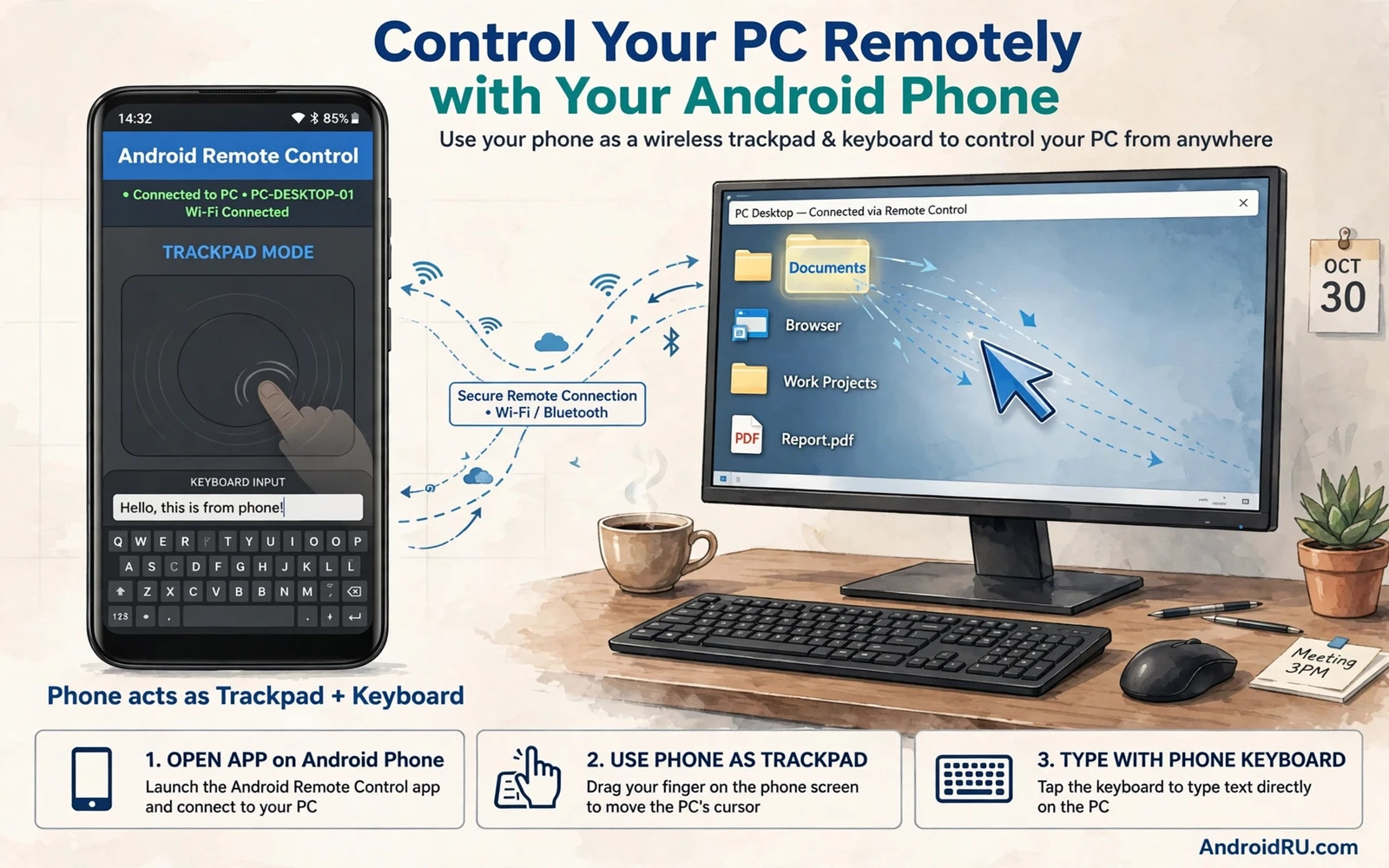
Turn Your Phone Into A PC Remote
An Android phone can act as a wireless mouse and keyboard for a computer. The phone screen becomes a trackpad and a keyboard appears when you need to type. This setup suits presentations and media control and couch computing. It also rescues you when a real mouse battery dies or a keyboard cable fails. The phone is already in your pocket so it is the fastest spare input device you own.
Two main methods exist. A remote app over Wi-Fi sends touch and key input through the local network. A Bluetooth method pairs the phone as a human interface device. Wi-Fi apps are easier to set up and offer more features such as media controls. Bluetooth methods work without a network but need compatible hardware and software on both sides. Most people should start with a Wi-Fi remote app because setup takes minutes and the result is reliable on a home network.
Prepare The PC And The Network
Install the companion server program on the PC if the remote app requires one. Many remote apps need a small server on the computer to receive input. Download it from the developer site and install it and leave it running. Note the connection code or the PC name the server shows. That code links the phone to the right computer when several computers share a network.
Connect the phone and the PC to the same Wi-Fi network. A shared network is essential for Wi-Fi remotes. Turn off any VPN on both devices for the first connection because a VPN can hide devices from each other. Allow the server through the PC firewall when prompted. A blocked firewall prompt is a common silent cause of a phone that sees the PC but cannot connect. Keep both devices awake during setup so neither sleeps mid-pairing.
Connect The Phone App
Install the matching remote app on the phone from the Play Store. Open the app and let it scan for computers on the network. Tap the PC name when it appears. Enter the code if the server asks for one. The phone screen should change to a trackpad view with mouse buttons. Move a finger on the trackpad and watch the PC cursor move. That first movement confirms the whole chain works.
Test typing next. Tap the keyboard icon in the remote app and type a short sentence into a text editor on the PC. Check that special characters and the enter key behave as expected. Some remote apps map the phone keyboard directly. Others show their own keyboard layout. Learn which layout your app uses before an important presentation. A quick test now prevents fumbling later when an audience watches.
Master Trackpad Gestures
A phone trackpad supports gestures that a small screen makes natural. A single tap equals a left click. A two-finger tap often equals a right click. A two-finger drag scrolls. A pinch can zoom in apps that support it. Read the gesture list inside the remote app because gestures vary by app. Practice the gestures on the desktop before you rely on them in a live task. Muscle memory builds fast with a few minutes of play.
Sensitivity matters. A trackpad that moves too fast overshoots small buttons. A trackpad that moves too slowly tires your finger. Adjust sensitivity in the remote app settings until the cursor feels like an extension of your finger. Some apps offer a relative mode and an absolute mode. Relative mode moves the cursor by finger motion. Absolute mode maps screen position to cursor position. Try both and keep the one that feels natural to you.
Use The Phone Keyboard Well
Typing on a phone keyboard to control a PC feels odd at first. The phone keyboard is small and the PC screen is far away. Type in short bursts and glance at the PC screen to confirm. Use the phone autocorrect with care because it can change technical terms and passwords. Turn autocorrect off when typing passwords. For long documents a real keyboard still wins. The phone keyboard is best for short commands and searches and chat replies.
Function keys and shortcuts need attention. Many remote apps offer a function row and a control key and an alt key. Learn where those keys live in your app. A control plus C copy shortcut on the phone keyboard can save a trip to the desk. Media keys for play and volume are handy during a presentation or a movie. Explore the full key palette once so you know what is available when you need it.
Fix Lag And Drops
Lag usually comes from Wi-Fi congestion. Move closer to the router and pause heavy downloads on both devices. A cloud backup or a video stream can steal bandwidth from the remote link. Switch to a 5 GHz network if both devices support it. Restart the router if the whole network feels slow. A fresh network session often clears congestion that builds over days.
Drops often come from power saving. Keep the phone screen awake during remote use and keep the server running in the foreground on the PC. A sleeping PC can drop the link. A phone that locks can drop the link too. Set a longer screen timeout for remote sessions. If drops persist then try a different remote app. One app may handle your network better than another. Testing a second app isolates the cause quickly.
Security And Practical Limits
A remote app gives the phone deep control over the PC. Only install remote apps from trusted developers and only connect on networks you trust. Avoid using a remote app over public Wi-Fi without protection because input traffic could be exposed. Lock the PC when you finish. A phone left connected is a live keyboard for anyone who picks it up. Disconnect the session deliberately rather than letting it idle.
Know the limits. A phone remote suits short control tasks and presentations. It does not replace a real mouse for precise design work or fast gaming. Fine cursor work on a small trackpad is slower and less accurate. Accept that limit and use the phone remote for what it does well. For a full screen sharing setup the guide to mirroring Android to a Mac wirelessly covers the display side while this guide covers input. Together they give a complete couch computing setup.
Keep The Remote Ready
Keep the server set to start with the PC if you use the remote often. A server that starts automatically removes a setup step each time. Keep the phone app updated and keep the server version matched to it. Mismatched versions cause strange connection failures. Test the link briefly before a presentation so a failure happens in private not in front of an audience.
A phone mouse and keyboard is a practical skill that costs nothing extra. Same network plus a trusted app plus a little gesture practice gives you control from anywhere in the room. Keep a real mouse as backup for precision work and let the phone handle the everyday control tasks. That balance gives convenience without compromise.
Keyboard Shortcuts From The Phone
A phone remote can send keyboard shortcuts that save desk trips. Copy and paste and undo and save all work through the remote keyboard when the app exposes modifier keys. Learn the modifier key positions in your remote app before a presentation. A shortcut sent at the right moment looks effortless. A shortcut hunted during a live demo looks clumsy. Practice the five shortcuts you use most until they are muscle memory.
Media shortcuts deserve their own practice. Play and pause and volume and next track control a presentation or a movie without touching the PC. Test media keys with the actual media app you will use. Some apps respond to system media keys and others need focus on their window. Knowing which case applies prevents a silent press during a movie night.
Presentations With A Phone Remote
Presentations are the strongest use for a phone remote. Advance slides from anywhere in the room and keep eye contact with the audience. Stand where you can see the screen and the audience at once. Advance slides with a deliberate tap rather than a swipe that might jump two slides. A deliberate tap gives the audience time to absorb each slide.
Keep the phone charged and the screen awake during a presentation. A phone that locks mid-talk drops the remote link and forces an awkward unlock. Set a long screen timeout for presentation days. Keep a backup plan such as a clicker or a keyboard nearby for critical talks. A backup plan is not pessimism. It is professionalism for moments that cannot be repeated.
Security Habits For Remote Sessions
Disconnect the remote session when you leave the room. A connected phone remote is a live keyboard for anyone who finds the phone. Lock the phone screen when you step away even for a minute. Lock the PC too when the session ends. Two locks close both ends of the remote link. A session left open is an invitation that costs nothing to avoid.
Review remote app permissions occasionally. A remote app needs network access and input access by nature. It does not need contacts or files or location beyond what its features truly use. Remove any permission that seems unrelated to remote control. For a full desk setup the guide to transferring files between Android and PC and the guide to casting Android to a TV or PC monitor complement remote input with file movement and screen sharing. Input plus display plus files make a complete remote workstation.
A Practical Checklist For Phone Remote Sessions
Prepare every remote session with a short checklist. Charge the phone and set a long screen timeout for the session. Connect phone and PC to the same network and confirm the server program runs on the PC. Test cursor movement and typing before the session matters. Test modifier keys and media keys for the tasks you plan. Note the gesture list for your remote app and practise the gestures you will actually use. A prepared remote feels like an extension of your hand. An unprepared remote feels like a puzzle during a live task.
During the session keep the phone in hand and the PC screen visible. Type in short bursts and glance at the PC screen to confirm accuracy. Watch for lag as a signal to pause background downloads on either device. If lag grows then move closer to the router or switch to a less crowded network band. A remote session degrades gracefully when you respond early. It collapses when lag is ignored until the link drops. Early response is the difference between a smooth session and a frustrating one.
End every session deliberately. Disconnect from the remote app and lock the phone and lock the PC. A session left connected is a live keyboard for anyone who picks up the phone. Review the session briefly and note any gesture or key that misbehaved. Adjust sensitivity or relearn that gesture before the next session. A short review turns each session into a better next session. Remote control rewards preparation and deliberate endings more than any single feature of the app itself.

