

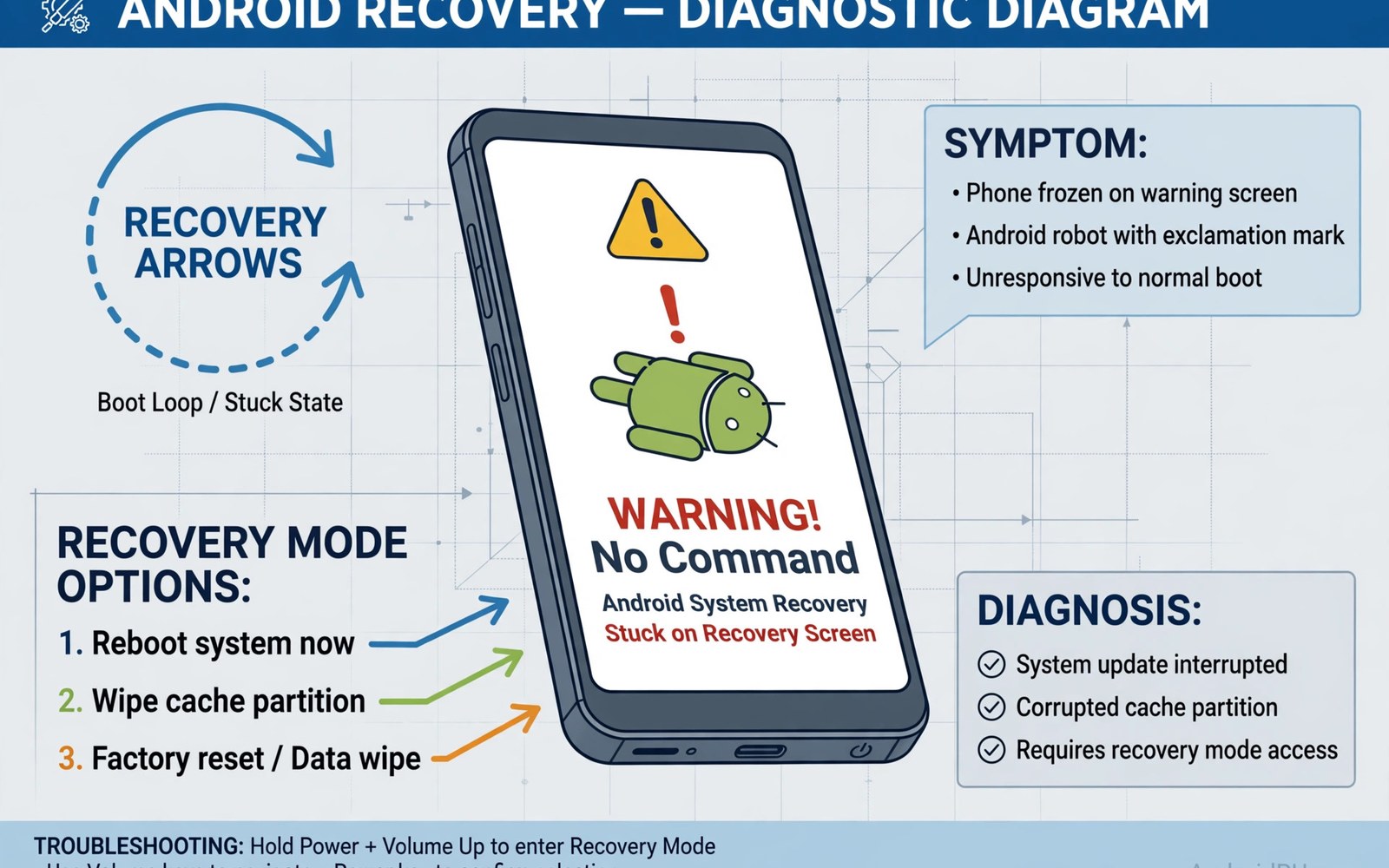
Soft bricking means a phone fails to boot normally but still responds to recovery or fastboot tools. The screen may loop on a logo or stop at a warning. The phone is not dead hardware in that state. Software tools can usually restore it with the right files. Panic is the main enemy when soft bricking first appears.
Rooting attempts cause soft bricks through several common paths. Wrong boot images top the list for many models. Incompatible modules cause bootloops after a reboot. Interrupted flashing corrupts a partition mid write. Each cause has a different recovery path. Identifying the cause first saves time and data.
A soft brick differs sharply from a hard brick. A hard brick shows no response to buttons or computer tools. A soft brick still enters fastboot or recovery mode reliably. That difference decides whether home recovery is realistic. Users should test button combinations calmly before assuming the worst.
Soft brick risk connects to preparation steps elsewhere. Review how to check whether your bootloader can be unlocked safely before any flash. Also review how to unroot fully and restore a factory setup for the return path. Preparation turns a soft brick from a crisis into a repair task.
Wrong Images And Model Mismatch
Flashing a boot image for another model is a classic soft brick cause. The kernel in that image may lack drivers for your hardware. The phone then stops at the logo or reboots endlessly. The fix is flashing the correct stock image for your model. Keep that stock image ready before any experiment.
Regional variant mismatch causes similar faults with subtler symptoms. A variant image may boot but break mobile data or sensors. Users may mistake that partial boot for success at first. Later faults reveal the mismatch through missing features. Matching region and variant prevents that slow failure pattern.
Build number mismatch matters even within the same model. A boot image from an older build may conflict with newer system files. That conflict can cause crashes after boot rather than a clean bootloop. Always match the build number shown in settings. Download images labelled for that exact build when possible.
Module And Tweak Failures
Modules change system behaviour through overlays at boot time. A module built for another Android version may crash the boot process. Two modules changing the same file can conflict and loop the boot. The phone then restarts before reaching the home screen repeatedly. Disabling modules from recovery usually restores boot quickly.
Tweaks to system settings can also cause bootloops when pushed too far. Aggressive processor or memory settings may destabilise early boot. Display density changes rarely cause bootloops but can break layout badly. Thermal changes can cause shutdowns that look like bootloops. Reverting the last tweak often restores normal boot.
Safe mode on some rooted setups disables modules for diagnosis. Recovery tools can also rename module folders to disable them. Learn the disable method for your root tool before testing modules. A known disable method turns a scary bootloop into a five minute fix. Unknown methods turn the same fault into hours of worry.
Interrupted Flashing And Power Loss
Flashing writes critical data to boot or system partitions. A cable disconnect during that write leaves a partial image behind. A power loss during the same write has the same effect. The phone may then fail verification and refuse to boot. A stable cable and full battery prevent most such faults.
Computer sleep during flashing can also interrupt the process. Disable sleep mode on the computer before starting a flash. Close other heavy programs that might freeze the computer. Use a direct USB port rather than a hub when possible. Simple environment care prevents a large share of flashing faults.
If interruption already happened then do not reboot repeatedly in panic. Enter fastboot mode and check whether the computer still detects the phone. Reflash the full stock image for the affected partition. A complete reflash overwrites the partial data cleanly. Repeated random reboots only waste battery and time.
Recovery Steps In Order
First confirm which modes still respond on the phone. Try fastboot mode with the maker button combination. Try recovery mode with the alternate combination. Note which mode works and which does not. That note guides the recovery tool choice directly.
Next reflash the stock boot image for your current build. Use fastboot with the correct slot when slots apply. Reboot and observe whether the logo loop clears. If boot succeeds then restore root only after stability returns. If boot still fails then move to a fuller firmware restore.
Full firmware restore through maker tools rewrites more partitions. It usually wipes user data so use it after other options fail. Keep a backup ready before any flash that might wipe data. A full restore is a reliable fix for most soft bricks. It is also the reason backups matter before root experiments.
Preventing The Next Soft Brick
Keep a recovery kit folder on your computer at all times. Include stock boot and firmware files for your current build. Include fastboot tools and driver notes for your computer. Label everything with model and build and date. A ready kit shortens recovery from hours to minutes.
Change one thing at a time during root experiments. Flash one image or install one module then reboot. Test normal use for a day before the next change. That discipline identifies the faulty change immediately. Fast multi change experiments hide faults until recovery becomes complex.
Bootloop recovery is the next skill after soft brick basics. Study reverting system changes when a rooted device enters bootloop for detailed reversal steps. Pair that knowledge with a tested backup routine. Prevention plus recovery skill makes root experimentation far less stressful.
Data Loss Risks During Recovery
Recovery flashing often wipes user data as a side effect. Full firmware restores usually erase apps and files completely. Users who skipped backups lose photos and messages permanently. That loss hurts more than the soft brick itself. Backups before rooting are the only reliable guard.
Partial recovery methods preserve data more often than full restores. Restoring only the boot image keeps user data intact usually. Disabling modules from recovery also preserves data in most cases. Try data preserving methods before full restore methods. Order matters for data survival during recovery.
Encrypted storage complicates data recovery after a soft brick. Recovery tools may not decrypt user data without the lock credential. A forgotten lock credential can block data rescue entirely. Keep lock credentials safe and separate from the phone. A rescue plan without credentials fails at the decryption step.
Cloud sync reduces data loss even when local recovery wipes the phone. Photos and contacts sync automatically for many users. App data without cloud sync remains at risk during wipes. Check which apps sync and which do not before rooting. Fill sync gaps with manual backups for critical apps.
Signs That Distinguish Soft And Hard Bricks
A soft bricked phone usually vibrates or shows a logo on power. It may enter fastboot when buttons are held correctly. A computer may detect it as a fastboot device. Those signs confirm software recovery remains possible. Test each sign calmly before concluding the phone is dead.
A hard bricked phone shows no screen and no vibration at all. A computer detects nothing when it connects. Button combinations produce no response of any kind. That state usually needs hardware repair or board level tools. Home software tools cannot fix a truly hard brick.
Battery failure can mimic a hard brick in confusing ways. A fully drained battery may show nothing for several minutes on charge. Charge the phone for at least thirty minutes before judging brick status. Try a known good cable and charger during that test. Simple power faults explain many apparent deaths.
Screen failure can also mimic a brick state. A phone may boot normally with a dead display. Computer detection or vibration can reveal that hidden boot. Fastboot detection proves the system still runs despite the screen. Diagnose display faults separately from boot faults.
Getting Help Without Making Things Worse
Ask model community helpers with exact details included. State model and variant and build and last change made. State which modes still respond on the phone. Clear details lead to precise recovery advice. Vague help requests lead to risky guesswork.
Avoid flashing random files suggested without model matching. A file for a similar model can worsen a soft brick. Verify every suggested file against your model and build. Ask the helper why that file fits your case. A good helper explains the match plainly.
Do not repeat failed flashes many times in panic. Repeated flashes drain battery and increase corruption risk. Pause and diagnose between attempts with logs or mode checks. A calm diagnostic step beats ten panicked flashes. Patience protects both data and hardware.
Keep a written log of every recovery attempt made. Note the file flashed and the result observed. That log prevents repeating a failed step unknowingly. It also helps helpers spot patterns in failures. A recovery log turns chaos into a methodical process.
Keep a simple recovery diary for every root experiment you try. Note the change made and the boot outcome observed. Note the recovery step that fixed any fault. That diary prevents repeating a failed experiment later. It also speeds up help requests with clear history.
Share recovery lessons with your model community after a successful fix. Your notes may save another user from data loss. Honest sharing about mistakes matters more than perfect success stories. Community knowledge grows when users report faults openly. A shared lesson turns one soft brick into prevention for many.
adb reboot bootloader
fastboot flash boot stock_boot.img
fastboot reboot
# Restore stock boot to recover soft brick
The steps above follow the approach described in the official developer documentation and reflect common practice for this topic. They explain soft brick causes and recovery in order. Readers should use files made for their exact model and build. When recovery fails it is safer to seek model community help with logs.

