

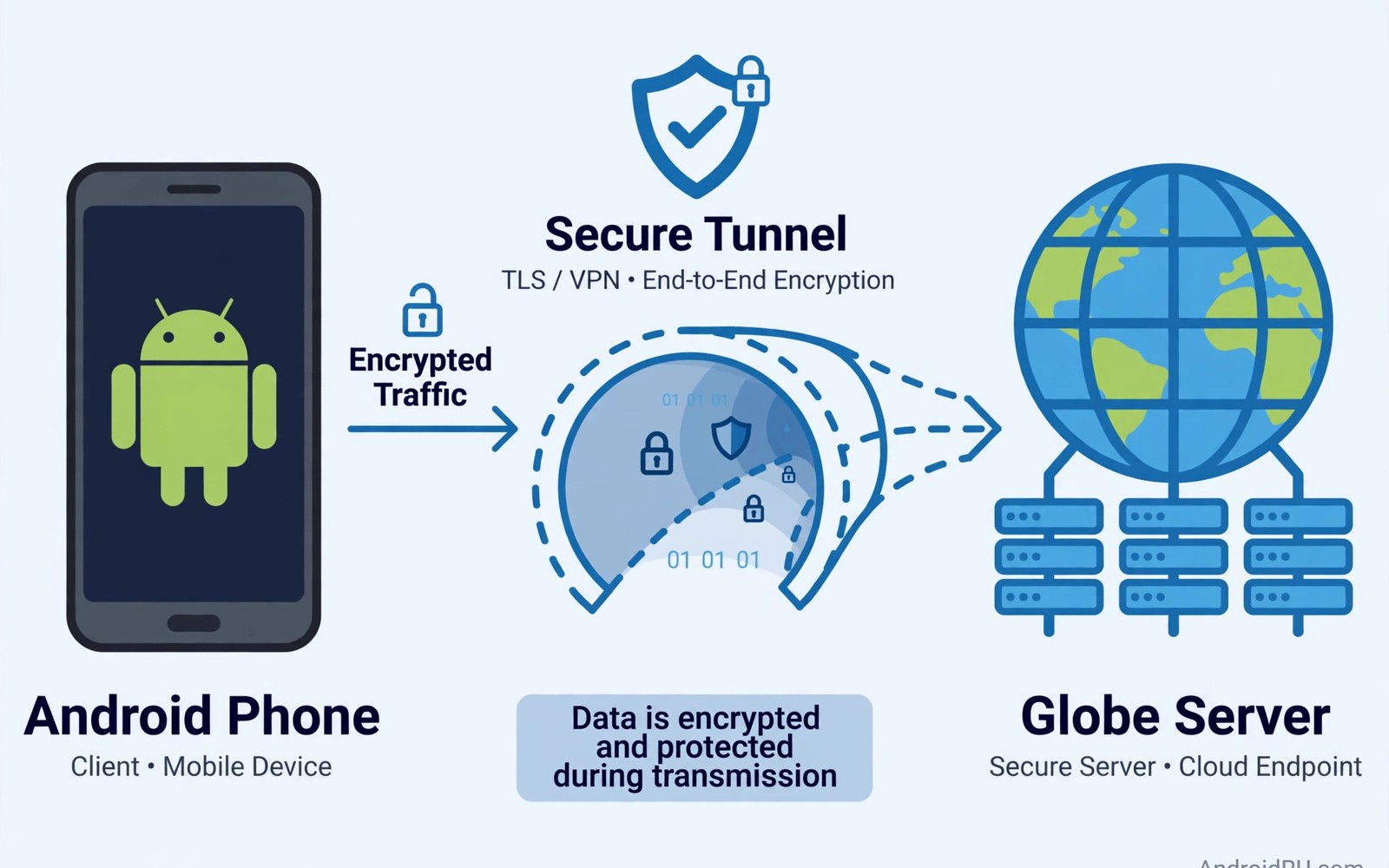
What Is a Mobile VPN and Why Do You Need One on Android?
Your Android phone joins more networks in a single day than your laptop joins in a week. Home Wi-Fi in the morning, the office network, a cafe hotspot at lunch, the airport lounge, a hotel network in the evening, and mobile data in between. Every one of those networks sits between you and the internet, and every one of them can see something about what you do unless your traffic is protected.
A mobile VPN is the tool that closes that gap. It wraps your internet traffic in encryption and sends it through a server you choose, so the network you happen to be sitting on cannot read it. I first took VPNs seriously after a trip where I did my banking on a hotel network and spent the whole flight home wondering who else had been watching. That worry was enough to make me learn how they actually work, and this guide is everything I wish someone had told me then.
You will learn what a VPN does and what it cannot do, how the main protocols compare, when you genuinely need one, when you do not, and how to set one up on Android in a few minutes. There is also an honest warning about free VPN apps, because the cheapest option in this category is often the most expensive in ways that do not show up on a price tag. If that trade-off matters to you, read the hidden cost of free VPN apps alongside this guide before you install anything.
What a mobile VPN actually does on Android
A mobile VPN creates a private encrypted tunnel between your Android phone and a remote server run by the VPN provider. All of your internet traffic travels through that tunnel instead of moving openly across the local network you happen to be using. Anyone watching the local network sees only scrambled data heading toward the VPN server. The website or app at the other end sees the VPN server address rather than your real home or mobile address.
That shift changes what strangers can learn about you while you browse and use apps. A cafe hotspot owner cannot read your messages or see which sites you visit when your traffic is encrypted inside the tunnel. Your mobile carrier still carries the connection but cannot inspect the contents of the encrypted stream in the same direct way. The protection is real, but it is also specific: a VPN protects traffic in transit, it does not make a shady app safe or a weak password strong.
On Android the VPN runs at the system level, which means it covers nearly every app on the phone, not just the browser. Your email app, your banking app, and your messaging apps all send their traffic through the same tunnel. That system-wide coverage is the main reason a VPN on a phone is more useful than a browser extension on a laptop, because phones run dozens of apps that talk to the internet in the background.
The encrypted tunnel in plain language
Think of the tunnel as a sealed envelope inside an ordinary letter. The local network can see the envelope going to the VPN server, but it cannot open it to read what is inside. The VPN server opens the envelope and forwards your request to the website, then seals the reply and sends it back through the same tunnel. The website knows the request came from the VPN server, not from your phone.
Encryption is what seals the envelope. Modern VPNs use AES-256 or ChaCha20, both of which are strong enough that breaking them by brute force is not a practical concern for ordinary users. The weak point is almost never the encryption itself. It is the provider you trust to run the server, the protocol you choose, and the settings you leave on their defaults.
What your carrier and the Wi-Fi owner can still see
A VPN hides the contents of your traffic and the destinations you visit, but it does not make you invisible. Your carrier can still see that you are connected to a VPN server, how much data you are moving, and when you are active. A Wi-Fi owner can see the same thing. What they cannot see is which sites you visit, what you type into them, or the contents of your messages, because all of that is inside the encrypted tunnel.
Your VPN provider, on the other hand, can see a great deal. It stands where your carrier used to stand, so it can see the destinations you visit unless you also use other tools. That is why the provider choice matters more than the protocol choice for most people. You are moving your trust from one company to another, so pick a provider whose business model and logging policy you can actually verify.
How VPN traffic travels from your phone to the internet
The journey has four steps, and each one matters. First, an app on your phone makes a request, such as loading a web page. Second, Android hands that request to the VPN service, which encrypts it and wraps it in the VPN protocol. Third, the encrypted packet travels across the local network and the internet to the VPN server, which decrypts it and sends the original request onward to the website. Fourth, the reply comes back to the VPN server, gets encrypted again, and returns to your phone through the tunnel.
The extra hop adds a small delay, usually a few milliseconds on a nearby server and more on a distant one. That is why a VPN server in your own country feels fast while a server on another continent can make video calls stutter. The encryption itself adds very little delay on a modern phone, because Android processors include hardware support for it. Server distance and server load are the numbers that matter.
Android also handles what happens when the connection drops. Without a kill switch, your phone quietly falls back to the open network and your traffic goes out unprotected, often without any warning. With a kill switch enabled, Android blocks all traffic until the VPN reconnects. That single setting is the difference between a VPN that protects you and one that only protects you when everything works perfectly.
Why the exit server matters
The exit server is the address the internet sees, so its location decides which version of a website you get and which local rules apply to your traffic. A server in your own country keeps speeds high and avoids confusing apps that check your location. A server abroad can help when you are travelling and a service expects you to be at home. Pick the nearest server for everyday use and switch only when you have a specific reason.
WireGuard vs OpenVPN vs IKEv2 on Android
These three protocols do the same job in different ways, and the differences show up in speed, battery life, and how well they survive a phone that keeps switching networks. WireGuard is the newest and the fastest in most tests. OpenVPN is the oldest and the most flexible. IKEv2 sits in the middle and has one trick the others do not: it reconnects almost instantly when your phone switches from Wi-Fi to mobile data.
Most Android users should let their VPN app choose, because the app usually picks the best protocol for the current network. The table below is for the moments when you want to choose yourself, or when you are setting up a manual profile and the protocol is a setting you have to pick.
| Protocol | Speed | Battery use | Network switching | Best for |
|---|---|---|---|---|
| WireGuard | Fastest, modern code | Low, lean design | Good, fast reconnect | Everyday use and gaming |
| OpenVPN | Good, slightly slower | Moderate | Slower to reconnect | Strict networks and flexibility |
| IKEv2 | Good, close to WireGuard | Low | Best, built for mobile | Commuters and travellers |
| L2TP/IPsec | Slow, older design | Moderate | Poor on mobile | Legacy setups only |
WireGuard: the fast modern choice
WireGuard uses a small, simple codebase of a few thousand lines, which makes it easier to audit and harder to hide bugs in. It connects in a fraction of a second, uses modern cryptography throughout, and sips battery compared with older protocols. On Android it is the default in most good VPN apps, and it is the protocol I use for everyday browsing, streaming, and gaming.
The trade-off is that WireGuard keeps a static key tied to your device, which can make it easier for a provider to link sessions together unless the provider takes steps to rotate keys. Reputable providers handle this well, but it is a real design difference worth knowing about. If your provider offers WireGuard with key rotation, take it.
OpenVPN: the flexible veteran
OpenVPN has been around for more than twenty years, and that age is both its strength and its weakness. It runs on almost everything, it can disguise its traffic to slip past networks that block VPNs, and it supports a wide range of configurations. The cost is speed and battery: its larger codebase and older design make it heavier than WireGuard on a phone.
Pick OpenVPN when you are on a network that blocks other protocols, such as some workplaces, schools, or hotel networks that filter VPN traffic. Its ability to run over TCP port 443, the same port secure websites use, makes it hard for a network to block without also blocking ordinary browsing.
IKEv2: the commuter’s protocol
IKEv2 was designed with mobile devices in mind. Its standout feature is MOBIKE, which lets the connection survive a switch from Wi-Fi to mobile data without dropping and reconnecting from scratch. If you walk out of your house mid-call and your phone jumps to mobile data, IKEv2 keeps the tunnel alive while WireGuard and OpenVPN usually reconnect.
The protocol is built into Android, so it works well in manual profiles and uses little battery. Its main weakness is that it can be blocked more easily than OpenVPN on strict networks, since it uses specific ports that a firewall can filter. For a daily commute with constant network changes, it is often the smoothest choice of the three.
When you genuinely need a VPN on Android
You need a VPN most when the network you are on is not yours and you cannot verify who runs it. Public Wi-Fi is the classic case: the network name tells you nothing about who set it up, and a hotspot with a friendly name can be run by anyone in the room. On such a network, a VPN is the difference between your banking login travelling in the open and travelling inside an encrypted tunnel.
Travel is the second case. Airports, hotels, and conference venues all run shared networks with many strangers on them, and your phone joins them automatically if you have connected before. The risk is not dramatic, but it is real, and it is worth reading about protection on unsecured airport Wi-Fi before your next trip so you know exactly what a VPN does and does not cover when you are waiting at the gate.
Other honest reasons include using mobile data in a country with heavy network filtering, working remotely on a connection you do not control, and keeping your browsing habits away from an internet provider that sells or shares them. Journalists, activists, and anyone handling sensitive work documents have stronger reasons still. For everyone else, the question is simpler: if you would not read your messages aloud in the room you are sitting in, you should probably use a VPN on that room’s network.
- Public Wi-Fi in cafes, airports, hotels, and shopping centres, where the network owner is a stranger and other users share the same airwaves.
- Travel abroad, where unfamiliar networks and different local rules make your normal browsing habits more visible than they are at home.
- Remote work on shared or hotel networks, where work email and documents deserve stronger protection than a coffee shop hotspot provides.
- Mobile data in regions with heavy filtering, where a VPN can restore access to services that the local network blocks or throttles.
When a VPN does not help and what to do instead
A VPN is a tool for one job, and expecting it to do everything is how people get hurt. It encrypts traffic in transit, and that is all. It does not scan for malware, it does not block phishing sites, and it does not stop an app from collecting your data once the traffic arrives. A VPN will happily encrypt the data a shady app sends to its own servers, because encryption does not judge the destination.
On your home Wi-Fi, with a router you control and a password only you know, a VPN adds little protection for ordinary browsing. Your home network is already a private one, and the main observer there is your internet provider, which a VPN does move you away from, but at the cost of speed. Many people run a VPN at home out of habit and never notice the slower connection it causes.
A VPN also does not make you anonymous. Your accounts still know who you are when you log in, your browser fingerprint still identifies your device, and your VPN provider still sees your traffic. Anonymity needs a different set of tools and habits, and a VPN is only one layer of that stack.
A VPN is not antivirus
Malware reaches your phone through apps, downloads, and malicious links, and a VPN does not inspect any of those. A file you download through a VPN is the same file you would download without one. Keep Play Protect on, install apps only from sources you trust, and treat any VPN that advertises itself as a full security suite with suspicion, because it is selling a feeling rather than a function.
A VPN cannot make a bad app safe
Some apps collect far more data than they need, and a VPN cannot change what an app does with the data you give it. A flashlight app that asks for your contacts is a bad app with or without a VPN, and the fix is to delete it, not to encrypt its traffic. Check app permissions in Settings, revoke the ones that make no sense, and remember that the app on your phone sees more about you than any network ever will.
How to set up a VPN on Android step by step
Setting up a VPN on Android takes about five minutes, and there are two routes: a provider app, which is easier, and a manual profile, which gives you more control. Start with the app route unless you have a specific reason to do it manually, such as a work VPN that only provides configuration files.
- Choose a provider with a clear no-logs policy, an independent audit you can read, and servers near you. Avoid any provider that will not say plainly what it logs.
- Install the provider app from the Play Store, sign in, and grant the VPN permission when Android asks. Android shows a warning that the app can monitor network traffic, which is expected, because that is literally what a VPN does.
- Open the app, pick the nearest server, and tap Connect. Check that the key icon appears in your status bar, which means the tunnel is active.
- Open the app settings and turn on the kill switch, called Always-on VPN or Block connections without VPN in Android settings, so traffic stops if the tunnel drops.
- Test the connection by loading a website and checking that your visible IP address has changed to the server location.
- Set the app to connect automatically on untrusted networks if it offers that option, so you never forget to turn it on at the airport.
Setting up a provider app the right way
The app route is the right choice for almost everyone. The app handles protocol selection, server switching, and reconnection for you, and it usually includes the kill switch as a single toggle. The main job after installation is to check three settings: the protocol, which should be WireGuard or IKEv2 for everyday use; the kill switch, which must be on; and auto-connect, which should cover Wi-Fi networks you have not marked as trusted.
Watch out for apps that ask for permissions they do not need. A VPN app needs the VPN permission and nothing else to do its job. If it asks for your contacts, your location, or access to your files, that is a warning sign worth taking seriously, because the app already sees your traffic and does not need your address book too.
Setting up a manual profile in Settings
A manual profile is useful for work VPNs and for providers that give you configuration files instead of an app. The path is Settings, then Network and internet, then VPN, then the plus icon to add a profile. You will need the server address, the protocol type, and your username and password, all of which your provider or your workplace IT team supplies.
The details of how system VPN profiles work inside Android settings matter here, because Android treats a manual profile differently from an app: the system manages the connection, the profile survives app updates, and the Always-on VPN option applies at the system level. That makes manual profiles more stable for a work connection you need every day, and less convenient when you want to switch servers quickly.
Entering the server details
Type the server address exactly as your provider gives it, including any port number, and choose the protocol that matches the credentials you were given. A typo in the server address is the most common reason a manual profile fails, and Android error messages for VPN failures are famously unhelpful. If the profile will not connect, retype the address from scratch rather than editing it, because a single wrong character is easy to miss.
Turning on Always-on VPN and the kill switch
After the profile connects once, go back to Settings, then Network and internet, then VPN, tap the gear icon next to your profile, and turn on Always-on VPN and Block connections without VPN. The first keeps the VPN connected whenever the phone is on, and the second blocks all traffic if the tunnel drops. Together they are the kill switch that turns a VPN from a sometimes-on tool into always-on protection.
Free VPN apps: the honest warning
Running VPN servers costs real money: bandwidth, hardware, and staff all have to be paid for. A provider that charges nothing has to earn that money somewhere, and the somewhere is usually you. The common ways are showing ads inside the app, selling aggregated browsing data to advertisers, or limiting the free tier so aggressively that you upgrade to paid just to get a usable speed.
The worst free VPNs do more than show ads. Some have been caught injecting ads into web pages, logging the sites users visit, or selling access to user connections. A free VPN that logs your traffic is worse than no VPN at all, because it gives you the feeling of privacy while handing your data to a company you know nothing about. If a free VPN does not publish a clear logging policy and an independent audit, assume the worst.
That does not mean every free option is dangerous. A few reputable providers offer a limited free tier paid for by their premium subscribers, with the same encryption and the same no-logs policy, but with fewer servers and a data cap. Those are honest products. The test is transparency: a provider that tells you plainly how the free tier is funded, what it logs, and who audited it is worth trusting. One that hides all three is not.
Frequently asked questions about mobile VPNs on Android
Does a VPN slow down my phone?
A little, and usually not enough to notice. A nearby server with WireGuard typically costs you five to fifteen percent of your download speed, which is invisible for browsing, messaging, and video streaming. A distant or overloaded server can cost far more, and that is usually a sign to switch servers rather than a sign that VPNs are slow. If your speed halves the moment you connect, try the nearest server first, then try a different protocol.
Can I use a free VPN safely on Android?
Yes, but only from a provider whose free tier is funded by paying customers and covered by the same no-logs policy and audit as the paid tier. Check the privacy policy for plain language about logging, look for an independent audit you can actually read, and avoid any free VPN that asks for permissions beyond the VPN permission itself. If you cannot verify those three things, the free app is not worth the risk.
Will a VPN hide my activity from my carrier?
It hides the contents and the destinations, but not the fact that you are using a VPN or how much data you move. Your carrier sees encrypted traffic going to a VPN server and nothing more. That is enough for most privacy goals, but it is not invisibility, and your carrier still knows when you are online and how heavily you use your connection.
Is a VPN legal on Android?
In most countries, yes, and using one for privacy is entirely lawful. A small number of countries restrict or ban VPN use, and some require providers to be licensed locally, so check the rules before you travel with one. A VPN does not make illegal activity legal either: it protects the privacy of your traffic, it does not change the law that applies to what you do with it.
A short verdict: who should install one today
If you connect to public Wi-Fi more than once a week, travel regularly, or work from networks you do not control, install a reputable paid VPN today and turn on the kill switch. Pick WireGuard protocol support, a provider with a published no-logs policy and an independent audit, and servers near where you live. That combination covers the real risks without slowing your phone down.
If you mostly use your home network and your phone rarely leaves it, a VPN is optional rather than essential, and your money is better spent on the basics that protect you more: strong unique passwords, two-factor authentication, and keeping your phone updated. Either way, your next step takes two minutes: open Settings, then Network and internet, then VPN, and look at what is already there. Many Android phones already have a work or system profile waiting, and knowing what is configured is the first step to knowing what still needs protecting.

