

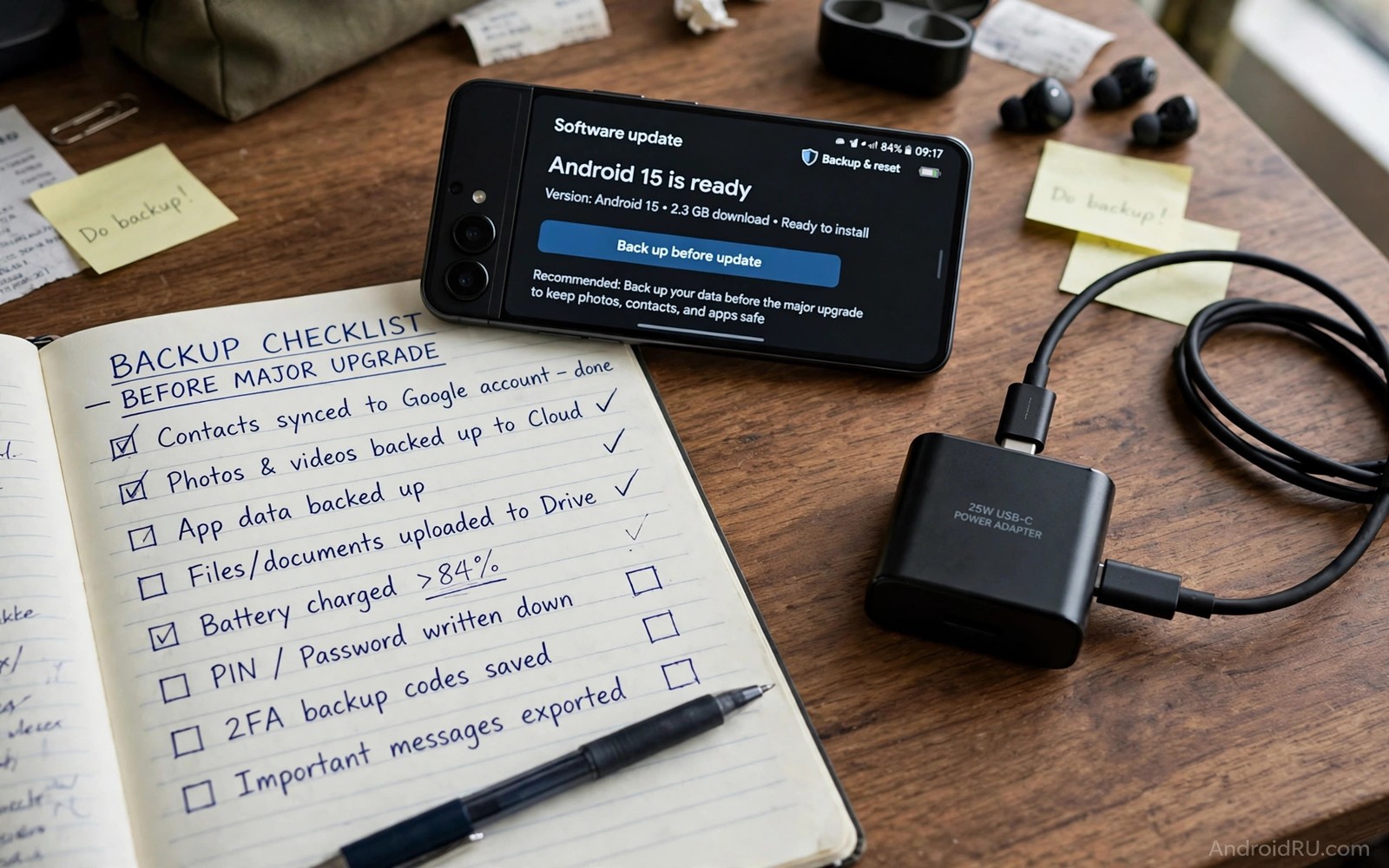
Preparing your device for a major Android version upgrade takes less than an hour and it prevents most common problems. A major upgrade touches the whole system so a little preparation pays off. Backups and storage and battery checks form the core checklist. Owners who skip those steps often face avoidable stress during install.
A calm preparation routine also helps you judge the upgrade fairly after install. You will know what changed and what stayed the same. If you are still waiting for the rollout then why manufacturers drop update support after three years explains why timing varies by brand and model.
Back up everything that matters
Back up photos and videos and messages and contacts before any major upgrade. Use the built in backup in settings and confirm that the last backup finished recently. Check that photos synced to your cloud account if you use one. A backup is the only safety net if the install fails badly.
Also note important app logins and two factor settings before you start. Most apps restore automatically but a few need manual sign in after a major upgrade. Keeping a secure note of key accounts saves time after install. Do not store passwords in plain text on the phone itself.
Free storage and check battery
Free several gigabytes of storage before a major upgrade. Delete unused apps and large downloaded videos. Move photos to cloud storage if the phone storage is nearly full. A major upgrade needs room to download and to install safely.
Charge the phone to at least half and keep a charger nearby during install. A phone that dies during installation faces a higher risk of corruption. Use Wi-Fi for the download to avoid data costs and slow mobile speeds. A stable connection reduces the chance of a corrupt download.
Update apps and note your settings
Update all apps before the major upgrade where possible. Developers often ship compatibility updates ahead of a major release. Updated apps reduce post upgrade crashes. Note any custom settings you rely on such as accessibility options or notification rules.
adb shell dumpsys backup | head -20
adb shell df -h /data
adb shell dumpsys battery | grep -i level
These commands follow the approach described in the official Android developer documentation for checking backup status and battery level on a device.
Major upgrades sometimes reset a setting or move a menu. Notes help you restore your preferred setup quickly. Take screenshots of important home screen layouts if you customised them heavily. Those screenshots make restoration fast and stress free.
Install at the right time
Install a major upgrade when you have free time and no urgent need for the phone. Avoid installing minutes before travel or an important meeting. A major upgrade usually finishes quickly but a rare problem needs time to diagnose. A quiet evening at home is a better install window than a busy morning.
After install restart the phone once even if the system does not ask for it. Then test core functions such as calls and Wi-Fi and camera. Reading about Android 15 release date and roadmap helps you plan the timing around the official rollout for your model.
Post upgrade checks
Check that photos and messages and contacts survived the upgrade. Open your most used apps and confirm they work normally. Check permissions for camera and location apps that you rely on daily. Re-enable any setting that the upgrade changed.
Give the phone a day to optimise apps in the background before judging battery life or speed. Early battery drain after a major upgrade is common and temporary. Learning Android 15 release date and roadmap is less useful after install than simply testing your own daily apps for a full day.
Upgrade preparation for work phones
Work phones need extra preparation before a major upgrade because business apps and security policies depend on system behaviour. Employees should check with IT teams before installing a major upgrade on a managed phone. IT teams may delay upgrades until business apps are tested. Installing early against IT guidance can break access to work email or internal tools. Coordination with IT prevents a work disruption that a personal phone owner would not face.
Backup for work phones must cover both personal and work data where policy allows. Work data may live inside managed apps that back up separately from personal backup. Employees should confirm that work documents sync to company systems before upgrade. Losing unsynced work notes during an upgrade creates a professional problem beyond personal inconvenience. A quick sync check before install avoids that risk.
Security policies may change after a major upgrade because new Android versions add controls that IT teams can enforce. A work phone may gain stricter password rules or new app restrictions after upgrade. Employees should expect a policy update notice after install. Reading that notice promptly avoids lockouts or app blocks. Policy changes are usually improvements but they can surprise owners who ignore notices.
Testing core work functions after upgrade deserves priority over personal apps. Employees should test work email and calendar and VPN access first. If a work function fails then contacting IT promptly is better than troubleshooting alone. IT teams can push a fix or a configuration update for managed apps. Early reporting helps the whole team because other employees may face the same issue.
Upgrade preparation for families
Families preparing several phones for a major upgrade should stagger installs rather than updating all phones on the same day. Staggering ensures that at least one phone stays fully working if an update causes a problem. Parents can test the upgrade on their own phone first before updating a child phone. That order protects family communication during the transition. A staggered plan takes longer but it reduces family wide disruption risk.
Children phones need special attention because parental controls may change after a major upgrade. Parents should check parental control settings after install and confirm that limits still work. A major upgrade may reset a control or move its menu. Verifying controls promptly prevents a gap in protection. Parents should also discuss the upgrade with children so they understand any interface changes.
Shared family tablets also benefit from preparation before upgrade. Back up shared photos and school documents before install. Note which apps each family member uses most. After upgrade test those apps together rather than assuming all work. A shared device affects many people so post upgrade checks deserve more time than for a personal phone.
Older family members may need hands on help after a major upgrade because menus and icons can move. Family helpers should visit or call after the upgrade to walk through changes. A short written note listing where key functions moved can help older owners for weeks after install. Patience and clear guidance turn a potentially stressful upgrade into a manageable change for the whole family.
Upgrade preparation for travellers
Travellers should prepare for a major upgrade differently from owners at home because travel adds connectivity and time constraints. Updating before travel over home Wi-Fi avoids large downloads abroad. Travellers should also test core travel apps after upgrade such as maps and translation and airline apps. Testing those apps before departure prevents a travel disruption caused by an app compatibility issue. Preparation before travel therefore deserves extra care.
Travellers should also carry backup access to important travel documents outside the phone. A printed boarding pass or a second device with documents provides insurance if an upgrade problem affects the phone during travel. Relying solely on one phone for all travel documents creates risk. Backup access ensures travel continues even if the phone needs troubleshooting.
Roaming data costs make update timing critical for travellers. A major update that starts automatically over roaming data can incur high charges. Travellers should disable automatic downloads over mobile data before travel. That setting prevents unexpected roaming costs. Updating only over Wi-Fi while travelling keeps data costs predictable and it avoids slow downloads over weak roaming connections.
Time zone changes during travel can affect update scheduling and backup timing. A backup scheduled for overnight at home may run during daytime abroad. Travellers should check backup and update schedules after changing time zones. Adjusting schedules prevents a large backup from running over a slow hotel connection. Small schedule checks improve travel phone reliability significantly.
Travellers should also test offline access to maps and translation tools before departure because an upgrade can reset offline downloads in rare cases. Downloading offline maps again after upgrade takes time and Wi-Fi. Checking offline content before travel ensures navigation works even without a connection. That check is especially important for travellers visiting areas with weak mobile coverage. Offline preparation turns a phone into a reliable travel companion rather than a device dependent on constant connectivity.
Common mistakes
The most common preparation mistake is skipping the backup because previous upgrades went smoothly. Past success does not guarantee future success. Another mistake is installing with low storage and low battery together. That combination raises failure risk sharply.
- Skipping backup because past upgrades succeeded leaves data exposed to a rare but serious install failure.
- Installing with low storage and low battery together sharply raises the risk of a failed upgrade.
- Judging battery life on the first day ignores background optimisation that temporarily uses more power.
Frequently asked questions
How long does preparation take?
Most owners finish in under an hour. Backup and storage checks take most of that time. The install itself usually takes longer than preparation but needs less attention.
Do I lose apps during a major upgrade?
No most apps and settings carry over automatically. A few apps may need updates or fresh sign in after the upgrade. Backups protect you if anything goes missing.
Can I delay a major upgrade?
Yes you can delay it for days or weeks in most cases. Delaying gives developers time to ship compatibility fixes. Do not delay security patches for long because they protect the phone.
Conclusion
Preparing for a major Android upgrade means backing up data and freeing storage and charging the phone and choosing a calm install time. Post upgrade checks confirm that core functions and important apps still work. Those steps prevent most avoidable problems.
Your next step is to run a backup today and free several gigabytes of storage. Then note your key settings and wait for a quiet moment to install. When the upgrade arrives you will handle it with confidence rather than stress.

