

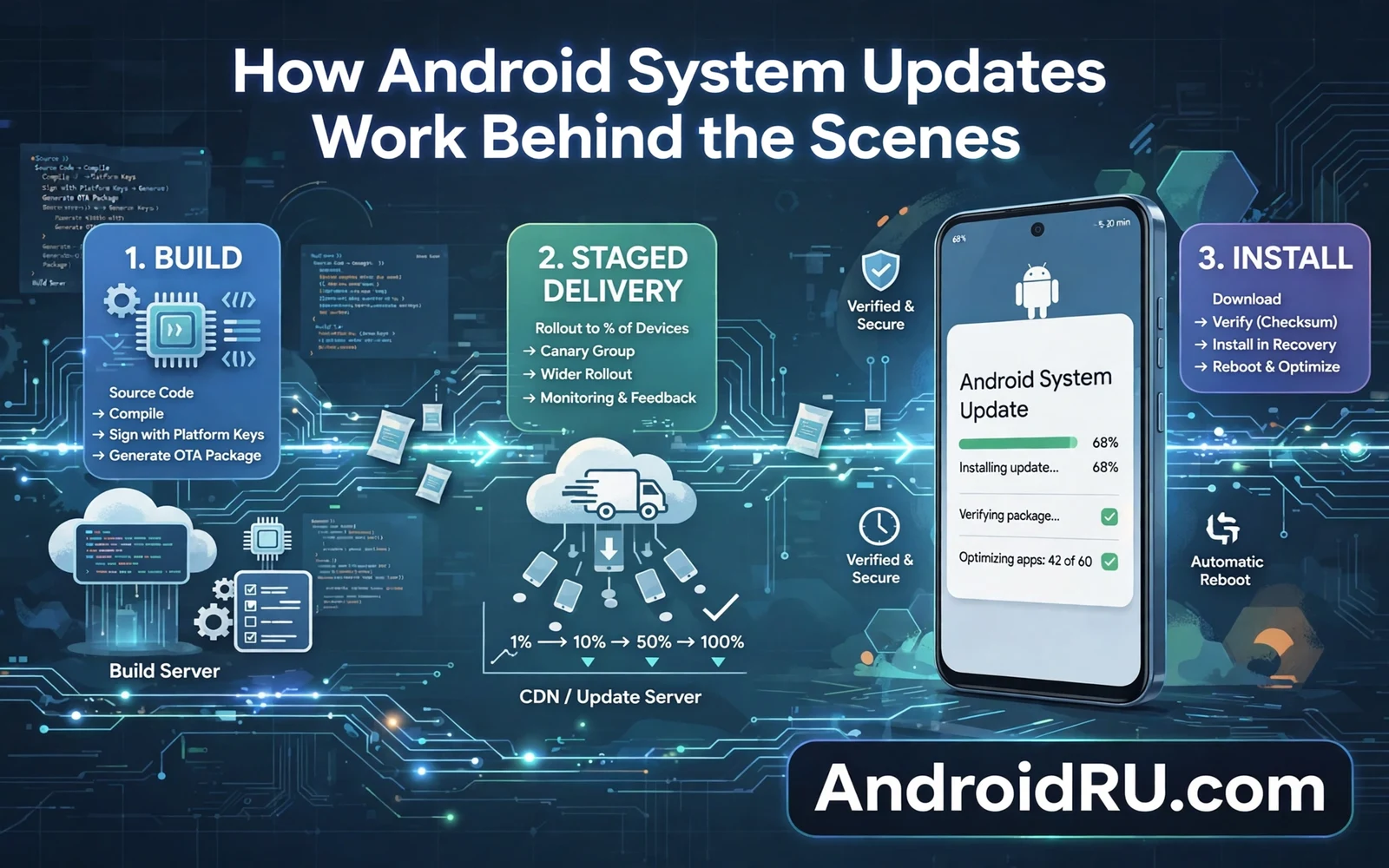
How Android System Updates Work Behind the Scenes
Your phone buzzes with a notification: a new OS update is ready. You tap install, the phone restarts, and twenty minutes later everything looks almost the same, except the version number changed and a few menus moved. What actually happened in those twenty minutes? Far more than a fresh coat of paint. A system update is a coordinated delivery of code, drivers, security fixes, and settings, built for your exact model, tested in stages, and installed in a way that is designed to survive failure.
What an Android System Update Actually Contains
An OS update is far more than a single new feature on your home screen. Inside a typical package you will find system code, updated drivers, new settings for radios and sensors, and fixes for security holes that were found after the last release. A vendor builds one package from many parts, and each part must fit the exact phone model that will receive it, which is why two phones with the same brand name can still receive different packages at different times.
The installer treats each part with care because a fault in a low-level part can stop the phone from starting at all. Vendors test the full package as one unit rather than testing each change in isolation, and they sign the finished package so your phone can verify it came from the maker and was not altered on the way.
A/B Updates Explained: How Android Installs a New System in the Background
Modern phones use two system slots, called slot A and slot B, so the phone can keep working while the new system is prepared. The update is written to the idle slot while you keep using the active slot for calls, messages, and apps. The phone then checks the new slot for damage before it agrees to switch.
When you restart, the phone boots from the new slot and runs a final check on the new system. If that check fails, the phone can fall back to the old slot and try again later. If the check passes, the new slot becomes the active one and the old slot stays ready as a spare. That slow first boot is normal on many phones and it does not mean the update failed.
Slot A and Slot B: Two System Partitions Working in Turns
Think of the two slots as two identical rooms, with only one in use at a time. The active slot runs your phone today. The idle slot is a blank copy waiting for the next update. When an update arrives, the installer fills the idle room, verifies every file, and only then swaps the sign on the door. The old room is left untouched until the next update needs it, which is what makes the fallback possible. Older phones with a single system partition could not do this, and a failed install on those phones often meant a trip to a repair shop.
Why Your Phone Feels Slow on the First Boot After an Update
After the switch, Android rebuilds the runtime cache for your apps, rechecks stored data against the new system, and re-optimises apps in the background. That work competes with everything you try to open, so the first hour can feel sluggish and warm. If slowness continues beyond two days, the cause is usually one misbehaving app rather than the update itself.
OTA Updates: How the Package Travels from Google to Your Phone
OTA stands for over-the-air, and it describes how the update reaches you: downloaded over Wi-Fi or mobile data, rather than through a cable and a computer. Your phone checks for a new package on a schedule, and it also checks when you open the update screen by hand. The check sends basic facts about your model, your current build, and your region. The server then decides whether a package exists for that exact mix.
Most updates do not reach every phone on the same day. The vendor sends the package to a small group first and watches for crash reports and failed installs. If the early group shows no serious fault, the vendor widens the group step by step.
Delta Updates vs Full OTA Packages
Many updates arrive as delta packages, which contain only the changes between your current build and the new one, rather than the whole system. A delta can be a few hundred megabytes where a full package would be several gigabytes. The catch is that a delta only works if your phone runs exactly the build it expects; a phone that missed an update or runs a modified build may need the full package instead. That is one reason two phones on the same model can download very different file sizes for the same update.
Project Treble and GSI: Why Android Updates Got Faster After Android 8
Before Android 8, every system update required the phone maker to rebuild the whole system together with the hardware drivers, because the two were tangled in one image. That meant months of work for each model, and budget phones often never saw a second major update. Project Treble, introduced with Android 8 Oreo, split the system from the vendor implementation: the Android framework now talks to the hardware through a stable interface, so the framework can be updated without rebuilding the drivers each time.
The split did not make updates instant, but it changed the shape of the work. Makers could test a new Android version against the stable hardware interface instead of rewriting drivers for every release, and Google could push security fixes through other channels.
Monthly Security Patches: What the Android Security Patch Level Really Means
Separate from major version updates, Google ships monthly security bulletins that fix vulnerabilities in Android and in common components. Phone makers turn those fixes into monthly security patches, and the security patch level shown in your settings is the date of the newest bulletin your phone includes.
Staged Rollouts: Why Your Friend Gets the Update Before You Do
Staged delivery is often described as a delay, but it functions as a safety net for millions of phones at once. A fault that affects one phone model in a thousand will appear in the early group while the group is still small enough to pause. Engineers can then halt the rollout and prepare a fix before the fault reaches the wider fleet. Staging trades a few days of waiting for a much smaller blast radius when something goes wrong.
Staging also helps makers learn how an update behaves on real networks and real apps rather than only in a lab. Real phones run years of app history, mixed storage states, and varied network conditions. Early rollout data reveals battery drain patterns and app crashes that lab tests miss. Makers watch that data closely during the first days and widen the rollout only when the signals stay stable. Users who wait for a wider rollout benefit from that early learning without doing anything at all. If an update ever feels wrong after install, the rollback path in how to roll back an Android update to a previous version explains the limits before you act, and it helps you avoid a step that could erase your data.
Can You Force an Update to Arrive Early
Tapping Check for update repeatedly does not move you to the front of the queue, because the server decides eligibility from your model, build, region, and rollout group. Clearing the data of the update service or joining a beta programme can sometimes change your group, but beta builds carry their own bugs and may delay the stable release. The calm approach is to wait for the staged rollout to reach you, and to check the maker support page for your exact model if months pass with no update at all.
Why Samsung, Pixel, Xiaomi, and Other Brands Update at Different Speeds
Update speed depends on the maker, the model, the carrier, and the region. A flagship phone often gets priority because it has a large team behind it and a long support plan. A budget phone may share a smaller team across many models, and that team must test each model in turn. A carrier phone may need extra tests for network features and carrier apps, and those extra tests add days or weeks even when the core system is ready.
None of this means your phone is broken. It means the update queue is shaped by testing cost, by support promises, and by the number of variants one team must cover. A wider look at where the platform may head next appears in the future of Android predictions for the next five years,
Pixel Phones and Day-One Updates
Pixel phones receive new Android versions and monthly patches first, because Google builds both the system and the phone, and there is no extra maker layer to adapt. A Pixel also receives feature drops through the year, which bundle new abilities between major versions.
Samsung One UI and the Extra Testing Layer
Samsung phones run One UI on top of Android, which adds features, changes the look, and requires its own round of testing for every update. The reward for the wait is a long support window: recent Samsung flagships are promised several years of major updates and security patches, so check the current official support page for your exact model rather than guessing from the brand name alone.
Safety Checks That Can Pause or Block an Update
Before install, the phone checks that the package matches its model and that the package has not been altered, using a signature only the vendor can create for that model. If the signature fails, the phone refuses the package, which stops a damaged download from harming the system and stops a fake package from taking over the phone. The phone also checks battery level and free space before it starts, because an update that loses power midway can leave the system in a bad state even with two slots, and low space can block the write to the idle slot. These blocks feel annoying, but each one protects the install from a known failure mode.
Play Services often sits between the system and the app layer, and how Google Play Services controls your Android device shows why that layer matters during updates and why some fixes arrive without a full system package. Privacy controls also change across releases, and Android Private Space feature complete setup guide walks through one of the newer protected areas on supported phones, showing how a hidden profile can hold sensitive apps apart from daily use.
What to Do Before and After You Install a System Update
Back up photos, messages, and important files before you tap install. An OS update should keep your data, but a rare failure can still force a repair that erases the phone. Charge the phone, connect to stable Wi-Fi, and leave the phone alone while it works. Do not force a restart while the progress screen is active unless the phone has been stuck for a very long time with no change. Forced restarts during a write are one of the few actions that can turn a simple delay into a real fault.
After install, check the basics in order. Make a test call, send a test message, and open your bank app and your mail app. Check mobile data, Wi-Fi, Bluetooth, and location in turn. If one app misbehaves, clear its cache first and restart the phone once more before you blame the update. If many apps misbehave, check for app updates, because app makers often ship fixes that match the new system within days.
Frequently Asked Questions About How Android System Updates Work
Why is my Android update taking so long to arrive?
Updates arrive in staged rollouts, so your model, region, carrier build, and rollout group all affect timing. Flagship phones and SIM-free models usually move first, while carrier phones and budget models wait for extra testing. If months pass with no update, check the maker support page for your exact model: it may have reached the end of support, or the carrier build may need a separate approval before it ships.
What happens if I turn off my phone during a system update?
It depends on when the power is lost. During the download or the background write to the idle slot, losing power is usually harmless: the phone discards the incomplete work and tries again. During the actual switch between slots, the phone relies on the fallback slot to boot the old system. The risky moment is a forced restart during an active write on a phone without A/B slots, which is rare on modern devices. As a rule, keep the phone charging and do not interrupt it.
Can I skip a monthly security patch and install the next one?
Yes, in most cases. Monthly patches are cumulative, so the next package usually includes the fixes from the months you skipped, and your patch level jumps straight to the newest date. That said, skipping leaves the phone exposed in the meantime, and some makers ship patches only for a limited window, so installing promptly is still the better habit.
Do Android updates delete my photos and apps?
No, a normal OS update keeps your photos, apps, and settings. The update replaces system files, not your data, and the A/B design means your old system stays available until the new one proves itself. That is why the standard advice is to back up before every major update: the backup is cheap insurance against a rare event, not a routine cost.
Android updates look simple from the outside: a notification, a restart, a new version number. Behind that simplicity sits a careful machine of staged rollouts, signed packages, two system slots, and months of testing across makers and carriers. Knowing how it works turns the waiting into something you can read, not something you have to endure blindly. The next time an update arrives, check the patch level first, back up your data, and let the phone do its quiet work.

