

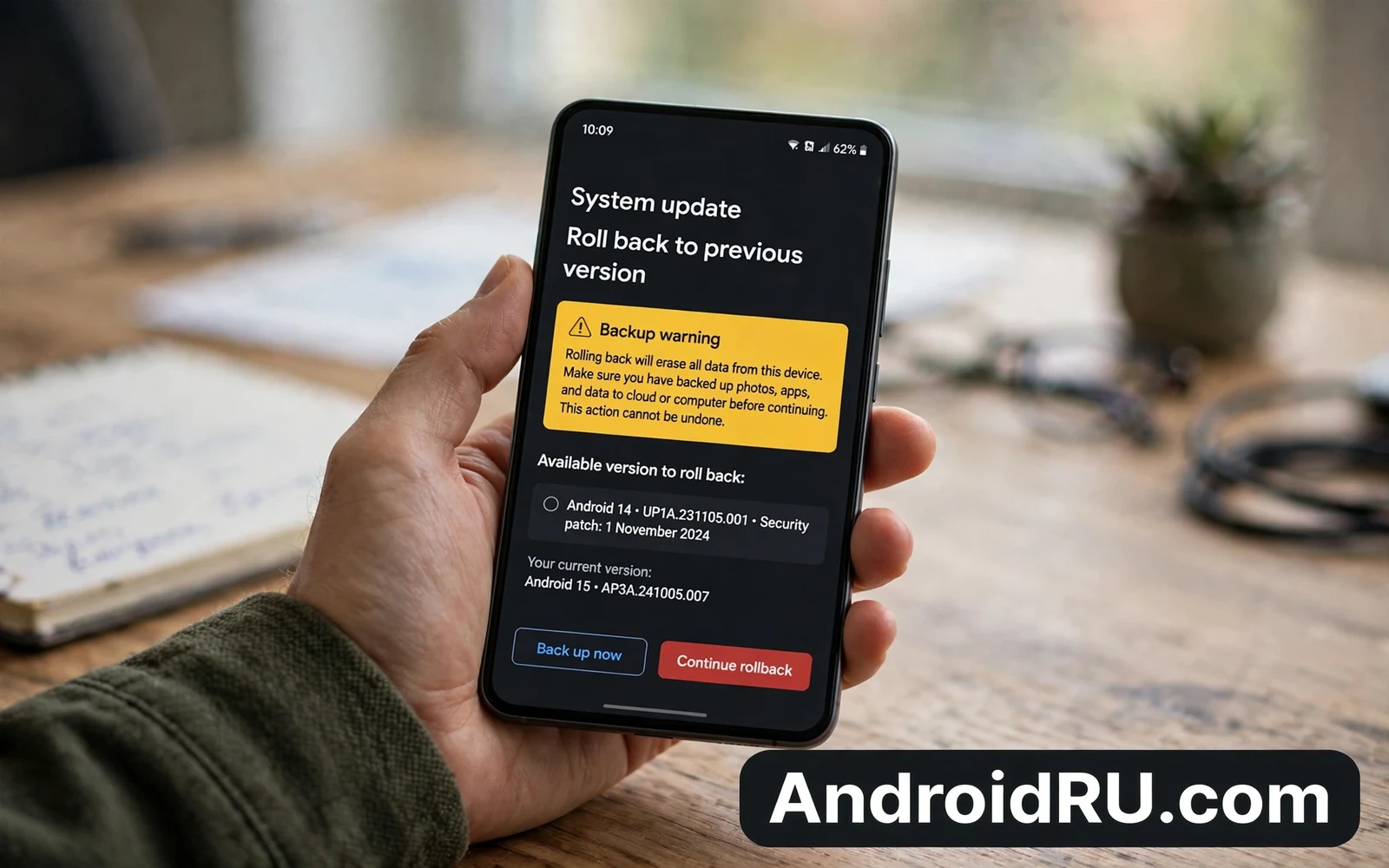
How to Roll Back an Android Update to a Previous Version
A bad Android update can turn a phone you trusted into a phone you fight with every day. The battery drains by lunch, the camera app crashes when you need it, mobile data drops on the train, and every restart feels like a small gamble. When that happens, the idea of going back to the previous version sounds simple. It is not simple, and that gap between how easy it sounds and how risky it really is catches a lot of people out.
This guide walks through the whole decision honestly. You will learn why a downgrade is harder than an update, how to back up properly before you touch anything, which official paths exist for the big phone makers, what anti-rollback protection does, and which safer fixes solve most post-update faults without any downgrade at all. If you still decide to go back, you will have numbered steps with real menu names and real checks after each step.
I have seen both sides of this. I have watched a phone come back to life after a clean return to the older build, and I have watched a phone lose a year of photos because the owner skipped the backup and trusted a guide that skipped it too. The difference was never luck. It was preparation, the exact model, and knowing when to stop.
Why Rolling Back an Android Update Is Harder Than Updating
A normal update moves forward to a newer system that was built to read your old data. The developers tested that direction thousands of times before the update reached your phone. A rollback moves backward to an older system that may not know how to read data the newer system created. Apps may have stored their data in a new format, settings that only exist in the new version may vanish, and the old system may fail to open things the new one handled without a thought. That mismatch is the core risk, and it explains why makers rarely offer a one-tap way back.
Some phones also block a return at a hardware level once the security patch level has passed a set point. This block is called anti-rollback protection on many devices, and it exists to stop an attacker from moving a phone back to a system with a known security hole. If your phone enforces that block, no normal method will bypass it safely. Any tool that claims to bypass it should be treated as a serious risk to the phone and to your data, because a bypass that works usually means a security check has been broken on purpose.
There is a third problem people forget: the older build may be missing security fixes for flaws that are now public. Security researchers publish details of patched flaws after the fix ships, and attackers can study those details. Going back to a build from six months ago can reopen holes that the current build closed. That trade-off matters most if the phone holds banking apps, work email, or payment cards. A faster phone that leaks data is not a win.
Before you touch any downgrade step it helps to review how Android system updates work behind the scenes because that view explains why staged delivery and slot checks make forward updates safer than backward moves. A/B slots, verified boot, and the update engine all assume the phone moves forward. A rollback fights every one of those assumptions, which is why the process feels rough even when it works.
Back Up Everything Before You Roll Back an Android Update
Before you consider any rollback step, make a backup that you have tested. Copy photos and videos to a computer or to cloud storage and check that the copies open. Export chats and notes where the app offers an export path. Write down accounts and passwords in a safe place that you control. A backup that you never tested is only a hope, and a rollback is the wrong time to learn that the backup is empty.
What to back up first on your Android phone
Start with the things you cannot replace. Photos and videos come first, then chats with history you care about, then documents, notes, and voice recordings. After that, handle the things that are annoying to lose: contacts, calendar events, SMS history, call logs, authenticator accounts, and saved Wi-Fi passwords. Check what the backup does not cover, because some app data stays on the phone only and some settings do not transfer to an older system. Game progress, secure app data, and work profiles may need separate steps, and a work phone may need your IT admin involved before you act, since a rollback can break work apps and work policies.
Photos, chats and files checklist
Open your gallery backup and confirm the newest photos are actually there, not just queued. Open one exported chat file and read it. Copy the DCIM folder and the Downloads folder to a computer and open three random files from each. If anything fails to open, fix the backup now while the phone still works. A short pause for backup checks can save days of recovery work later, and it costs you twenty minutes at most.
Accounts, codes and work data
Write down two-factor recovery codes for your email and banking accounts before the phone changes at all. Move authenticator accounts to a second device or print the recovery codes if the app supports it. Sign out of nothing yet, but confirm you know the password for your Google account, because the phone will ask for it after a wipe. If the phone holds work data, ask your work admin before you act, because a rollback can break device policies and lock you out of work apps until IT re-enrols the phone.
How to test the backup before you trust it
Testing means opening the backup on a different device, not just watching a progress bar finish. Open the cloud backup on a computer browser and view five photos from different months. Open the exported chat file and search for a message from last week. If you copied files to a computer, unplug the phone and open the copies. If your backup is a single file on the same phone, it is not a backup at all, because the rollback can erase the phone and the file with it. Keep at least one copy somewhere the phone cannot touch.
How to Roll Back an Android Update Step by Step
The steps below assume you have already decided the fault is worth the risk and that no safer fix helped. Work slowly, one step at a time, and stop the moment a step fails. A failed step is information, not a dare to try harder.
Step 1: Check whether your phone allows a downgrade
Open Settings, then About phone, then Software information, and write down the current build number and the Android security patch date. Search the maker support pages for your exact model plus the words rollback and anti-rollback. If the maker states that downgrades are blocked after a certain patch level, believe it. If your patch date is newer than the build you want to return to, assume the phone will refuse the older build, and do not waste hours fighting a check that is enforced in hardware.
Step 2: Find the official path for your exact model
Check the maker site for a rollback tool, a beta exit flow, or a support article for your exact model name and region. A path that works for one model may not exist for a close model from the same maker, and a tool made for the international variant may refuse the carrier variant. Download the older build only from the maker or from a source the maker points to, and check the file size and hash against the maker page before you use it. Never flash an image made for a different model, even when the names look nearly identical.
Step 3: Back up, charge and free space
Finish the tested backup from the section above and test it on another device. Charge the phone to at least 80 percent and keep the charger nearby, because a flash that loses power midway can leave the phone in a state that needs professional repair. Free up storage so the process never stalls for space, and keep a second device ready for calls and messages while the main phone is busy. Tell close contacts that you may be unreachable for a short window, and keep payment cards handy in physical form when the phone holds your only payment method.
Step 4: Use the beta exit flow or the maker tool
If you joined a beta programme, open the beta page and read the exit screen word for word. Leaving a beta programme often triggers a downgrade to the stable build, and that step often erases the phone. If the screen says the phone will be wiped, believe it and back up first. If it says nothing about data, treat the step as a wipe until you find clear proof to the contrary. If the maker offers a desktop tool, install it on a computer you trust, connect the phone with a good cable, and follow the tool prompts without skipping the warnings.
Step 5: Install the older build and watch for errors
Start the install only when you have an uninterrupted hour. Do not touch the cable, do not close the tool, and do not restart the phone while the progress bar moves. If the tool reports a version error or a signature error, stop there. That error means the phone refused the file, and forcing it is how phones end up unable to boot. If the install completes, let the phone finish its first boot on its own, which can take ten minutes or more. A long first boot is normal after a system change.
What to check right after the first boot
Check calls, mobile data, Wi-Fi, and SMS before you install anything else. Open the camera and take one photo. Open the banking app and the payment app to see whether they still run. Check Settings, then About phone, and confirm the build number is the older one you wanted. If a core function fails now, note exactly what failed, because that note decides whether you keep the older build or return to the newer one.
Step 6: Set the phone up again and test for three days
Sign in, let apps update, and use the phone normally for three days before you call the rollback a success. Some faults only appear after the phone settles, syncs, and updates its apps. Keep the fault diary going through those three days, and note the time, the app, and the action that triggered any fault. If the original fault is gone and nothing new appeared, the rollback did its job. If a new fault appeared, you traded one problem for another, and you should weigh that honestly.
Official Rollback Paths for Pixel, Samsung and OnePlus Phones
Official paths are the only ones worth trusting, because the maker tested them on your model and supports the result. Unofficial guides can work, but they carry the full risk themselves, and the person who wrote the guide will not pay for your repair.
Google Pixel rollback with the Android Flash Tool and beta exit
Pixel phones have the clearest official route of any Android brand. The Android Flash Tool at the Google developer site can install a factory image for your exact Pixel model through the browser, and the beta programme exit flow returns a beta phone to the stable build. Both routes erase the phone, so the backup step is not optional. Pixel phones also enforce anti-rollback through the bootloader, so an older build with a lower security patch level may be refused outright. Check the build list for your model before you start, and pick a build whose patch date the phone will accept.
Samsung rollback limits and Smart Switch recovery
Samsung does not offer a general one-tap rollback for Galaxy phones. The usual official route is Smart Switch on a computer, which can reinstall software and recover a phone that fails to boot, but it normally installs the current version rather than an older one. Samsung also enforces a bootloader version check, often called the binary version, and a phone will refuse firmware with a lower binary number. That check means a Samsung owner can often move sideways to another build of the same generation but cannot move back across a binary bump. If Smart Switch offers an emergency recovery, use it, and treat any guide that promises a Samsung downgrade through a hidden menu with deep suspicion.
OnePlus rollback through the official downgrade package
OnePlus has, at various times, published official downgrade packages for specific models when a major OxygenOS release caused wide problems. These packages appear on the OnePlus community forum or support pages for a limited window, and they usually wipe the phone as part of the install. The package is model specific, and installing one made for a different OnePlus model can block boot. Check the OnePlus support page for your exact model, read the install notes in full, and confirm the package is still offered before you download anything from a mirror.
Anti-Rollback Protection: Why Some Phones Refuse Older Builds
Anti-rollback protection lives in the bootloader and in verified boot. Each build carries a rollback index, and the phone records the highest index it has ever booted. When you try to install a build with a lower index, the phone refuses it, and that refusal is deliberate. The protection exists because an older system may carry a known security hole, and an attacker who could force a downgrade could then exploit that hole. It protects the phone even from its owner, which feels unfair in the moment and makes sense once you see the attack it blocks.
On Xiaomi phones the same idea appears as anti-rollback protection tied to the MIUI or HyperOS version, and on Samsung phones it appears as the binary version check. The names differ, but the effect is the same: the phone remembers the newest security level it reached and refuses to go below it. Some phones also tie the check to the security patch date, so a build from before a certain patch is refused even when the version number looks close.
Warning: Rollback can erase the phone and can break payment apps and can block future updates when done wrong. Never start a rollback with low battery and never flash an image made for a different model. If the phone is your only device for work or banking then do not attempt an unofficial rollback at all. Seek maker support and keep a tested backup ready while you wait for a safe fix.
The practical lesson is simple. Before you spend an evening on a downgrade, check whether your phone will even accept the older build. The build number, the patch date, and the maker support page give you that answer in ten minutes. Ten minutes of reading beats four hours of flashing followed by a phone that refuses to boot.
Safer Fixes to Try Before You Roll Back an Android Update
Many faults that follow an update come from apps rather than from the system itself. A single app that updated on the same day as the system can drain the battery, crash the camera, or break notifications, and the system gets the blame for an app fault. Work through the fixes below in order, and give each one a real test before you move on. Most post-update complaints I have seen were fixed by step two or three, long before anyone needed a downgrade.
Update every app and restart the phone
Open the Play Store, then Manage apps and device, then Updates available, and install everything pending. App developers ship compatibility fixes in the days after a major system release, and the fix for your fault may already be waiting. Restart the phone after the updates finish, then test the fault again with the same action that triggered it before. If the fault is gone, you just saved yourself a rollback.
Clear the cache of the faulty app and check its permissions
Open Settings, then Apps, then See all apps, then the faulty app, then Storage and cache, and tap Clear cache. Do not tap Clear storage yet, because that erases the app data. Go back to the app page, tap Permissions, and check that the permissions the app needs are still granted, because an update can reset a permission the app needs. Test the app again. If it works, the fault was a stale cache or a lost permission, and the system was never the problem.
Boot into safe mode and test the fault again
Safe mode starts the phone with only the system apps running, and it is a fast way to separate a system fault from an app fault. On most phones, press and hold the power button, then press and hold Power off on the screen until the Reboot to safe mode prompt appears, then tap OK. Test the fault in safe mode. If the fault vanishes in safe mode, a third-party app causes it, and you can find it by uninstalling recently updated apps one at a time. If the fault stays in safe mode, the system itself is involved, and a reset or a patch is the honest next step.
Reset network settings or factory reset on the current version
If the fault affects the network, open Settings, then System, then Reset options, then Reset Wi-Fi, mobile and Bluetooth, and try that limited step before anything bigger. If the fault affects the whole phone, a factory reset on the current system is often safer than a rollback, because it keeps the newer security fixes while it clears bad data. That path still erases the phone, so back up first even when the reset feels routine. Fresh settings can also calm a phone that feels unstable after an update, and essential system settings you should change on new Android phones gives a careful checklist for privacy and battery and display choices that work on the current system.
What a Factory Image Flash Really Involves
A factory image flash writes a complete system image to the phone through a computer tool. The process erases user data on most phones and it requires a bootloader that has been opened on many phones. Opening the bootloader itself erases data, and it can change the security state of the phone in ways that persist after relocking. Payment apps may refuse to run after the bootloader has been opened even when the phone returns to stock software. Users who rely on tap to pay should weigh that cost before they open anything.
Opening the bootloader and what it costs
Opening the bootloader usually starts in Settings, then About phone, where you tap Build number seven times to enable Developer options, then Developer options, where you turn on the OEM bootloader switch and USB debugging. The fastboot command that opens it runs from a computer, and it wipes the phone on the spot. After the bootloader is opened, the phone shows a warning at every boot, and some banking and payment apps detect the opened state and refuse to run. Relocking can restore the warning-free boot, but it wipes the phone again, and it does not always restore the original security state on every model.
Matching the image to the exact model and region
Flashing demands an exact image match for model, region, and carrier variant. A close image can boot yet break mobile data, break camera features, or break emergency calls, and the flash tool gives little warning when the image is close but wrong. Verification steps such as checking build numbers and checking file hashes exist for a reason, and skipping them turns a repair into a gamble. Download the image only from the maker, compare the published hash with the file you downloaded, and confirm the model code on the box or in Settings matches the image name exactly.
Verifying the build number and file hash before you flash
On a computer, compare the SHA-256 hash of the downloaded file with the hash the maker published. If the hashes differ, delete the file and download it again from the maker site. Open the image notes and confirm the build number, the patch date, and the model code. If any one of those three does not match your phone, stop. A mismatch here is the single most common cause of a flash that ends in a repair shop.
When Rolling Back Makes Sense and When It Does Not
Rollback makes sense only when a core function is broken, no safer fix helps, and the maker offers a supported path. Core functions include calls, mobile data, emergency features, and basic security. A missing cosmetic feature or a changed icon layout is not a good reason to risk data loss. A single app fault is not a good reason either when the app maker can ship a fix within days.
Rollback does not make sense when the phone holds irreplaceable data with no tested backup. It does not make sense when the phone is a work device with strict policies. It does not make sense when the older system lacks security fixes for holes that are now public. In those cases the safer move is to stay on the current system, report the fault through the maker channel, and wait for a patch. Patience feels slow, but it protects data and security at the same time.
Looking ahead can also reduce pressure to rush, and the future of Android predictions for the next five years puts one bad update in context by showing how support cycles and platform change shape what your next phone may offer. One bad update is a chapter, not the whole story, and the next phone you buy will inherit the support promise you choose today.
Hidden profiles can also isolate a faulty app without touching the system, and Android Private Space feature complete setup guide explains how to set up a separate space on supported phones for apps that need stricter separation. If one app misbehaves after an update, moving it into its own space can contain the problem while you wait for a fix, and that costs you nothing in data or security.
How to Judge Whether a Fault Is Worth a Rollback
A fault feels urgent when it breaks a daily habit, but urgency alone is a poor guide for a rollback. Ask whether the fault blocks calls, messages, payments, or work access. Those blocks affect safety and income, and they justify stronger action. Ask whether the fault affects only one app or the whole system. One app fault points to an app fix, while a whole system fault points to a system patch or a reset. Ask whether the fault appeared at once after the update or grew over days. A fault that grows over days may come from storage or battery wear rather than from the update itself.
Keep a short fault diary for three days before you decide. Note the time, the app, and the action that triggered the fault, and whether a restart helped. A diary turns vague frustration into a pattern that support can use. Support teams solve patterned faults far faster than vague complaints. A diary also protects you from a rollback that would not fix the fault at all. If the diary shows one app at fault, then an app reinstall or an app update is the right fix, and a system rollback would only add risk.
- Back up and test the backup before any rollback step, because an untested backup is only a hope.
- Check anti-rollback rules for your exact model first, because a refused build wastes hours and risks a boot failure.
- Use an official maker path when one exists, because the maker tested it and supports the result.
- Try app updates and safe mode before a downgrade, because most post-update faults are app faults.
- Try a factory reset on the current system as a safer reset, because it keeps the newer security fixes.
- Stop when a guide skips backups or ignores version warnings, because those two omissions mark an unsafe guide.
That said, the diary habit has a second benefit. When you contact maker support with dates, times, and triggers, you get a useful answer far faster than when you write that the phone is broken after the update. Support staff work from patterns, and a three-day diary hands them the pattern on the first message.
Frequently Asked Questions About Rolling Back an Android Update
Can I roll back an Android update without losing my data?
Almost never. Most rollback paths erase the phone as part of the process, and opening the bootloader wipes it too. A few official beta exit flows keep data in theory, but you should treat every downgrade as a wipe and back up first. If a guide promises a data-safe rollback with no backup needed, treat that promise as a warning sign and walk away.
Will rolling back void my warranty or break banking apps?
An official maker path used as directed does not void the warranty on most phones, but an unofficial flash with a bootloader left open can void support and can trip security flags that block payment apps. Banking apps check the security state of the phone, and some refuse to run after the bootloader has been opened even when the phone returns to stock software. Check your banking app on the older build during the three-day test window before you rely on it.
Why does my phone refuse to install the older version?
The phone refuses the older build because of anti-rollback protection or a signature check. The bootloader records the highest rollback index it has booted, and it rejects any build with a lower index. Recovery also checks the version and the signature of the file, and it refuses files that fail either check. That refusal protects the phone from known security holes in older builds, and there is no safe way to force it.
How long should I wait for a fix before I roll back?
Give the maker at least one patch cycle, which is usually two to four weeks, unless a core function such as calls or mobile data is broken and no workaround exists. App developers ship compatibility fixes within days of a major release, and the maker often ships a hotfix for wide faults within the same window. Waiting also tells you whether the fault is wide, which means a fix is coming, or rare, which means your phone may need individual support.
Is a factory reset safer than rolling back?
Yes, for most people. A factory reset on the current system clears bad data and broken settings while keeping the newer security fixes, and it uses only official tools already on the phone. A rollback adds the risks of an older system, a bootloader left open, and a refused build. Try the reset first, back up before it, and keep the rollback as the last resort it is.
What to Do Next After a Bad Android Update
Start today with the cheap steps. Update every app, restart the phone, and run the fault diary for three days. If the fault survives that, try safe mode, then a cache clear, then a factory reset on the current version. Each step costs minutes and protects your data, and each one rules out a cause before you risk the bigger move.
If the fault still blocks calls, data, or payments after all of that, check the maker support page for your exact model and look for an official rollback path. Back up, test the backup on another device, charge the phone, and follow the numbered steps above without skipping the checks. The goal was never to run the newest build or the oldest build. The goal is a phone that works, holds your data safely, and keeps its security fixes. Pick the path that protects all three, even when that path is slower than you hoped.

