

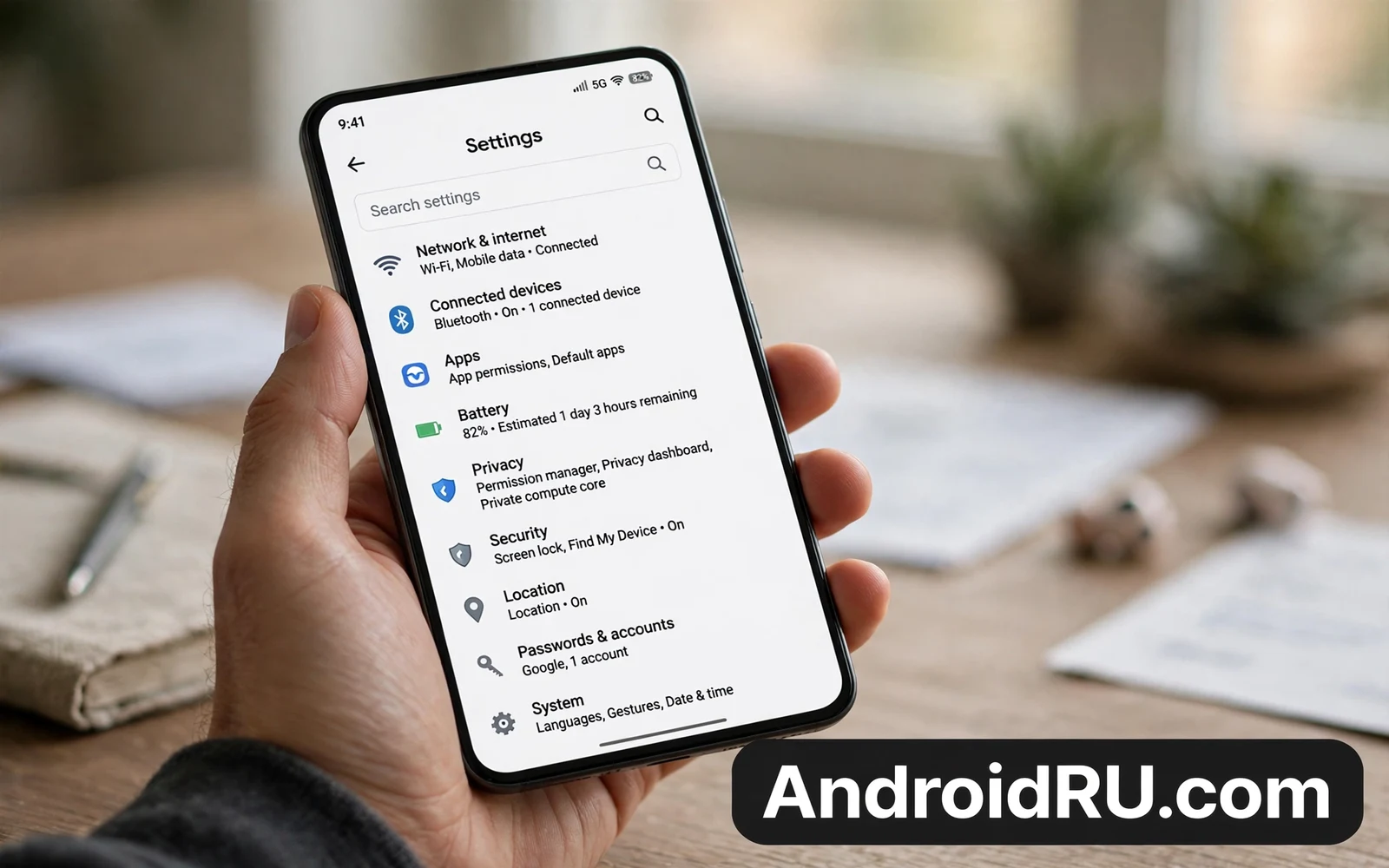
Start With Lock and Security Settings
A new phone deserves a strong lock before anything else. Set a PIN that is not easy to guess and add a fingerprint or face unlock only when you trust that method for daily use. Turn on automatic lock after a short idle time so the phone does not stay open on a table. Check that the lock screen hides sensitive notification content. A lock screen that shows full messages gives away private data to anyone who picks up the phone.
Turn on device finding and remote lock features at once. Those features need a signed in account and location permission in a limited form to work when the phone is lost. Test the finding page from another device before you need it in a panic. A finding feature that you never tested may fail when you need it most because of a missing permission or a missing account step.
Defaults also shape first day security and how to change default apps in Android step by step helps you set the browser and mail apps that your new phone will trust for links and addresses.
Tighten Privacy and Permissions
Open Privacy settings and review the permission manager. Look at location and camera and microphone first because those sensors reveal the most about daily life. Change broad access to only while using the app for apps that do not need constant access. Deny access for apps that have no clear need for a sensor. A flashlight app has no need for location and a game has no need for contacts.
Turn off ad personalisation when you prefer less tracking. Check the privacy dashboard for recent access and look for surprises. An app that used the camera at night or used location while idle deserves a permission change or removal. Review permissions again after a week because new apps often request broad access during first run when users tap through prompts fast.
Calm Notifications Before They Calm You
New phones often allow every app to send alerts and the result is a noisy first week. Open notification settings and turn off alerts for shopping apps and games and social apps that do not need instant attention. Keep alerts for messages and calls and calendar and banking. A quiet phone is easier to focus on and it also saves battery because the screen wakes less often.
Set notification history when your phone offers it so a dismissed alert can be found later. Set Do Not Disturb for sleep hours and add exceptions only for starred contacts and for repeat callers. Test the schedule for one night before you rely on it for important calls. A schedule that blocks a family emergency call is worse than a noisy phone.
Multitasking settings also affect daily calm and how to use Android split screen mode like a pro shows how paired windows can cut app switching for mail and notes and browsing.
Set Battery and Display for Daily Life
Turn on adaptive battery when the phone offers it so the system learns which apps matter and which apps can rest. Check battery usage after a few days and restrict any app that drains power without clear benefit. Turn off always on display when battery life matters more than glance info. Lower screen timeout to a short value so the screen does not stay lit in a pocket or on a desk.
Set brightness to adaptive mode for most users because it balances comfort and power across rooms and outdoors. Set dark theme when you prefer it and when your screen type benefits from it. Dark theme also reduces glare at night. Check refresh rate settings when the phone offers a choice and pick a balanced mode when battery life is tight. A high refresh mode feels smooth but it costs power on every scroll.
Control Updates and Backups Early
Turn on automatic system updates over Wi-Fi so security fixes arrive without delay. Turn on app auto updates with the same Wi-Fi limit when data costs matter. Set backup to run over Wi-Fi and check that photos and app data and settings are included. A backup that runs only when you remember it is not a backup plan.
Check storage at setup and turn on storage management for files that you no longer need. Archive apps that you rarely use when the phone offers that option. Keep at least some free space for updates because a full phone can block a system update at the worst time. A short storage check each month prevents the full storage warning that appears before a trip.
Update mechanics deserve a clear view too and how Android system updates work behind the scenes explains staged delivery and slot checks that shape when a new build reaches your exact model.
Personalise Without Losing Control
Personalisation makes a new phone feel yours but it should not cost privacy. Pick a wallpaper and a theme that you enjoy and set icon size for comfortable tapping. Turn off personalised ads in theme stores when the store offers that choice. Avoid live wallpapers that drain battery when you value battery life over motion.
Set gestures or buttons based on what feels natural and test the choice for a day before you settle. Set the default launcher only when you want a different home layout. Keep the stock launcher for the first week when you are still learning the phone because a new launcher adds a second learning curve on top of a new device.
Hidden areas can add a second layer of separation for sensitive apps and Android Private Space feature complete setup guide walks through setup and locking habits for a protected area on supported phones.
Set Accounts and Sync With Intention
A new phone often signs into several accounts at once and each account starts syncing mail and contacts and photos at once. Review sync per account and turn off sync for data that you do not need on the phone. A work account may need mail sync but not photo sync. A personal account may need contacts sync but not calendar sync when you use a different calendar app. Limited sync saves battery and it reduces the chance that a deleted item on one device vanishes everywhere.
Check backup accounts separately from sync accounts. A backup account should be one that you control long term and that you can recover with a second factor. A temporary mail account makes a poor backup account because losing it can lock you out of restores. Write down which account holds the backup and test a restore of one small item before you rely on the backup for a trip or a phone change.
Review Settings Again After One Week
First week settings are made in a hurry and they deserve a second pass. Open the permission manager again and look for apps that gained broad access during setup. Open battery usage and look for apps that drain power without clear value. Open notification settings and silence apps that proved noisy during the week. A second pass takes ten minutes and it fixes choices that haste made poorly.
Check storage again after a week of photos and app installs. Delete duplicate downloads and clear cache for apps that ballooned. Check that backup ran at least once during the week and that the backup date is recent. A phone that has never backed up after a week needs a settings fix before the next trip. Small weekly checks prevent the large cleanup that users dread after months of neglect.
Accessibility Settings That Help Everyone
Accessibility settings help far more users than their name suggests. Larger text helps reading in sunlight. Bold text helps reading on small screens. High contrast helps reading in bright rooms. Touch sensitivity settings help users with screen protectors. Explore these settings even when you do not consider yourself a user who needs them. A small text size increase can reduce eye strain during long reading sessions.
Sound settings in the same area help calls and media. Mono audio helps users with one earbud. Live captions help video watching in quiet rooms. Vibration patterns help users who keep phones silent at work. Turn on one feature at a time and test it for a day. A feature that helps daily life earns its place while a feature that annoys can be turned off without harm.
Settings for Travel and Roaming
Travel changes which settings matter most. Turn on data roaming controls before a trip and set a data warning at a level that matches your plan. Download offline maps for the destination before departure so navigation works without costly data. Set the phone to prefer Wi-Fi for backups and updates while travelling. Those three steps prevent a large bill and they keep maps working when the network is weak. A travel settings check takes ten minutes and it saves far more in roaming charges and stress.
Security settings matter more on travel networks. Avoid banking on open hotel Wi-Fi without a trusted protection layer and prefer mobile data for sensitive tasks when the signal allows. Turn off automatic Wi-Fi connection to unknown networks so the phone does not join a spoofed hotspot by habit. Forget hotel networks after checkout so the phone does not reconnect to a network name that an attacker may reuse later. Travel habits protect data long after the trip ends because forgotten networks persist silently.
Settings for Kids and Shared Use
Shared phones need settings that protect both the owner and the borrower. Set a separate user profile or a guest mode when the phone offers it so a borrower cannot open owner mail or banking apps by accident. Turn on app pinning for short sharing sessions so the borrower stays inside one app until you unpin it with your lock. Those two tools cost a minute to set up and they prevent the awkward moment when a borrowed phone reveals private messages. Review shared profiles each month and remove profiles that no one uses anymore because stale profiles hold stale data.
- Set a strong lock and hide lock screen message content
- Turn on device finding and test it from another device
- Limit location and camera and microphone to while in use
- Silence non urgent apps and set sleep hour rules
- Turn on Wi-Fi only updates and backups at setup
- Check battery use and storage after the first week
Warning: Do not turn off security features to gain a small speed boost. Do not grant every permission during first run just to reach the app faster. A permission granted in haste can expose location or contacts for months. Review settings again after the first week because first run choices are often the least careful choices on a new phone.

