

What a Default App Means on Android
A default app is the app that Android opens when you tap a link or a file or a phone number without choosing an app each time. The system remembers your choice so daily taps feel fast. A browser default decides which app opens web links from mail and messages. A mail default decides which app composes a new message when you tap an address. A launcher default decides which home screen you see after you press home.
Defaults save time but they can also lock you into an app that you no longer prefer. A new browser may be better for privacy while the old browser still opens every link. A new mail app may offer better search while the old mail app still handles every address tap. Changing a default is a small settings task that has a large daily effect because links and files cross your phone dozens of times each day.
Find the Default App Settings on Your Phone
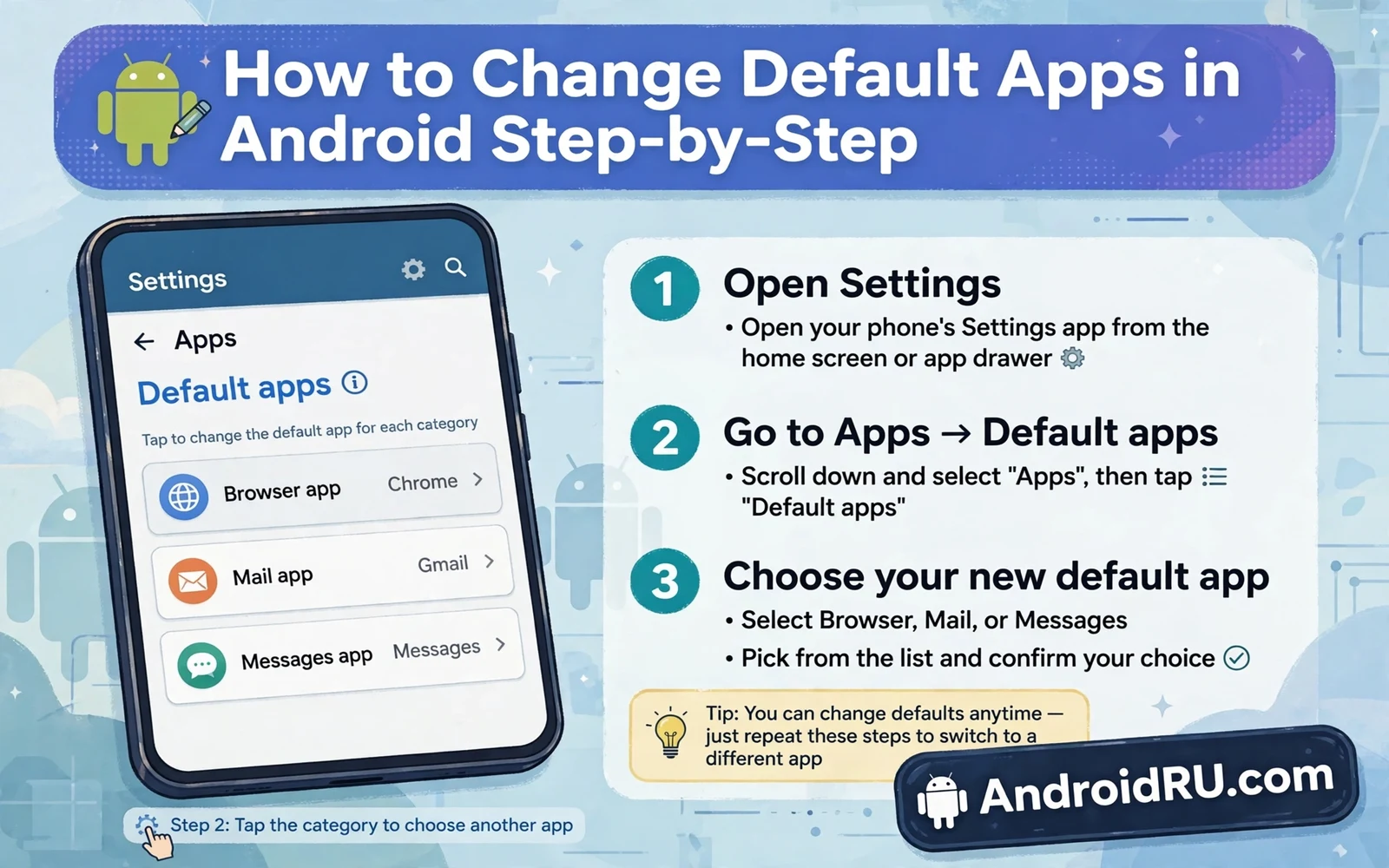
Open Settings and open Apps and then open Default apps. Some phones place the same screen under Apps then Default apps while others place it under a search for the word Default. The screen lists roles such as browser and phone and messages and digital assistant and home app. Each role shows the app that currently holds it. Tap a role to see the apps that can fill it and then tap the app that you want.
Some roles appear only when more than one capable app is installed. A phone with one browser will show that browser as the only choice. Install the app that you want first and then return to the default screen. The new app should appear as a choice when it declares support for that role. If it does not appear then check that the app is fully installed and updated and that it requests the role in its own settings.
Home screen choice works hand in hand with default apps and how to use Android split screen mode like a pro shows how a good launcher layout pairs with multitasking habits for faster daily work.
Change the Browser Default the Right Way
Open Default apps and tap Browser app and choose the browser that you trust for daily use. Test the change at once by tapping a link in a message. The link should open in the new browser without asking again. If the system still asks each time then check whether the old browser still holds link handling for that domain. Some browsers keep domain links even after the browser role changes.
Check link handling per app when a link still opens in the wrong app. Open Settings and open Apps and open the old browser and open Open by default. Turn off supported links for domains that should move to the new browser. Then open the new browser in the same screen and turn on its supported links. This per app step fixes the common case where a shopping link or a video link ignores the browser role.
Change Mail and Messages and Phone Defaults
Mail defaults matter when you tap an address in a browser or in a document. Set the mail app that holds the account that you use most. Test with an address tap and confirm that a compose window opens in the right app. Messages defaults matter for SMS and for RCS on supported networks. Set the messaging app that holds your history and your spam controls.
Phone defaults matter for calls and for spam screening. Set the phone app that you trust for caller screening and for call history. A third party phone app may need extra permissions for calls and for contacts before it can serve as default. Grant only the permissions that the role truly needs and deny the rest. A phone app that asks for location or storage for a basic call role deserves a second look before you grant access.
Fresh phone setup often starts with defaults and essential system settings you should change on new Android phones lists the companion choices for privacy and battery and display that new owners often miss.
Change the Launcher and the Assistant
The home app role controls your home screen and your app drawer and your widgets. Changing it can transform the phone feel at once. Install the launcher first and open it once so it can build its first layout. Then set it as the home app in Default apps. Test the home button and the gesture navigation to confirm that the new launcher responds. Some launchers need a restart to settle gestures on certain phones.
The digital assistant role controls which assistant answers a long press or a voice trigger. Changing it can affect voice search and device control and smart home actions. Test the new assistant with a simple query and with a device command when you use smart home gear. If the new assistant cannot control a device that the old assistant controlled then you may need to link accounts again inside the assistant app itself.
Fix Defaults That Keep Reverting
Defaults can revert after an app update or after a system update or after you clear app data by mistake. When a link asks again for an app choice pick the app and choose the always option rather than the just once option. The always option writes the default while the just once option only serves that single tap. Many users tap just once out of habit and then wonder why the phone keeps asking.
When a default still reverts check battery optimisation for the new app. Aggressive battery rules can stop an app from staying ready as a default handler. Check that the app is not restricted in battery settings. Also check work profiles because a work profile can hold its own defaults that override personal defaults for work links. Work links that open in a work browser are often correct even when they feel wrong.
A larger screen makes default choices more visible and Android Desktop Mode is it ready to replace your laptop shows why browser and mail defaults matter even more when a phone drives a monitor.
Reset Defaults When You Want a Clean Start
To reset one app open Settings and open Apps and open that app and open Open by default and tap Clear defaults. The next tap for that role will ask again. To reset all app preferences open the Apps screen menu and choose Reset app preferences. That action clears defaults and permission choices and background limits for all apps. It does not delete app data but it does force you to set choices again.
Reset is useful when you test a new set of apps and when old choices conflict. After a reset work through each role once with care. Set the browser and then the mail app and then messages and then the phone app and then the launcher. Test each role with a real tap rather than trusting the settings screen alone. A real tap reveals link handling faults that a settings label hides.
Private areas can hold separate app installs with separate defaults and Android Private Space feature complete setup guide explains how a hidden profile keeps its own app choices apart from daily use.
Default Apps and Link Handling in Depth
Link handling has two layers and users often fix only one of them. The first layer is the role such as browser or mail app. The second layer is per app link support for specific domains. A video link may open in a video app even when the browser role is set correctly because the video app claims that domain. A shopping link may open in a shopping app for the same reason. Fixing the role alone leaves those domain claims in place and the user keeps seeing the wrong app.
The fix is to open the app that steals the link and turn off its domain claims one by one. Then open the preferred app and turn on its claims for the same domains. Test with a real link after each change rather than trusting the settings screen. Real links reveal claims that settings labels hide. Keep a note of which domains you changed so a future reinstall does not puzzle you when old behaviour returns.
Defaults for Files and Media Types
Files add a third layer beyond links. A PDF tap may ask for a reader even when the browser role is set. An image tap may open a gallery app rather than an editor. Android asks for a file handler when no default exists for that file type. Choose the always option for file types that you open daily and choose the just once option for file types that you open rarely. That habit builds a stable set of defaults without locking rare files into the wrong app.
Media defaults matter for music and video too. A music file tap should open the player that holds your library and your playlists. A video file tap should open the player that handles your subtitles and your casting. Test file taps with real files from your storage rather than with sample files. Real files carry the exact types that your daily work uses and they expose handler gaps that samples hide.
Defaults After a New App Install
Every new app install is a chance to review defaults before old habits lock in. Open the new app once and check whether it asks to become a default for a role. Decline that prompt when you are still testing the app. A new browser that becomes default during a casual test will capture every link until you change it back. Test first and set defaults only when the app earns daily use. That discipline keeps defaults stable and it prevents a week of links opening in an app that you already abandoned.
Review defaults after uninstalling an app too. Removing a default app should return the role to the next capable app or to an ask prompt. When the role stays empty the phone may show an error on the next link tap. Open Default apps after any uninstall and confirm that each role holds an app that you trust. A thirty second check after uninstall prevents a confusing error later when you tap a link in a hurry.
- Install the preferred app before you change a default
- Set browser and mail and messages and phone roles in turn
- Test each role with a real link or address tap
- Fix per app link handling when a domain ignores the role
- Use the always option to stop repeated app choice prompts
- Reset app preferences for a clean start when choices conflict
Warning: Grant a default role only to an app that you trust with that data type. A default browser sees your links and a default messaging app sees your texts and a default phone app sees your calls. Check the app maker and its permission requests before you grant a role. If an app asks for permissions far beyond its role then choose a different app for that role.

