

What Desktop Mode Tries to Do
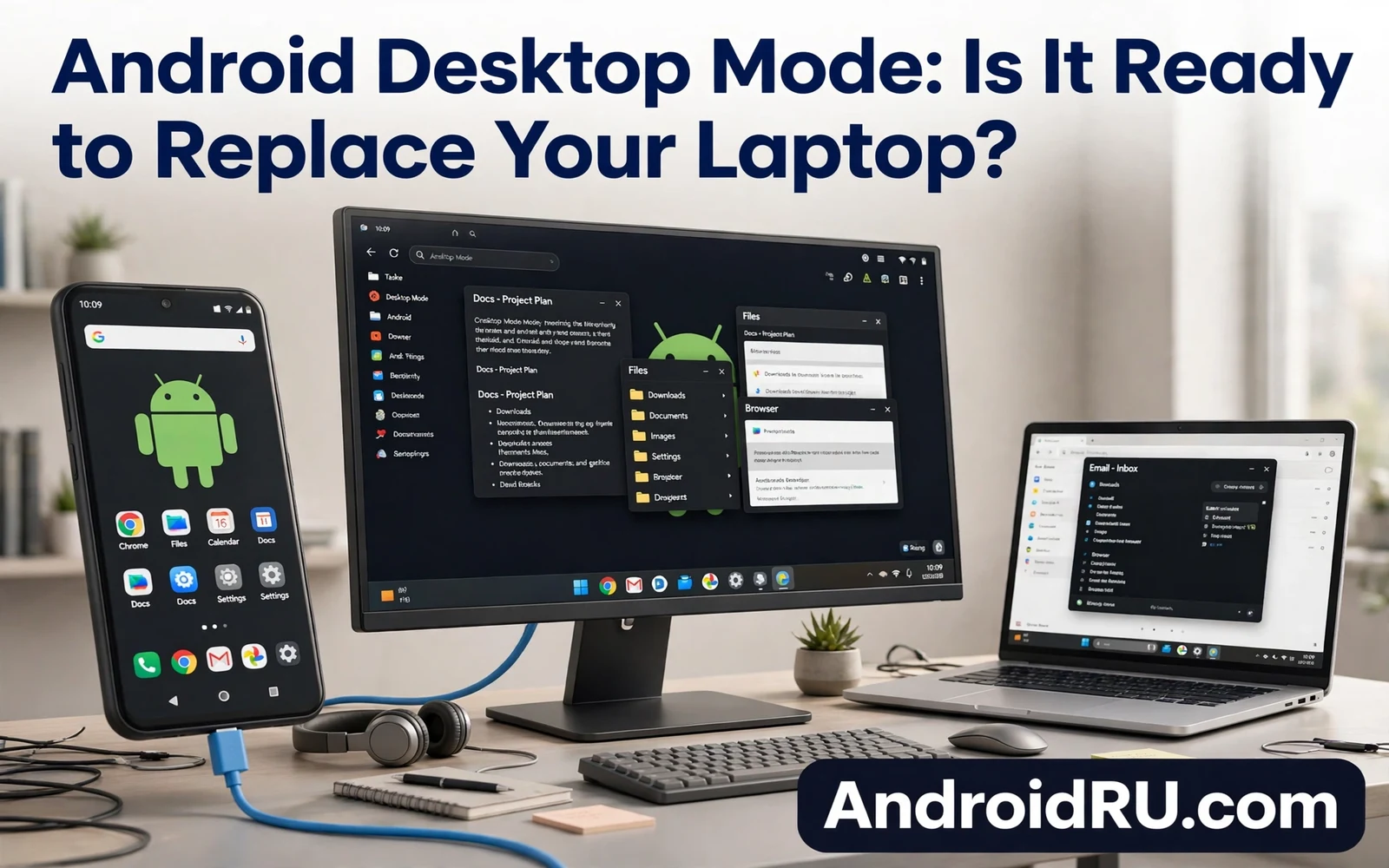
Desktop mode turns a phone screen into a windowed workspace on a larger display. Apps open in resizable windows and a taskbar holds recent apps and a start style menu holds the full app list. A mouse and a keyboard give the workspace the feel of a computer. The phone stays the computer and the monitor only shows its output. That design is attractive because the phone already holds your files and your accounts and your apps.
The promise is simple. One device could serve as a phone on the road and as a desk machine at home. No file sync step would be needed because the same storage serves both roles. No second login would be needed because the same accounts stay signed in. The question is whether apps and the system are ready for that promise in daily work rather than in a short demo.
How to Connect a Phone to a Large Display
Most desktop modes need a wired link to a monitor or a dock that carries video and power and USB at once. A USB hub with video output can serve as a simple dock. A monitor with a USB video input can serve the same role with fewer parts. Wireless display links exist but they add lag that hurts typing and mouse work. For office work a wired link is still the reliable choice.
Connect power first so the phone does not drain during a long session. Connect the monitor next and then connect the keyboard and the mouse through the hub. The phone should detect the external display and offer the desktop layout. If it mirrors the phone screen instead then check display settings for a desktop option or a separate screen option. Some phones need a maker setting to enable the desktop layout and that setting may sit under display or under connected devices.
Split screen habits transfer well to a larger canvas and how to use Android split screen mode like a pro teaches window pairing and focus habits that help when you move from a phone screen to a monitor.
Where Desktop Mode Works Well Today
Desktop mode works well for writing and mail and browsing and spreadsheets with modest size. A document app in a large window feels close to a laptop document app. A browser with many tabs works when the phone has enough memory and when the sites do not demand desktop extensions. Video calls work when the camera and the microphone route cleanly through the phone or through a connected webcam path that the phone supports.
Light office work is the sweet spot. Reading reports and replying to mail and editing a document and joining a call can all fit in one session. Media playback also works well because the phone already handles video and audio with ease. For a student or a traveller who needs a desk for a few hours the phone plus a monitor can replace a laptop bag for that session. The setup stays light and the cost stays low when a monitor already exists at the desk.
Where Desktop Mode Still Falls Short
Heavy work exposes the gaps fast. Large spreadsheets with many formulas can slow down. Photo editing with large files can hit memory limits. Video editing with long timelines can strain the phone and can drain battery even while charging. Desktop class apps with full plugin support often have no true phone equal. Browser extensions that office workflows rely on may be missing or limited on the phone browser.
Window management also lags behind a laptop. Dragging and resizing works but it lacks the polish of a mature desktop system. Some apps refuse to resize or they restart when the window changes size. Some apps open only in a phone layout even on a large screen. Multi monitor support is limited or absent on many phones. Those gaps matter less for one document at a time and matter more for complex work with many windows.
Daily phone settings still shape the desk session and essential system settings you should change on new Android phones covers display and connection choices that affect how a phone behaves when it drives a large screen.
Files and Storage in a Desktop Session
Files stay on the phone or on a connected drive when the hub supports storage. That simplicity helps until a workflow needs a desktop file manager with deep search and batch rename and network drive mapping. Phone file managers cover the basics but they lack some power features that office users expect. Cloud drives bridge part of the gap because the same cloud app serves phone and laptop alike.
Printing and scanning also need checks. A printer that works from the phone will often work from desktop mode because the same print service serves both. A scanner app that relies on the phone camera may behave oddly on a large screen. Test printing and file export before a deadline session. A short test with a real document reveals gaps that a demo video hides.
Who Should Try It and Who Should Wait
Try desktop mode when your work is mostly writing and mail and browsing and calls. Try it when you travel light and when a monitor waits at your destination. Try it when you want one device for personal and work use with clear separation through profiles or private areas. A low cost hub and a keyboard can turn a hotel TV or an office monitor into a work desk in minutes.
Wait when your work needs heavy editing or desktop plugins or multi monitor layouts or long compile jobs. Wait when your employer demands a managed laptop with strict controls. Wait when your daily tools exist only as desktop apps with no phone version. In those cases a phone can serve as a second screen or a backup machine but it cannot yet carry the full load.
Default apps shape the desk workflow more than users expect and how to change default apps in Android step by step shows how to set the browser and mail and file apps that desktop mode will open by default.
A Fair Verdict for Daily Use
Desktop mode is ready as a laptop replacement for light office work and for short desk sessions. It is not ready as a full replacement for heavy professional work. The gap is not only hardware power. The gap is app maturity and window polish and peripheral support and multi screen handling. Each new system generation closes part of that gap but the closure is gradual rather than sudden.
The best way to judge it is a real work week test. Use the phone as your desk machine for five work days and note every moment when you reach for a laptop. If the list is short and the workarounds are small then the phone can replace the laptop for your role. If the list grows each day then keep the laptop as the main machine and keep the phone as a capable backup. Your workflow decides the verdict more than any marketing claim.
Platform direction also matters for a long term choice and the future of Android predictions for the next five years outlines trends in large screens and cross device work that will shape whether desktop mode grows into a true laptop rival.
Peripherals That Make or Break Desktop Mode
A keyboard and a mouse decide whether desktop mode feels like a computer or like a phone on a big screen. A full size keyboard with proper key travel makes long writing sessions comfortable. A precise mouse makes window dragging and text selection far easier than touch alone. Bluetooth peripherals work but they add pairing steps and battery worries. Wired peripherals through a hub work at once and they draw no extra battery from the phone. For a desk that you use daily a wired set is the calmer choice.
Audio peripherals deserve a test too. A headset that works for phone calls may behave differently when the phone drives a monitor. A USB headset through the hub may need a settings change to become the output device. A monitor speaker may sound thin for video calls. Test a real call through the exact hub and headset that the desk session will use. A call test takes two minutes and it prevents an embarrassing audio failure during a work meeting.
How Desktop Mode Handles Phone Calls and Messages
Calls and messages keep arriving during a desktop session and the phone must handle them without breaking focus. An incoming call should pause media and show a clear answer option on the large screen. A message alert should appear in a way that does not cover the document you are editing. Some phones handle this well and some phones show phone style alerts that feel out of place on a monitor. Test an incoming call during a document session before a deadline day.
Notification handling is a daily comfort factor. A desktop session that buzzes with every social alert will break concentration fast. Set desktop session rules that allow only calls and work messages while other alerts wait. That rule mirrors the Do Not Disturb habit on a phone but it applies to the large screen context. A calm large screen is what makes desktop mode feel like work rather than like a phone blown up to monitor size.
How to Build a Portable Desktop Kit
A portable desktop kit turns any monitor into a work desk without carrying a laptop. The kit needs a compact hub with video output and power delivery and USB ports. It needs a folding keyboard that types well for hours rather than a tiny keyboard that cramps hands. It needs a small mouse that tracks well on varied surfaces. Pack a short video cable and a power adapter that matches the hub power need. Test the full kit at home before travel so a missing cable does not ruin the first hotel session.
Packing order matters for speed. Keep the hub and cables in one pouch and the keyboard and mouse in another pouch so setup takes minutes rather than a hunt through a bag. Label cables when several look alike. Carry a backup cable for the video link because a single cable fault can end a desk session. A portable kit that sets up in five minutes earns daily use while a kit that takes twenty minutes stays in the bag and the laptop returns to the bag instead.
- Use a wired hub for stable video and power
- Test document and mail and browser work first
- Check printing and file export before deadlines
- Expect limits with heavy editing and plugins
- Run a full work week test before you sell a laptop
- Keep a laptop backup for tasks that need desktop apps
Warning: Do not sell a laptop based on a short demo alone. A demo hides app resize faults and peripheral gaps and battery drain under load. Test your real apps with your real files for several days. If work data lives only on the phone then back it up before long desk sessions because a hub fault or a power fault can interrupt a session at a bad moment.

