

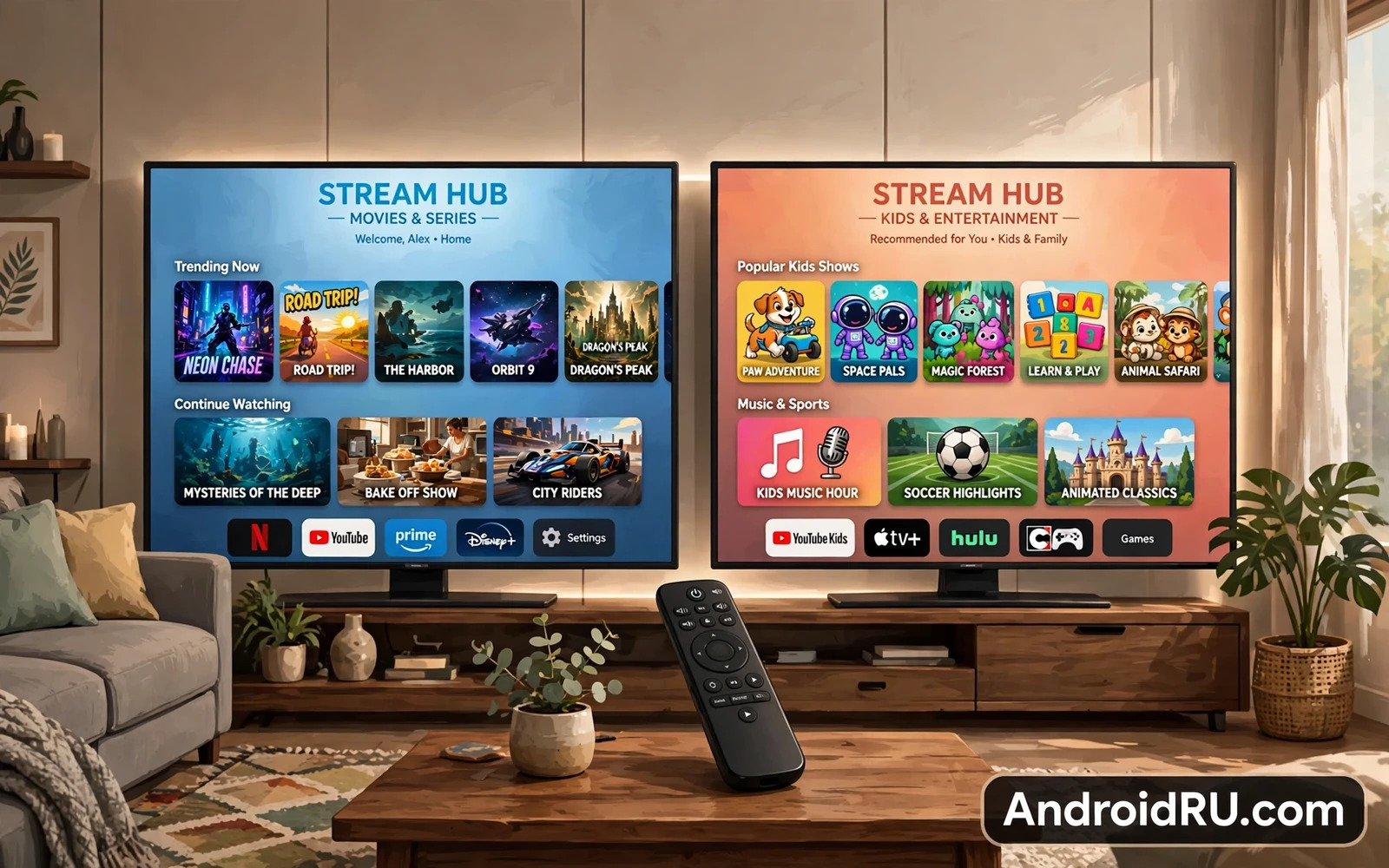
Smart TVs with Google TV vs Android TV OS Differences
Buying a smart TV in 2026 means choosing between two names that sound almost identical: Google TV and Android TV. They share the same foundation, run the same apps, and even look similar at first glance. Spend a week with each one, though, and the differences start to matter. One puts content first and apps second. The other puts apps first and leaves the browsing to you.
I have used both systems on living room TVs, on streaming sticks, and on projectors. The gap is not about power or speed. It is about how the home screen thinks. Google TV tries to answer the question “what should I watch tonight?” before you ask it. Android TV gives you a grid of apps and lets you decide. Both approaches work, and the right one depends on how your household actually watches television.
This guide compares the two systems side by side: the home screen, the apps, the profiles, the voice control, the hardware, and the real-world trade-offs. By the end, you should know which one fits your living room, and which one will annoy you within a month.
Google TV vs Android TV: What Actually Changed
Android TV launched in 2014 as Google’s television platform. It was built on Android, it ran Android apps, and its home screen was a set of horizontal rows: apps on top, then rows of recommended shows from each app. It was simple, fast, and honest about what it was: a launcher for streaming apps.
Google TV launched in 2020 on the Chromecast with Google TV. It is not a separate operating system. It runs on top of Android TV, on the same Android base, with the same Play Store and the same apps. What changed is the interface layer and the philosophy behind it. Google TV replaced the app grid with a content-first home screen. Instead of opening Netflix to find something to watch, you browse a For You feed that mixes Netflix, Disney+, Prime Video, and your other services into one list of shows and movies.
Think of it this way: Android TV is a shelf of apps, and Google TV is a TV guide that already knows what you like. The underlying engine is the same. The experience on top of it is not. Google has been moving new TVs to Google TV since 2021, while Android TV continues on older models, operator set-top boxes, and some budget TVs. Both are still sold today, and both will keep getting app updates for years.
Google TV: The Content-First Home Screen
Google TV organizes your evening around shows, not apps. Open the home screen and the first thing you see is a For You tab: big posters, a watchlist, trending titles, and recommendations based on what you have watched. You can browse by genre, check what is new, and see where a title is streaming before you ever open an app. It feels closer to flipping channels than to managing a phone home screen.
The For You tab and recommendations
The For You tab is the heart of Google TV. It pulls your viewing history from linked streaming services and builds a personal feed. The more services you link, the better it gets. A household that links Netflix, Disney+, and Prime Video will see a feed that mixes all three, with a small badge showing where each title lives. Tap a title and you see a detail page with a trailer, cast, ratings, and a button that jumps straight into the right app at the right episode.
The recommendation engine is genuinely good once it has a week or two of history. It learns that you watch documentaries on Tuesday and comedies on Friday, and it adjusts. The weakness is that it can feel pushy: sponsored rows and promoted titles sit next to your personal picks, and you cannot turn all of them off. If you prefer to choose for yourself without an algorithm in the way, the feed can feel like a shop window rather than a library.
Profiles, kids profiles and watchlists
Google TV supports multiple user profiles, and this is one of its biggest practical advantages. Each person in the house gets their own recommendations, watchlist, and viewing history. Your partner’s reality shows stop polluting your sci-fi recommendations, and your kids get a profile of their own with age-appropriate content and screen time controls.
Profiles also carry your Google account, so your YouTube subscriptions, your Google Photos, and your smart home controls follow you to the TV. Switch profiles from the top corner of the home screen and the whole interface reshapes itself. In a shared household, this single feature can be the difference between a feed that works and a feed that feels random.
Kids profiles on Google TV
A kids profile on Google TV is a separate, locked-down space. You pick an age range, choose which apps the child can open, and set a bedtime that locks the TV when the hour arrives. The home screen shows only age-appropriate shows, and the child cannot switch to an adult profile without your PIN. Parents can also approve or block specific titles from the Family Link app on their phone. It is the most complete parental control setup on either platform, and it is a strong reason to pick Google TV for a family living room.
Android TV: The App-First Platform That Still Ships
Android TV takes the opposite approach. Its home screen is a set of app icons at the top, followed by rows of content from each app. You pick Netflix, then you browse Netflix. You pick YouTube, then you browse YouTube. There is no master feed trying to guess what you want. The system gets out of the way and lets each app do its own job.
That simplicity is a real strength for some households. Older viewers, guests, and anyone who finds algorithmic feeds confusing will find Android TV easier to explain: here are your apps, tap one, watch something. There is less to learn, fewer sponsored rows, and fewer surprises. The trade-off is that discovery is weaker. If you do not know what you want to watch, Android TV will not help you find it. You have to open each app and browse on your own.
The home screen and app rows
The Android TV home screen is built from channels. Each app can publish a row of content: Netflix shows its top picks, YouTube shows your subscriptions, and the Play Store shows new apps. You can reorder these rows and turn off the ones you do not want, which gives you more control over the layout than Google TV allows. The app icons along the top can be rearranged too, so your most-used services sit first.
Performance is a plus here. Android TV runs well on modest hardware, and its simpler interface stays quick even on budget TVs with slower processors. A three-year-old Android TV box can still feel responsive, while the heavier Google TV interface can stutter on the same class of hardware. If you are buying a budget TV or a cheap streaming stick, the lighter system is worth considering.
Restricted profiles and the lean-back experience
Android TV handles families differently. Instead of full user profiles, it offers a restricted profile: a locked mode where you choose which apps are available and set a PIN to exit. It works, but it is cruder than Google TV profiles. There is no per-child recommendation feed, no separate watchlist, and no screen time schedule built in. It keeps a child inside approved apps, and that is about it.
The lean-back experience is where Android TV still shines for some viewers. The interface is calm, the rows are predictable, and nothing rearranges itself based on an algorithm. For a household that watches one or two services and does not want a feed, that calm is a feature, not a limitation.
Restricted profiles on Android TV
Setting up a restricted profile takes two minutes. Go to Settings, then Device Preferences, then Security and Restrictions, and create a restricted profile with a PIN. Choose the apps the profile can open, then switch into it. Exiting requires the PIN, so a child cannot wander into your apps. The limitation is that the profile shares your recommendations and watch history, so there is no clean separation between adult and child viewing.
Google TV vs Android TV Side by Side
The table below compares the two systems on the criteria that matter most in daily use. Both run the same Android base and the same apps, so the differences are about the experience layer, not the raw capability.
| Feature | Google TV | Android TV OS |
|---|---|---|
| Home screen focus | Content first: a For You feed mixing all your services | App first: app icons on top, content rows below |
| Recommendations | Personal feed built from all linked services | Per-app rows only, no cross-service feed |
| User profiles | Full profiles per person, with separate watchlists | One main profile plus a restricted profile |
| Kids controls | Kids profiles with age filters, bedtime, and Family Link | Restricted profile with app whitelist and PIN |
| Voice assistant | Google Assistant with content search and smart home control | Google Assistant, same core features |
| App access | Google Play Store with TV apps, games, and utilities | Google Play Store with the same TV app catalog |
| Updates | Regular interface updates, new features arrive first | Security and app updates continue, fewer new features |
| Typical hardware | New Sony, TCL, Hisense TVs and Chromecast with Google TV | Older TVs, operator boxes, budget TVs, projectors |
Read the table as a summary, not a verdict. Google TV wins on discovery and profiles. Android TV wins on simplicity and light hardware. The rest of this guide unpacks each row so you can weigh it against your own household.
Apps, Games and the Play Store on the Big Screen
Both systems run the same Google Play Store for TV, and the app catalog is identical. Netflix, Disney+, Prime Video, YouTube, HBO Max, Apple TV, Spotify, and Plex all run on both. If an app exists for Android TV, it exists for Google TV, because they are the same platform underneath. You will not lose an app by picking one over the other.
The difference is how you find apps. Google TV has an Apps tab and a search function that covers titles across services. Android TV has the same store, reached from the app row. Neither one is hard to use. The practical point is that your subscriptions matter more than the platform: a household with four streaming services will have the same four services on either system.
App availability and sideloading
Both platforms allow sideloading apps from outside the Play Store, though it takes a few extra steps and a file manager app. This matters if you use a regional streaming service, a local media player like Kodi, or a utility that is not in the TV store. The process is the same on both: enable unknown sources in Settings, install a file manager, and open the APK file. Power users who like to tinker will find both systems equally open.
One honest note: the TV Play Store is smaller than the phone Play Store. Some phone apps have no TV version, and a few services offer a limited TV app. That limitation applies equally to Google TV and Android TV, so it should not drive your choice between them.
Games and controllers
Both systems support Android TV games and Bluetooth controllers. You can pair an Xbox or PlayStation controller, install games from the Play Store, and play on the big screen. Cloud gaming services like GeForce Now and Xbox Cloud Gaming also run on both through their TV apps. Performance depends on your hardware and your internet connection, not on which of the two interfaces you use. A Chromecast with Google TV and a budget Android TV box will give you a similar gaming experience if the chips inside are similar.
Voice Control, Casting and Smart Home
Voice control is one area where the two systems are genuinely equal. Both have Google Assistant built in, and both answer the same commands: “play the latest episode of my show,” “pause,” “turn the volume down,” or “show the front door camera.” The Assistant can search across your streaming services on both platforms, and it can control smart home devices like lights and thermostats from the TV.
Google Assistant on both platforms
Press the microphone button on the remote and speak. The Assistant shows results on screen and can start playback without you touching the remote again. On Google TV, voice search leans on the content feed, so asking for a genre returns a mixed list from your services. On Android TV, the same search returns results app by app. The difference is presentation, not capability. Both understand the same commands, both handle follow-up questions, and both work with the same Google account.
Chromecast built-in
Both systems have Chromecast built in, which means you can cast video, music, and photos from your phone to the TV with one tap. Open YouTube or Netflix on your phone, tap the cast icon, and the video plays on the TV while your phone becomes the remote. This works identically on Google TV and Android TV, because it is a function of the Android base, not the interface layer. Guests can cast too, without signing into your TV, which makes it the easiest way to share a video in a group.
Hardware: Which TVs and Streaming Devices Ship Each One
Hardware is where the choice often makes itself. Since 2021, most new TVs from Sony, TCL, and Hisense ship with Google TV. If you buy a new mid-range or premium TV today, you will almost certainly get Google TV, whether you asked for it or not. Android TV now appears mainly on older stock, budget TVs, operator set-top boxes, and projectors from brands like Xiaomi and Epson.
Streaming devices follow the same pattern. The Chromecast with Google TV, in HD and 4K versions, is the reference Google TV device. The Nvidia Shield TV and Shield TV Pro still run Android TV, and they remain the most powerful Android TV boxes you can buy, with strong upscaling and gaming performance. Walmart’s Onn streaming devices and several budget sticks also run Android TV or Google TV depending on the model year.
Google TV hardware
Google TV hardware spans the full price range. The Chromecast with Google TV HD costs around $30 and is the cheapest way to get the full Google TV experience on any television. The 4K version adds Dolby Vision and Atmos support. Sony Bravia TVs ship Google TV with excellent picture processing, and TCL and Hisense offer Google TV at aggressive prices. If you want the newest interface and the best profiles, buy a 2023 or newer model and you will get it by default.
Android TV hardware
Android TV hardware is still worth buying in two cases. The Nvidia Shield TV Pro is the best Android TV box for power users, with AI upscaling that genuinely improves older content, strong codec support, and a fast processor that keeps the interface smooth for years. Budget Android TV sticks and boxes are also a good buy if you want a simple streamer for a bedroom or a guest room and do not need profiles or recommendations. Just check the Android version before you buy: a box running Android 11 or newer will get app updates for longer than one stuck on Android 9.
Which One Fits Your Household? A Verdict Per Use Case
There is no single winner here, and anyone who tells you otherwise is selling something. The right system depends on who watches, how many people share the TV, and how much you care about discovery versus simplicity. Here is the honest breakdown by household type.
Pick Google TV if you share the TV and love discovering new shows
Choose Google TV if three or more people share one television, if you subscribe to several streaming services, or if you often sit down without knowing what to watch. The profiles keep everyone’s recommendations clean, the For You feed surfaces shows you would never have found by browsing each app separately, and the kids profiles are the best parental controls on either system. This is the right pick for most family living rooms in 2026.
Google’s ecosystem stretches beyond the television, and the same account that powers your TV also connects your other devices. If you already use smartwatches compatible with Android phones, Android Auto head units for upgrading your car, or Android tablets for digital artists and note-takers, Google TV fits naturally into that same account and the same Assistant. The TV becomes one more screen in a household that already runs on Google services.
Pick Android TV if you want a simple, fast, app-first television
Choose Android TV if you watch one or two services, if the TV is for an older viewer or a guest room, or if you are buying a budget device where the lighter interface will feel faster. The app grid is easy to explain, there is no algorithm rearranging your home screen, and the system runs well on modest hardware. The Nvidia Shield TV is the strongest argument for staying on Android TV: it is the most capable box on either platform, and its interface is exactly the calm, predictable one described above.
What if you already own one of them?
If your current TV runs Android TV and works fine, there is no urgent reason to replace it. Google still updates the apps, the Play Store still works, and your subscriptions are unaffected. When the TV eventually needs replacing, the new one will almost certainly run Google TV, and the change will feel like a redesign rather than a loss. If your current TV runs Google TV and you miss the old app grid, try the Apps tab: it gives you a simple list of your apps without the feed, and it is the closest thing to the Android TV layout inside the newer system.
Frequently Asked Questions About Google TV and Android TV
Can I update an Android TV to Google TV?
Usually not. Google TV is an interface layer that ships with the device, and manufacturers do not offer it as an upgrade for older Android TV models. A few TVs received a new home screen that looks similar, but the full Google TV experience with profiles and the For You feed requires a device that shipped with it. The practical upgrade path is a streaming stick: a Chromecast with Google TV costs around $30 and turns any TV with an HDMI port into a Google TV.
Do Google TV and Android TV run the same apps?
Yes. Both run the same Google Play Store for TV and the same app catalog. Netflix, Disney+, Prime Video, YouTube, Spotify, Plex, and every other major TV app work identically on both. The difference is the home screen and the profiles, not the apps. Your subscriptions and your watch history inside each app carry over either way.
Which one is better for kids?
Google TV is clearly better for children. Its kids profiles offer age filters, a bedtime lock, app controls, and Family Link integration from your phone. Android TV restricted profile keeps a child inside approved apps, but it has no separate recommendations, no bedtime schedule, and no per-child watchlist. For a family living room, Google TV is the safer and more complete choice.
Does Google TV cost more than Android TV?
No. Neither system has a price of its own. You pay for the television or the streaming device, and the software is included. A Chromecast with Google TV HD costs around $30, and budget Android TV sticks cost about the same. Premium TVs with Google TV cost more because of the panel and the picture processing, not because of the software inside.
The Bottom Line for Your Next TV
Google TV and Android TV are the same platform wearing two different home screens. Google TV bets that you want the television to choose for you, with a personal feed, real profiles, and strong kids controls. Android TV bets that you want to choose for yourself, with a simple app grid that stays out of the way. Both bets are reasonable, and both systems run the same apps on the same foundation.
Before you buy, answer one question: how many people share this TV? If the answer is one or two, and you know what you watch, Android TV will serve you well. If the answer is a whole household, with different tastes and children in the mix, Google TV is the better pick. And if you are still unsure, the cheapest test costs $30: plug a Chromecast with Google TV into your current television, live with the For You feed for two weeks, and see whether you miss the old app grid or wonder how you lived without it.

