

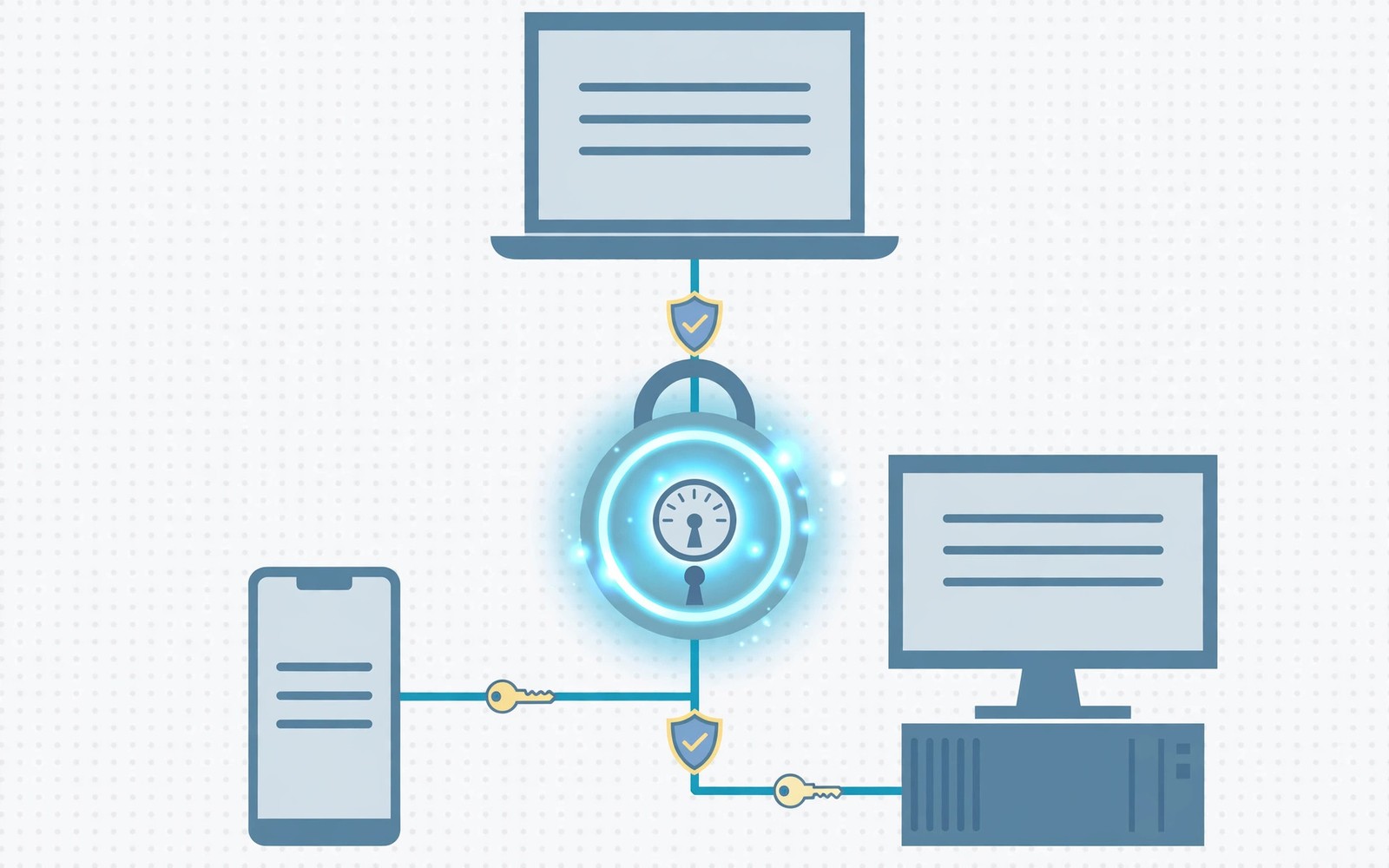
Passwords live on every device you own. Remembering unique passwords for each site is impossible. A shared password manager solves this safely. One vault follows you across phone and computers.
You unlock the vault with one strong master password. The manager fills logins on each device. It also creates strong random passwords for new accounts. This guide sets up a vault you can trust. Readers who want a wider view can also explore cloud workspace documents for a related setup.
Why One Vault Beats Many Lists
Scattered password notes create risk and confusion. A sticky note or a plain text file leaks easily. A vault encrypts every entry with your master key. Only you can open it with that key.
One vault also means one update point. Change a password once and all devices learn it. No stale copies linger on old devices. Consistency is a quiet security win.
Choosing a Password Manager
Pick a manager with apps for all your platforms. Check Android autofill support first. Check browser extensions for Windows and macOS. A missing platform breaks the whole flow.
Open source and audited tools deserve a close look. Read recent security audit summaries. Check how the company handles breaches. A clear record matters more than flashy features.
Setting Up the Vault
Create a long master password you can remember. A phrase of random words works well. Store a written copy in a safe place. Losing the master password can lock the vault.
Enable two factor authentication for the vault account. An authenticator app beats SMS codes. Save recovery codes offline as well. Test recovery before you depend on it.
pass init my-vault
# example local vault setup
# use your manager app for daily use
# store recovery codes offline only
The snippet above follows standard operating system documentation and widely shared setup guides. It shows a typical pattern rather than a vendor specific promise. Results can vary by device model and system version. Always test a small change before you rely on it daily.
Autofill on Phone and PC
Enable autofill service on Android in settings. Pick your manager as the autofill provider. On PCs install the browser extension. Logins then fill with one tap or click. A related workflow is covered in clipboard sharing for readers who want more depth.
If autofill misses a field then save the login by hand. Open the vault and add the site details. Test the entry on the next visit. Manual saves fix most autofill gaps.
Passkeys and the Future
Passkeys replace passwords with device based keys. They resist phishing far better than passwords. Many managers now store passkeys too. Your vault can sync passkeys across devices.
Passkeys still vary by site support today. Keep passwords for sites without passkeys. Migrate high value accounts first. Email and banking deserve passkeys early.
Sharing Passwords Safely
Family sharing lets trusted people access shared logins. Share single entries and not the whole vault. Revoke access when circumstances change. Shared access needs periodic review.
Never share passwords through chat or email. Vault sharing encrypts the transfer end to end. Chat copies linger in backups and logs. A vault share leaves no plain text trail.
Recovery Habits That Protect You
Test vault access on a second device monthly. A working second device proves recovery works. Update emergency access contacts yearly. A vault you cannot open helps no one.
Master Password Strategies That Work
A master password must be long and memorable. Four random words beat complex gibberish often. Random words resist guessing attacks well. Avoid famous quotes and song lyrics. Attackers try those patterns first always. Personal random words work best for memory.
Never reuse the master password anywhere else. Reuse defeats the whole vault purpose. A breach elsewhere could expose the vault. Unique master passwords isolate damage effectively. Write the master password on paper securely. Paper in a safe beats digital notes.
Migrating from Browser Saved Passwords
Browsers save passwords conveniently but weakly. Export browser passwords before migration carefully. Import them into the dedicated manager next. Then delete browser stored copies promptly. Leaving copies defeats migration benefits. Verify import counts match export counts.
Browser password managers lack advanced features often. They miss secure notes and identity storage. Dedicated managers offer watchtower breach alerts. Breach alerts warn when sites leak passwords. Act on alerts by changing affected passwords. Migration is worth the afternoon effort.
Family Plans and Shared Vaults
Family plans cover several vaults under one bill. Each member keeps a private vault separate. Shared vaults hold family streaming logins. Children get limited vaults with supervision. Review child vault access as they grow. Graduated access teaches responsibility gradually.
Emergency access lets a trusted person open vaults. Set a waiting period for emergency requests. You can decline false requests during waiting. Genuine emergencies proceed after waiting ends. Test emergency access with a trusted person. Untested emergency plans fail when needed.
Passkeys Versus Passwords in Practice
Passkeys use device biometrics for login approval. Fingerprint or face unlock confirms identity. No typed secret travels to the site. Phishing sites cannot steal a passkey easily. This design beats passwords fundamentally. Adoption grows as more sites support passkeys.
Passkey recovery depends on vault sync quality. A lost device without sync loses passkeys. Sync passkeys through your password manager. Test recovery on a second device early. A second device proves sync works truly. Never rely on a single device for passkeys.
Auditing Vault Health Regularly
Vault health reports flag weak and reused passwords. Review the report monthly for worst offenders. Change reused passwords for banking first. Then change reused passwords for email accounts. Email access unlocks many password resets. Prioritize email security above all else.
Old breached passwords need immediate changes. Breach reports list affected sites clearly. Change those passwords even if the site seems minor. Attackers test leaked passwords everywhere automatically. Minor sites become entry points to major accounts. Act on every breach alert promptly.
Traveling with a Password Manager
Border crossings raise device search concerns. Some travelers use a travel vault subset. A subset vault holds only trip logins. The main vault stays locked during travel. Restore full access after returning home. Travel vaults limit exposure during searches.
Offline vault access matters during flights. Download the vault before departure always. Offline mode allows logins without signal. Test offline access in airplane mode first. A failed offline test before travel is fixable. A failed test during travel is stressful.
Password Manager Browser Extensions
Browser extensions bring vaults into web browsing. Extensions detect login fields automatically. One click fills credentials securely. Extensions also save new logins promptly. Save prompts appear after successful logins. Accept saves only for correct credentials. Wrong saves create confusing vault entries.
Extension security depends on browser security overall. Malicious extensions threaten vault data potentially. Install extensions only from official stores. Review extension permissions carefully always. Excessive permissions signal risky extensions. Trusted managers request minimal permissions reasonably.
Biometric Unlock Across Devices
Biometric unlock speeds vault access dramatically. Fingerprints unlock phone vaults instantly. Face unlock works on supported PCs. Windows Hello integrates with many managers. Biometrics replace typing long master passwords. Master passwords still needed occasionally for security. Biometrics complement and never replace master passwords fully.
Biometric data stays on devices locally typically. Managers do not upload fingerprint templates. Local storage protects biometric privacy strongly. Device theft still needs master password protection. Biometrics alone cannot open vaults after restarts. Restart security requires master password entry. Layered unlock balances convenience and safety.
Secure Notes Beyond Passwords
Vaults store secure notes beyond login credentials. Store Wi-Fi passwords in secure notes. Store software licenses there too. Store membership numbers for quick reference. Secure notes encrypt like passwords fully. Centralized secure notes replace scattered paper. One vault holds digital life details safely.
Organize secure notes with folders and tags. Folders separate work and personal notes. Tags enable cross folder searching quickly. Search finds notes faster than browsing. Consistent tagging improves retrieval dramatically. Tag notes during creation for best results. Retrospective tagging rarely happens reliably.
Password Managers for Teams
Team vaults share credentials among colleagues securely. Role based access limits sensitive credentials. Admins control who sees each vault. Departing employees lose access immediately. Immediate revocation prevents credential misuse. Audit logs track vault access history. Logs support compliance and investigations effectively.
Shared credentials should rotate after staff departures. Rotation prevents ex employees retaining access. Automate rotation reminders for shared items. Manual rotation tracking fails at scale. Scheduled rotations protect team accounts continuously. Rotation discipline is team security hygiene.
Offline Vault Access and Backups
Offline vault copies enable logins without internet. Download vaults to each device proactively. Offline copies sync when connectivity returns. Conflicts resolve through latest change wins. Avoid editing offline copies simultaneously. Simultaneous edits create sync conflicts unnecessarily. Sequential edits keep vaults consistent cleanly.
Encrypted vault backups protect against service outages. Export encrypted backups periodically to local drives. Store backups away from primary devices. Test backup restoration annually at minimum. Untested backups fail during emergencies often. Restoration tests prove backup validity truly.
Password Manager Emergency Kits
Emergency kits contain vault recovery information securely. Print kits and store them safely offline. Safes and lockboxes suit kit storage. Kits include master passwords and recovery codes. Family members may need kits during emergencies. Explain kit locations to trusted persons. Unexplained kits help no one during crises.
Update emergency kits after master password changes. Outdated kits mislead during emergencies badly. Review kits annually for accuracy always. Annual reviews take minutes but matter enormously. Treat kits like insurance policies requiring maintenance. Maintained kits provide genuine emergency protection. Neglected kits provide false confidence dangerously.
Password Managers and Two Factor Codes
Many managers store two factor codes alongside passwords. Combined storage simplifies logins considerably. It also creates single point failure risks. Vault breaches expose passwords and codes together. Separate authenticator apps reduce combined risk. Security conscious users separate factors deliberately. Convenience versus separation is personal tradeoff.
Authenticator apps on separate devices offer isolation. Phone authenticators complement PC vaults nicely. Device loss affects only one factor. Recovery remains possible through other factor. Separation complicates daily logins slightly. Slight friction buys meaningful security improvement. Evaluate tradeoff by account sensitivity levels.
Start with one small change today and build from there. A steady setup beats a rushed overhaul every time. You can also read smart home sync to round out your plan. Once the basics feel natural you can add more advanced options at your own pace.

