

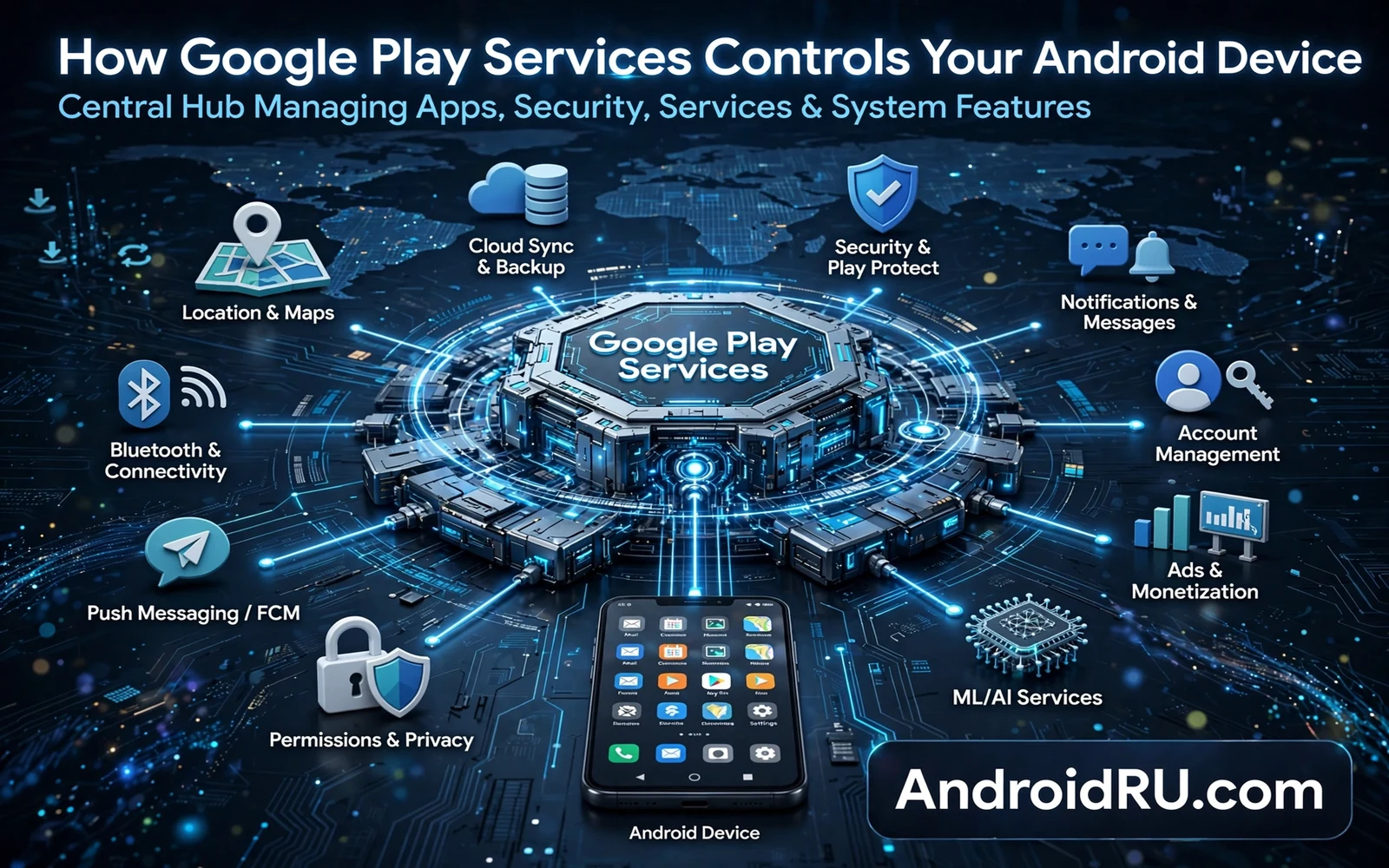
What Play Services Actually Is
Google Play Services is a shared layer that sits between Android apps and the core system. It provides location and maps and sign in and push messages and payment checks and safety checks through one updated package. Apps call this layer instead of building each feature from scratch. That sharing keeps apps smaller and it keeps behaviour consistent across phones from different makers.
Play Services is not the same as the Play Store app even though the names sound close. The Store sells and updates apps. Play Services runs background features that apps rely on. You can see both in settings but they serve different roles. Disabling the Store mainly affects app installs while disabling Play Services can break many apps at once because so many apps depend on its shared features.
Why So Many Apps Depend on It
Location is a clear example. An app that needs a map or a nearby search can ask Play Services for location with battery aware rules. The layer fuses GPS and Wi-Fi and sensors into one result. Without that layer each app would need its own location logic and battery use would rise. Push messages work the same way. One connection serves many apps so the phone does not need a separate always on link per app.
Sign in and safety checks also run through the layer. An app can offer sign in with a Google account without storing passwords itself. A payment app can ask the layer to confirm device integrity before it trusts a transaction. Those shared checks raise the baseline for many apps at once. When the layer updates the checks improve for all apps that use it without each app needing its own update.
System updates still follow a separate path and how Android system updates work behind the scenes explains how full system packages differ from the faster service updates that Play Services can deliver.
How Play Services Updates Without a System Update
Play Services updates through the Store infrastructure on most certified phones. That path lets Google ship fixes and new features without waiting for a maker system update. A location fix or a security check improvement can reach phones in days rather than months. That speed is a major reason why the layer exists. It decouples shared features from slow system rollout queues.
The update still respects device and account state. A phone that is offline will update when it reconnects. A phone with restricted background data may delay the update. A phone with a work profile may follow admin rules for the update. The layer cannot force an update through a hard network block but it will retry when conditions allow.
What Control It Has Over Apps and Settings
Play Services can enforce device integrity checks that apps request. A banking app can refuse to run when the device fails those checks. A game can refuse rewards when the device looks altered. Those decisions belong to each app but the layer supplies the signal that the app trusts. That signal shapes what a rooted or altered phone can do with sensitive apps.
The layer also manages location history settings and ad settings and account sync in concert with system settings. Turning off a setting in one place may still leave a related setting on in another place. Users who want tight privacy must check both system privacy settings and account settings. A single toggle rarely covers every path that data can take.
Future platform shifts may change how shared services work and the future of Android predictions for the next five years sketches trends in privacy and on device processing that could reshape shared layers over time.
Privacy Controls You Can Actually Use
Open Settings and open Location and review which apps use location through the shared layer. Change broad access to only while in use for apps that do not need constant tracking. Open Privacy settings and review ad personalisation and turn it off when you prefer less tailored ads. Open account settings and review activity controls for web and location history when you use a Google account.
Clearing Play Services data is a blunt tool. It can sign you out of apps and can reset location history state and can force many apps to recheck permissions. Use it only as a troubleshooting step after simpler steps fail. A clearer path is to adjust per app permissions and per account controls first. Those targeted steps protect privacy without breaking the shared layer for every app at once.
Hidden profiles still rely on shared services beneath the surface and Android Private Space feature complete setup guide notes why a separate app area does not remove the shared layer that runs below it.
When Play Services Misbehaves
Battery drain blamed on Play Services often comes from an app that asks the layer for location or push updates too often. Check battery usage by app first and look for the app that triggers the layer. Restrict background use for that app rather than disabling the whole layer. Clearing cache for Play Services can help after a failed update but it rarely fixes a drain caused by a misbehaving app.
Repeated sign in prompts often point to account sync trouble rather than to a broken layer. Check account sync state and check network time settings because a wrong clock can break secure sign in. Restart the phone after a Play Services update when apps show odd errors. A restart clears stale service state and it lets apps reconnect to the fresh layer cleanly.
What Happens If You Disable It
Disabling Play Services will break maps and push messages and sign in for many apps. Some apps will refuse to open and some will show a prompt asking you to enable the layer. Payment apps and ride apps and mail apps are among the most affected. The phone itself will still make calls and send texts but the app ecosystem around it will degrade fast.
Some users on de Googled builds live without the layer by choice and they accept those limits. That choice needs alternative app sources and alternative push handling. It is not a casual toggle for a normal phone. For most users the safer path is to limit permissions and account controls rather than to disable the layer that so many daily apps need.
Daily settings can reduce the footprint of shared services without breaking them and essential system settings you should change on new Android phones covers the lock and permission and battery choices that pair with service controls.
How Play Services Handles Location Requests
Location requests flow through fused providers that combine GPS and Wi-Fi signals and sensor data into one estimate. An app asks for a location with an accuracy level and the layer picks the cheapest method that meets that level. A weather app that needs only a city level fix will not trigger GPS. A navigation app that needs street level fixes will trigger GPS and will drain more power. That tiered approach keeps location useful without running the most expensive sensor for every request.
Users can shape location behaviour per app without turning location off for the whole phone. Set precise location only for apps that truly need it such as maps and ride apps. Set approximate location for apps that need only a region such as weather and news. Deny location for apps that work without it. Those three choices cover most apps and they cut both battery use and privacy exposure at the same time.
Play Services and App Safety Signals
Safety signals help apps decide whether to trust the device for sensitive actions. A banking app may check device integrity before it shows balances. A streaming app may check integrity before it plays protected content. A game may check integrity before it grants rewards that have real value. Those checks do not scan personal files. They check system state signals that indicate tampering or an altered boot chain. Users on stock phones pass those checks without thinking about them.
When a check fails the app shows its own message and its own remedy. Some apps ask for a system update. Some apps ask to remove a conflicting app. Some apps simply refuse the sensitive action while still allowing basic use. Users should follow the app message rather than searching for a bypass. A bypass that fakes a safety signal can expose money and accounts to real harm and it can break future updates for the whole phone.
How Play Services Supports Wearables and Cars
Wearables and cars extend Play Services beyond the phone screen. A watch that shows phone notifications relies on the shared layer to forward alerts reliably. A car display that shows maps relies on the layer for location and routing data. Those extensions share the same update path as the phone layer so a fix for phone location can also improve watch and car behaviour. Users who notice a watch alert fault should check phone service state before blaming the watch itself because the phone layer often carries the fault.
Pairing new devices also runs through shared services. Fast pairing finds nearby headphones and watches and offers a one tap setup. That convenience depends on the layer running with proper permissions for nearby devices and Bluetooth. When pairing fails check those permissions before resetting the accessory. A permission denied during setup is a common cause of pairing failure and it is far easier to fix than a hardware fault that users often assume first.
A Simple Monthly Check for Shared Services
Once a month open battery usage and location permissions and account sync in turn and look for surprises. A new app that gained broad location access deserves a change to while in use. An app that drains battery through background location deserves a restriction. A sync account that you no longer use deserves removal. That monthly check takes five minutes and it keeps the shared layer honest about what it does for you.
- Keep Play Services updated for security and app stability
- Limit location to while in use for most apps
- Review ad and activity controls in account settings
- Check battery use by app before blaming the shared layer
- Clear cache before you consider clearing service data
- Do not disable the layer on a normal daily phone
Warning: Never disable Play Services as a quick battery fix. The fix can break banking and mail and maps at the same time. Never clear all service data without a backup of accounts and app sign in state. If a guide tells you to disable the layer to bypass a safety check then treat that guide as unsafe for a phone that holds money or work data.

