

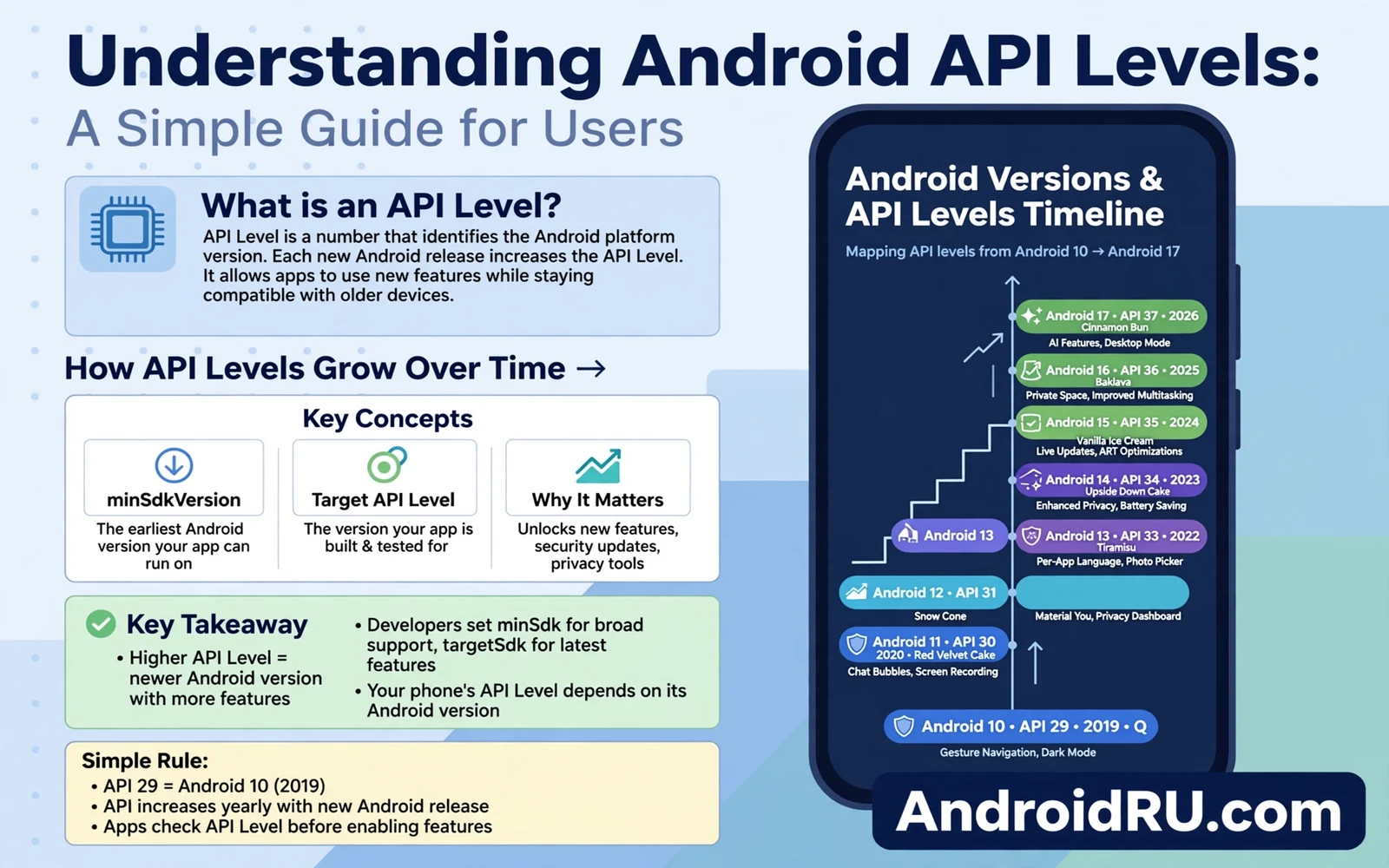
Understanding Android API Levels: A Simple Guide for Users
My cousin bought a three-year-old phone because the camera looked great and the price looked better, then spent a week wondering why two apps he wanted would not install. The listing said they needed Android 12 or newer. His phone ran Android 11. The seller had not lied about the camera, and the phone was not broken. It was simply stuck on an older API level, and that number, more than any spec on the box, decided which apps he could use. If you have ever seen a message that says this app requires a newer version of Android, you have met an API level in the wild.
An API level is a single number that tells apps which Android system they are running on. Developers use it to decide which features they can call and which rules they must follow. Users can use it to judge how modern a phone is, how long it will keep getting new apps, and whether an install failure is a real problem or a simple mismatch. This guide explains the number in plain language, gives you the full table from the early versions to Android 16, and shows you how to check your own level in under a minute.
You do not need to code to use this knowledge. You need one number, one table, and a habit of checking the number before you buy a phone or blame an app. That habit saves money, because a cheap phone on an old level can cost more in lost apps than a slightly dearer phone on a current one.
What an Android API Level Actually Means
An API level is an integer that marks a set of system interfaces. An interface is a tool an app uses to talk to the system: a camera interface to take a photo, a location interface to find where you are, a media interface to play a video, and a file interface to save a document. Each major Android version adds a new level, and each new level can add interfaces, change old ones, and retire ones that are no longer safe. An app declares the levels it supports, and the system checks that declaration before it installs the app.
Two numbers matter, and people mix them up. The minimum level, called minSdk, sets the oldest system that can install the app. The target level, called targetSdk, sets the system behaviour the app expects. An app with a low minimum level installs on many old phones. An app with a high target level follows modern rules on new phones, such as one-time permissions and partial photo access. A developer balances reach against modern behaviour when they choose those values, and that balance shapes what you see on screen more than most users realise.
Levels rise with major versions and never go backwards for a major release. A monthly security patch does not change the level. A minor update usually does not change it either. A move from Android 13 to Android 14 raises the level from 33 to 34, and that single step brings new permission rules, new media tools, and new privacy controls. That is why a level change marks a real system step, while a patch without a level change marks a focused fix.
Minimum level versus target level
The minimum level is a floor. If your phone sits below it, the app will not install, and Google Play will hide the listing from you entirely. The target level is a promise. It tells the system which set of rules to apply when the app runs. An app that targets a modern level gets modern permission prompts. An app that targets an old level may get older behaviour for compatibility, which can weaken a privacy control. That difference explains a puzzle many users notice: two apps on the same phone ask for permission in different ways, and the difference is often their target level, not their trustworthiness.
Why one number beats a version name
Version names are marketing labels. API levels are technical facts. Android 12 and Android 12L look similar, and they sit on levels 31 and 32. Android 10 dropped dessert names entirely, so the name alone tells you nothing about what changed underneath. The level number removes that confusion. A support helper who knows your level can diagnose a problem in seconds. A developer who knows it can check which interfaces exist. A buyer who knows it can compare two phones from different makers with one number, because the level means the same thing on a Pixel, a Samsung, and a Xiaomi. That shared meaning comes from a shared base, and the Android open source foundation defines the framework those levels describe, so every maker builds on the same numbering.
Android API Levels by Version: The Complete Table from API 21 to API 36
The table below covers the versions most phones in use today, plus the early milestones that set the numbering. Use it to translate a version name into a level, and a level back into a version name. Keep it open while you read the rest of this guide, because every example below points back to a row here.
| API level | Android version | Dessert name | Year | What users noticed |
|---|---|---|---|---|
| 21 | 5.0 Lollipop | Lollipop | 2014 | Material Design, new look |
| 22 | 5.1 Lollipop | Lollipop | 2015 | Small fixes, HD voice |
| 23 | 6.0 Marshmallow | Marshmallow | 2015 | Runtime permissions arrive |
| 24 | 7.0 Nougat | Nougat | 2016 | Split screen, quick replies |
| 25 | 7.1 Nougat | Nougat | 2016 | App shortcuts |
| 26 | 8.0 Oreo | Oreo | 2017 | Notification channels |
| 27 | 8.1 Oreo | Oreo | 2017 | Neural network tools |
| 28 | 9 Pie | Pie | 2018 | Gesture navigation, Digital Wellbeing |
| 29 | 10 | None, Quince Tart internally | 2019 | Dark theme, scoped file access begins |
| 30 | 11 | None, Red Velvet Cake internally | 2020 | One-time permissions, chat bubbles |
| 31 | 12 | None, Snow Cone internally | 2021 | Material You, privacy dashboard |
| 32 | 12L | None, Snow Cone internally | 2022 | Large-screen and foldable support |
| 33 | 13 | None, Tiramisu internally | 2022 | Photo picker, per-app language |
| 34 | 14 | None, Upside Down Cake internally | 2023 | Partial photo access, stricter background rules |
| 35 | 15 | None, Vanilla Ice Cream internally | 2024 | Private space, satellite messaging support |
| 36 | 16 | None, Baklava internally | 2025 | Live updates, desktop windowing on large screens |
Before API 21, the numbering runs from API 1 for Android 1.0 in 2008, through Cupcake at API 3 in 2009, Donut at API 4, Eclair at API 5 to 7, Froyo at API 8 in 2010, Gingerbread at API 9 to 10, Honeycomb at API 11 to 13 in 2011, Ice Cream Sandwich at API 14 to 15, Jelly Bean at API 16 to 18, and KitKat at API 19 in 2013. Those early phones are gone from daily use now, and almost no current app supports them. If you still own one, treat it as a museum piece with Wi-Fi off, because it receives no security patches and most modern apps will not install on it.
How to read the table in ten seconds
Find your Android version, read across to the level, and remember that number. If your phone runs Android 14, your level is 34. If it runs Android 13, your level is 33. If it runs Android 11, your level is 30. Now compare that number with an app requirement. An app that needs API 31 will install on Android 12 and newer, and it will refuse Android 11. An app that targets API 34 will follow Android 14 rules on your phone, and it will follow older rules on an older phone only where the system allows compatibility. That one comparison explains most install failures without any deeper diagnosis.
The dessert names Google stopped using
Google named Android versions after desserts in alphabetical order until Android 9 Pie, then switched to plain numbers from Android 10 onward, while keeping dessert names as internal codenames. Lollipop, Marshmallow, Nougat, Oreo, and Pie were public names. Quince Tart, Red Velvet Cake, Snow Cone, Tiramisu, Upside Down Cake, Vanilla Ice Cream, and Baklava are internal names for Android 10 through 16. The change made version numbers clearer for users, and it made the API level even more useful, because the level never depended on a dessert name in the first place.
What API 34 Android 14 Changed for Everyday Users
API 34, which arrived with Android 14 in October 2023, changed daily life in ways users could feel. The biggest change was partial photo access: an app can now ask for only the photos you pick, instead of your whole library. Tap Select photos, choose the five pictures the app needs, and the rest of your gallery stays private. That single prompt is the clearest example of how a target level changes behaviour, because an app that targets API 34 must offer that choice, while an older app may still ask for full access.
Android 14 also tightened background work. Apps can no longer start a foreground service from the background as freely as before, and they must declare the type of work they do, such as media playback or data sync. The result is fewer mystery battery drains from apps you have not opened in days. It also blocked the install of very old apps that target API 22 or lower, unless you sideload them with a special command, because those apps predate runtime permissions and modern security rules. A phone that moves to API 34 therefore gets quieter background behaviour and stronger photo privacy in the same update.
API 33 Android 13 and the photo picker
API 33, Android 13 from August 2022, brought the system photo picker, per-app language settings, and a new notification permission. The photo picker lets you share a picture without giving the app access to your whole gallery, and it works even in apps that target older levels, because the picker itself is a system tool. Per-app language lets you run one app in English and another in Indonesian, which matters for bilingual households. The notification permission means a new app must ask before it can send you notifications, so a fresh install no longer buzzes you by default. Each of these changes arrived with the level, and each one is a reason a phone on API 33 feels calmer than a phone on API 30.
API 35 Android 15 and what came next
API 35, Android 15 from October 2024, added Private Space, a locked area for sensitive apps, and partial screen sharing, so you can share one app in a call instead of your whole screen. It also improved satellite messaging support and gave apps better tools for large screens. If you are weighing a move between versions, the comparison in Android 15 versus Android 14 weighs privacy, battery, and support for phones that move between those versions, and it is worth reading before you accept a major update on an older phone. The new Android 15 features for your phone list covers the same ground feature by feature, so you can check whether the new tools matter to how you actually use your phone.
Why Apps Require a Minimum API Level
Apps require a minimum level because they need interfaces that older systems simply do not have. A camera app that uses a new night mode tool cannot run on a system that never shipped that tool. A video app that uses a new codec cannot play that format on an old decoder. A banking app that relies on a new biometric interface cannot verify a fingerprint the old way. A minimum level prevents a broken install: the system checks the number, refuses the install cleanly, and the user sees a clear message instead of a crash on first launch.
Minimum levels also protect developers from endless old-system testing. Testing every level back to API 21 costs time, devices, and support hours. A developer who drops very old levels can focus on modern behaviour and fix bugs faster. Most developers drop old levels gradually, as users move to newer phones, and that gradual drop keeps most users supported while freeing developer time. That said, the drop hurts when it lands on your phone. An app update may refuse to install, an old version may keep working for a while without security fixes, and Google Play may hide a new app from your phone entirely. Those effects are a signal that the system is ageing beyond app support, not a punishment.
What happens to an old app when the level rises
An old app that targets a low level may keep running on a new phone, and it may behave oddly. It may ask for permissions in the old way, it may request broad file access that modern apps cannot get, and it may drain battery in the background because it predates modern background limits. Google Play policy pushes developers to raise target levels on a schedule, and new apps must target a recent level to be listed at all. An app with no update for years likely targets an old level, and an old target level may miss modern privacy controls and modern security fixes in the app code. Prefer a maintained app with a recent target level when a choice exists. A maintained app receives fixes that an abandoned app never receives.
Why raising the minimum is honest
Raising a minimum level reflects real technical limits. An app cannot use a new interface on a system that never had it, and it cannot follow a new privacy rule on a system that never enforced it. A developer who fakes support for an old level risks crashes and data problems, and a clear minimum level is more honest than a broken install. If an app you rely on raises its minimum above your phone, check whether the maker still offers an older version for your level, and check whether your phone has a system update waiting. If neither helps, that is the moment to plan a phone change, not to sideload a hacked version that may carry malware.
Target API Level, Privacy Rules, and Play Policy
Target level shapes permission behaviour in a direct way. A modern target brings one-time permission choices, so you can grant location for one session and the system revokes it when you leave the app. A modern target brings partial media access, so an app sees only the photos you pick. A modern target brings stricter background location rules, so an app cannot track you in the background without a clear, separate grant. An app that targets an old level may still ask in older ways on a new phone for compatibility, and that older way can weaken a privacy control you thought you had.
File rules follow target levels too. Modern file rules limit broad access to shared folders and push apps toward their own folders and files you choose yourself. An app that targets a modern level must respect those limits. An app that targets an old level may receive broader access for compatibility, and broad access can expose more files than the app needs. Background work follows the same pattern: modern rules limit background services more firmly and push apps toward scheduled work, so an app that targets a modern level must handle background limits gracefully, while an app that targets an old level may drain battery faster on a new phone. Battery behaviour can reveal an old target level even when the app looks modern, because the system applies the old rules the app asked for.
How Google Play enforces target levels
Google Play requires new apps and app updates to target a recent level, and the required level rises each year, usually to the level from the previous August. An app that misses the deadline cannot publish an update until it raises its target. That rule pushes the whole catalogue toward modern privacy and security behaviour, and it pushes abandoned apps out of the listing over time. Users benefit, because the apps they find follow current rules, and developers benefit, because the rule applies to everyone. Check the listing for an app before you install it: the About section shows the version, and the update date shows whether the maker still maintains it.
Permissions that change with target level
- Location: modern targets get one-time and approximate location options, while old targets may get a single permanent grant.
- Photos and video: modern targets use the photo picker and partial access, while old targets may ask for the whole media library.
- Notifications: modern targets must ask before they can notify you, while old targets may notify by default.
- Background work: modern targets face strict limits on background services, while old targets may run longer in the background.
- File access: modern targets use scoped folders and user-chosen files, while old targets may read shared folders broadly.
How to Check Your API Level on Your Phone
Checking your level takes under a minute, and there are three ways to do it. The first way uses Settings, and it works on every phone. The second way uses a small system info app, and it shows the number directly. The third way uses a developer tool, and it is the most precise. Pick the first way unless you enjoy the other two.
- Open Settings, then tap About phone. On Samsung phones, tap Settings, then About phone, then Software information.
- Look for Android version. The number next to it is your version, such as 14 or 13. Some makers show the API level directly on this screen, often as SDK or API level.
- If the maker shows only the version name, tap Android version once or twice. Some phones open a detail screen with the level, the security patch date, and the build number.
- Translate the version to a level with the table above. Android 14 is API 34, Android 13 is API 33, Android 12 is API 31, Android 11 is API 30, and Android 10 is API 29.
- Write the number down, or take a screenshot, so you can compare it with an app requirement later without opening Settings again.
Checking with a system info app
A system info app such as DevCheck or AIDA64 shows the API level on its main screen, next to the Android version and the security patch date. Install one from Google Play, open it, and look for API level or SDK version. This way is handy when a maker hides the number in Settings, and it also shows the patch date, which matters as much as the level. A phone on API 34 with a patch from two years ago is weaker than a phone on API 33 with a patch from last month, because patches fix flaws inside the level.
Checking with a developer tool
If you have a computer and a USB cable, the developer tool gives the exact number with one command. Turn on Developer options by tapping Build number seven times in About phone, turn on USB debugging, connect the phone, and run adb shell getprop ro.build.version.sdk. The tool prints a single number, such as 34. That number is your API level, with no translation needed. You do not need this method for daily use, and it is worth knowing when you help a family member by message, because you can ask them to run one command instead of guessing from a screenshot.
What the patch date tells you
The security patch date sits next to the version in About phone, and it tells you whether the maker still fixes flaws inside your level. A current patch date means the maker still ships monthly fixes. A patch date more than six months old means support has slowed or stopped, even if the level looks modern. Check both numbers together: level for app support, patch date for safety. A phone with a high level and an old patch is a fast car with worn brakes.
When the maker hides the number
Some makers hide the API level and show only the version name and a marketing label such as One UI 6.1 or HyperOS 2.0. Those labels are the maker skin version, not the Android level, and they can mislead you: two phones on One UI 6.1 can sit on different API levels. When the number is hidden, use a system info app or the developer command above. Never guess the level from the skin version, because the skin and the level move on different schedules.
API Levels When You Buy a New Phone
Use the API level as one signal when you buy a phone, not the only signal. A phone with a recent level supports modern apps for longer, and it follows modern privacy rules for apps that target it. A phone with an old level may lose new apps sooner, and it may miss privacy controls that newer levels enforce. Level alone does not decide camera quality, battery life, or screen quality. Level plus support length plus hardware together decide long-term value. A phone on API 34 with two years of updates left is a better buy than a phone on API 35 with no updates promised, because the second phone will freeze while the first keeps moving.
Ask three questions before you pay. First, what level does the phone ship with today? Second, how many major updates does the maker promise, and how many has it already used? Third, how long will it receive monthly security patches? Pixel phones promise seven years of updates on recent models, Samsung promises up to seven years on its flagship lines, and many budget makers promise two major updates and three years of patches. Those promises matter more than the launch level, because a phone that starts on API 34 and gets three more major updates will reach API 37, while a phone that starts on API 35 and gets none will stay on API 35 forever.
A quick buying checklist
- Check the launch level and the promised update count in the maker specification, not in a sales pitch.
- Prefer a phone that is one level behind the newest with long support over a phone on the newest level with no support promise.
- Check the patch date on the display model in the shop, because a stale patch on a new phone signals slow support.
- Match the level to the apps you need: a banking app that needs API 31 will not run on a phone stuck on API 30.
- Keep the receipt and the update promise in writing, because a verbal promise is hard to claim later.
Why a cheap old phone can cost more
A cheap phone on API 28 looks like a bargain until the apps you need refuse to install, the banking app drops support, and the messaging app stops receiving updates. Replacing those apps with older versions leaves you without security fixes, and replacing the phone a year early wipes out the saving. A phone that cannot run the apps you need is not a bargain, whatever the price tag says. Spend the extra money on a current level with a support promise, or buy a refurbished phone from a maker that still updates it, and you will keep the phone for years instead of months.
Frequently Asked Questions About Android API Levels
What is the current Android API level?
Android 16, released in 2025, sits on API 36, and it is the current level for new phones and new app targets. Android 15 sits on API 35, Android 14 sits on API 34, and Android 13 sits on API 33. The current level rises with each major Android release, usually once a year, and Google Play raises its required target level on a similar schedule, so new apps follow the newest rules within about a year of release.
How do I know my API level without installing anything?
Open Settings, then About phone, and look for Android version. Android 14 means API 34, Android 13 means API 33, Android 12 means API 31, Android 11 means API 30, and Android 10 means API 29. If your phone shows the level directly, use that number. If it shows only the version, translate it with the table in this guide. No extra app is needed for the Settings check.
Can I raise my API level without a system update?
No, the API level rises only when the maker ships a major system update that moves the phone to a new Android version. A monthly security patch does not raise it, a factory reset does not raise it, and installing a newer app does not raise it. If your maker has stopped shipping major updates for your model, the level is frozen, and the only way to a higher level is a newer phone or a custom ROM, which carries its own risks and is not a step to take lightly.
Does a higher API level make my phone faster?
Not by itself. A higher level brings new features and new rules, and it can improve efficiency, but speed depends on the processor, the memory, and the storage. A phone with a high level and weak hardware can feel slow, while a phone with a slightly lower level and strong hardware can feel fast. Balance the level with hardware and support length, and judge speed by trying the phone, not by reading the level number alone.
A Simple Checklist Before You Update or Install
Check your level before you install a demanding app, before you buy a phone, and before you accept a major update. Write the number down, compare it with the app requirement on the Google Play listing, and check the patch date next to it. If the numbers line up, install with confidence. If they do not, you have a clear answer: the app needs a newer system, and no amount of clearing cache will change that.
Your next step takes one minute. Open Settings, then About phone, find your Android version, translate it to an API level with the table above, and check the security patch date beside it. If the patch is current and the level is 33 or higher, your phone is in good shape for most apps today. If the level is 30 or lower, or the patch is more than six months old, start planning your next phone, and check the update promise before you buy it.

