

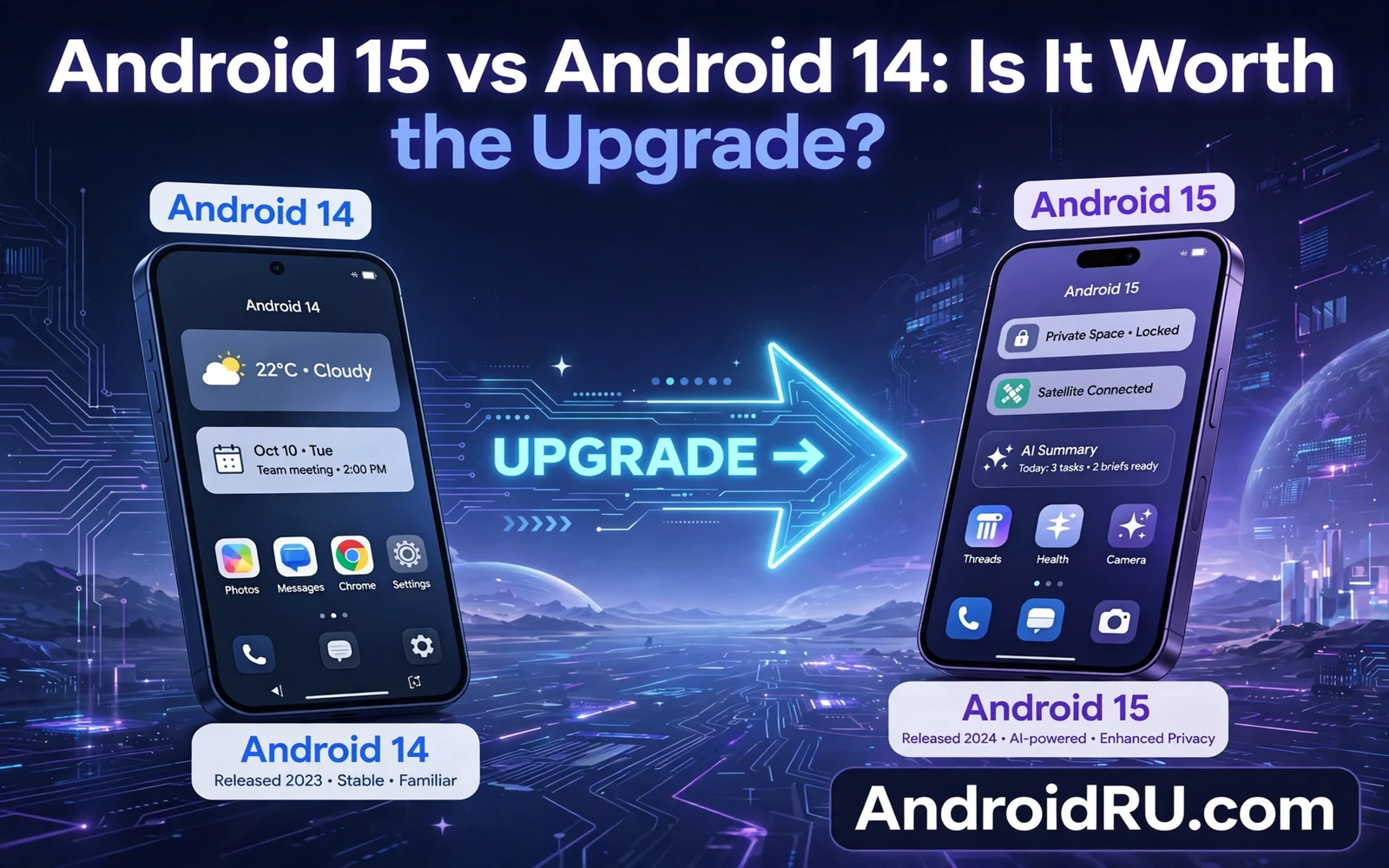
Android 15 and Android 14 share the same core idea. Both aim for a phone that is private and smooth and easy to use. Android 15 builds on Android 14 with stronger privacy tools and clearer focus tools and more flexible personalization. The upgrade is not a redesign of the whole phone. The upgrade is a refinement of areas that users touch every day. That refinement matters more for some users than for others.
This guide compares the two versions in plain language. It avoids a feature list that means nothing without context. It looks at privacy and notifications and performance and battery life and personalization. It also looks at update risk and app support. At the end you can judge if the upgrade is worth it for your phone and your habits.
Version numbers can mislead you. A higher number does not mean that every part of the phone changes. A higher number does not mean that your phone becomes faster at once. A higher number means that the maker applied a new set of system changes. Some changes are visible. Some changes work quietly in the background. Your daily routine decides which changes you will notice.
Privacy Changes You May Notice
Android 15 strengthens control over what apps can see and record and share. Partial screen sharing is a clear example. You can share one app during a video call while other apps stay hidden. Android 14 screen sharing was broader and easier to misuse by accident. The new control helps you avoid showing private notifications during a call. The new control also helps you avoid showing private messages by accident.
Permission handling also feels more precise in Android 15. Apps face clearer rules for background access. Apps face clearer rules for health data and media access. You can review permissions in a more organized manager. Android 14 already offered strong permission controls. Android 15 makes those controls easier to use in daily life rather than only in settings deep dives.
Lock screen privacy improves in a small but useful way. Sensitive notification content can stay hidden while the app name still shows. You can set a different rule for each app. A banking app can hide its preview. A news app can show its preview. Android 14 offered lock screen controls too. Android 15 makes per app rules easier to find and easier to adjust.
Data safety does not change with a version number alone. Your habits still decide how much data you share. Review permissions once a month on either version. Remove access from apps that do not need it. A version upgrade helps. A permission review helps more because it applies to the apps you actually use.
Notifications And Focus
Notification handling is calmer in Android 15 for many users. Alerts can be grouped more clearly by app. Alerts can be silenced for a set time with less effort. Important contacts can break through silence when you allow them. Android 14 offered focus modes too. Android 15 refines how those modes interact with apps and contacts.
Focus modes in Android 15 let you shape work time and rest time with more detail. Each mode can allow a different set of apps. Each mode can allow a different set of contacts. Each mode can change the home screen layout. Android 14 focus modes covered the basics well. Android 15 adds polish that makes a mode easier to trust during a busy day.
Notification history helps when you dismiss an alert by accident. Both versions offer a way to review recent alerts. Android 15 presents that history in a clearer layout. A clearer layout helps you find a missed message faster. A missed message can still cause trouble on either version if you never check history. Make history checking a habit after a busy period.
The practical gain is time and attention rather than a single feature. Fewer useless alerts mean fewer interruptions. Clearer focus modes mean fewer accidental breaks. Better grouping means faster scanning. If notifications already feel calm on Android 14 then this area alone may not justify an upgrade. If notifications feel chaotic then Android 15 may feel like a real improvement.
Performance Battery And Storage
Performance gains in Android 15 come from better background management. The system limits work from apps that you do not use. The system gives priority to apps that you use now. The result is smoother scrolling in daily apps for many phones. The result is not a dramatic speed jump. The result is a steadier feel during normal use.
Android 14 already managed background work well. Android 15 tightens those rules further. An app that drains battery in the background on Android 14 may drain less on Android 15. An app that behaves well on Android 14 will behave well on Android 15 too. Do not expect a slow phone to become fast from a version upgrade alone. A slow phone may need storage cleanup or a battery check as well.
Battery life depends on your apps and screen and network more than on version number. Android 15 power tools help you see which app uses power. Android 15 power tools help you restrict an app that runs too often. Android 14 offered similar battery tools. The upgrade helps users who actually open battery settings and act on what they see. A user who never checks battery settings will see little change.
Storage handling improves in a quiet way. App archiving removes app files while keeping your data and icon. You can reinstall an archived app later and restore your data. Android 15 makes archiving easier to find. Android 14 offered archiving in a more limited form. Archiving helps when storage is tight. Archiving does not replace deleting large files that you already backed up.
Personalization And Look
Personalization in Android 15 builds on the Material You system from Android 14. Dynamic color picks a palette from your wallpaper. That palette flows through menus and buttons and widgets. Android 15 refines color contrast and widget layout. The home screen feels more unified. The home screen also feels easier to read in more wallpaper choices.
Lock screen shortcuts gain more flexibility in Android 15. You can place shortcuts for camera and flashlight and wallet and device controls. Android 14 offered lock shortcuts too. Android 15 makes them easier to customize without a deep settings hunt. A shortcut that you set in a calm moment can save time in a hurry. A shortcut that fails in a hurry is worse than no shortcut at all.
Widget behavior is smoother in Android 15 for many users. Widgets update more reliably. Widgets use less background power in many cases. Android 14 widgets worked well for core apps. Android 15 polish shows most in third party widgets that update often. If you use few widgets then this area will not drive your upgrade decision.
The visual difference between the two versions is modest. Your wallpaper and theme may look almost the same after the upgrade. Your home screen layout should stay in place. Your apps should open in the same way. A modest visual change is good news. It means that you do not need to relearn the phone after the upgrade.
Security And Update Support
Security is the strongest reason to upgrade when your phone supports Android 15. A newer version receives newer patches for longer. A newer version closes flaws that an older version may never fix. A newer version also brings newer permission rules that protect new apps. Security support length matters more than any single new feature in this comparison.
Android 14 will still receive patches for a time on supported models. That time is limited by the maker support window. Android 15 extends that window for eligible models. Check the support window for your exact model before you decide. A model near the end of Android 14 support gains more from the upgrade. A model with long Android 14 support left gains less urgency.
App support follows the same pattern. New apps may target newer system features over time. Old versions keep running most apps for years. A few new apps may need a newer version for a specific feature. A banking app or work app may one day require a newer version for security reasons. An upgrade now avoids a forced upgrade later at an inconvenient time.
Patch speed also favors the newer version on many models. Makers prioritize the newest version for monthly patches. Older versions may receive patches on a slower cycle. A slower cycle leaves known gaps open longer. If patch speed matters to you then the upgrade carries real value beyond visible features.
App Compatibility And Upgrade Risk
Most apps work on both versions without any change. Messaging apps and email apps and maps apps and banking apps usually survive a version upgrade cleanly. A few apps may need an update after the system upgrade. Open your app store after the upgrade and install pending updates. Test each core app before you rely on it for urgent work.
Older apps can behave differently after an upgrade. An app that targets an old system version may face stricter permission rules. An app that uses an old media method may face new restrictions. Most developers update their apps for new versions. A niche app with no recent update may break. Check the update date of any niche app that you depend on before you upgrade.
Upgrade risk is low when you prepare well. Back up photos and messages before the upgrade. Charge the phone to a high level. Connect to stable Wi-Fi for the download. Free storage if the updater warns about space. Do not interrupt the install once it starts. A prepared upgrade rarely causes data loss.
Beta users face a different risk profile. A beta build of a new version can contain bugs that a stable build does not contain. A stable upgrade from Android 14 to Android 15 is safer than a beta jump. Wait for the stable release if your phone is your main work tool. Test a beta only on a second device or when you accept the risk fully.
Is It Worth The Upgrade For You
Upgrade soon if your phone is eligible and your core apps are current. Upgrade soon if patch support for Android 14 is ending on your model. Upgrade soon if notification chaos or privacy gaps bother you daily. Upgrade soon if you want longer support and newer permission rules. These reasons together make a strong case for the move.
Wait a short time if your phone is your only work tool and the stable release just arrived. Wait a few days and watch for reports of app problems. Watch for reports of battery problems. Watch for reports of network problems. If no major problem appears then upgrade with confidence. A short wait costs little and can save a workday.
Stay on Android 14 for now if your phone is not eligible for Android 15. Stay on Android 14 if a critical niche app has no update for the new version. Stay on Android 14 if you are in the middle of urgent travel or work and you cannot afford a test period. An upgrade can wait for a calm week. A calm week gives you time to test and to fix any surprise.
Privacy and focus and personalization in new Android 15 features for your phone matter most when each theme matches a daily pain point. A theme that matches a daily pain point is worth more than a theme that sounds impressive. Match privacy controls to apps that hold sensitive data. Match focus tools to hours when interruptions hurt most.
A stable upgrade keeps your data in place through the normal updater while installing the latest Android beta on Google Pixel can require a rollback that wipes data. Choose the stable path when your phone must work every day. A beta jump suits a second device better. A beta jump suits a curious user who accepts data risk.
Maker and model and region shape the rollout and whether your phone will get Android 15 depends on all three factors together. A phone that never receives the upgrade stays on Android 14 by force rather than by choice. A phone that receives the upgrade late still gains longer support. Check eligibility before you plan around a feature that your phone may never receive.
Quick Checklist
- Check eligibility for your exact model and region
- Back up photos messages and files before the upgrade
- Charge the phone and use stable Wi-Fi
- Free storage if the updater warns about space
- Update apps after the system upgrade finishes
- Test messaging banking maps and work apps
- Review permissions after the upgrade
- Watch for app problems for a few days after install

