

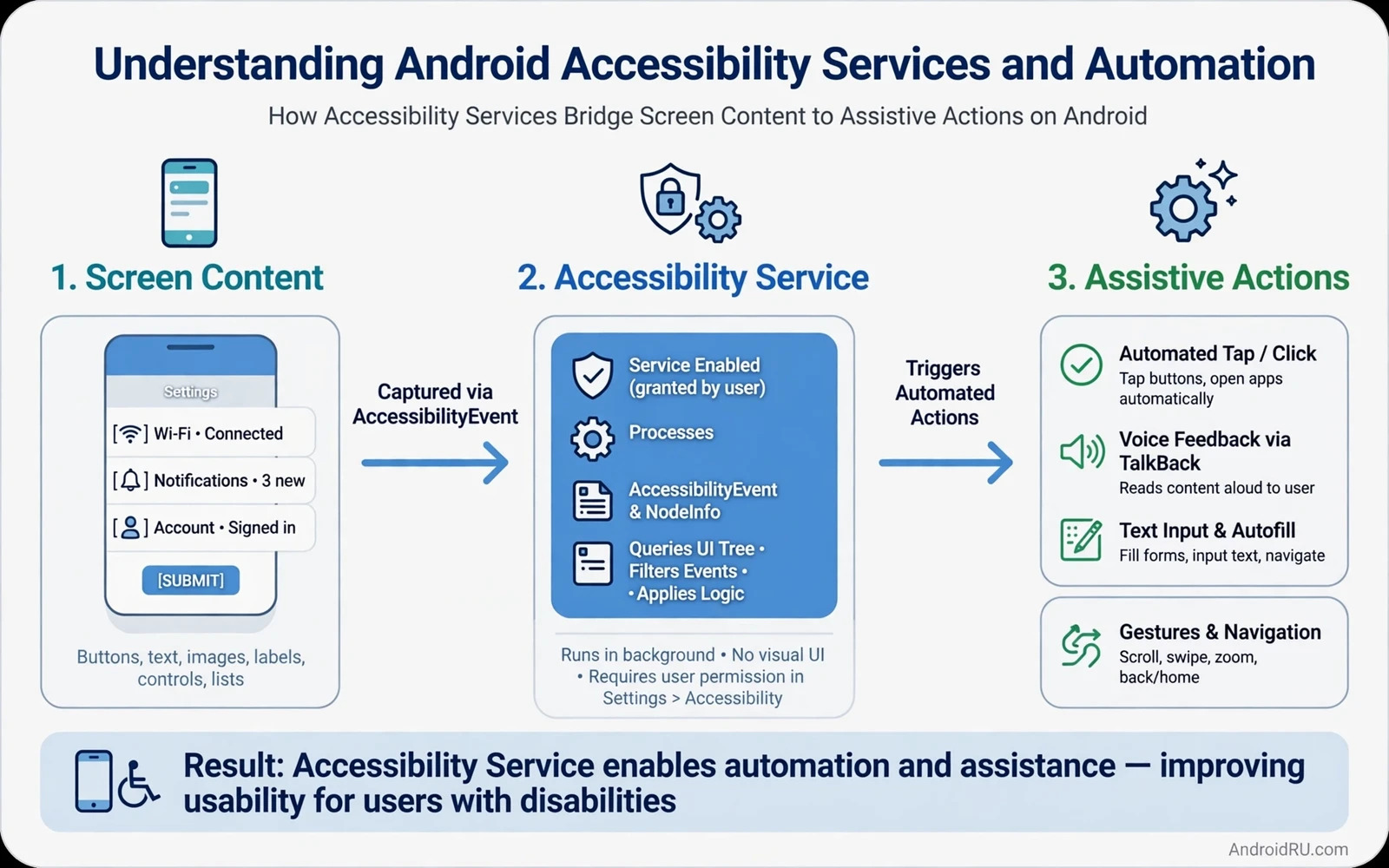
Accessibility services help users who interact with phones in different ways. A screen reader speaks screen content aloud. A switch access tool lets a user control the phone with a single switch. A voice access tool lets a user control the phone by voice. These services run with broad power because they must read screens and perform actions on behalf of the user. That power demands careful design and honest disclosure. This guide explains how the services work and where automation must stop.
An accessibility service declares its capabilities in a configuration file. It states which event types it wants and which feedback types it provides. It states whether it can retrieve window content and perform gestures. The system shows those capabilities to the user before enabling the service. The user grants the service only after reading that disclosure. A service that requests more power than its feature needs breaks user trust at the first screen.
Automation built on accessibility services can perform taps and scrolls and text entry for the user. That ability helps users with motor differences complete tasks independently. The same ability can abuse apps when used to scrape content or bypass controls. Developers must design automation for the user benefit first. Any automation that acts without the user intent crosses from assistance into misuse.
<!-- accessibility service config -->
<accessibility-service
    android:accessibilityEventTypes="typeAllMask"
    android:accessibilityFeedbackType="feedbackSpoken"
    android:canRetrieveWindowContent="true"
    android:description="@string/service_description" />
How services receive events
The system sends accessibility events when the interface changes. A window state change and a view focus change and a scroll event all generate events. The service receives events for the apps and windows its configuration allows. It can inspect the view hierarchy for the active window when retrieval is enabled. That hierarchy includes text and descriptions and bounds for each element. Content descriptions matter because a screen reader reads them aloud when text is absent.
Services should filter events aggressively. A service that processes every event from every app wastes battery and risks reacting to irrelevant screens. Filter by package and by event type in configuration where possible. Filter further in code by checking the active window before acting. A focused service reacts fast and stays out of the way. A broad service feels sluggish and unpredictable.
Event timing also matters. Events arrive as the interface changes and may arrive in bursts during animations. Debounce rapid events before acting on them. A service that taps during an animation may tap the wrong element after the layout settles. Wait for a stable state when the action depends on layout. Patience in code prevents actions that confuse the user.
Performing actions safely
Services perform actions through accessibility nodes. A node represents a view that supports an action such as click or scroll or set text. The service finds the node for the target element and dispatches the action. It should verify the node identity before acting because layouts change between inspection and action. Acting on a stale node can tap the wrong control. Refresh the hierarchy when an action target looks uncertain.
Gestures add another action path. A service can dispatch swipe and tap gestures at screen coordinates. Gestures suit controls without accessible nodes such as custom drawn canvases. Coordinates depend on screen size and orientation. A gesture tuned for one device may miss on another. Prefer node actions over raw gestures whenever a node exists. Node actions adapt to layout changes while coordinates do not.
Every automated action should trace back to user intent. A user who presses a switch expects one action. A user who speaks a command expects that command only. A service that chains many actions from one trigger should show progress and allow cancellation. Silent long chains feel like loss of control. Visible progress with a stop option keeps automation trustworthy.
Design accessible apps first
Apps should expose proper accessibility information without any special service. Set content descriptions on icons and images that carry meaning. Use native controls that expose state such as checked and selected. Keep touch targets large enough for reliable interaction. Test with a screen reader during development rather than at the end. An app that works with a screen reader needs less automation to be usable.
Material design guidance supports accessible structure through roles and labels and contrast. Readers who design interfaces can continue with the piece on Material Design 3 guidelines for developers and apply its accessibility rules to every new screen. Good native accessibility reduces the need for workarounds and improves the experience for all users.
Dark theme and font scaling interact with accessibility too. A screen that breaks at large font size fails the users who need that size. Readers who handle theme changes can continue with the piece on implementing dark theme support in apps and test accessibility behaviour in both themes. Accessibility is a property of the whole interface rather than a single feature.
Privacy and security limits
Accessibility power creates serious privacy risk when misused. A service that can read window content can read passwords and messages and banking screens. The system warns users clearly before enabling such a service. Developers must never request accessibility access for a feature that does not need it. A clipboard manager or a battery saver has no legitimate need to read every screen. Stores and system policy increasingly reject such requests.
Authentication screens deserve special protection. A service should never auto fill or auto confirm a biometric prompt or a password screen on behalf of an app. Readers who protect authentication can continue with the piece on implementing biometric authentication in Android apps and keep authentication flows free of automated confirmation. The user must perform authentication personally. Automation that bypasses authentication defeats its purpose.
Data handling inside a service needs the same care as data handling inside an app. A service that reads screen content should process it locally and avoid sending it to a server unless the feature truly requires it. When server transfer is required disclose it clearly and minimise the data sent. A service that silently uploads screen content will lose user trust permanently once discovered.
Automation use cases that help
Switch access helps users with limited movement navigate the whole phone with one or two switches. Voice access helps users control the phone hands free. Screen readers help users with vision differences use apps that expose proper labels. These are the core use cases that justify accessibility power. Design and test for these users first. Their feedback reveals interface problems that automated testing misses.
Task automation for personal productivity can help when the user defines the task and triggers it. A user defined macro that fills a repetitive form saves effort. A macro that runs without user knowledge or that scrapes another app data crosses the line. Keep user defined automation visible and editable and reversible. A macro list the user can inspect builds trust. A hidden macro engine invites suspicion.
Testing tools also use accessibility APIs to drive apps automatically. Test automation runs on test devices with test accounts. It should never run against production accounts or production data without explicit consent. Separate test automation from user facing services in code and in distribution. A test tool shipped inside a consumer app creates a backdoor that attackers can exploit.
Ship responsible accessibility features
Write a clear disclosure that explains what the service does and why it needs each capability. Use plain language without technical jargon. Show the disclosure inside the app before directing the user to system settings. A user who understands the request grants it confidently. A user who faces a vague request denies it or grants it fearfully. Both outcomes hurt the feature.
Test with real assistive technology users when possible. Lab testing with a screen reader on for an hour reveals issues that a checklist misses. Test with switch access and with voice access on real tasks. Record the tasks and the pain points. Fix the top pain points before adding new automation features. Accessibility quality grows through user testing rather than through feature count.
Accessibility services carry great power and great responsibility. Use that power only for genuine user benefit and disclose it honestly and minimise data use. An accessibility feature built on those principles helps users live more independently. A feature built on hidden automation harms users and harms the ecosystem that accessibility depends on.
Testing with assistive users
Testing with assistive technology users reveals issues that automated checks miss. A screen reader user may find a logical order problem that a label check cannot see. A switch user may find a focus trap that a manual test overlooks. Recruit testers who use assistive technology daily and pay them fairly for their expertise. Their feedback is professional insight rather than a favour.
Structure test sessions around real tasks. Ask a screen reader user to complete a purchase or send a message with the app. Observe where the flow breaks and note the exact screen and control. Task based testing produces actionable findings. Feature based testing produces vague praise that hides real barriers. Real tasks keep testing honest.
Fix accessibility findings by priority of task blocking. A bug that blocks checkout outranks a bug that mislabels a decorative icon. Publish fixes in release notes with clear language so assistive users know what improved. Release notes that mention accessibility fixes build trust with the community that depends on them. Silence about fixes leaves users guessing whether to retry a blocked task.
Keep an accessibility regression suite for core tasks. Automate label checks and focus order checks where possible. Run manual task tests before major releases. A suite that runs every release prevents regressions that a one time audit cannot catch. Accessibility quality is a maintained property rather than a launch achievement.

