

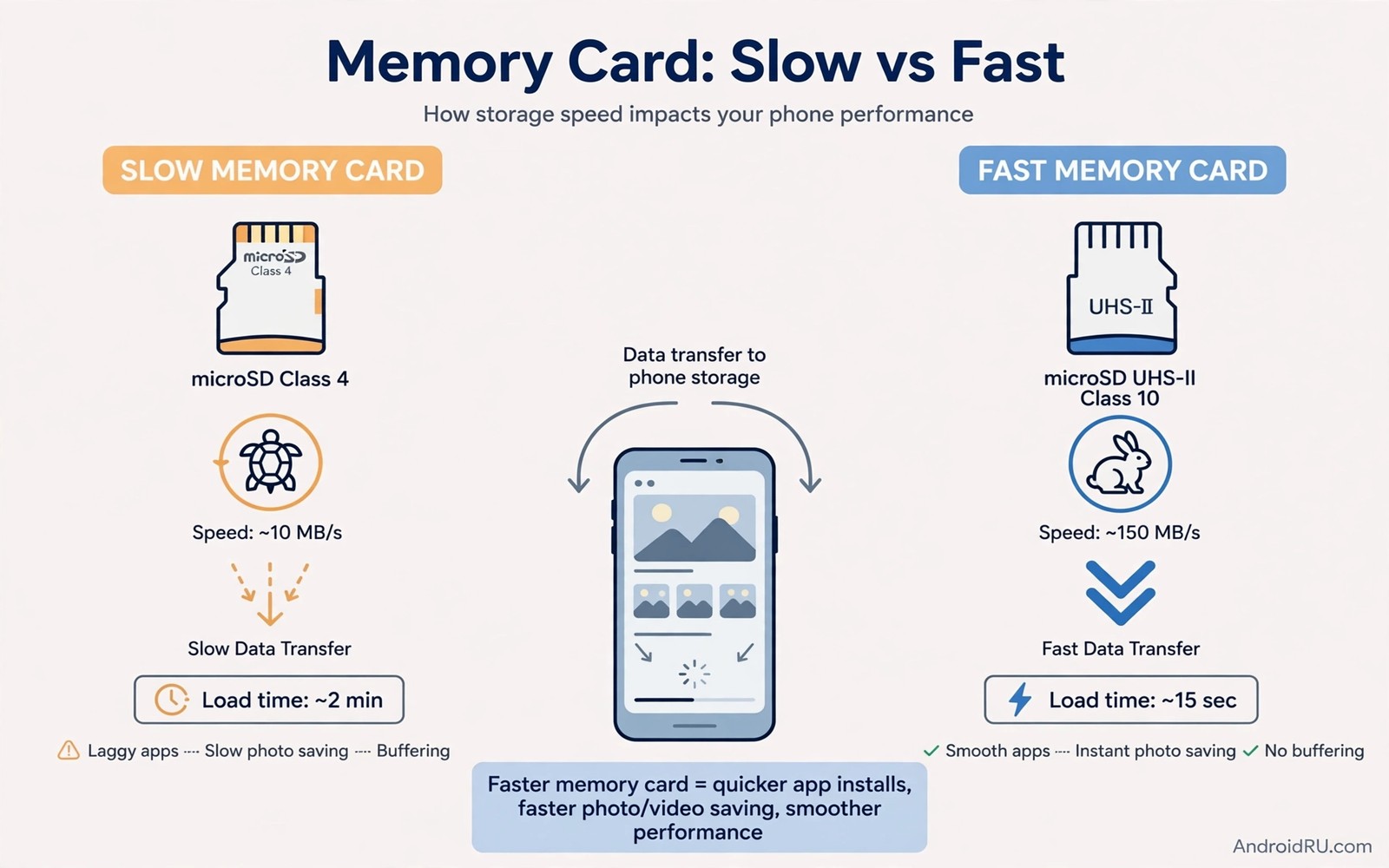
A slow memory card turns a capable phone into a frustrating device. Photos take seconds to save. Apps moved to the card stutter on launch. File transfers crawl while the progress bar barely moves. The card often takes the blame yet the real cause may sit in its class or its format or its file layout.
Speed starts with matching the card to the job. A card built for a camera may handle large video writes well yet struggle with the small random reads that apps demand. A card built for app storage handles small reads better. Knowing that difference prevents a purchase that looks fast on paper but feels slow on a phone.
Check the card class and real speed
Look for speed class marks on the card and on its packaging. A class mark for video speed matters for recording while an application performance class matters for app use. A card rated for app use handles many small files with less delay. A card without that rating may still store photos well yet disappoint as app storage.
Test the card with a trusted speed test app that measures both sequential and random speeds. Sequential speed shows large file transfer performance. Random speed shows app launch performance. A card with strong sequential speed but weak random speed explains why transfers feel fine while apps feel slow. Replace a card that fails both tests.
Format the card correctly for Android
Format the card inside the phone rather than on a computer when the phone offers that option. Phone formatting chooses a file system and an allocation size that suits Android. Computer formatting can choose settings that waste space or slow small writes. Back up the card fully before any format because formatting erases everything.
Choose portable storage for media and adoptable storage only when you understand its trade-offs. Portable storage keeps the card readable on other devices. Adoptable storage encrypts the card to one phone and ties it to that device. Readers who weigh that choice can explore using adoptable storage rules without cluttering internal storage for a detailed comparison.
Reduce small file overhead
Thousands of tiny files slow a card far more than a few large files. Thumbnails and caches and chat media create exactly that tiny file load. Clean thumbnail folders and limit cache growth to keep the file count sane. A card with fewer files to track responds faster to every request.
Archive old photos into a single compressed file before moving them to the card. A single archive transfers faster than thousands of separate images. Keep the archive on a computer as well so the card copy is not the only copy. This habit helps both speed and safety.
Keep apps on internal storage when speed matters
Move only media to the card and keep performance-sensitive apps internal. Games and camera apps and launchers suffer most from a slow card. Photos and music and documents tolerate a slower card with little visible harm. That split gives the best balance between space and speed on most phones.
Test an app on the card for a day before committing to the move. Launch it several times and watch for delays in loading screens. Move it back if delays appear. A card that serves media well does not automatically serve apps well.
A small check for card health
List large folders on the card to find fragmentation from many small files. A folder with thousands of tiny files deserves archiving or cleanup. A card that stays nearly full also slows down because it struggles to find free blocks. Keep at least ten percent of the card free for healthy writes.
df -h /storage/XXXX-XXXX
find /storage/XXXX-XXXX -type f | wc -l
The snippet above was written for this article to show one safe way to check card free space and file count. It reads storage information and it changes nothing on the phone. Replace the card path with the actual mount path shown in your file manager.
Choose the right card for each use case
Different use cases demand different card strengths. A dashcam or a security camera needs sustained write speed for continuous video. A phone used for app storage needs random read speed for small files. A phone used mainly for photo storage needs balanced sequential speed for large images. Buying a card for the wrong use case wastes money and disappoints in daily use. Match the card rating to the actual job before purchase.
Read independent speed tests for a card model before buying because manufacturer ratings describe ideal conditions. Real phones and real file mixes produce lower speeds than laboratory tests. A card that performs well in independent phone tests will perform well in your phone. A card that only looks good on its packaging may disappoint quickly.
Maintain card health with regular checks
Card health declines gradually and regular checks catch decline early. Run a speed test every few months and compare the result with the original test. A steady decline signals wear that will eventually cause errors. Replace a declining card before it fails during an important save. A proactive replacement costs less than a data recovery attempt.
Check the card for physical damage during each removal. A cracked casing or bent contacts can cause intermittent errors that look like software problems. Handle cards by their edges and store them in protective cases when not in use. Physical care extends card life noticeably over years of use.
Optimise file transfers to and from the card
Transfer speed depends on more than the card itself because the source and the cable and the reader all affect the result. A slow USB reader can bottleneck even a fast card. A direct phone transfer over Wi-Fi may beat a slow reader for large files. Test different transfer methods for large archives and choose the fastest reliable method. A good transfer method saves hours over the life of a card.
Transfer large files in single sessions rather than in many small interruptions. Interrupted transfers create fragmented file layouts and increase error chances. A single uninterrupted transfer completes faster and leaves a cleaner layout. Schedule large transfers during quiet periods when the phone will not be disturbed.
Plan card replacement before failure
Cards have a finite lifespan measured in write cycles and years of use. A card that served for five years deserves retirement even when it still works. Replace ageing cards during a planned migration rather than during an emergency. A planned migration copies files calmly and verifies each copy. An emergency replacement rushes the copy and risks missing files.
Keep a spare card ready for critical trips and events. A spare card in a bag costs little and it rescues a trip when the main card fails. Format the spare card before the trip and test it with a few photos. A tested spare card provides confidence that an untested spare cannot offer.
Compare card brands through long-term reliability
Card brands differ in long-term reliability even when their speed ratings look identical on packaging. A brand with a strong warranty and a reputation for consistent controllers offers better long-term value than a cheaper brand with variable quality. Read long-term user reviews that describe card behaviour after a year of use rather than only first impressions. A card that performs well after a year deserves preference over a card that excels only in its first week.
Register the card warranty after purchase and keep the receipt in a safe place. A warranty claim for a failing card can replace the card at no cost when failure occurs within the warranty period. A receipt also helps prove purchase date when a warranty dispute arises. Small administrative steps after purchase protect a larger investment in storage reliability.
Test card speed after formatting and after filling
Card speed changes after formatting and after filling because a freshly formatted card writes faster than a nearly full card. Test speed immediately after formatting to establish a baseline for that card. Test speed again when the card reaches eighty percent full to see how much performance drops under load. A card that slows dramatically when full needs a lower fill target to maintain acceptable speed. A card that maintains speed when full can safely hold more data. Baseline testing turns card management from guesswork into measurement. Users who test at both points understand their card behaviour and they can plan storage use accordingly. That understanding prevents frustration when a card that felt fast when empty suddenly feels slow when full during an important task.
Common mistakes
One common mistake is buying the cheapest card with the largest capacity. Cheap cards often use slow controllers that bottleneck every transfer. Spend a little more on a card with an app performance rating. Another mistake is filling a card to the last megabyte. A full card slows writes and increases corruption risk.
People also format a card without a backup and lose years of photos. Back up first and verify the backup before formatting. Readers who protect card data can explore formatting memory cards properly to stop losing data for a safe formatting workflow.
Frequently asked questions
Will a faster card fix app stutter?
It helps when the card causes the stutter. Check random read speed first because that metric drives app launch. If internal storage already hosts the app then a card change will not help.
Does formatting speed up a card?
Formatting can help when file clutter or a wrong file system slows writes. Back up first because formatting erases all data. A failing card will stay slow even after a format.
Can I use a card for 4K video recording?
Yes with a card rated for sustained video writes. Check the video speed class before recording. A card without that rating may drop frames during long recordings.
Conclusion
MicroSD speed depends on card class and format and file layout and app placement together. A card rated for app use and formatted on the phone and kept partly free performs far better than a cheap full card. Keep demanding apps internal and let the card serve media.
Your concrete next step is to run a speed test on your card today and note its random read result. Move one stuttering app back to internal storage if that result looks weak. Readers who want more space ideas can next explore auto moving camera photos to an SD card right after snapping and storage hacks for owners of a 64 gigabyte smartphone as follow-ups.

