

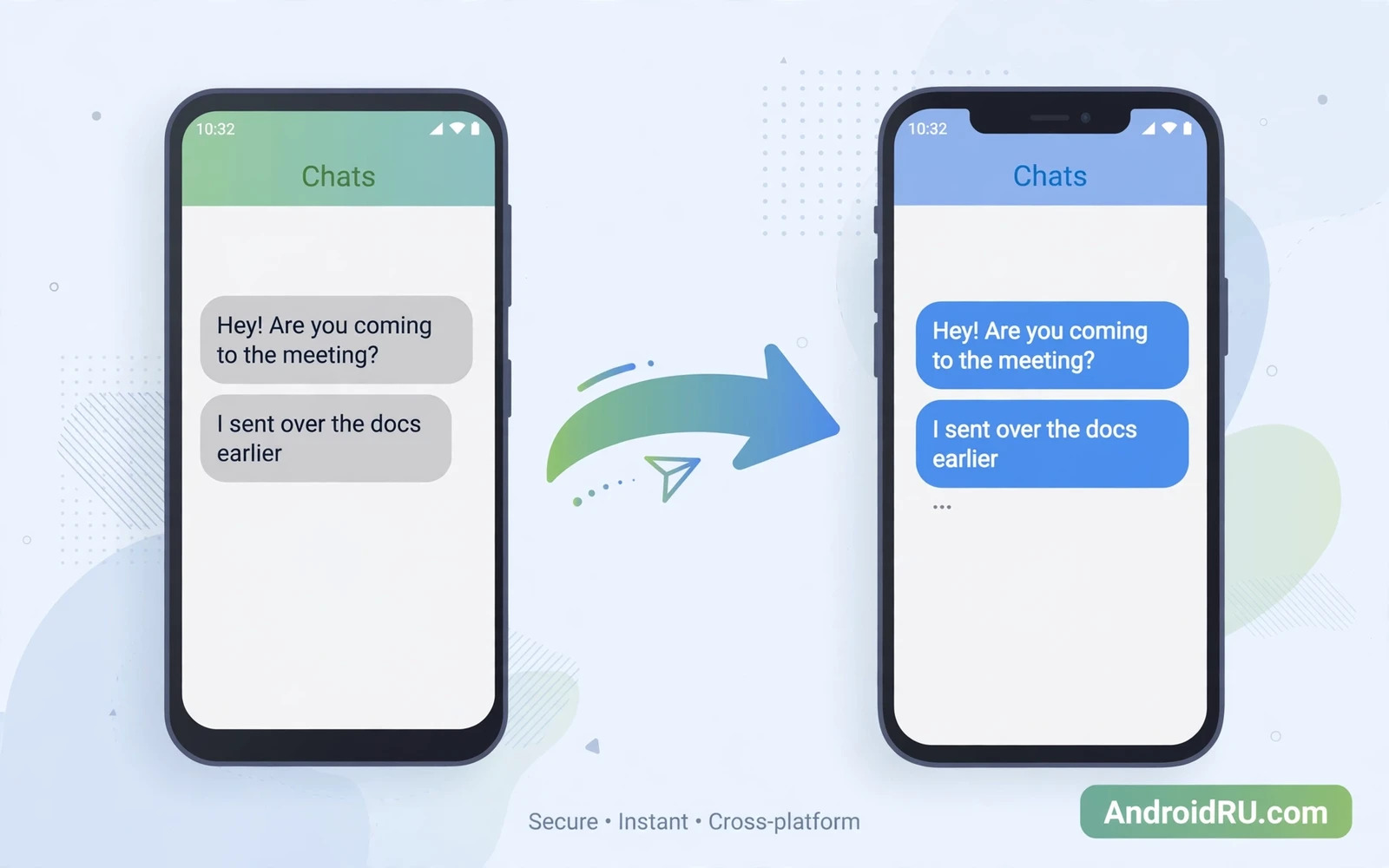
Why WhatsApp Transfer Needs Care
WhatsApp messages hold family photos and work notes and years of conversation history that cannot be recreated from memory. A rushed phone switch can leave chats on the old phone while the new phone starts empty. The official transfer path exists to move that history safely but it has strict conditions that must be met before the first step. Both phones must stay powered and close together and the new iPhone must be in its setup stage for the cleanest result. A short preparation phase protects a history that took years to build.
Readers who have moved data between phones before will recognise the same backup-first habit in Step-by-Step Guide: How to Transfer Data from iPhone to Android and that habit matters even more for chat history. A verified backup gives you a fallback if the direct transfer stops halfway. A direct transfer without a backup leaves you with no second chance. Take the extra hour to prepare and your chats will thank you later.
What You Need Before You Start
Charge both phones fully or keep them plugged in during the whole transfer because a dead battery in the middle can corrupt the process. Connect both phones to the same stable Wi-Fi network and keep them within a short distance of each other. Update WhatsApp on the Android phone to the newest version that your phone supports. Check that the iPhone has enough free storage for the full chat history including photos and videos. Free space on the iPhone should exceed the size of the WhatsApp data on the Android phone by a comfortable margin.
Sign in to the same phone number on both devices during setup because WhatsApp ties history to that number. Do not start WhatsApp on the iPhone before the transfer because a started account can block the migration path. Keep the Android phone unlocked and keep its screen awake during the transfer. Turn off any battery saver mode that could pause the transfer app in the background. A stable power and network setup removes the most common causes of a failed move.
Use Move To iOS For The Official Path
Install the Move to iOS app on the Android phone from the official store before you begin. Start the iPhone setup and reach the Apps and Data screen and choose Move Data from Android. A code will appear on the iPhone and you must enter that code in the Move to iOS app on the Android phone. Choose WhatsApp from the data list when the app asks what to move. Keep both phones on the transfer screen until the process finishes and do not switch apps during the move.
When the transfer completes open WhatsApp on the iPhone and sign in with the same phone number. WhatsApp will ask whether you want to restore the transferred data and you should accept that prompt. Wait for the restore to finish before you send new messages because new messages can mix with the restore queue. Check a few old chats and a few media files to confirm that history arrived intact. A quick spot check catches a partial transfer before you wipe the old phone.
Official path
Move to iOS > Code on iPhone > WhatsApp selected > Restore on iPhone
When The iPhone Is Already Set Up
A new iPhone that is already set up cannot use the cleanest Move to iOS path without a reset. You can reset the iPhone to factory settings and start setup again if you have not yet added important data to it. Back up anything on the iPhone first because a factory reset removes all data on that device. This step feels drastic but it is the honest way to use the official migration path on a phone that is already in use. Do not reset a phone that holds unique data without a backup.
If a reset is not acceptable then keep WhatsApp on the Android phone until you can plan a proper migration window. Export single important chats as a stopgap but understand that an export is not a full restore. An exported chat file can be read and searched but it will not merge into the WhatsApp chat list on the iPhone. Treat an export as an archive and not as a transfer. Plan the full migration for a quiet evening when both phones can stay undisturbed.
Check Chats Media And Groups After Transfer
Open your most active chats and scroll back to older messages to confirm that text history is complete. Open a chat with many photos and check that images load without a download error. Open a group chat and confirm that your membership and group name appear correctly. Check that starred messages still appear in the starred list if you used that feature. A group or a starred item that is missing signals a partial transfer that needs attention before you erase the old phone.
Check voice messages and documents separately because large media files are the first items to fail in a weak transfer. Play one old voice note and open one old document to confirm that media files moved with the text. If media files are missing then check the storage setting on the iPhone and check whether media auto-download is paused. A missing media file may still be recoverable from the Android phone before you wipe it. Never wipe the old phone on the same day as the transfer.
Keep The Old Phone Until You Are Sure
Keep the Android phone powered and untouched for at least a few days after the transfer. Use the iPhone as your daily phone during that period and watch for any chat that looks incomplete. If you find a gap then you still have the original history on the old phone to compare against. Wiping the old phone too early turns a small gap into a permanent loss. Patience is the cheapest insurance for chat history.
A full device backup before any wipe is a habit worth keeping and the restore steps in How to Backup and Restore Android Data Safely and Fully explain that safety net in plain steps. Back up the Android phone before the transfer and keep that backup until the iPhone history is verified. A backup does not replace the transfer but it gives you a second source if something goes wrong. A careful user never relies on a single copy of important data.
Common Transfer Failures And Fixes
A transfer that stops at a fixed percentage often points to a Wi-Fi drop or a battery saver pause. Move both phones closer to the router and turn off battery optimisation for the transfer app. Restart both phones and start the transfer again from the setup screen if the app allows a retry. A second attempt after a network fix often succeeds where the first attempt stalled. Do not force close the transfer app repeatedly because each interruption can leave partial data behind.
A code mismatch usually means that the iPhone setup screen timed out or the Android app was opened too early. Return to the iPhone setup screen and generate a fresh code and enter it promptly. Check that both phones use the same Wi-Fi network and that no VPN is active on either phone. A VPN can block the direct connection that the transfer needs. Turn off the VPN for the transfer and turn it back on after the migration finishes.
Privacy And Safety Warnings
Never use an unofficial transfer tool that asks for your WhatsApp code or your Google account password. A tool that promises a one-tap transfer for a fee can steal chat history or lock your account. Use only the official store apps and the official setup screens on both phones. Check the developer name and the download count before you install any helper app. A legitimate transfer never asks you to share a verification code with a stranger.
Be careful with public Wi-Fi during a transfer because an open network can drop and can expose traffic to other users on the same network. Use a trusted home network for the migration and keep both phones in your sight during the process. Do not leave the phones unattended in a public place while the transfer runs. A private network and a watchful eye keep a personal history personal.
Final Checklist For A Safe Switch
Confirm that chats and media and groups look complete on the iPhone and the file habits in How to Transfer Files Between Android and PC (Wirelessly & USB) remind you to keep a second copy of anything valuable. Confirm that the old phone still holds the original history for a few days. Confirm that your phone number and profile name match on the new device. Confirm that notifications and backups are set up on the iPhone for future protection. A short checklist prevents a painful discovery weeks later.
Plan The Switch Day Carefully
Choose a quiet evening for the transfer and warn contacts that you may be offline for a short time. A calm evening gives both phones time to complete the transfer without interruption. Charge both phones before you start and keep chargers nearby in case the process takes longer than expected. A planned switch feels smooth while a rushed switch invites mistakes.
Write down your WhatsApp phone number and your profile name before you start the migration. A written note prevents a typo during sign-in on the new phone. Keep the old phone number active until the transfer is verified because WhatsApp ties history to that number. A number change during migration can block the restore path completely.
After the transfer send a test message to a trusted contact and ask them to reply. A two-way test proves that sending and receiving both work on the new phone. Check that your profile photo appears correctly and that your status text is intact. A full test covers more than old chats and it confirms that the new account is healthy.
Set up a regular chat backup on the iPhone once the transfer is verified. A cloud backup on the new phone protects future chats from a lost or damaged device. Check the backup setting once a month and confirm that the last backup date is recent. A fresh backup turns a future phone switch into a simple restore instead of a stressful migration.
Keep the old phone charged and nearby for a full week after the transfer even if the new phone seems perfect. A week of daily use can reveal a chat that was missed during the first check. A second week check of older groups and starred messages gives extra confidence. Only wipe the old phone after that week has passed without any gap appearing.
Plan the transfer for a quiet time and prepare both phones and verify the result before you wipe anything. A WhatsApp history is a personal archive and it deserves the same care as photos and documents. A patient official transfer keeps that archive intact on your new iPhone. Your conversations should move with you and not stay trapped on a phone that you no longer use.

