

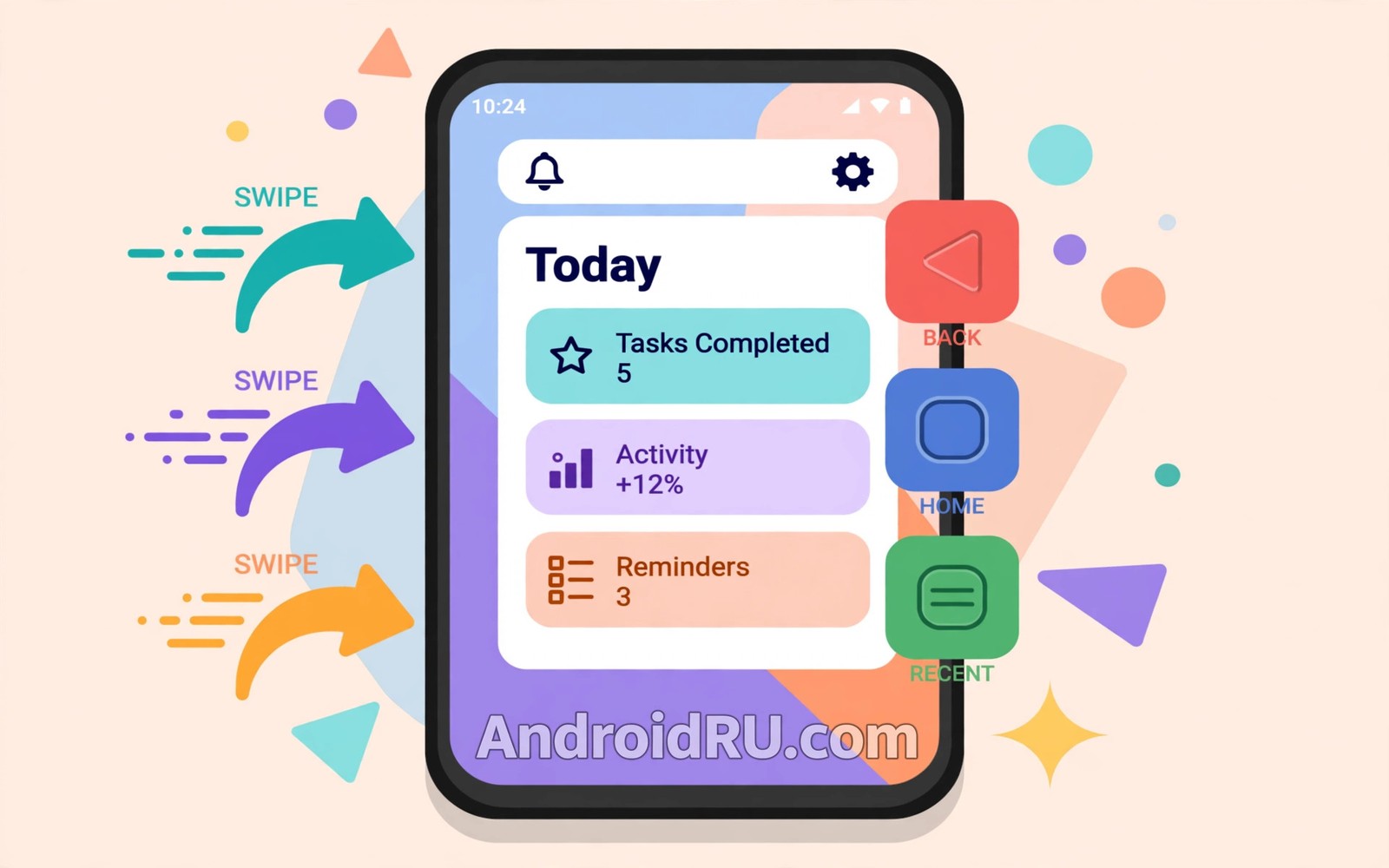
Navigation gestures change how every move on your phone feels. A swipe from the edge goes back and a swipe from the bottom goes home. Three button navigation keeps visible targets for back and home and recents. Both systems move you through apps and both reward different habits.
This guide compares gestures and buttons on speed and accuracy and comfort. You will learn how to set up each system well and how to handle edge cases like games and keyboards. You will also learn a fair test to pick the system that suits your hands. If you want the wider customization picture then read about Quick Settings efficiency tips because navigation and quick controls together define phone speed.
No system wins on every hand size or every app mix. Small hands may favor buttons for reach. Large screens may favor gestures for thumb travel. App mix matters too because games and drawing apps handle edge swipes differently. Test with your own hands and your own apps.
How each system feels in daily use
Gestures feel fluid once muscle memory forms because the thumb rarely leaves the screen edge. Home and back and recents flow from one gesture family. The screen also gains space because no button bar consumes pixels. The learning week can frustrate users who trigger back swipes by accident while scrolling feeds.
Buttons feel explicit because each action has a visible target that never moves. New users learn buttons in minutes and users with motor limits often prefer that certainty. The button bar costs screen space and it can clash with full screen media. The bar also gives a stable anchor when gestures feel slippery or ambiguous.
Edge conflicts decide many real world verdicts because apps use screen edges for their own controls. A drawing app may use edge strokes for tools and a game may use edge swipes for camera moves. Gesture navigation can steal those strokes and buttons leave app edges untouched. Check your top three apps for edge use before you commit to gestures.
Set up and test both systems
Give each system a fair trial with the same tasks so the comparison reflects habit and not novelty.
- Open Settings and then System and then Gestures or Navigation depending on your phone.
- Switch to gesture navigation and enable gesture hints if you are new to it.
- Practice home and back and recents for ten minutes with your daily apps.
- Run a timed task set of opening mail and returning home and switching apps.
- Note accidental back swipes and missed gestures during that practice period.
- Switch to three button navigation and repeat the same timed task set.
- Compare task times and error counts rather than first impressions alone.
- Keep the system with fewer errors after three days even if it felt slower on day one.
Practical tips for gesture users
Tune gesture sensitivity when the setting exists because a lower sensitivity reduces accidental back swipes. A higher sensitivity suits users who swipe from cases with thick edges. Test sensitivity with your actual case on because cases change edge feel a lot. You can also explore customization without unlocking for more stock settings that improve daily flow without risky changes.
Learn the recents gesture deeply because it unlocks fast app switching. A short swipe and hold opens recents and a quick flick along the bottom bar can jump to the last app. Many gesture users never learn the flick and they miss the biggest speed gain. Practice the flick with two apps you alternate between all day.
Keep button navigation for shared phones or for users who borrow your device often. Guests learn buttons instantly while gestures need a tutorial. A phone used by family members may serve everyone better with visible buttons. Personal speed matters less than shared usability on a shared device.
// Gesture settings concept in Kotlin
val gestureMode = "gestural"
val buttonMode = "three_button"
val currentMode = gestureMode
// The system stores one navigation mode at a time.
The snippet above follows the pattern shown in the official Android developer documentation for system navigation and in the Material Design guidelines for gesture patterns. It illustrates the mode choice in simple code and you should change the mode in Settings rather than by editing system values directly.
Common mistakes
Navigation regret usually comes from a rushed trial or a missed sensitivity setting.
- Judging gestures after ten minutes. Gestures need days for muscle memory to form. A ten minute trial measures novelty and not skill.
- Ignoring case effects. A thick case changes edge swipes and it can fake a gesture problem. Test with your daily case installed.
- Forgetting app edge conflicts. Games and drawing apps suffer most from gesture theft. Check edge heavy apps before you switch fully.
- Disabling hints too early. Hints guide the thumb during the learning week. Keep hints until gestures feel automatic.
- Switching systems daily. Daily switching prevents either system from becoming automatic. Commit to one system for at least three days.
FAQ
Are gestures faster than buttons?
Gestures are faster for practiced users because the thumb travels less. Buttons are faster for new users because targets are visible and explicit.
Can I keep buttons on one app and gestures elsewhere?
No the navigation mode is system wide. You can use in app controls to work around edge conflicts in specific apps.
Do gestures work with a keyboard open?
Yes the keyboard adds its own dismiss gesture and the system back gesture still works. Some keyboards need a settings tweak for smooth dismissal.
A seven day routine
Navigation skill builds through repeated real tasks and not through settings tours alone.
- Day one: practice home and back gestures with your five daily apps.
- Day two: practice the recents flick between your two most alternated apps.
- Day three: test edge swipes inside a game or drawing app you use.
- Day four: switch to buttons and repeat the same task set for comparison.
- Day five: time both systems on identical tasks and record error counts.
- Day six: adjust gesture sensitivity if accidental back swipes appeared.
- Day seven: commit to the lower error system for a full month.
Troubleshooting quick answers
Navigation pain usually comes from sensitivity or from edge conflicts rather than from the concept itself.
- Accidental back swipes. Feed scrolling near edges triggers back gestures. Lower sensitivity or use buttons for feed heavy use.
- Recents gesture feels awkward. The swipe and hold timing needs practice. Train it with two apps for several days before judging.
- Game controls conflict. Edge gestures can steal game camera moves. Buttons leave game edges untouched for those titles.
- Hints distract. Gesture hints help during learning and annoy after mastery. Disable hints once gestures feel automatic.
Putting it all together
Navigation is muscle memory and muscle memory rewards commitment over sampling. Switching systems daily keeps both systems awkward forever. A month with one system builds fluency that a week of sampling cannot reveal. Commit first and judge second for an honest verdict.
Hands differ and app mixes differ so the community winner may lose on your phone. A drawing app user faces edge costs that a reader never meets. A small hand faces reach costs that a large hand never meets. Personal testing beats aggregate opinion for this choice.
Revisit the choice only after a major change such as a new phone size or a new daily app. Stability between those changes lets fluency compound. Constant revisiting taxes the thumb without improving the result. Settle and enjoy the fluency.
Real world scenarios
A gamer switches to buttons because edge gestures steal camera moves. Game edges stay free for gameplay controls. The button bar costs little screen space during play. Performance in games outweighs gesture elegance elsewhere.
A reader switches to gestures because the thumb rarely leaves the screen edge. Page turns and back swipes flow from one gesture family. The extra screen space helps long reading sessions. Fluency after a week beats button familiarity.
A shared family tablet keeps buttons so grandparents and children learn instantly. Guests navigate without a tutorial on every visit. Shared usability beats personal speed on a communal device. Buttons serve the household better than gestures here.
Checklist before you finish
A navigation choice is settled when it passes this fair test.
- Both systems were tested on identical timed tasks.
- Error counts were recorded rather than relying on first impressions.
- Each system got at least three days of real use before judgment.
- Gesture sensitivity was tuned with the daily case installed.
- Edge heavy apps were tested for gesture conflicts.
- Recents flick gesture was practiced before judging gesture speed.
- Hints were kept during the learning week for gestures.
- Chosen system was committed to for a month after the test.
What changes after a month
After a month navigation fluency feels automatic for the committed system. Gestures flow without conscious planning for practiced users. Buttons respond instantly for users who chose explicit targets. Fluency is the reward that only commitment delivers.
New apps occasionally challenge navigation habits through unusual edge use. A new game or drawing app may conflict with gestures suddenly. Buttons users never notice the conflict at all. App mix changes can reopen a settled navigation choice legitimately.
Phone size changes reopen navigation choices because reach changes with dimensions. A larger phone may favor gestures for thumb travel. A smaller phone may favor buttons for precision. Hardware changes deserve a fresh navigation test.
Teaching navigation to a new user reveals the strengths of the chosen system. Buttons teach in seconds through visible targets. Gestures teach through guided practice over days. The teaching experience mirrors the learning experience honestly.
Looking further ahead
Navigation evolution reflects a broader move from visible controls toward gesture languages across devices. Trackpads and touchscreens and phones all reduced visible buttons over time. Gestures save space and feel fluid once learned. Visible controls remain superior for discoverability and for shared devices. The coexistence of both systems on Android respects different learning curves rather than forcing one future on everyone.
Motor accessibility deserves attention in navigation debates because gestures demand precise motions that some users cannot perform reliably. Buttons offer large stable targets that accommodate tremor and limited dexterity. Gesture sensitivity settings help but cannot fully replace explicit targets for every user. Platforms should preserve button navigation permanently as an accessibility commitment. Choice here is not a preference but a necessity for many users.
Conclusion
Gestures reward practice with fluid speed and buttons reward clarity with instant learnability. Your hands and your apps should decide and not a trend or a default. A fair three day test reveals the honest winner for you. You may also enjoy font and display size settings when you want another angle on the same theme.
Your next step is to run the timed task test from this guide for both systems this week. Keep the system with fewer errors after three days. Commit to it for a month before you revisit the choice.

