

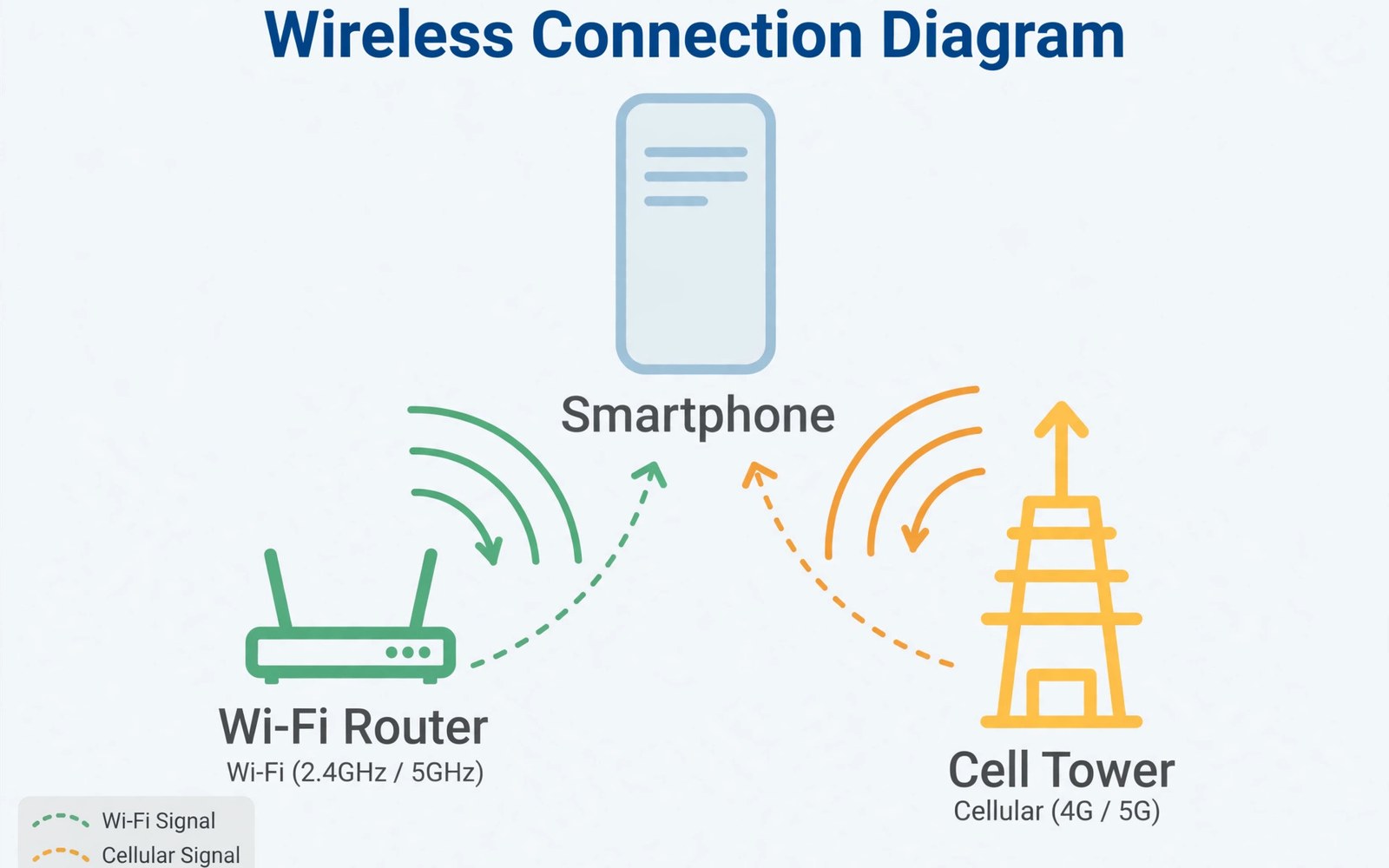
Weak mobile signal ruins calls at home and at work. Voices break up and calls drop mid-sentence. Wi-Fi calling and VoLTE solve different parts of that problem. Wi-Fi calling routes calls over your internet connection. VoLTE routes calls over the 4G data network. Both options improve clarity over old voice networks. Most Android phones support at least one of them. This article shows how to enable both correctly.
Setup takes only a few minutes on most phones. The hard part is knowing which option fits your situation. Wi-Fi calling helps where broadband is strong. VoLTE helps where 4G data is strong. Some homes need both options at different times. The sections below explain each feature plainly. They also cover fixes for common setup failures.
How Wi-Fi Calling Works
Wi-Fi calling sends your voice over the internet. Your phone connects to a Wi-Fi network first. It then builds a secure tunnel to your carrier. Calls travel through that tunnel instead of cell towers. The person you call notices no difference at all. Your normal number shows on their screen. Call quality depends on your internet connection. A stable broadband line gives excellent call clarity.
Wi-Fi calling helps most in concrete buildings. Basements and steel offices block cell signals often. Home Wi-Fi reaches those rooms with ease. Rural homes with weak towers benefit too. Any home with broadband can gain clear calls. The feature costs nothing extra on most plans. It uses your existing broadband data instead. Check your plan terms to confirm no extra fee applies.
How VoLTE Improves Voice Calls
VoLTE stands for voice over LTE data networks. It carries calls as data packets over 4G. Old networks carried calls over separate voice channels. Those channels offered narrow audio quality. VoLTE offers wider audio and faster call setup. Calls connect in seconds rather than many seconds. Voice sounds fuller and more natural. Background noise also drops on supported calls.
VoLTE keeps data active during voice calls. Old voice calls often paused mobile data entirely. VoLTE lets you browse while you talk. That multitasking helps during support calls. You can look up details without ending the call. VoLTE also enables faster handover between towers. Fewer drops occur during car journeys. Most carriers now treat VoLTE as standard service.
Enabling Wi-Fi Calling on Android
Open Settings and then Network and internet. Tap Calls or SIMs depending on your phone. Look for the Wi-Fi calling toggle. Turn it on and accept any carrier prompt. Some carriers ask for an emergency address first. Enter your home address accurately for emergency services. The address helps responders locate you on Wi-Fi calls. Without it the carrier may block activation.
Choose the calling preference after activation. Options include Wi-Fi preferred and mobile preferred. Wi-Fi preferred routes calls over Wi-Fi whenever available. Mobile preferred uses cell signal first instead. Choose Wi-Fi preferred for weak signal homes. Choose mobile preferred for strong signal areas. Test a call after changing the preference. A short test confirms the feature works before you need it.
Enabling VoLTE on Android
VoLTE usually activates automatically on supported plans. Check the toggle under SIM or mobile network settings. Look for a VoLTE or 4G calling switch. Turn it on if it sits off. Restart the phone after changing the toggle. The phone registers voice service on the data network. A VoLTE icon may appear during calls. Some phones hide the icon entirely yet still use VoLTE.
VoLTE needs carrier support on your plan and line. Older plans may lack VoLTE provisioning. Contact support if the toggle is missing. Ask them to enable VoLTE on your account. Some carriers provision it within hours. Others need a SIM replacement for old cards. Very old SIM cards may predate VoLTE support. A free replacement SIM often fixes that gap fast.
Fixing Wi-Fi Calling That Will Not Activate
Activation fails most often from an unregistered emergency address. Enter the address exactly as your carrier expects. Include apartment numbers where relevant. A mismatch blocks activation until corrected. Router settings can also block Wi-Fi calling. Some routers block the ports carriers use. Restart the router before deeper troubleshooting. A restart clears many temporary blocks at once.
VPN apps can interfere with Wi-Fi calling tunnels. Disable the VPN and test a call again. Firewall apps may block the tunnel as well. Test with security apps paused briefly. If calls work then add an exception for calling. Public Wi-Fi networks often block calling ports. Hotel and airport networks may block voice traffic. Test on home Wi-Fi before judging the feature broken. Home networks rarely block carrier voice tunnels.
Fixing Poor Audio on VoLTE Calls
Poor VoLTE audio often comes from weak 4G signal. Move near a window or step outside briefly. Signal bars predict audio quality well. Two bars or fewer often mean choppy audio. Switch to Wi-Fi calling when indoors with weak signal. Wi-Fi calling bypasses the weak cell link entirely. Check whether both callers use VoLTE service. A call to an old network loses HD audio benefits.
Software bugs also cause occasional VoLTE audio faults. Install pending system updates promptly. Updates fix modem and audio routing bugs. Reset network settings if audio stays poor. That reset erases saved Wi-Fi passwords too. Note passwords before you reset anything. Test a call after the reset completes. If audio stays poor then ask support to reprovision the line. Reprovisioning refreshes network settings from the carrier side.
Wi-Fi Calling Abroad and Travel Notes
Wi-Fi calling abroad can save roaming call fees. Calls over hotel Wi-Fi may bill as domestic calls. That billing depends on your carrier policy. Some carriers bill Wi-Fi calls abroad as roaming. Others bill them at domestic rates always. Check the policy before you rely on it abroad. Do not assume free calls from every country. A quick support check prevents a surprise bill.
Wi-Fi calling needs a stable internet link abroad. Hotel Wi-Fi varies widely in quality. Test a call before an important conversation. Use messaging apps as backup for poor hotel links. Keep the home line active for bank codes. Dual SIM travelers can pair Wi-Fi calling with a local data line. That pairing gives cheap data and reachable home calls. Readers planning trips should also review international roaming on dual SIM phones for full setup guidance.
Battery and Data Effects of Both Features
Wi-Fi calling uses little battery on stable networks. The phone already powers Wi-Fi for other tasks. Voice packets add only a small load. Weak Wi-Fi forces the radio to work harder. That effort drains battery faster over time. Move closer to the router for long calls. A closer link reduces radio power needs. Battery impact stays small for most home users.
VoLTE uses data network power during calls. That power matches normal data use levels. It adds no large drain beyond a normal call. Old voice networks sometimes used less power. The gap is small on modern phones. Data usage from VoLTE calls is tiny. Voice packets use far less than video streaming. Do not worry about data caps from voice calls alone.
Emergency Calls and Location Limits
Emergency calls behave specially on both features. Phones prefer cell networks for emergency calls. Wi-Fi calling serves as backup when no cell exists. Location accuracy may drop on Wi-Fi calls. The registered address guides responders instead. Keep that address current after any move. Update it in carrier settings at once. An outdated address delays emergency help.
Test emergency readiness without dialing emergency numbers. Never place test calls to emergency services. Check the registered address in carrier settings instead. Confirm the address matches your current home. Confirm Wi-Fi calling shows as active. Those checks prove readiness without wasting responder time. Teach family members the same checks. Everyone in a weak signal home benefits from them.
Choosing Between the Two Features
Use Wi-Fi calling where broadband is strong and cell is weak. Use VoLTE where 4G signal is strong and stable. Enable both features for maximum flexibility. The phone picks the better path per situation. Wi-Fi preferred mode suits weak signal homes best. Mobile preferred mode suits strong signal areas best. Change the preference if you move homes. A preference that fit one home may fail another. Users on capped plans should also understand data cap throttling before streaming over mobile data.
Business users should enable both before important calls. A dropped client call costs more than setup time. Test both features from the office and from home. Note which feature works better in each place. Share the findings with colleagues on the same carrier. A team that knows its calling options wastes fewer calls. Clear audio builds trust in every conversation. Invest ten minutes and enjoy clearer calls for years.
Clear Calling Setup Checklist
- Turn on Wi-Fi calling and register your emergency address.
- Turn on VoLTE or 4G calling in SIM settings.
- Set Wi-Fi preferred mode for weak signal homes.
- Test a call on home Wi-Fi before you rely on it.
- Update the emergency address after every home move.
- Disable VPN briefly when testing Wi-Fi calling problems.
Settings > Network & internet > SIMs > Wi-Fi calling ON
Settings > SIMs > VoLTE / 4G calling ON
Calling preference = Wi-Fi preferred (weak signal homes)
Test: call a friend on home Wi-Fi
Test: call a friend on mobile data outdoors
The steps above reflect standard Android calling settings on recent versions. Menu names and carrier requirements vary by phone maker and plan. Always confirm Wi-Fi calling billing rules with your own carrier before travel.
Clear Calls Start with Two Toggles
Weak signal no longer means poor calls by default. Wi-Fi calling routes voice over broadband at home. VoLTE delivers clearer audio over 4G data networks. Enable both features and set the right preference. Test calls from each room you use often. Fix activation issues with address and router checks. Clear calls follow quickly after correct setup. Users with persistent weak signal should also explore testing signal strength accurately to map dead zones at home.
Revisit settings after moving homes or changing carriers. New networks bring new provisioning needs. New homes bring new dead zones to map. A five-minute review keeps calling quality high. Share the setup with family members in the same home. Everyone deserves clear calls without shouting. Two toggles deliver that improvement for most Android users.

