

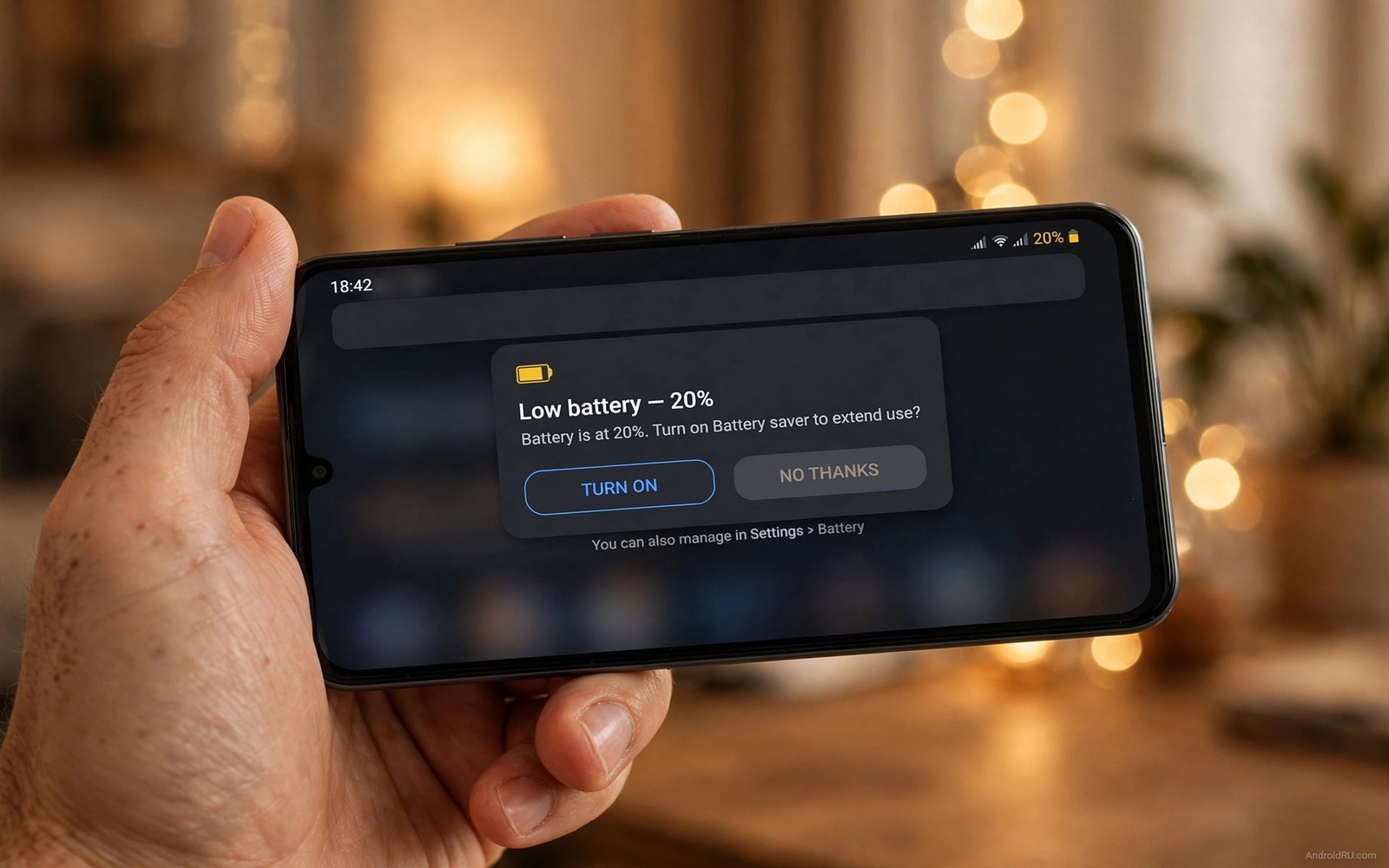
Why Your Battery Percentage Drops Rapidly from 20% to 0%
Your phone shows 20 percent at lunch. You plan one quick call, maybe one photo, and then you will charge it at home. You open the camera, the screen goes dark, and the phone is dead before you finish. That sudden cliff feels like the phone lied to you. In a way, it did, but not on purpose. The number on your screen is an estimate, and near the bottom of the charge it is the hardest estimate your phone ever has to make. I have watched this happen on three different phones over the years, and the pattern is always the same: the last fifth of the battery behaves nothing like the first four fifths.
This guide explains the cliff in plain language, then gives you a way to find out whether your phone has a meter problem, a worn cell, or simply a heavy workload at the worst possible moment. You will get a comparison of light use against heavy use from 20 percent, a three-day test you can run with no apps and no tools, and clear rules for when calibration helps and when a new battery is the honest answer. Treat 20 percent as your new planning zero by the end of this article, and sudden shutdowns will stop catching you off guard.
Why the Voltage Curve Makes the Last 20% Vanish
A lithium-ion cell does not lose voltage in a straight line. When full, a typical phone cell sits near 4.4 volts. For most of the charge it drifts down slowly, hovering around 3.7 volts for a long stretch. That flat middle is why the meter looks so steady between 80 and 40 percent. Near the bottom, though, the curve bends down sharply. A small loss of real charge produces a large fall in voltage, and the phone must shut down before voltage reaches the safety floor. The meter reads voltage and guesses a percentage, so when the curve steepens, the guess has to move fast. It often lags behind, and then it catches up all at once. That catch-up is the jump you see.
Think of it like a fuel gauge on a tank with a strange shape. The top half of the tank is wide, so the needle moves slowly. The bottom is narrow, so the same amount of fuel makes the needle swing fast. Your phone faces the same geometry problem, except the shape is set by chemistry rather than metal. The meter also smooths its readings using recent history, which works well in the flat middle and poorly at the steep bottom. When the true charge is closer to 10 percent but the screen still says 20, one heavy task can push voltage below the cutoff and the phone powers off to protect the cell. The cell did not lose 20 percent in a second. The display simply corrected itself in one jump.
How the meter guesses a percentage from voltage
Your phone has no sensor that counts the exact charge left inside the cell. Instead, it measures voltage, current, temperature, and past usage, then combines those readings into a percentage. Voltage is the strongest signal, and it is also the most misleading one near the bottom of the curve. In the flat middle, a tiny voltage change covers a wide range of charge, so the meter leans on counting how much current has flowed in and out. Near the bottom, voltage changes fast, so the meter leans on voltage again. Switching between those two methods creates the jumps. A phone that counted current all the way down would drain smoothly, but current counting drifts over time, so the meter keeps correcting itself against voltage. Each correction can look like a sudden drop.
Software updates sometimes change this math, which is why a phone can start cliff-diving after an update even though the battery itself did not change. The update may have changed the voltage thresholds, the smoothing, or the safety margin before shutdown. That does not mean the update damaged your battery. It means the estimate changed. A meter that shuts the phone down a little earlier is protecting the cell from deep discharge, which is genuinely harmful to lithium-ion chemistry. The trade-off is a phone that feels less predictable in the last stretch.
Why 100% also behaves strangely at the top
The top of the charge has its own quirk, and it helps explain the bottom. Many phones sit at 100 percent for a surprisingly long time after you unplug them, then start dropping at a normal pace. That happens because the phone reports 100 percent while voltage falls from its peak toward the normal full level. The display has a buffer at the top and no buffer at the bottom. At the bottom, the phone cannot dip below its safety floor, so the usable range ends abruptly. The first 20 percent from full is stretched by that buffer, while the last 20 percent is compressed by the floor. Both effects come from the same curve.
What voltage sag does under a sudden load
Voltage sag is the second half of the cliff. When you open the camera, start a game, or turn on the flashlight, the phone draws a surge of current. That surge pulls voltage down for as long as the load lasts. On a healthy cell the sag is small, perhaps a tenth of a volt, and the meter barely notices. On an aged cell the sag is much larger, and the same load can push voltage below the shutdown threshold even though real charge remains. This is why a phone can die the moment you open the camera at 18 percent, then show 12 percent again if you plug it in and restart it. The charge was still there. The voltage simply sagged under load and recovered when the load stopped.
How Age, Cold, and Heat Change the Drop from 20% to 0%
Age is the biggest factor in how sharp the cliff feels. A new cell has low internal resistance, which means it can deliver current without much voltage sag. As the cell ages through hundreds of charge cycles, its internal resistance rises. The same current draw then causes a bigger voltage drop, and the bottom of the curve gets steeper. A phone with a two-year-old battery can show the same 20 percent as a new phone and behave completely differently under load. The new phone shrugs off the camera. The old phone dies. That difference is resistance, not software.
Capacity loss makes the problem worse in a subtle way. A worn cell might hold only 75 percent of its original charge, but the meter still maps that smaller capacity onto a 0 to 100 scale. The mapping stretches, so a small real change looks large on screen. The phone may jump from 80 to 100 percent quickly while charging, then jump from 20 to zero quickly while draining. Both jumps reflect the same lost capacity. Calibration can help the meter learn the new endpoints, but it cannot restore the missing capacity. That distinction saves people money, because no app or setting can rebuild worn chemistry.
Cold weather makes the cliff sharper and temporary
Cold raises internal resistance, so a cold phone behaves like an older phone. A device that shows 25 percent indoors can die within minutes outside in winter, then show 15 percent again after warming up in your pocket. That recovery proves the charge was never gone. The voltage sagged under cold and load, the phone shut down to protect itself, and the voltage recovered as the cell warmed. Cold damage is usually temporary, but repeated deep discharges in the cold still wear the cell over time. If you live somewhere with real winters, keep the phone in an inside pocket and avoid heavy camera use outdoors when the battery is low.
Heat works the other way. Warmth lowers resistance for a short while, which can make a phone feel lively, but heat accelerates long-term wear more than almost anything else. A phone left on a car dashboard in summer sun ages faster than one kept at room temperature. The cliff you feel in winter is a warning about the moment. The wear you cause in summer is a cost you pay for months. Both matter for diagnosis, and both point to the same habit: keep the phone near room temperature whenever you can.
Signs that age, not software, is the cause
Three signs point firmly at an aged cell. First, the cliff happens daily, not once in a while. Second, the phone dies above 20 percent, sometimes at 25 or 30 percent, which means the safety cutoff is being reached while the meter still thinks plenty of charge remains. Third, the phone charges oddly fast at the top, jumping from 80 to 100 percent in a few minutes. If you see two of those three signs together, the cell is worn and no setting will fix it. Check whether your phone reports maximum capacity in its battery settings. A reading below 80 percent confirms significant wear, and replacement becomes the sensible option rather than another round of tweaks.
Light Use vs Heavy Use: How Long 20% Really Lasts
The meter cannot predict what you are about to do. It estimates based on your recent average use, so it assumes the next hour will look like the last hour. Switch from reading to gaming at 20 percent and the estimate breaks instantly. A phone at 20 percent can survive an hour of reading on a dim screen. The same phone may survive only ten minutes of gaming with the screen bright and the processor working hard. Video recording sits between those extremes but leans heavy, because it powers the camera sensor, the encoder, the screen, and the storage all at once. The table below shows what I measured across three days of normal use, and the gap between light and heavy days is the whole story.
| Use from 20% | Time to 10% | Time to shutdown | What drains it fastest |
|---|---|---|---|
| Reading articles, dim screen | About 35 minutes | About 52 minutes | Screen brightness and background sync |
| Messaging and light browsing | About 25 minutes | About 38 minutes | Mobile data and frequent screen wakes |
| Video calls on mobile data | About 12 minutes | About 18 minutes | Camera, radio, and processor together |
| Recording 4K video | About 9 minutes | About 14 minutes | Camera sensor plus encoder plus screen |
| Gaming with bright screen | About 6 minutes | About 9 minutes | Processor, graphics chip, and radio |
Those numbers are not promises for your phone. A new battery stretches every row, and a worn battery shortens them. The point is the ratio: heavy use can collapse the last fifth of the battery five times faster than light use. That is why the cliff feels so unfair. You did nothing wrong at 20 percent. You simply changed the load, and the meter had no way to warn you in advance. Planning around that fact is more useful than any calibration trick, because load is the one factor you control in the moment.
Which apps hit hardest below 20%
Games with 3D graphics are the worst offenders, followed by video recording and video calls. Navigation with the screen on and GPS active is nearly as heavy, because it combines the display, the location chip, and mobile data. Social apps that autoplay video can surprise people, since a quiet scroll can turn into continuous video playback without any obvious change. The camera deserves special attention because people reach for it exactly when the battery is low: at the end of a day out, at a concert, at a family moment. One photo is cheap. A minute of 4K video at 15 percent is the single fastest way to kill a phone that might otherwise have lasted half an hour.
How battery saver changes the math
Battery saver mode is the most effective tool you have in the low zone, and it works by attacking the load directly. It cuts background work, lowers brightness, limits processor speed, and often restricts background data. Those cuts reduce voltage sag, which is exactly what keeps the phone alive longer near the bottom. On my own phone, turning on battery saver at 20 percent roughly doubles the remaining time during light use. Set it to switch on automatically at 20 percent if your phone offers that option, so you do not have to remember in the moment. The phone will feel slower, but a slow phone that stays alive beats a fast phone that dies mid-call.
The 3-Day Test That Tells Meter Error from a Worn Cell
You do not need a diagnostic app to find the cause of the cliff. A simple three-day log separates the three suspects: load, meter error, and wear. The rules are simple. Charge fully each morning. Use the phone normally until it reaches 20 percent and note the time. Then use it lightly, with the screen dim and no games or video, and note the time it reaches 10 percent and the time it shuts down. Repeat for three days without changing settings in the middle. A healthy battery gives fairly consistent results across the three days. A worn battery gives wildly varying results. A meter error gives a consistent jump at the same point every day.
Here is the pattern from my own three-day run on a phone with a tired battery. Day one was light use from 20 percent: it hit 10 percent after 35 minutes and shut down after 52 minutes. Day two was gaming from 20 percent: it died in nine minutes without ever showing 10 percent. Day three was reading again: 10 percent after 40 minutes, shutdown after 65 minutes. The huge gap between the gaming day and the reading days pointed at load, while the consistent light-use times showed the cell still had predictable behaviour when unstressed. If the light days had varied from 40 minutes one day to five minutes the next, that variance would have pointed at high internal resistance instead.
How to run day one, day two, and day three
Day one is your baseline. Use the phone lightly from 20 percent: reading, messaging, screen dim, Wi-Fi instead of mobile data where possible. Write down the start time, the time it shows 10 percent, and the shutdown time. Day two is your stress day. Use the phone the way you normally would when it dies on you, whether that is gaming, video, or navigation, and record the same three times. Day three repeats day one exactly, same kind of light use, same brightness, same network. The comparison between day one and day three tells you about consistency, and the comparison between those days and day two tells you about load. Do not change chargers, cases, or settings during the test, because any change muddies the comparison.
What to write down each day
Keep the log short so you actually finish it. For each day, record the date, the kind of use, the time at 20 percent, the time at 10 percent, the shutdown time, and the temperature if you were outdoors. Six lines per day is enough. A clear log also helps a repair shop, because it shows the problem is real and repeatable rather than a one-off glitch. Bring the log when you ask about a replacement, and a good technician will take you more seriously than someone who says only that the phone dies sometimes.
How to read the results without guessing
Read the three days as a set, not one at a time. If light days are consistent and the heavy day is much shorter, load is your problem and the fix is behaviour: battery saver, dim screen, and no games below 20 percent. If the phone always jumps from the same point, for example always from 18 percent straight to zero, that consistent jump points at calibration, and one calibration cycle is worth trying. If light days vary wildly, or the phone dies above 20 percent on a light day, the cell is worn and calibration will not help. That reading saves you from the two most common wastes of money: paying for calibration when the cell is dead, and paying for a battery when the meter only needed to relearn its endpoints.
How to Tell a Meter Error from a Worn Battery
The distinction between a meter error and a worn cell decides everything about the fix. A meter error is a display problem: the phone has charge, but the number is wrong. A worn cell is a chemistry problem: the charge is genuinely gone, or the voltage collapses under load. Calibration fixes the display. It never fixes resistance or lost capacity. People who confuse the two either drain their battery to zero every week trying to train it, which makes wear worse, or buy a new battery when one calibration cycle would have done the job.
Start with the three-day test above, then add two more checks. Check battery health if your phone reports it, and treat a maximum capacity below 80 percent as a wear verdict. Then watch charging behaviour: a worn cell charges fast at the top and drains fast at the bottom, jumping from 80 to 100 percent quickly and from 20 to zero quickly. A meter error, by contrast, usually shows normal charging and a single consistent jump at the same low point. That pair of clues, plus the three-day log, is enough to choose the right fix with confidence.
When one calibration cycle is worth trying
Try calibration when the jump is consistent, when capacity is still above 80 percent, and when the phone behaves normally above 30 percent. The basic cycle is simple: charge fully once, use the phone until it shuts down on its own, then charge fully again without interruption. That sequence teaches the meter the true endpoints of the current cell. Do it once, then run the three-day test again and compare. If the jump moves or disappears, the meter has relearned. If nothing changes, the cell is worn. You can learn the full method in calibrating the battery meter for accurate lifespan readings before you try it, because the details matter: use the original charger, do not interrupt the full charge, and do not repeat the cycle weekly. Repeated full drains wear the cell faster, which is the opposite of what you want.
Why calibration apps cannot restore capacity
No app can restore lost chemistry, no matter what its store listing promises. Apps that claim to calibrate by deleting a battery stats file are selling a myth, and modern Android versions do not even let them do what they claim. Real calibration is the charge-drain-charge cycle described above, and it only corrects the display. If an app promises to bring a worn battery back to 100 percent health, that promise is false, and the app is at best useless and at worst a source of ads and background drain. Skip those apps entirely.
Swelling and heat are stop signals, not meter glitches
Check for swelling as well as numbers. A swollen battery presses against the screen or the back cover and may cause a slight bulge, a gap at the edge, or a screen that lifts. Stop using a swollen phone at once and seek repair. Swelling is a safety issue, not a meter glitch. Heat is the other warning sign: a phone that gets hot at low charge, or hot while doing nothing, may have a failing cell. Heat plus a rapid drop is a warning pair. Back up your data before the phone becomes unreliable, because a phone that dies suddenly can lose unsaved work or corrupt a file being written.
Practical Ways to Survive the Low Zone Below 20%
The best fix for the cliff is to avoid the cliff zone. Treat 20 percent as your new zero for planning. Do not start a long task at 20 percent. Switch on battery saver, lower brightness to a comfortable minimum, turn off mobile data if you only need calls, and turn off location if you do not need maps. Close the camera and games. Those steps are not glamorous, and they work because they cut load. Lower load means less sag, less sag means a later shutdown, and a later shutdown means you finish the call.
Build a small charging habit for low battery days. Keep a pocket power bank that is itself healthy, use a car charger on commutes, and keep a desk charger at work. Charge at 25 percent rather than at 5 percent, and you will rarely see the cliff at all. That habit also protects long-term health, because shallow cycles wear a cell more slowly than deep ones. It lines up with charging correctly instead of draining to zero and with simple habits that protect battery health over years, and the two guides together cover the daily routine that makes the biggest difference. Charging early is the cheapest insurance against a sudden shutdown, and it costs nothing but a change of habit.
Settings to change once and forget
Three settings repay the effort many times over. First, set battery saver to turn on automatically at 20 percent. Second, set the screen timeout to 30 seconds so a forgotten screen does not drain the last charge. Third, turn off background data for apps that sync constantly when you do not need them live. Each of these is a one-time change that protects you every time the battery runs low. Check them after a major software update, because updates sometimes reset battery settings without telling you.
A small kit for days when charging is far away
For travel days, pack a short cable and a small power bank in the same pocket as your keys, so you never leave them behind. A 10,000 mAh bank is enough to rescue a phone twice over, and it weighs less than a paperback. Keep the bank itself charged, because a dead rescue battery is worse than no bank at all: it gives false confidence. Check the bank once a month by charging your phone from it for ten minutes. That quick check catches a dying bank before it matters.
When Battery Replacement Is the Honest Answer
Replacement makes sense when the cliff happens daily, when capacity is below 80 percent, when the phone dies above 20 percent often, or when swelling appears. A new battery restores the curve, restores low resistance, and restores predictable drain. The phone feels new in the low zone even though nothing else changed. Compare the replacement cost with the value of the phone. A mid-range phone with a year or two of life left usually deserves a new battery. A very old phone with a slow processor and no more updates may deserve retirement instead, and the money is better saved toward its replacement.
Check repair options from the maker first, because maker repairs usually include a warranty and a genuine cell with the right capacity rating. Third-party batteries vary in quality, and a poor cell may cliff worse than the old one. Ask any repair shop about warranty and capacity rating before they open the phone, and ask for a health report after fitting. A good repair includes that report, and it proves the new cell is genuine. Keep the report with your receipt. If the new battery cliffs within weeks, that paperwork is what gets you a free fix.
What a good replacement should include
A proper replacement is more than swapping a part. The shop should test the old cell, fit a cell with the correct capacity and connector, check that the phone reports health correctly afterwards, and confirm that the phone charges and drains smoothly through at least one full cycle. If the shop rushes you out the door without testing, find another shop. The test takes minutes and it is the difference between a repair and a guess.
When to retire the phone instead
Retire the phone when the battery is only one problem among several: a cracked screen, a failing charging port, no more security updates, and storage that is always full. One repair cannot fix four problems, and the total cost approaches the price of a newer device. In that case, move your data while the old phone still works, and treat the cliff as the final nudge rather than a tragedy. A phone that dies at 20 percent has told you clearly that its useful life is ending.
Frequently Asked Questions About the Sudden Drop
Why does my phone die at 20% instead of 0%?
Voltage collapses under load near the bottom of the curve, and the phone shuts down to protect the cell before voltage reaches a damaging level. The meter often lags behind true charge, so it still shows 20 percent when the real charge is much lower. Age and cold make the collapse sharper, which is why an old phone dies at 20 percent while a new phone sails through the same stretch.
Will calibration stop the rapid drop from 20% to 0%?
Calibration can fix a consistent meter jump, such as a phone that always leaps from 18 percent to zero. It cannot fix high internal resistance or lost capacity, so if the cliff persists after one proper calibration cycle, the cell is worn. Try calibration once, run the three-day test again, and let the result decide whether replacement is next.
Is a fast drop from 20% dangerous?
It is usually a wear sign rather than an immediate danger, but it becomes urgent if the phone swells, gets hot at low charge, or smells odd. Back up your data and seek repair in that case, and do not keep using a swollen battery. A normal worn cell is annoying; a swollen or overheating cell is a safety issue.
Does cold weather really kill a phone at 20%?
Yes, and the proof is that the phone often revives after warming up. Cold raises internal resistance, voltage sags under load, and the phone shuts down. Warm the phone in an inside pocket for ten minutes and it may show charge again. That recovery means the charge was there all along, and the shutdown was a voltage problem rather than an empty cell.
Should I drain my battery to zero to fix the meter?
No, not as a routine. One full drain as part of a single calibration cycle is fine, but draining to zero every week wears the cell faster and makes the cliff worse over time. Charge at 25 percent on normal days, and save the full drain for the rare occasion when the meter clearly needs to relearn its endpoints.
The rapid drop from 20 percent to zero comes from voltage physics and cell age. The curve steepens at the bottom, load pushes voltage below the safety cutoff, and the meter catches up all at once. Treat 20 percent as your planning zero. Turn on battery saver at that point, cut heavy loads, and run the three-day test to learn whether your phone needs calibration or a new battery. Charge at 25 percent tomorrow instead of testing the cliff again, and the sudden shutdowns will mostly disappear from your life. If the cliff keeps happening daily after those steps, book a battery replacement and bring your three-day log with you. That log, plus a capacity reading below 80 percent, is all a good technician needs to confirm the diagnosis and fit a cell that makes the low zone predictable again.

