

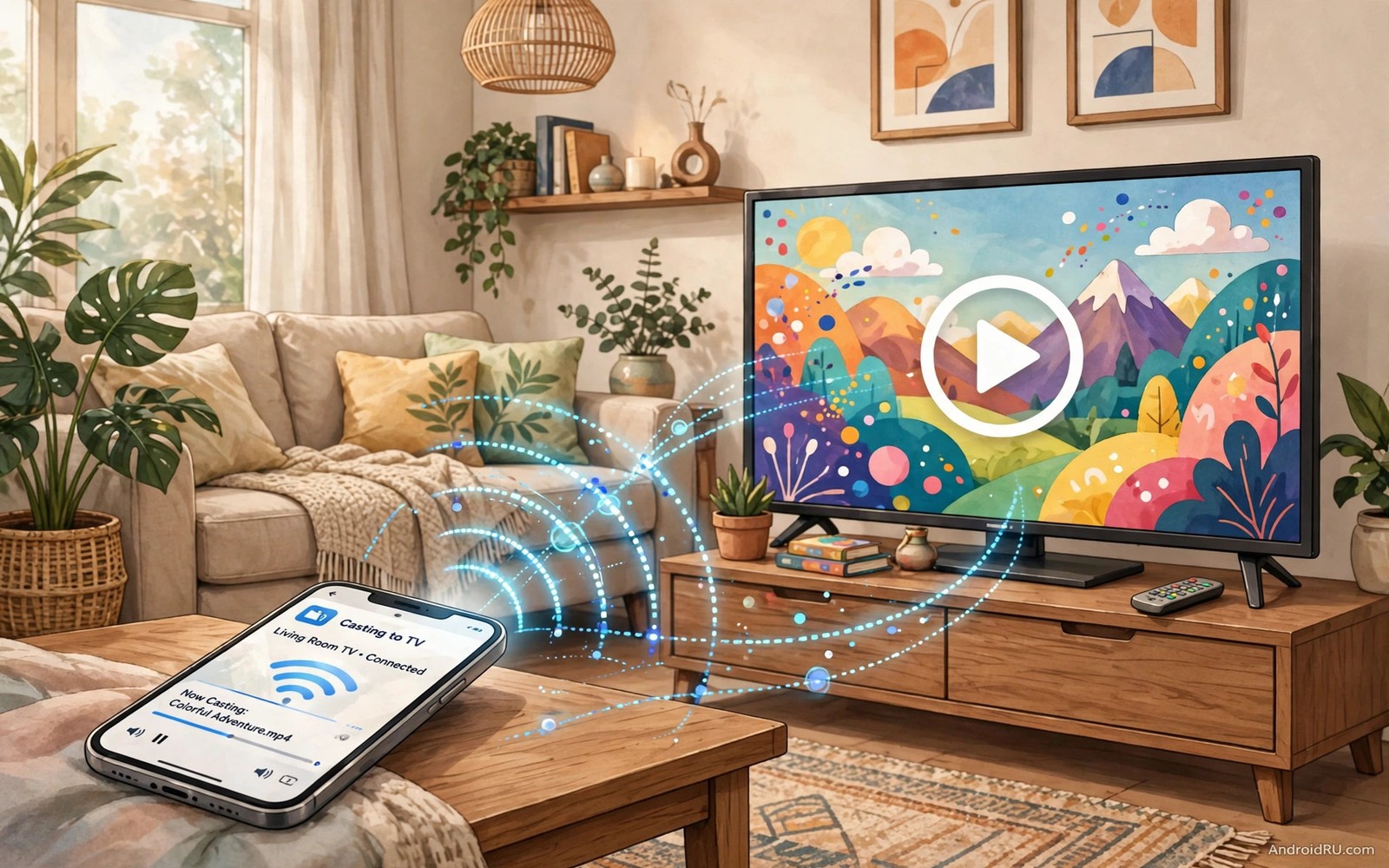
Watching web videos on Android TV through a browser feels like a chore. Typing addresses with a remote takes forever and video controls hide behind tiny buttons. Many web videos play poorly in a television browser because the browser was never designed for lean back viewing. A better path sends the video to a proper player app on the television. The player handles playback smoothly and the remote controls it naturally. The browser never needs to open.
Start by understanding the two main paths for browser free playback. Casting sends a video link from a phone to the television. A player app on the television then streams the video directly. Downloading saves a video file to the television and a local player opens it. Casting suits streaming and downloading suits offline viewing. Both paths beat a television browser for comfort. The casting guide in how to cast a phone screen to a TV without a router covers the connection basics that make casting reliable.
Cast a video link from your phone
Open the video on your phone and look for a cast or share option. Many video sites support casting to Android TV devices on the same network. Tap cast and choose the television. The television player opens the video directly. Your phone becomes a remote that can pause and seek without touching the television remote.
Keep the phone and television on the same Wi-Fi network for casting. A phone on mobile data cannot cast to a television on home Wi-Fi. A guest network may also block casting because it isolates devices. Use the main home network for the most reliable casting experience.
Use the phone to queue the next video while the current one plays. Queueing keeps a viewing session flowing without returning to a browser. A smooth queue turns a single video into an evening of viewing. That flow is exactly what a television browser cannot offer comfortably.
Use a dedicated video player app
A dedicated player app on Android TV handles many video formats and network streams. Open the player and enter a network address or open a shared folder. The player streams the video with proper controls for seeking and subtitles and audio tracks. Those controls feel natural with a remote. A browser player hides the same controls behind mouse style menus.
Set the player as the default for video links when Android TV offers that choice. A default player opens automatically when you cast a link. That automation removes one decision from every viewing session. It also keeps playback consistent across different video sources.
Adjust player settings for your television once. Set the preferred audio language and subtitle size and playback speed behaviour. Those settings carry across videos and they prevent repeated tweaking. A player tuned once feels effortless forever after.
Play videos from local network storage
Local network storage holds videos that many devices can share. A computer or network drive can serve videos to the television player over Wi-Fi. Open the network folder in the player app and browse videos by name. The television streams each video without a browser and without a cloud upload. Local streaming also works when internet service slows down because the file never leaves the house.
Organise local videos into folders by topic or by series. Clear folder names help remote navigation enormously. A folder named Documentaries beats a folder named New Folder for finding a video quickly. Good organisation turns a large library into a pleasant browsing experience.
Check video format support before you build a large local library. Most modern players handle common formats well. Older or unusual formats may need conversion on a computer first. Convert a test file and play it on the television before you convert a whole collection. That test prevents wasted conversion time.
Handle sites that resist casting
Some video sites block direct casting or require login inside a browser. A share to player workflow can still help in those cases. Copy the video link on the phone and paste it into a player app that accepts network addresses. The player may stream the video when the site allows direct playback. When a site blocks that path respect its limits and use its official app instead.
Official apps for major video platforms give the best experience for their own content. Install the official app when it exists for Android TV. Official apps support subscriptions and watch history and recommendations. A generic player cannot replace those features for a platform you use daily. Use generic players for open web video and official apps for platform video.
Keep expectations realistic for live web streams. Live streams need stable bandwidth and low delay. A wired network connection helps live playback more than any player setting. Connect the television with Ethernet when live streams stutter over Wi-Fi. A stable wire beats a strong wireless signal for live content.
adb shell am start -a android.intent.action.VIEW -d "https://example.com/video.mp4" -t "video/mp4"
adb shell pm list packages | grep -i player
The snippet above was written for this article to show how advanced users open a video link in a player through a computer connection. It starts a view action for a video address and it lists player packages on the device. Replace the example address with a real video address you own rights to play. The everyday path for most readers uses cast or share from a phone.
Build a viewing queue for the week
A weekly viewing queue turns scattered web videos into a planned evening programme. Save interesting videos during the week in a playlist or a note. Open the queue each evening and pick from it rather than browsing aimlessly. A queue reduces decision fatigue after a long day. It also ensures good videos do not vanish into browser history.
Share the queue with family members so everyone can add to it. A shared queue reflects household taste rather than one person taste. Children can add educational videos and adults can add documentaries. A shared queue makes television feel collaborative. It also prevents arguments about what to watch because the queue already holds agreed options.
Review the queue weekly and remove videos that no longer interest you. A stale queue grows until it feels overwhelming. A fresh queue of ten good videos beats a stale queue of a hundred forgotten links. Pruning takes five minutes each Sunday. That habit keeps the queue inviting rather than intimidating.
Pair the queue with download habits for travel or outages. Download a few queue videos to the television or phone when internet service feels unstable. Downloaded videos play smoothly regardless of network conditions. A small downloaded reserve guarantees an enjoyable evening even during an outage. That reserve turns a network failure into a minor inconvenience.
Respect creators when playing web video
Web video creators rely on views and engagement on their own platforms. Casting a video to a television still counts as a view in most cases. Downloading a video for personal offline use differs from redistributing it. Keep downloaded videos private and never share them publicly. Respecting creators keeps good content coming for everyone.
Support creators you watch often through legitimate means. A subscription or a like or a comment helps more than silent viewing. Those actions signal value to platforms and creators. A supported creator produces more of the content you enjoy. Viewing habits shape what gets made next.
Avoid tools that strip creator credits or advertisements in ways that violate platform terms. Such tools may break playback and they may expose the television to malware. Legitimate playback paths protect both the viewer and the creator. Choose official apps and casting for platform content whenever they exist.
Use subtitles for noisy rooms
Subtitles help web video viewing in noisy living rooms where dialogue gets lost. A subtitle track keeps the story clear even when children play nearby. Subtitle size matters on a television viewed from afar. Increase subtitle size in the player settings for comfortable reading. Large clear subtitles transform a noisy viewing session into an enjoyable one.
Check subtitle availability before starting a long video. Some web videos lack subtitle tracks entirely. Others offer subtitles in limited languages. Knowing availability early prevents disappointment halfway through a video. A quick check at the start saves switching videos later.
Common mistakes
The biggest mistake is fighting a television browser for an hour when casting takes a minute. A browser on a television serves occasional searches well. It serves regular video viewing poorly. Switch to casting early and save the frustration.
Another mistake is casting over a guest network and wondering why the television never appears. Guest networks isolate devices for security. Move both devices to the main home network for casting. That single change fixes most discovery failures.
A third mistake is expecting every web video to cast perfectly. Some sites restrict playback to their own apps. Respect those limits and use the official app for that content. A generic player cannot force a restricted site to cooperate.
Frequently asked questions
Can I watch any web video without a browser?
Most open web videos cast or play in a player app well. Sites with strict playback restrictions need their official app. Check the site support for casting when a video refuses to play.
Why does casting fail on a guest network?
Guest networks often block device discovery between guests. Both devices must share a network that allows local discovery. The main home network usually allows it.
Is local network playback better than streaming?
Local playback avoids internet slowdowns and it works during outages. Streaming suits new content you do not own locally. Use local playback for a personal library and streaming for discovery.
Conclusion
Browser free web video on Android TV comes from casting links and using a proper player app. Those two tools replace clumsy remote typing with smooth remote playback. Your concrete next step is to open one web video on your phone tonight and cast it to the television and control it from the phone for five minutes. If playback feels smooth then casting is your new default for web video. If discovery fails then move both devices to the main home network and try again. The home screen guide in how to customize the Google TV home screen and the soundbar guide in how to fix sound delays on soundbars will make the viewing experience even smoother after playback works.

